View the details for an alert from the Portfolio Health overview
You can view the details for an alert from the Portfolio Health overview.
To view the details for an alert from the Portfolio Health dashboard:
- In the portfolio Alerts section, find the alert you want to view the details for, and in the Actions drop-down menu on the right, select View All Alerts. The Alerts list opens and is filtered to display the trial associated with the alert. For example:
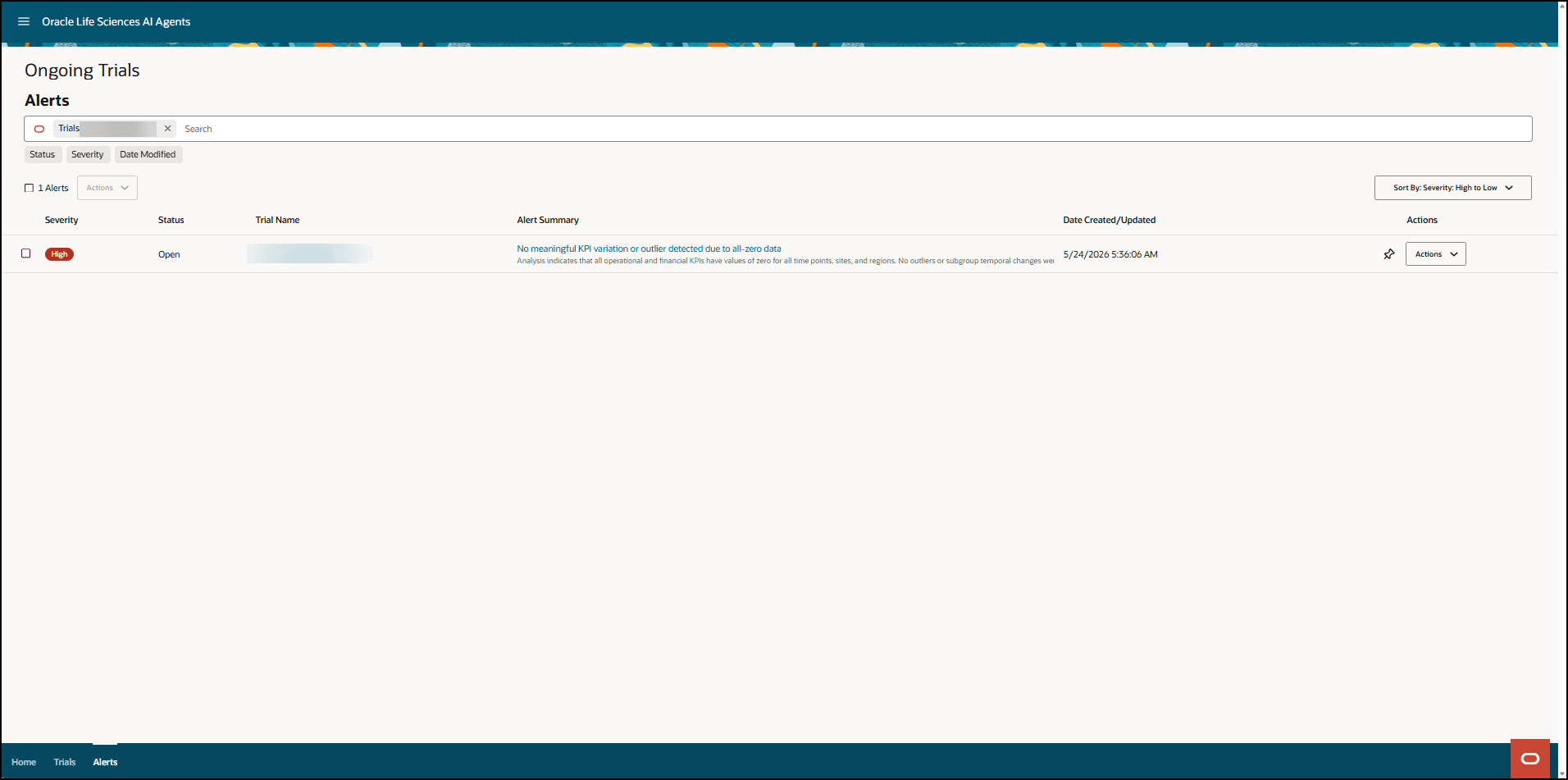
- Do one of the following to open the [Alert Name] details page.
- In the Alert Summary column, select the [Alert Name] link (highlighted in blue).
- In the Actions column on the right, select View Alert Details from the Actions drop-down menu.
The [Alert Name] details page opens. For example:
![[Alert Name] details page](img/alertnamedetails_fromfilteredlist.png "[Alert Name] details page")
Parent topic: View the portfolio alerts