View the portfolio alerts
As a user with access to all trials, you can view the AI-generated alerts for all ongoing trials in the portfolio. The highest priority alerts for each trial appear in the Portfolio Health overview.
The alerts are prioritized based on risk severity (Critical, High, Moderate, or Low). For each alert you can view its risk severity, associated trial name, alert title, and alert summary.
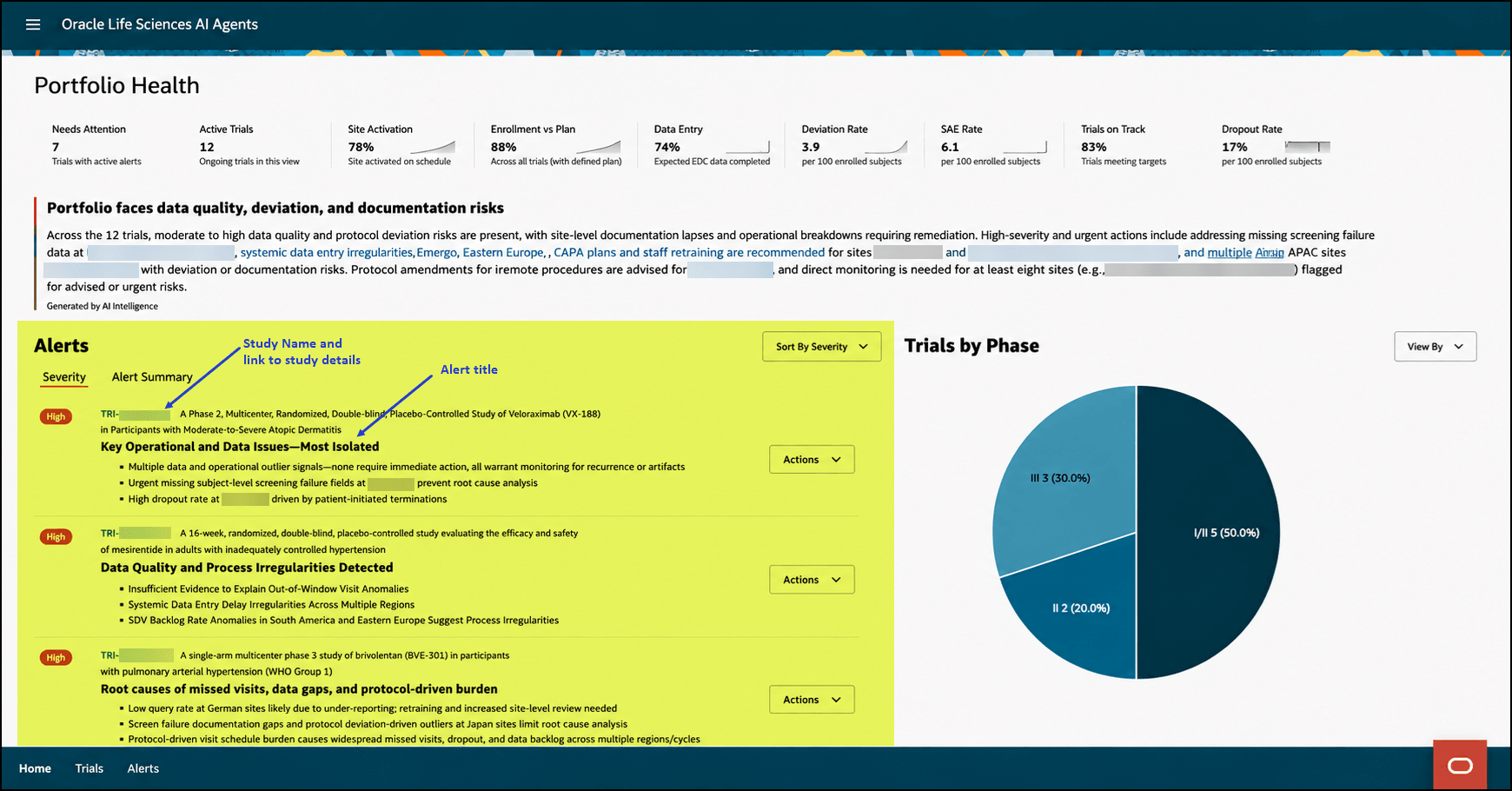
- Open the Portfolio Health overview. The portfolio alerts appear at the bottom left of the overview and are highlighted in the following example:
Alert risk severity Description Critical
Imminent or ongoing serious risk to patient safety or trial integrity that may warrant immediate trial halt, enrollment hold, or urgent regulatory notification.
High
Credible and significant risk to patient safety, primary endpoint integrity, or critical milestones if not addressed promptly.
Moderate No immediate safety risk, but material risk to timelines or quality; major (non-critical) protocol deviations; secondary or operational data degradation; sustained under-enrollment likely to delay non-critical milestones.
Low Minor, localized, or transient issue with limited impact; generally reversible with routine follow-up and unlikely to affect safety or milestones.
The portfolio alerts:- Show one row per trial and up to three top ranked issues for each trial (each alert provides a link to the Alert details page).
- Prioritize trials based on risk severity (Critical, High, Moderate, or Low). The default sort of the trials in the list is by risk severity.
- Provide sorting of the alerts by Severity (default), Trial Name, or Alert Title.
- Refresh every 24 hours at 2 am UTC. If no trials need attention, a "No trials currently require attention." message appears in the portfolio alerts section.
The View All link appears only if there are six or more portfolio alerts.
For more information, see View all alerts from the Portfolio Health overview.
- View all alerts from the Portfolio Health overview
If there are six or more portfolio alerts, you can open the Alerts list directly from the Portfolio Health overview so that you can view all the alerts for the trials you can access. - View the details for an alert from the Portfolio Health overview
You can view the details for an alert from the Portfolio Health overview. - View the study details associated with an alert from the Portfolio Health overview
You can view the study details associated with an alert from the Portfolio Health overview.
Parent topic: Review the Portfolio Health overview