What's new for Oracle eTMF users
A new TMF Status Timeliness report lets you analyze how long documents spend in different TMF statuses, and the TMF Status Dashboard report includes new File Name filtering options.
TMF Status Timeliness report shows cycle status, duration, and rejection history
The new TMF Status Timeliness report provides detailed information on how long documents spend in different TMF statuses, including status transitions, time spent in individual statuses, and rejection history. You can analyze completed status cycles, monitor documents in their current statuses, and review rejection trends and durations. The report includes three worksheets: TMF Cycle Status Time, TMF Status Duration, and Rejected Duration.
TMF Cycle Status Time
The TMF Cycle Status Time worksheet lets you measure the elapsed time between two selected TMF statuses, including direct transitions and transitions through intermediate statuses. For example, you can measure the time between Status A and Status B, whether a document moves directly from A to B or passes through Status C before reaching B.
The worksheet includes two key performance indicators (KPIs) that provide different views of completed status transitions:
Status Cycle Average: Displays the average time for each completed transition between the selected statuses. If a document completes the same transition multiple times, each cycle is counted separately.
Cumulative Status Average: Displays the average total time per document across all completed transitions between the selected statuses. Multiple cycles for the same document are combined before calculating the average.
Duration values are displayed primarily in days, with hours provided as additional detail. You can also access explanatory text for each KPI to understand how the averages are calculated.
Filters are available directly on the worksheet rather than in a filter bar at the top of the report. You can save and reapply your filter selections using the Oracle Analytics Cloud (OAC) saved state feature. Filter selections are specific to each worksheet and do not automatically carry over to other worksheets.

TMF Status Duration
The TMF Status Duration worksheet lets you analyze the time documents spend in the Rejected and Ready for Review statuses. It provides separate visualizations for completed status periods and documents that are currently in these statuses.
The Time In Status visualization displays the average duration and distinct document count for each status. Only completed status periods are included, measured from when a document enters a status until it exits that status. You can hover over the visualization to view the status, average completed duration in days and hours, and distinct document count.
The Time In Status Cycle and Document Count visualization provides additional details about completed status cycles, including the number of completed cycles, distinct document count, and average time spent in each status. Hovering over the visualization displays these metrics, with average durations shown in days and hours.
For documents currently in Rejected or Ready for Review status, the Current Status visualization displays the number of open documents in each status. You can hover over the visualization to see the current TMF status, open document count, and dataset refresh date and time.
The Average Current Aging bar chart displays the average number of days documents have spent in their current status. Aging is measured from when each document entered its current status through the most recent dataset refresh. Hovering over the chart provides the current status, average aging in days, and dataset refresh information.
Filters are available directly on the worksheet, with separate filtering for the upper and lower sections. Your selections in one section affect only the visualizations in that section and do not change the filters or results in the other section. You can save and reapply filter selections using the OAC saved state feature..

Rejected Duration
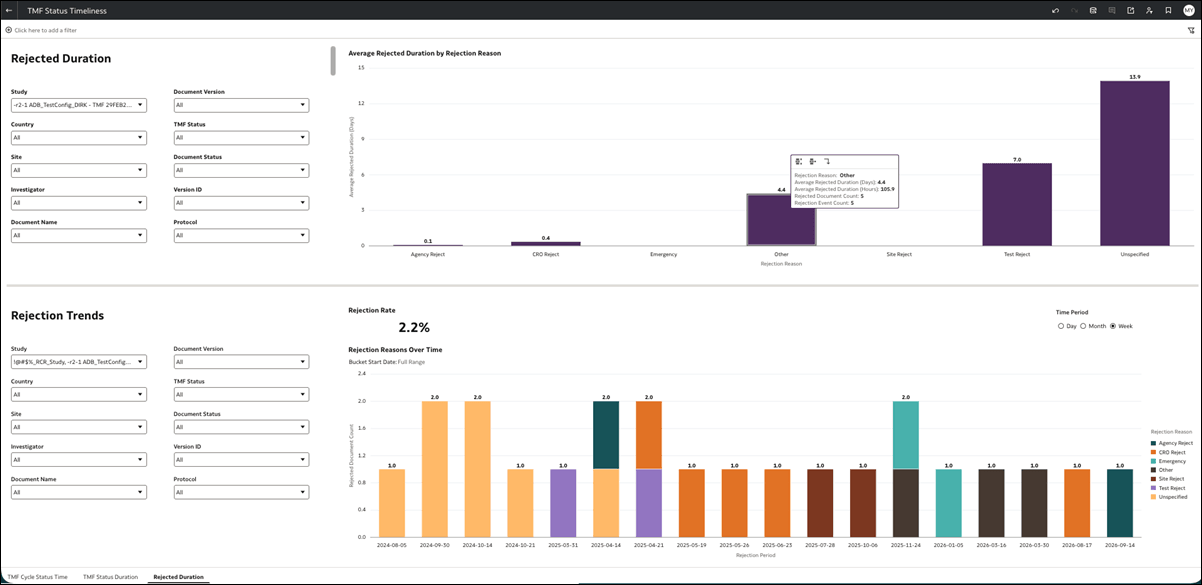
The Rejected Duration worksheet lets you analyze document rejection durations, reasons, and trends. Its rejection-duration and historical rejection visualizations include only documents whose Document Status is Completed at the time of the dataset refresh. Historical rejection events are included even when they occurred before the document was completed.
The Average Rejected Duration by Rejection Reason bar chart displays the average time documents spent in Rejected status for each rejection reason. You can hover over the chart to view the rejection reason, average duration in days and hours, distinct rejected document count, and rejection-event count. A document can appear under multiple rejection reasons if it was rejected for different reasons at different times.
The Rejection Rate KPI displays the percentage of completed documents that were rejected at least once for any reason. It is calculated by dividing the number of completed documents with a rejection history by the total number of completed documents, based on your selected filters.
The Rejection Reasons Over Time bar chart lets you examine historical rejection activity by day, week, or month. Each bar displays the number of rejected documents for the selected period, broken down by rejection reason. You can hover over the chart to view the rejection reason, rejected document count, and reporting period.
Filters are available directly on the worksheet rather than in a top filter bar. The upper and lower sections have independent filters, so selections in one section do not affect the filters or visualizations in the other. You can also save and reapply filter selections using the OAC saved state feature..
TMF Status Dashboard includes File Name drop-down filters
The Document File Status worksheet in the TMF Status Dashboard report now includes Study, Document Name, and File Name drop-down filters on the left side of the worksheet. You can use these filters to customize the displayed data, including selecting multiple file names.
The File Name filter is also available in the top filter bar, so you can keep your selection when navigating between report worksheets.
