Configurable site profile
Site profiles store extensive detail about a specific site's contact information, trial history, study contacts, and more. By customizing the sections, fields, and values, you can streamline workflows and ensure your team captures the most relevant information. For help setting this up, contact your Oracle administrator.
Access the Site profile
There are three ways to open a site profile, and the action link you'll see, either Edit site profile or View site profile, depends on your permission level:
- Right-click a site row in the site grid and select Edit site profile if you have edit permissions. If not, you’ll see View site profile instead.
- Use the site’s Actions menu in the site grid to select Edit or View site profile, based on your access.
- After opening the site details drawer from the site grid, click the investigator’s name at the top of the drawer to open the profile.
In Oracle Site Select, the site profile page design includes section navigation links in a left side panel. The left navigation also includes links to Site network, Document library, Trial history, and Study contacts.
With configurable site profile enabled, all site profile changes are stored in an account-level data source for new studies. Site profile changes will span across all studies in the account that do not have a study-specific site profile data source.
Oracle Site Select users must have Edit site profile permission to modify any field in the configurable profile. The profile will be read-only for all other users. This aligns with the required permission for updates to the legacy site profile.
Note:
As the site profile is highly configurable, the images included in this section are representative. You and others in your organization may see some or all of the sections described below, different section/field labels, etc.Document library
The document library section includes a list of all reusable documents for the site.When you have Upload files to a site’s document library permission, you can upload documents directly to a site’s library from the Edit site profile > Document library tab.
This makes it easy to manage files by letting you upload documents to the site, investigator, or institution libraries if the site has a matching record in the account’s primary composite datasource. You’ll see an Upload a library document button on the Site profile’s Document library page, which is enabled only if you have permission to upload files.
Click the upload button to open a Document library upload modal and choose the Document scope (site, investigator, or institution) and Document type. The remaining fields in the modal are based on what’s been set up at the account level. If the site doesn’t have a related record in the primary datasource, the investigator and institution scope options will be disabled, and you’ll see an error message explaining that only site-level document types are supported for that site. Helper text will guide you through the process and let you know why some options may not be available.
Once you select a valid document scope and type, you can add required and optional metadata and attach the file to enable the modal’s Upload button. After successful upload, a confirmation message displays, and the Document library tab refreshes to include your new file.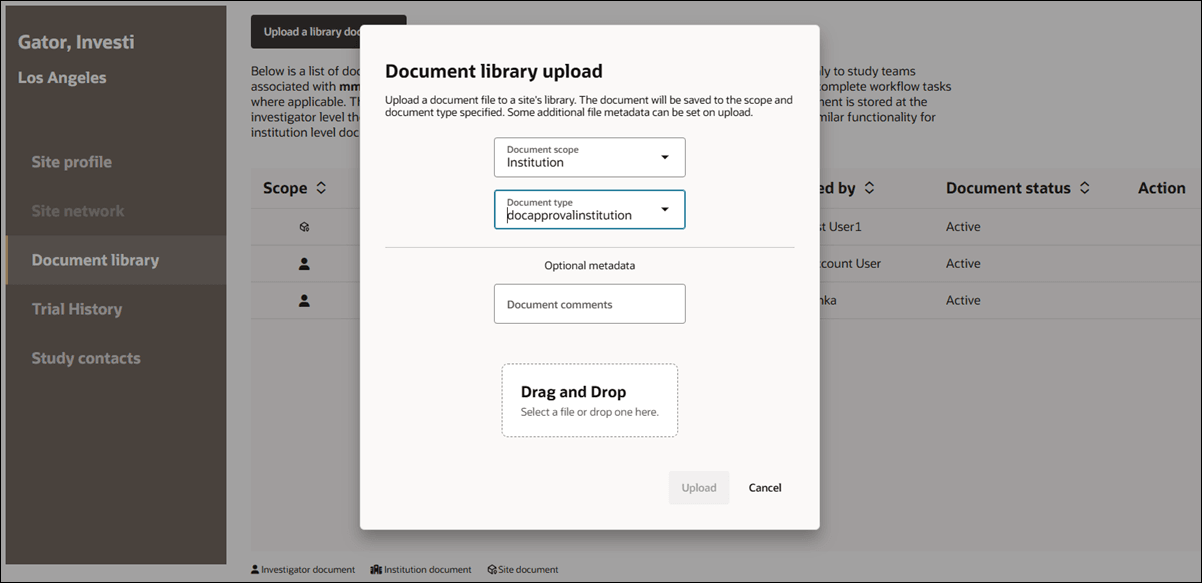
In the document grid, click a document name to open its version history drawer. The drawer shows all uploaded versions, with a green Active badge for the current version. Any older versions will show a gray Inactive badge.
Each entry includes the version number (such as V1, V2, V3), the upload date, and the user who uploaded it. Click a file name to download the document.
If a file was uploaded as part of a comment or submission action by a Select user, that file will also appear in the version history.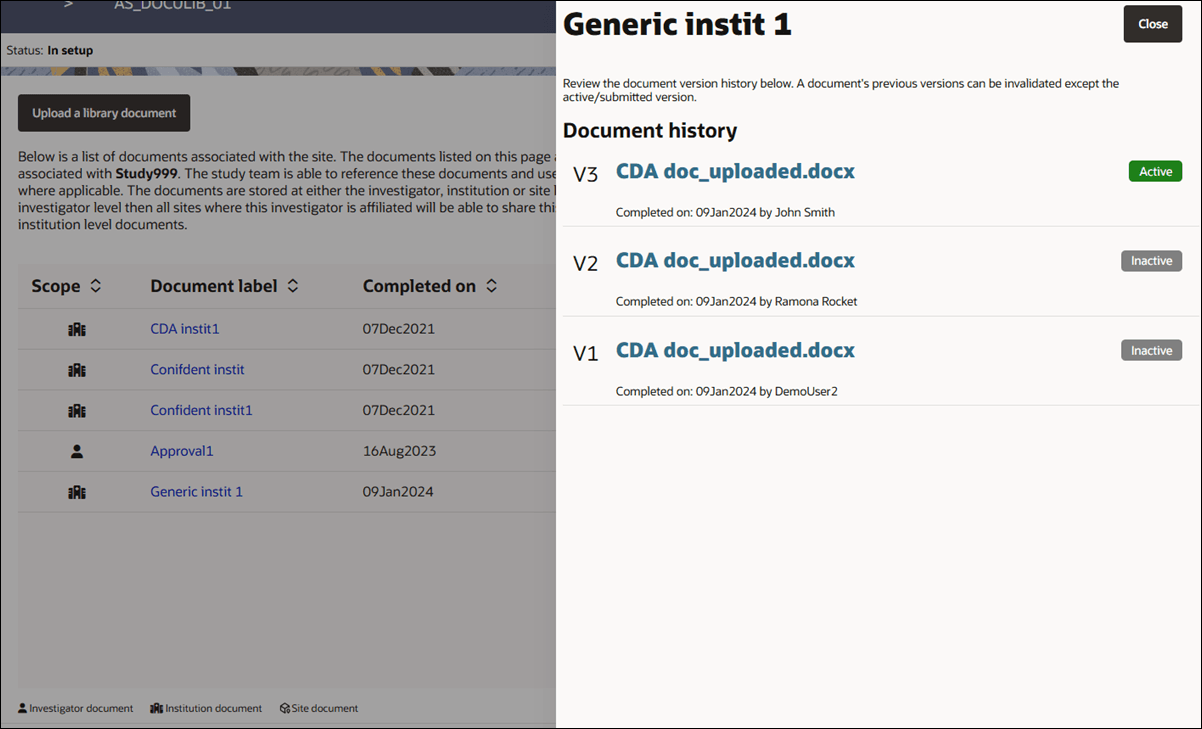
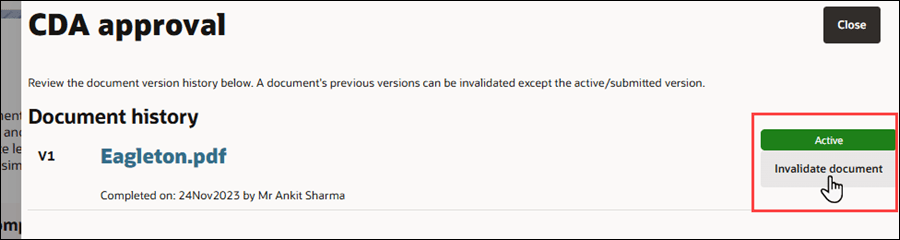
When necessary, you can invalidate the most recent version of a document in a site's Library documents tab (excluding "download only" document types). For an Active document, click the Invalidate document button, enter a required reason, and the document will be marked as invalid. Invalidation details (who performed the action, when, and why) are saved in the document history.
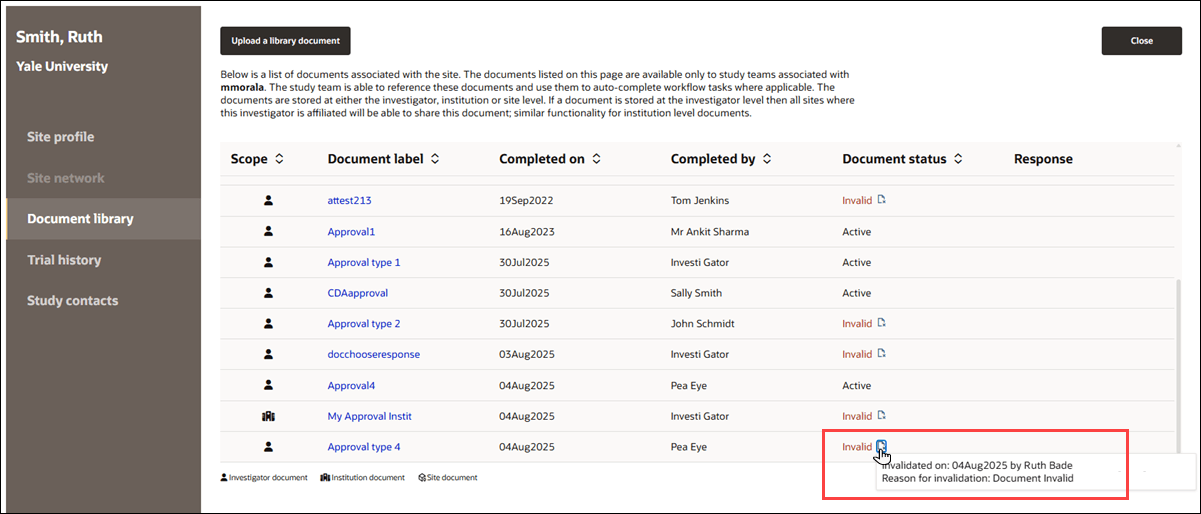
When viewing the Document history grid, you can hover over the invalidated document icon to see the invalidation details or click the document name to open the document drawer for full details. If a new version is later uploaded for the same document label, it becomes Active, and the invalidation details will remain visible in the document history drawer.
You also have controls to help you view and update “Choose response” type Generic documents in the site’s Document library. On the Library documents page, Oracle Site Select shows the chosen response saved in the library document metadata. If a response change reason was previously entered, a pencil icon displays and the change reason displays on hover. If the document is invalidated, no response is displayed.
In the document’s history drawer, the subtext clarifies that responses can be changed and documents can be invalidated. Invalidated documents will no longer auto-populate study tasks. You'lll see the active file listed as a download link and the response options displayed as editable radio buttons. These options reflect the original Generic document setup. If someone previously changed the response, you’ll also see the reason and details of who made the update and when. You can revise responses as needed, but each change must be confirmed with a reason.
The Document library page in the Site profile also displays responses and available actions for Generic Document Attestation types. For each relevant document stored at the investigator, institution, or site level, you see the Response option saved in the library’s metadata. If a reason for changing the response has been provided, a pencil icon with the reason appears as hover text; if the document is invalidated, no response is displayed.
In the history drawer, the active library file is available as a download link using the file’s name. Task options are offered as editable radio buttons with their text and selected states matching what is saved in the library. If a response was edited previously, you can view the previous change reason, along with who made the change and when. If you modify the response, a confirmation dialog appears requiring you to confirm and provide a reason (plain text, up to 2,000 characters, required), with options to cancel or proceed. After saving, the history drawer refreshes to show updated details.
In the Library tab, for Attestation document types, we also updated the document details drawer subtext to: "Review the library entry for this Attestation document type. The response saved to the library can be changed. The document can also be invalidated. Invalidated documents will no longer auto-populate study workflow tasks."
Trial history
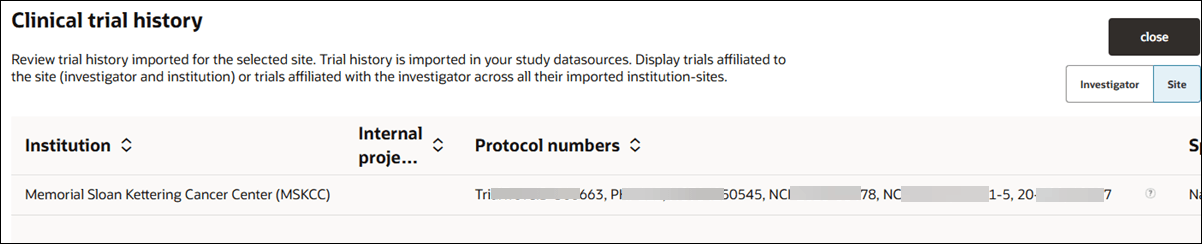
The Trial History tab in the Site profile makes it easy to review imported trial history for a selected site. The tab appears enabled in the left navigation when the study has a composite datasource attached. If no datasource is attached, the link is disabled and a hover message explains: "There are no datasources with trial history attached to this study."
On the Trial History tab, you can choose to view trials based on either:
- Site (default): shows trials linked to the selected site
- Investigator: shows trials linked to the investigator across all affiliated sites
The trial grid includes details like Institution, Protocol numbers and titles, Sponsor, start and end dates, enrollment rate, and more. You can sort any column by clicking its header. If no data is available, the page will display: "No affiliated trials have been imported."
Study contacts
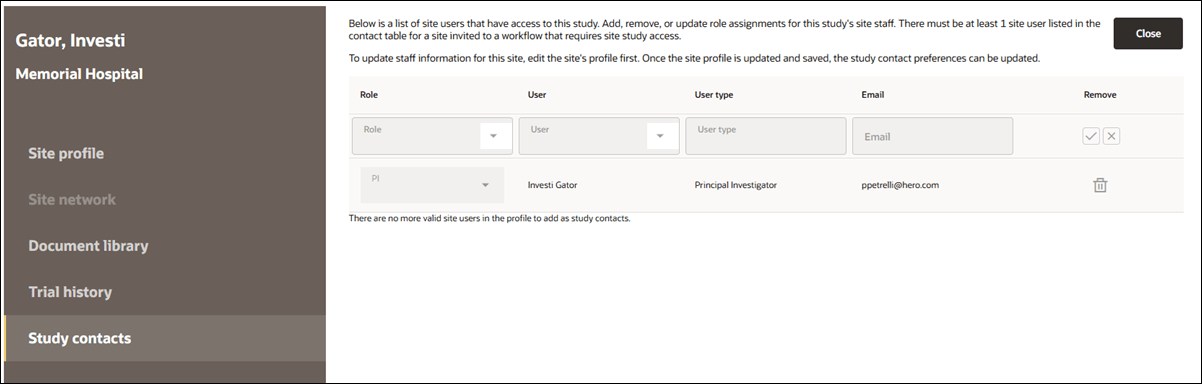
Study contacts display in a grid format. When you view the study contacts page from the Oracle Site Select > Edit site profile page or from the site grid > site details > Study contacts tab (but not from the Site portal > Edit site profile page), the contact display (name, user type (Investigator, Clinical Trial Coordinator (CTC), IRB contact, site staff, and network delegate), and email) for study contacts is pulled from the studysite instance instead of just the site profile. The drop-down picker to define the contact role is not affected by this change.
For example, a datasource record has “erik@example.com" for the PI email, but the site profile has “bob@sample.org.” Datasource priority determines the display. If the site profile is the lowest priority, and the site is invited, “erik@example.com" appears as the invited user’s email across all relevant pages (in Oracle Site Select and the Site portal).
If the datasource priority changes after invitation (i.e., site profile datasource placed as the study’s highest priority datasource), “erik@example.com” remains listed as the current contact, and “bob@sample.org” is now available to be added as a study contact on all relevant pages. If you remove “erik@example.com” and save, that address cannot be re-added.
The Site portal continues to show the same list of added study contacts as Oracle Site Select, regardless of datasource priority. When adding a new contact to the study contacts, Site portal users will only see site user data that originates from the site profile datasource.
Parent topic: Site Selection