Communications
Now you can customize CDA approval emails, preview Protocol phase in templates, skip initial invites while still using a site’s survey link, and auto-send Finalize emails.
CDA approval email template
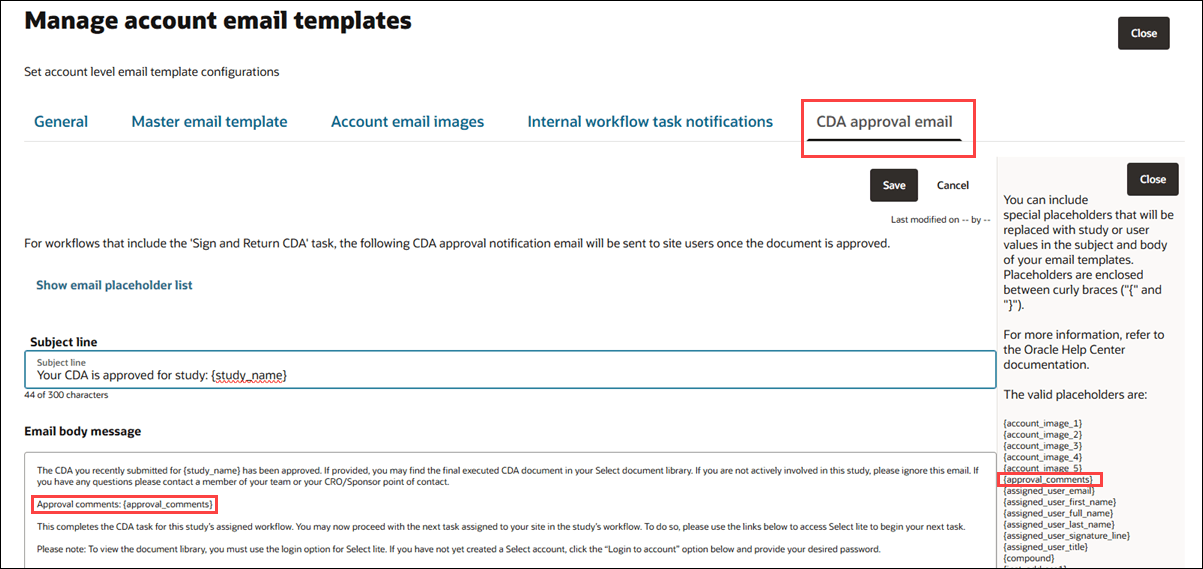
Release 26.1 introduces a configurable CDA approval email template at the Account level that lets you align your organization's messaging with evolving eCDS workflows and study-specific needs. By tailoring the Subject and Body, you can clearly indicate when CDA is the final step, helping prevent unnecessary follow-up and confusion.
If you have Account email template management permission, you can access the template from the Account > Email Templates and Config menu option. On the Manage account email templates page, you’ll find a new CDA approval email tab, designed for workflows that include the Sign and Return CDA task. The CDA approval notification email will be sent to site users once the document is approved.
The CDA approval email tab includes a default, pre-populated template that you can edit. The template supports the {approval_comments} placeholder in both the Subject and Body, and {approval_comments} now appears in the valid placeholder list displayed when you click the Show email placeholder list link.
Until you update the new CDA approval email template configuration, the existing CDA email template continues to be used by default. Once you customize the new template, your updated messaging will be sent to site users, improving clarity and giving you greater control over site-facing communications.
Protocol phase in email preview
In this release, we enhanced email template previews to display the study’s saved Protocol phase value. When a study includes a saved value in the Protocol phase field on the Study details page (for example, “Trial Phase I”), the preview now shows that exact value instead of a generic “I/II.”
To populate this value, use the {trial_phase} placeholder in the Invitation, Final acceptance, and Final decline templates. When you preview any of these templates, you can confirm the Protocol phase value appears as expected.
Invitation emails
Now you can disable automatic Initial Invite emails while still generating a site-specific survey link to share manually, so you can manage outreach based on regional, cultural, or strategic needs.
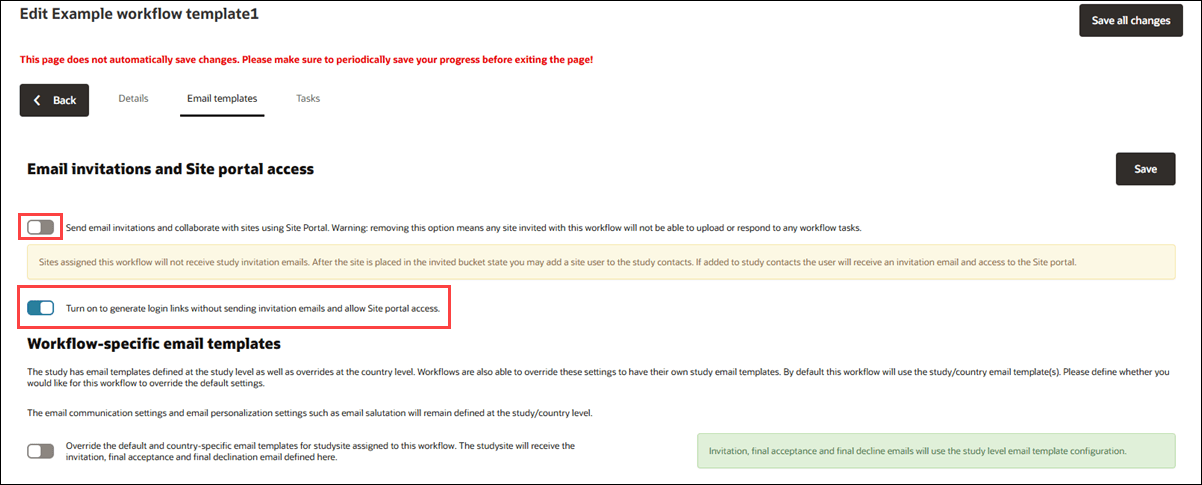
You can turn off the Initial Invite email for a specific workflow using a new switch that’s available when “Send email invitations and collaborate with sites using Site portal” is turned off. The new switch is labeled: “Turn on to generate login links without sending invitation emails and allow Site portal access.”
When “Send email invitations and collaborate with sites using Site portal” is on, the new switch is disabled; when it’s off, the new switch is enabled and defaults to off. Selecting this option prevents all automated email communications, and sites move to the invited bucket even if no initial invite email is sent.
When the new switch is on, the site detail drawer's Invitation and site status tab makes the Login link available to copy, and the Resend invite and Admin invite columns still have the option to send emails.
Final Acceptance and Final Decline emails
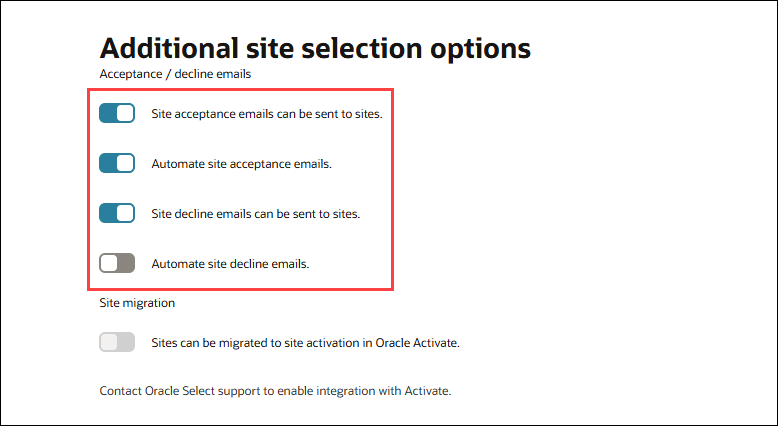
Release 26.1 introduces automated sending of Final Acceptance and Final Decline emails when you move a site to the corresponding Finalize bucket state. Previously, you needed to manually trigger those emails from the Site Grid, which could create delays and risk missing sites. With this update, emails automatically send upon bucket transition, and successful delivery is indicated by an email icon in the corresponding column on the Site Grid, consistent with the existing user interface behavior.
New configuration switches are added under Study details > Additional site selection options > Acceptance / decline emails to control this behavior independently for acceptance and decline emails. Each automation switch is disabled when its parent email setting is off, and enabled but off by default when the parent setting is on. When enabled, the automation triggers email sending automatically when you move a site to the corresponding Final Acceptance or Final Decline bucket.
Manual sending remains available in both Final Acceptance and Final Decline buckets. When automation is disabled, you must continue sending emails manually from the Site Grid. When automation is turned on, you can still manually resend emails as needed.
Parent topic: What's new in release 26.1