10 Create Location Targets Task
The Location Target Planner is responsible for creating financial targets for locations within a channel. These targets provide location-level planning guidance for sales, returns, and units based on the modules provisioned for the implementation.
This task includes the following step:
Create Targets Step
In the Create Targets step, begin by seeding the plan and then develop high-level sales.
Tabs and Views in this Step:
- Create Target Tab:
- Seed Plan View
- Sales and Markdowns View
- Local Currency Plan View
Create Target Tab
In the Create Targets step, the planner starts with a seed source and then develops the target values for sales, markdown and returns.
Seed Sales View
The first action to complete when creating new targets is to seed the plan. Seeding occurs at the Channel/Half level. Choose a seed source of Last Year or Forecast and click the Seed button in the low right corner of the workspace.
Table 10-1 Initialize Plan Measures
| Measure | Description |
|---|---|
|
Seed Source |
The seed source used to seed the working plan. Use this option to seed or not seed the working plan. You can seed with Last Year's (Ly) or Forecast (Fcst) data. Or, you can choose the Blank option if you do not want to seed the working plan. |
|
Seed Info |
Includes a few pertinent facts about the last time that the Seed custom menu was executed: last seed source concatenated with last seeded date and the last user to seed. If blank, then the given intersection has never been seeded. |
Note:
To clear the seeded data, use the Clear Plan custom menu option.
Sales and Markdowns View
Use this view to enter or adjust the working plan targets for each location. The planner reviews sales and returns, then validates the resulting gross margin % so that targets remain aligned with the intended financial guidance for the channel. Module Reference: Location Target Sales & Returns; Location Target Sales & Returns Units; Location Target Sales & Returns Local Currency. For more details on modules, refer to the Oracle Merchandise Financial Planning Cloud Service Starter Kit Guide.
Figure 10-1 Plan Sales/Markdowns View
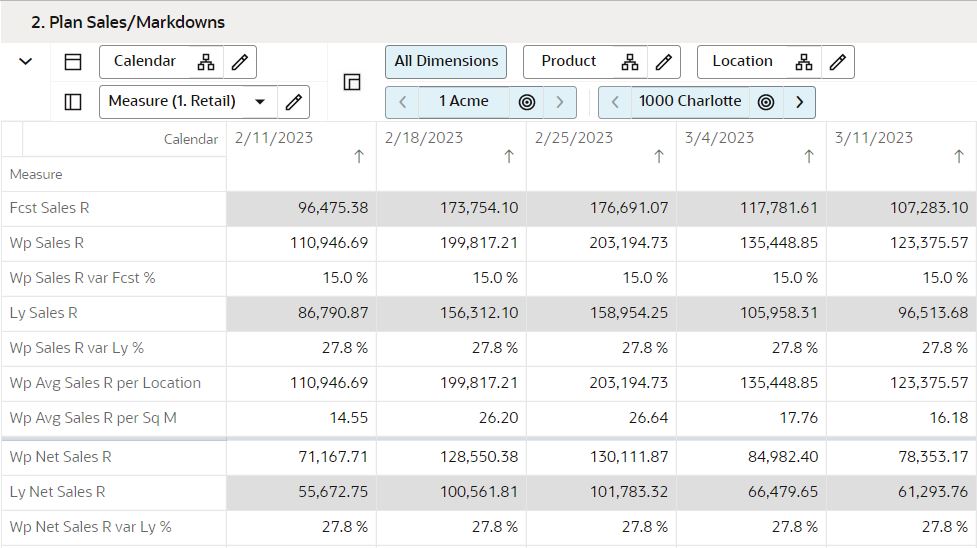
There are several measure profiles available to logically guide you through the plan variables:
-
Retail (Default)
The measures in this profile display and capture sales, returns, and so on, in terms of their retail value.
-
Units
The measures in this profile display and capture sales, returns, and so on, in terms of units.
Local Currency Plan View
If the Local Currency option is provisioned, you use this view. In the Local Currency Plan view, you plan sales in the local currency. Module reference: Location Target Sales & Return Local Currency. For more details on modules, refer to the Oracle Merchandise Financial Planning Cloud Service Starter Kit Guide.
Review and Publish Step
After initially developing plans for all locations in a channel, you use the Publish Step to review and publish the targets.
Tabs and Views in this Step:
- Review and Publish Tab:
- Reconcile to Location Plan View
- Publish View
- Review Targets View
Review and Publish Tab
The Review and Publish is for comparing the Wp Targets against Lp. This allows you to identify the variances between the targets and the location plans.
Reconcile to Location Plan View
This view provides a comparison between key Wp targets and location plan sales figures. This view has measure profiles defined to quickly guide your comparison of different location plan versions:
-
Lp Op Plan (Default)
The Point of Commerce (PoC) Op profile is shown by default when the workspace is opened. This measure profile shows the Wp target measures and Location Plan Op measures.
-
Lp Cp Plan
This profile shows the Wp target measures and Location Plan Cp measures.
Publish View
This view is performed when the targets are completed for all locations in a channel.
Publishing a target copies the targets you built in the Wp measures to the target (Tgt) measures, and then commits then to the database. Once committed, Location Planners can retrieve those targets and take action planning to them.
The Tgt measures are shown in the Review Targets view found in this sub-step. These measures initially have zero values. After the targets are published in this step, those measures are populated with the target information.
To publish the targets:
- Place a checkmark in the Wp Publish Targets measure for the halves that you want to publish.
- Repeat the steps for other channels as desired.
- Click Publish Targets.
-
A success message is displayed. Click Dismiss to close it.
The view refreshes and clears the data in Wp Publish Targets and Wp Publish Notes measures. The action has populated Tgt Publish Info with name:date:notes.
Review Targets
This view can be used to verify and review the currently published targets. The targets in this view are static and not editable. Changes to targets must be executed in the Wp plan and then published into the Tgt version.
If plans have been published or republished since you created the worksheet, click Refresh to reload the latest values. A refresh will reload all data in the worksheet to the last committed version.