4 Home Dashboard
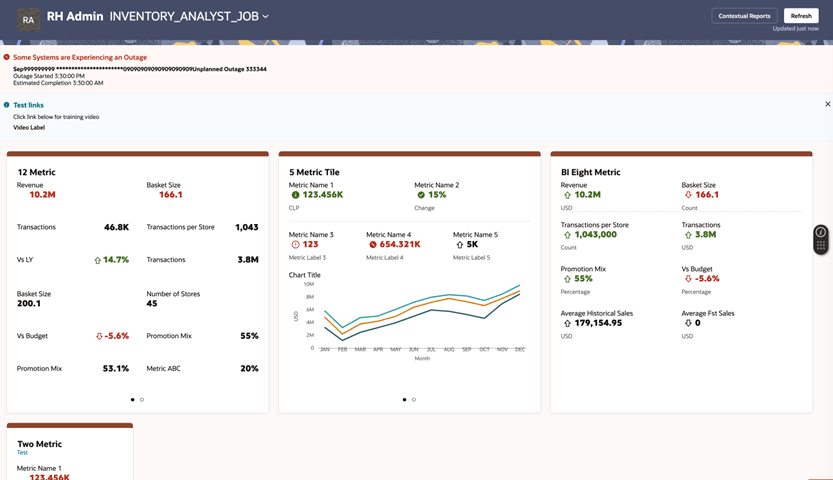
You can use the dashboard to view role-based insights, monitor key metrics, and take action from a single workspace. The dashboard presents information through metric tiles, banners, and controls, allowing you to quickly understand performance and navigate to relevant applications.
-
Legacy UI: the Task Menu.
-
HWAO: the Home tab in the bottom navigation bar.
Figure 4-1 Home Dashboard
Dashboard Overview
The dashboard displays a collection of tiles that highlight key performance indicators (KPIs), metrics, and visualizations. The content you see is based on your selected role and is configured by a Retail Home administrator. At the top of the page, you can view your active role and switch roles if multiple roles are assigned to you.
Dashboard Controls
You can use the controls in the dashboard header to manage your view.
Figure 4-2 Dashboard Header

Roles
Roles define the information displayed on the dashboard. You can view and switch to any assigned role (for example, Inventory Analyst) by selecting the down arrow next to the role name.
- The corresponding tiles are displayed on the dashboard
- Relevant reports and contextual information may appear
Roles are configured by an administrator and determine the content available to you.
Note:
Roles will only be listed if the user has been granted that role, and if a dashboard has been defined for that role.Notifications and Banners
The dashboard displays banners at the top of the page to keep you informed about system status and important updates.
Outage Banner
The dashboard displays a banner to let the Retail Home users know about any current outages and scheduled maintenance (zero downtime). This banner is displayed in the same area as the batch status banner.
Figure 4-3 Outage Banner

- The banner displays a message like Some Systems are Experiencing an Outage or any maintenance in progress message with the downtime/maintenance activity details.
- The corresponding details are removed as soon as the associated task is completed, even if completion occurs before the Estimated Completion time.
- The Estimated Completion time is updated if the outage is extended beyond the Estimated Completion timestamp.
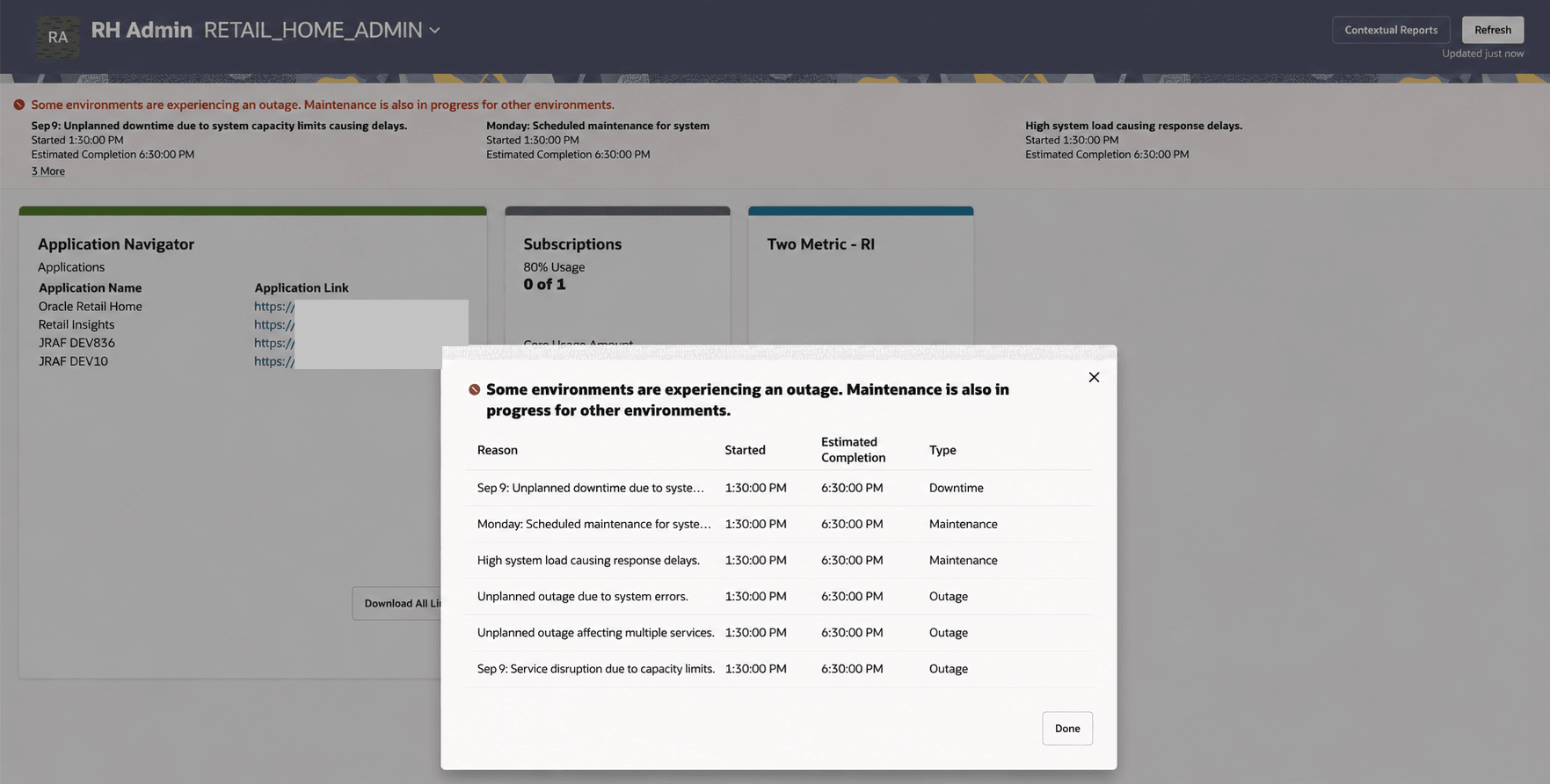
- If there are more than three outages listed on the banner, a More link is displayed for the overflow.
- When the More link is clicked, it presents all the current outages in an error modal dialog along with the type of Outage - Actual Outage or a Maintenance/Zero Downtime activity. Click Done to close the modal dialog.
Figure 4-4 Outage Banner - All Current Outages/Zero Downtimes
Batch Status Banner
The dashboard displays a banner while batch jobs are currently running or active. If there are any POM jobs currently active or running, the Batch Schedule Banner will be displayed below the Outage Banner and moves back to the top once all the outages are complete.
Note:
Some Oracle Retail Products may not allow users to access the application while a batch process is running. Please consult the product-specific documentation.Figure 4-5 Batch Status Banner

- The number of jobs scheduled and the number that are complete.
- After a job is complete, a Completed status beside the job name, along with the completion time.
- If a job is currently running, the banner shows the percentage of completion.
- If a job has not started, the banner shows 0% Complete for the job.
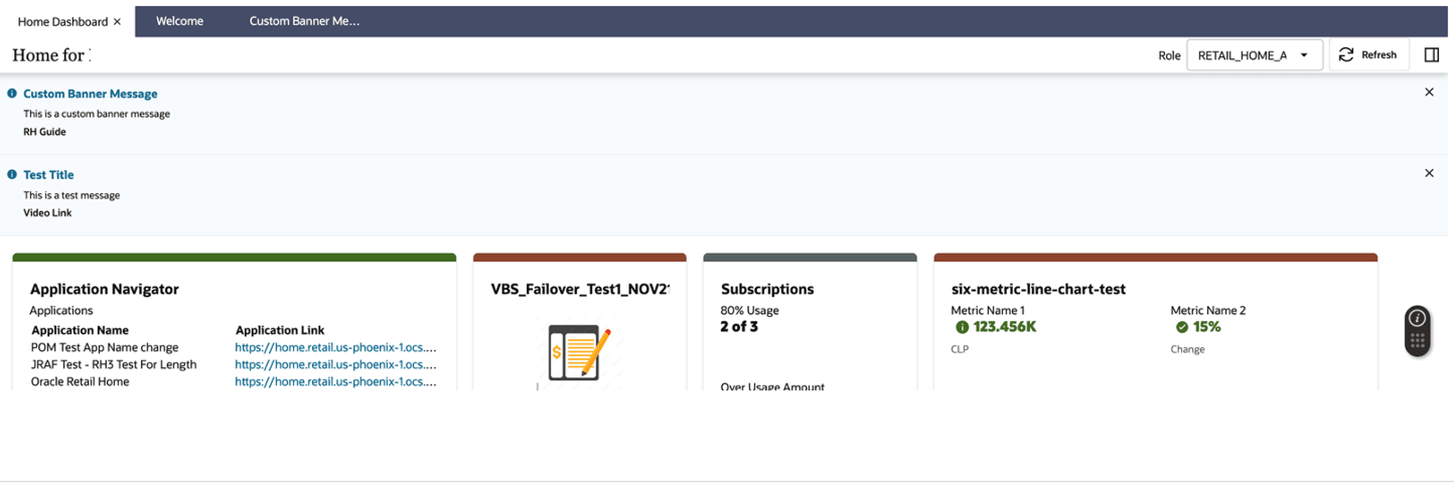
Custom Banner Message
The dashboard displays important, time-bound information broadcast by administrators to Retail Home users. This information appears as a banner at the top of the Retail Home dashboard, alongside existing status banners such as Batch Status and Outages. Users can temporarily dismiss the banner, but it will reappear on subsequent logins until it expires or is removed by the administrator.
Figure 4-6 Custom Banner Message
Tiles and Metrics
The main area of the dashboard consists of metric tiles, which group related data and actions.
- View key business metrics such as revenue, transactions, and performance indicators
- Monitor trends and comparisons (for example, vs. last year or vs. budget)
- Analyze visualizations, including charts and graphs
- View status indicators such as increases, decreases, or alerts
- View favorites and notifications. These tiles will display a Favorites and Notifications icon in the tile header.
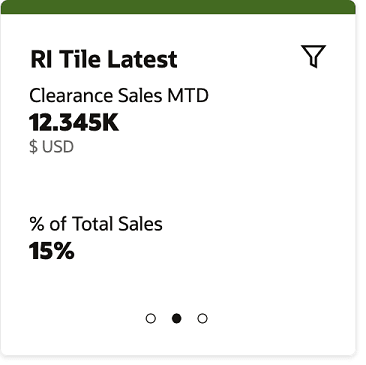
Figure 4-7 Dashboard Tile
Navigating Within Tiles
Some tiles contain multiple views or pages.
- Use navigation dots at the bottom of a tile to switch between views.
- Use previous and next arrows (on hover) to navigate.
- View different sets of metrics or visualizations within the same tile.
Taking Action from Tiles
- Drill into detailed data or reports.
- Navigate to related applications by clicking on the header link.
- Analyze trends using embedded charts.
Filter Icon
Tiles may be configured to support filter options specified by the user. You can select the Filter icon in the tile header to open the filter dialog and refine the displayed data.
Figure 4-8 Filter Dialog for a Tile

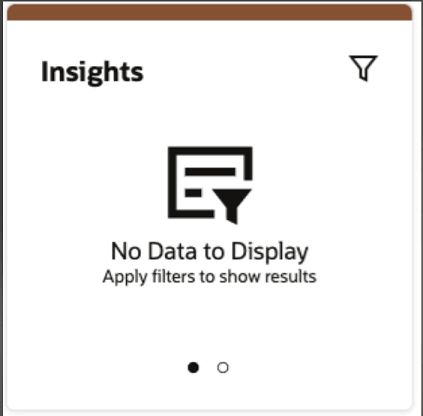
If required filters are not set, the tile displays a No Data to Display message. You will have to click on the Filter icon to enter the required filter values before tile page can be rendered with content.
Figure 4-9 No Data to Display
Expanded Reports
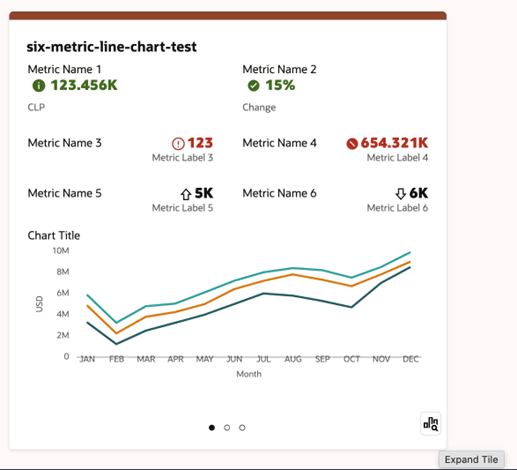
Some tiles support expanded reports, indicated by an icon in the lower right corner of the tile. Clicking this icon will launch the corresponding report in a larger window on the dashboard.
Figure 4-10 Expanded Reports Icon in Dashboard Tile
For Oracle Data Visualization reports, the button instead launches the Oracle Data Visualization app to the corresponding report in a new tab. The display mode of the report depends on the user's permissions. Users with write access will see the report in editor mode, while users who only have read access will see it in presentation mode. If a user does not have read permissions, they will receive an error.