7 Notifications
Oracle Retail Applications provide a feature-rich notifications framework, which sends a variety of different types of notifications segregated by user roles.
- Legacy UI: the Notifications Menu.
- HWAO: the Notifications icon in the Ask Oracle menu.
Notifications - Legacy UI
The user can access the notifications screen by clicking on the Notifications icon on the task menu and navigating to the corresponding app.
The Notifications icon has a red-colored badge that displays the total number of unread notifications for all the apps.
Each app has a notification badge associated with it, displaying the total number of unread notifications for the app.
Figure 7-1 Notification Icon
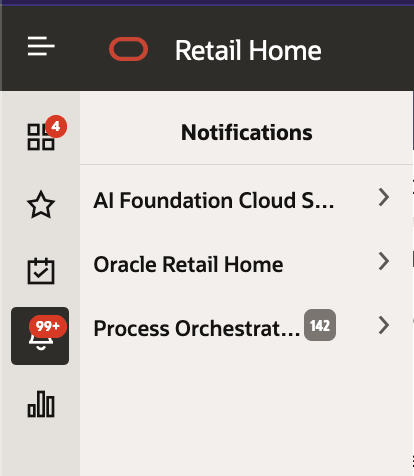
Figure 7-2 Notification Screen

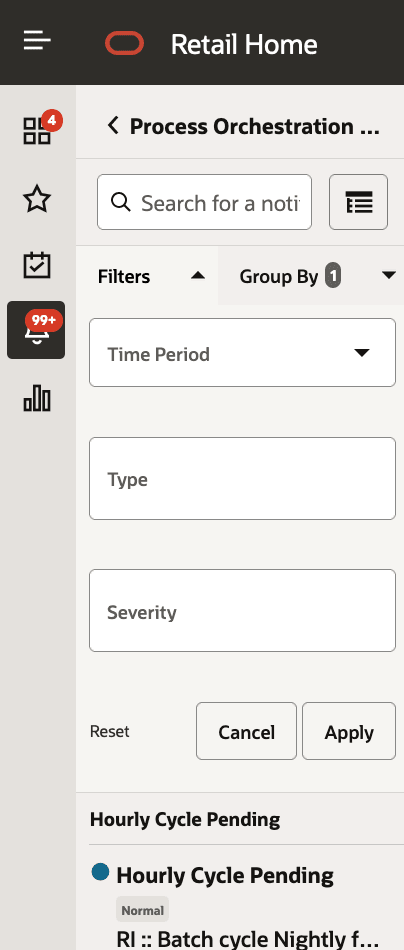
The user can search for a notification or apply filter properties (Time Period, Type and Severity) to narrow down the search results.
Figure 7-3 Search & Filter
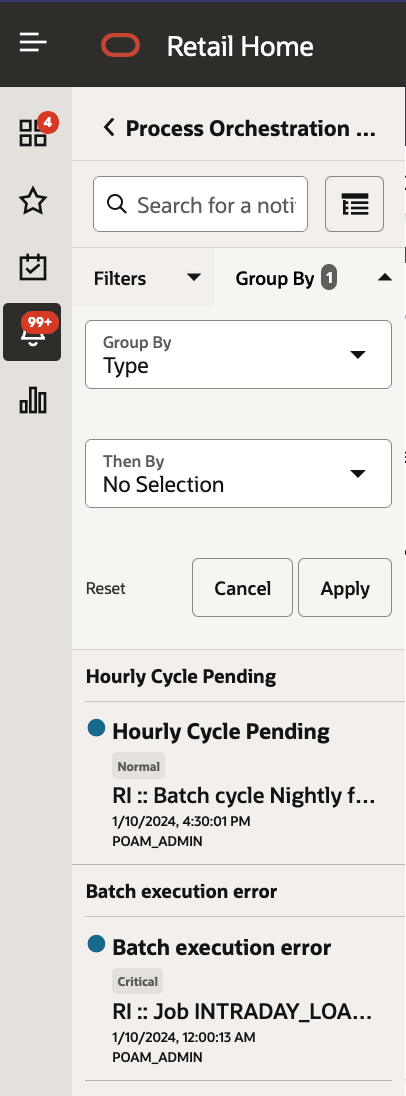
The user can group notifications by clicking the Group View icon next to the search bar and then navigating to the Group By tab.
Figure 7-4 Group By Tab
The user can click the See All link (see the Figure 7-2 figure above) to launch the corresponding Apps Notifications page.
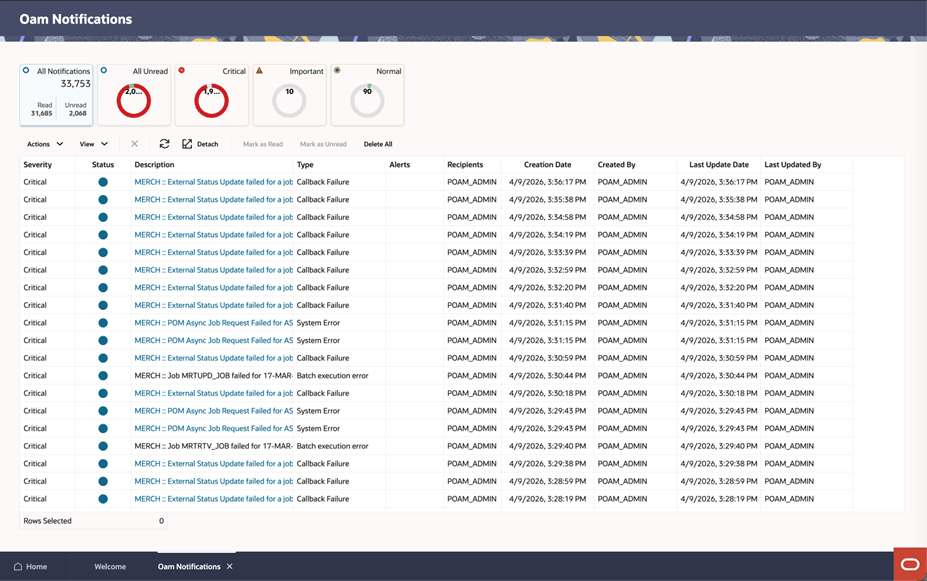
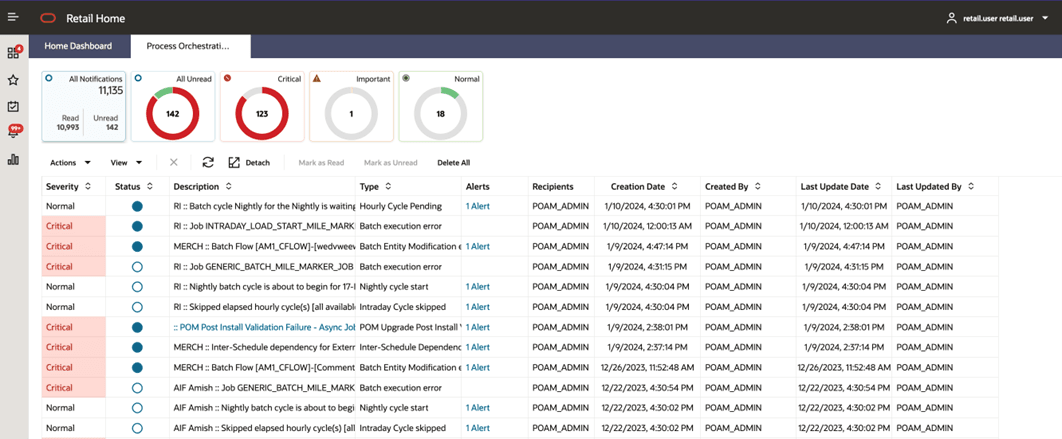
The Notification page displays additional information and allows the following actions to be performed.
-
Delete
-
Refresh
-
Mark as Read
-
Mark as Unread
The user can apply filters by clicking on one of the following tiles.
-
All Notification
-
All Unread
-
Critical
-
Important
-
Normal
Figure 7-5 Notifications Page
Notifications - HWAO
Users can open the Notifications screen by selecting the Notifications icon from the Ask Oracle menu.
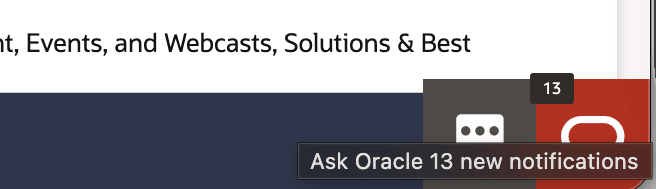
When a new notification is generated, a brief alert appears near the Ask Oracle icon. After the alert disappears, the icon displays a badge indicating the number of unread notifications.
Figure 7-6 Notifications
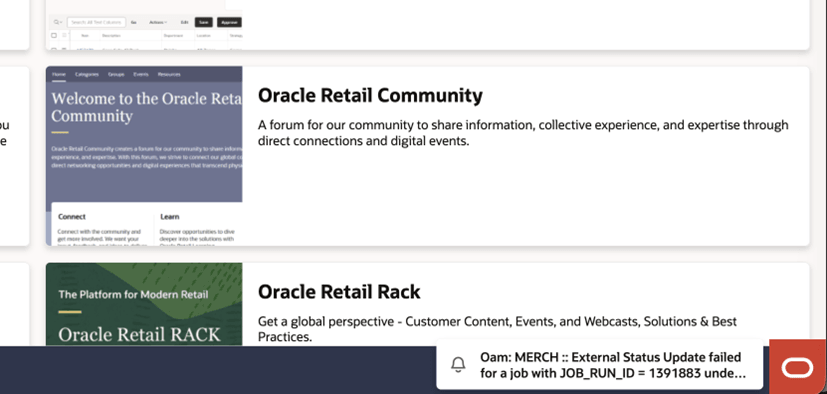
Figure 7-7 Notifications Count (Hovered Over)
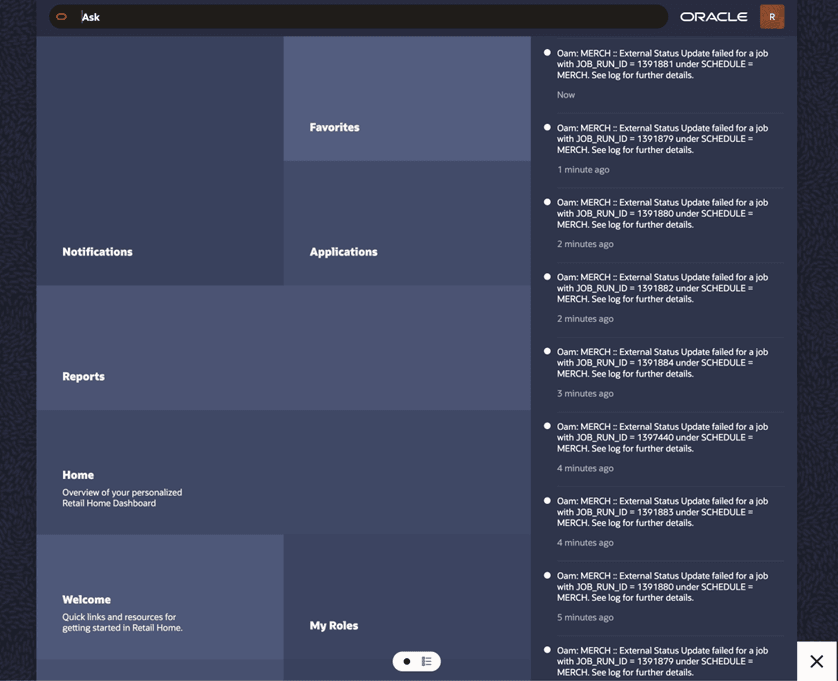
Selecting the Ask Oracle icon opens the Product Map view, where the Notifications tile is displayed. The right panel shows recent notifications and summary details.
Figure 7-8 Ask Oracle opened, Notifications visible in Product Map
Selecting Notifications opens the list of configured application notification categories. Selecting an individual application opens its notification details.
Figure 7-9 Notifications selected, Application Notification Tiles displayed
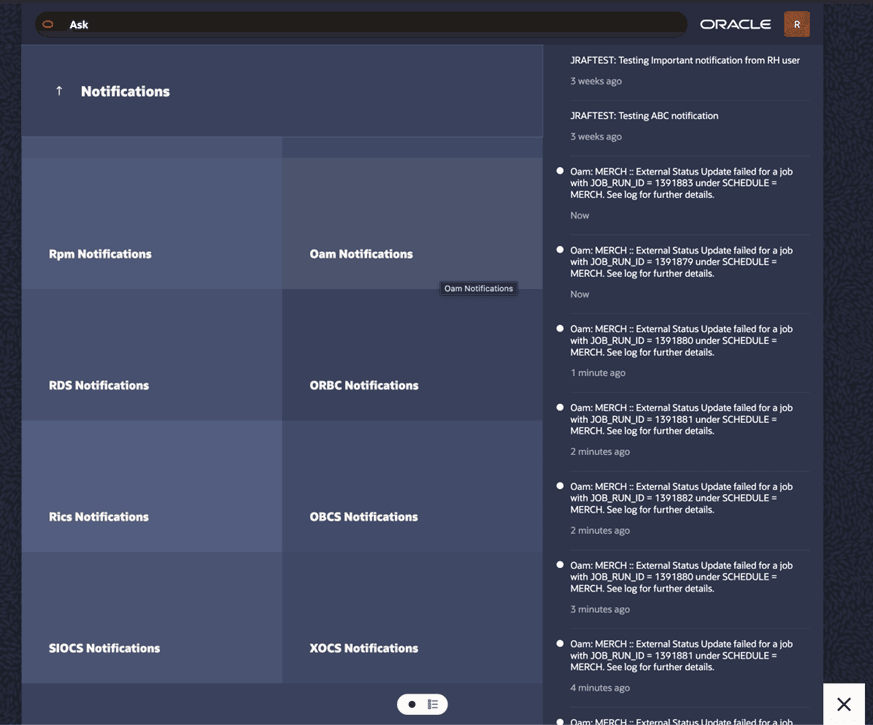
Figure 7-10 OAM Notifications Tile selected; detailed Notification List displayed