8 Manage Recommendations
Navigate to it from the LPO folders and links in the Oracle Home Experience using the Manage Recommendations link.
Understanding the Workspace
The Manage Recommendations workspace is designed to help you efficiently review, analyze, and act on pricing recommendations. It provides a combination of filtering tools, summary metrics, detailed recommendation data, and contextual information that support day-to-day pricing decisions.
As recommendations move through the review and approval process, you can use this workspace to focus on specific merchandise, locations, recommendation types, or business scenarios. Whether you are reviewing a handful of recommendations or managing thousands of items across multiple departments, the workspace provides the tools needed to identify opportunities, evaluate pricing recommendations and take appropriate action.
The workspace is organized into several functional areas, each serving a specific purpose within the recommendation review process.
Event Filter
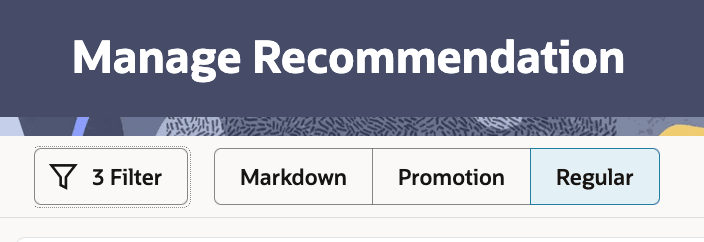
The Event Filter allows you to switch between recommendation types available in your implementation. In Rules Based Regular Pricing, you will primarily use the Regular and No Recommendation filters. Other event types may be visible if additional LPO modules are enabled.
Figure 8-1 Manage Recommendations - Filter by Event
User Filters
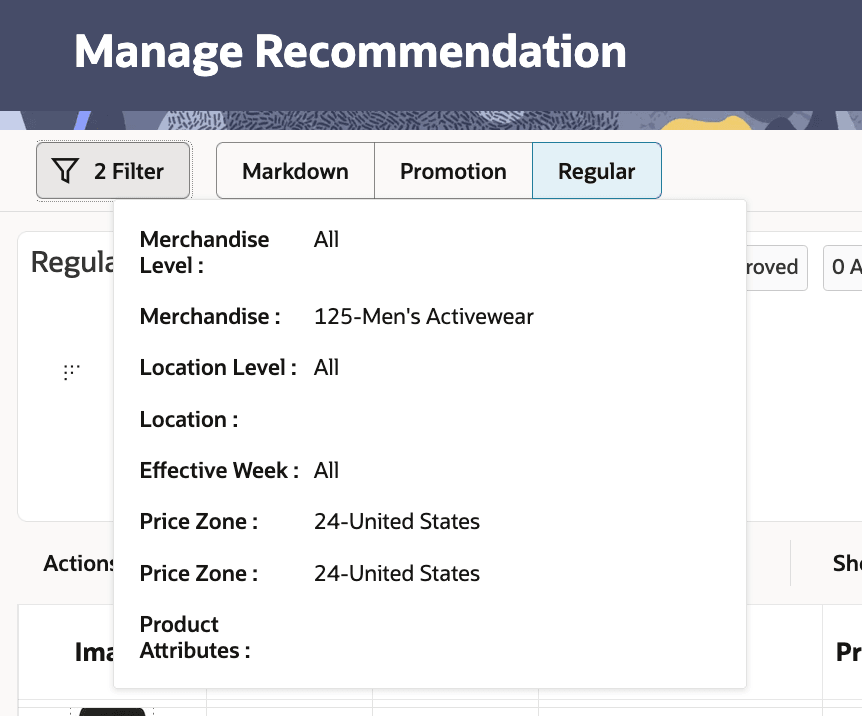
User Filters help you narrow the recommendation set to the merchandise, locations, seasons, effective weeks, price zones, and product attributes that are relevant to your area of responsibility. By applying filters, you can focus on the recommendations that require your attention without being distracted by unrelated data.
Figure 8-2 Manage Recommendations - User Filter Button
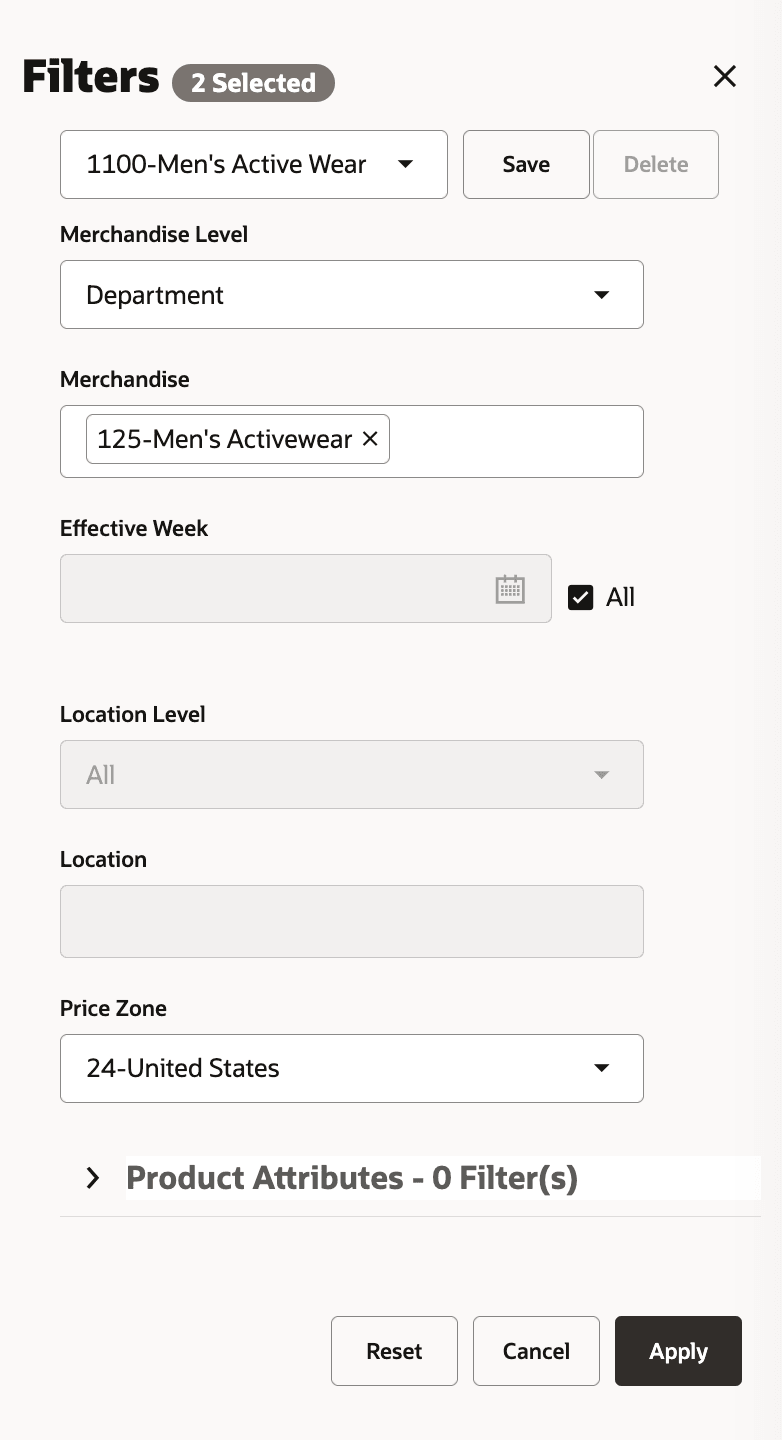
The User Filter (also known as Big Filter) panel opens up in the right hand side when the Filter button is clicked and is used to filter the Manage Recommendations table Merchandise Level, Merchandise, Location Level, Location, Season, Effective Week, Price Zone and Product Attributes. When you log in for first time, you must set the filter and select Apply. The set of merchandise or locations that will be available to you are based on the data security set for your user ID. For example, if a particular user ID cannot access the Europe locations, then that user will not be able to see any recommendations for Europe locations.
Figure 8-3 Manage Recommendations - User Filter - Regular
Summary Metrics
Summary Metrics provide a high-level view of recommendation counts and pricing outcomes for the current recommendation set. These metrics help you understand the overall characteristics of the recommendation set before reviewing individual items. Each summary film strip shows 14 metrics and can be customized to add, delete, or reorder from the list of available metrics.
The strip can also be collapsed into a one-line view. In the collapsed view, the remaining metrics can be accessed by scrolling down.
When an item is selected, the film strip refreshes to show the metrics for the selected item.
Reports
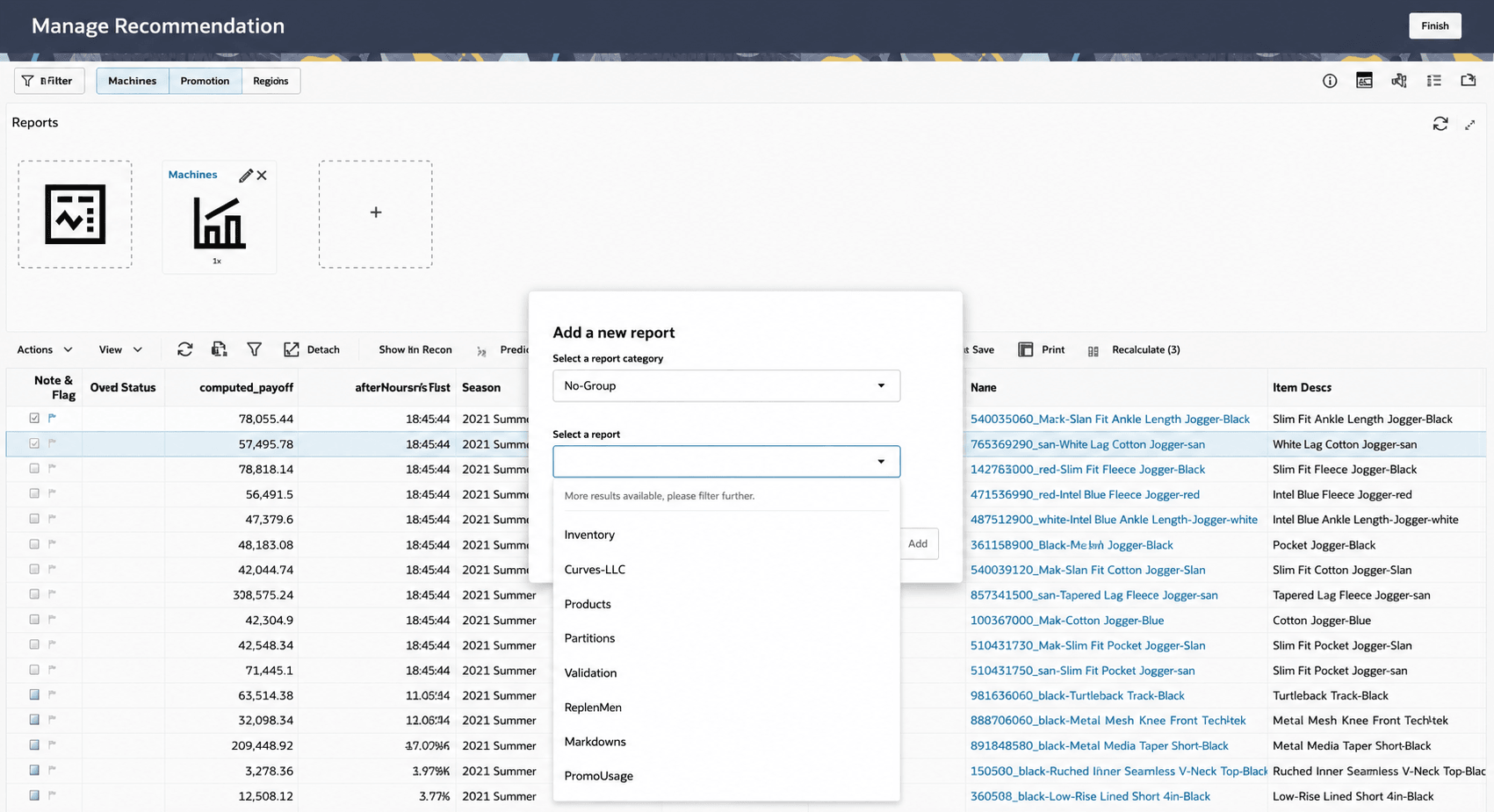
The Reports area provides access to configured analytical reports and dashboards that support deeper investigation of recommendation performance and business outcomes. It allows you to add, delete, or reorder any reports that exist either in the Data Visualizer or in APEX. You must specify the report URLs in Manage System Configurations > RSE_DYNAMIC_URL. Clicking the Report Header link for each report navigates to the respective Data Visualizer or the source report page.
Figure 8-4 Manage Recommendations - Reports
Recommendation Table
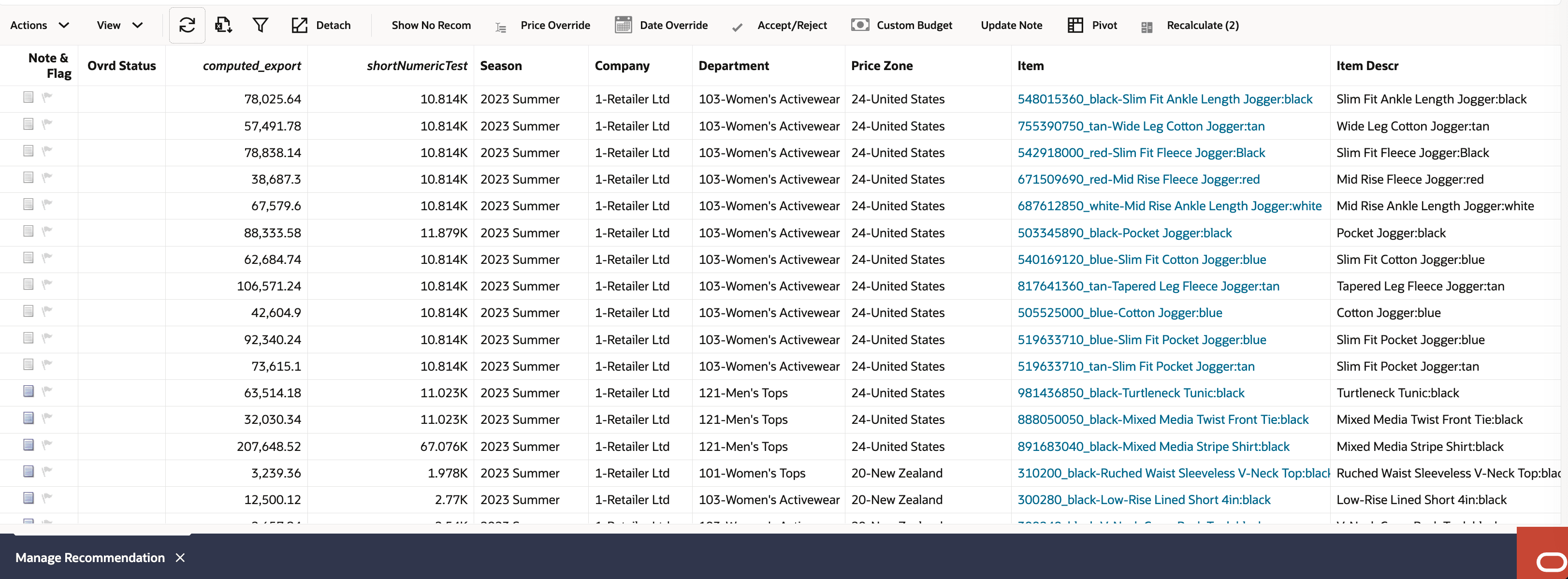
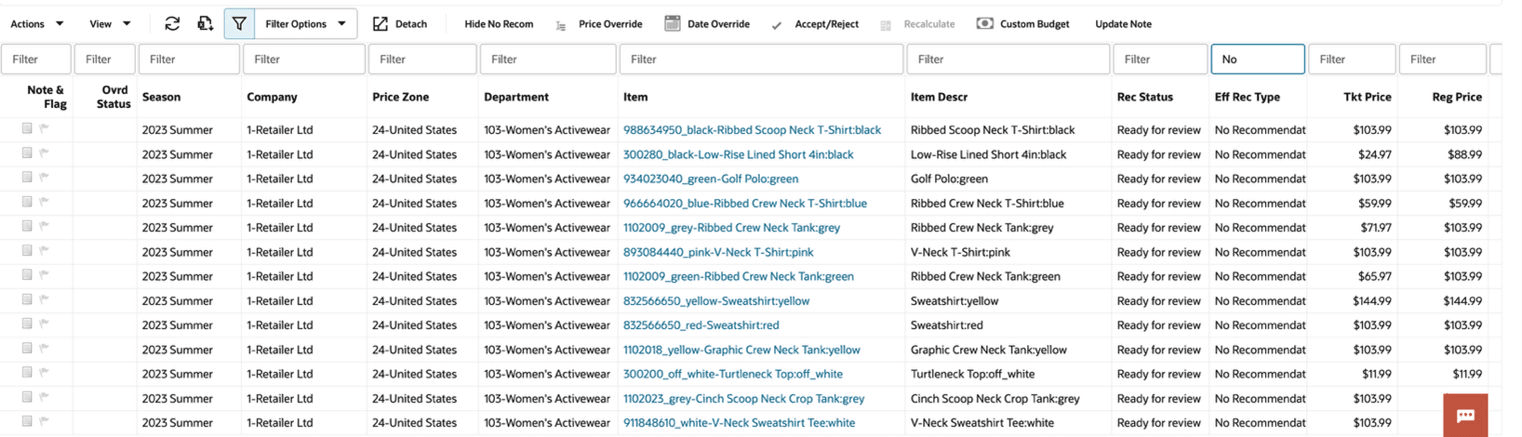
The Recommendation Table displays one row for each item included in the recommendation set. It serves as the primary workspace for reviewing and managing regular price recommendations.
For each item, the table displays key information such as the item description, current regular price, recommended price, recommendation status, price change, merchandise hierarchy, location or price zone, and other configured attributes. Use Manage Columns to customize the information displayed, and use sorting, filtering, or the Query Builder to locate specific recommendations.
Available actions depend on the recommendation status and the privileges assigned to your user role. For example, recommendations in Auto Approved or Export Success status cannot be modified.
Figure 8-5 Manage Recommendations - Item Recommendations
For details, see Appendix: Regular - Manage Recommendations.
Recommendation Statuses
As recommendations move through the review and approval process, their status changes to reflect their current stage in the workflow. Understanding these statuses helps you track recommendation progress, identify items that require action, and determine which operations are available for a recommendation at any given time.
For example, recommendations that are ready for analyst review have a different status than recommendations that have already been approved or exported. Certain actions, such as modifying, reviewing, submitting, or approving recommendations, may only be available when a recommendation is in a specific status.
Table 8-1 Manage Recommendations - Item Recommendations – Status
| Metric | Description |
| Ready for Review | The optimization process is complete, and the run status and item recommendations are ready for review. |
| Reviewed | The analyst has completed the review and marked the recommendations as reviewed, making them available for buyer approval. |
| Submitted | The recommendations have been reviewed and submitted for execution. They are available for export to downstream applications. |
| Auto Approved | The recommendations were automatically approved because they met the configured auto-approval criteria. |
| Approved | The recommendations have been reviewed and approved for execution. They are available for export to downstream applications. |
| Taken | Approved and will be effective in future weeks. |
| Export Failed | The export process encountered an error and the recommendations could not be delivered to downstream systems. |
| Export Success | The recommendations were successfully exported to downstream systems. |
Contextual Panel
In the Manage Recommendations workspace, the Contextual Panel hosts five tabs. Each tab is accessed by clicking its corresponding icon in the top-right corner of the screen. Selecting a row in the Item Recommendations table activates the Item Details, Single Recommendation Information, and Rules Panel tabs for that item. Job Status and GenAI Explanation are also item-context sensitive.
Job Status
The Job Status tab lists all background jobs performed on the selected item, along with the status, date, and timestamp of each job. Use this tab to confirm whether an action such as a price override, recalculate, or approval has been processed, or to investigate why a job has not completed.
Item Details
The Item Details tab provides a detailed view of the selected item's pricing and performance trajectory. It is designed to give analysts enough context to assess a recommendation without leaving the Manage Recommendations workspace.
The tab displays the following information for the selected item:
-
Item ID and Item Description
-
Item image (sourced from the product catalog)
-
Ticket Price: The current active price
-
Recommended Price: The price LPO is recommending for the effective week
Below the item summary, four path graphs are displayed:
Table 8-1 Metric - Description
| Metric | Description |
|---|---|
| Price Path | The full sequence of price changes across the item's lifecycle, including ticket prices, promotions, markdowns, and overrides. Each price type is colour-coded. |
Note:
The Sales, Inventory, and Gross Margin Path graphs are only populated for forecast-based runs. For rules-based Regular Pricing runs (where RSE_CONFIG.PRO_LPO_REGULAR_LITE_ENABLED_FLG is set to Y), only the Price Path is shown.Single Recommendation Information
The Single Recommendation Information tab presents a consolidated summary of everything the system knows about the selected item's recommendation.
Rules Panel
-
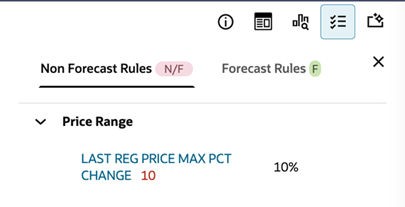
For Regular Pricing items, rules are split into two tabs within the panel: Forecast Rules and Non-Forecast (Rules-Based) Rules. Forecast Rules may be visible in the interface when the selected strategy contains Forecast (F) rules; however, these rules are ignored during Rules Based Regular Pricing.
-
Any rule that has been violated, where the optimization could not satisfy the constraint is highlighted for attention.
Use the Rules Panel alongside the GenAI Explanation tab to understand why a specific recommendation was generated. Where the GenAI Explanation describes the outcome in plain language, the Rules Panel shows the underlying constraint detail.
Figure 8-6 Manage Recommendations - Rules Panel - Regular
GenAI Explanation
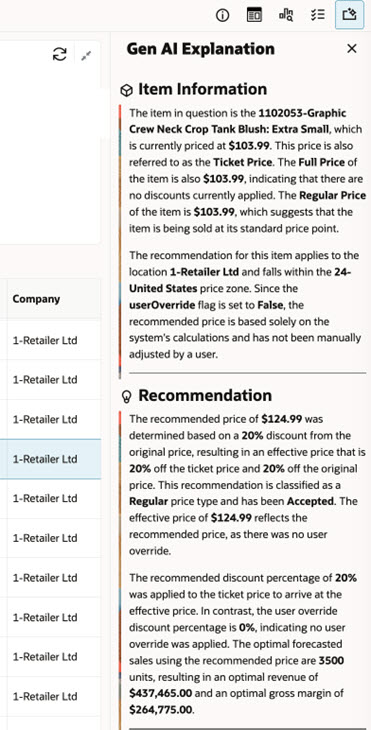
GenAI-powered explainability provides clear, human-readable summary that displays the recommended regular price, the applied override price (if any), recommendation status, and a plain-language explanation of how the applicable Non-Forecast rules influenced the recommendation.
The content shown in the GenAI explanation depends on the available data. Forecast-dependent metrics are included only for Forecast-Based Regular Pricing runs.
Figure 8-7 Manage Recommendations - GenAI Explainability
Reviewing Recommendations
After an optimization run completes, recommendations become available in the Manage Recommendations workspace. Use the recommendation table, contextual panel, rule details, and summary metrics to confirm that the recommended regular price is appropriate for the item, location, price zone, and effective week. Filter the table to focus on relevant merchandise, locations, statuses, or items with no recommendation.
The Show No Recom option displays items where the run did not produce a recommendation. Use these rows to investigate scope, data availability, or rule conditions before deciding whether follow-up is required.
Override Price and Reject
Use Override Price when the recommended regular price must be changed before approval. The override must remain valid for the applicable rule, price ladder, and price matrix constraints. Use Reject when the recommendation should not be sent to the downstream pricing execution system.
Date override, promotion price changes, markdown price changes, and custom budget changes are not part of the Rules Based Regular Pricing workflow. Recalculate is not used to refresh forecast-based metrics for this mode.
Submit, Approve, and Auto Approval
After review, recommendations can be submitted or approved according to the configured workflow and the user's privileges. Approved recommendations become eligible for downstream export.
In scheduled batch processing, recommendations may be automatically approved when the implementation is configured for auto approval. These recommendations appear with Auto Approved status and are routed to the export process without manual approval.
Export and Integration
The export process sends approved regular price recommendations to the downstream pricing execution system. Review export status to confirm whether the recommendation was sent successfully or requires follow-up.
Table 8-2 Optimization and Export Behaviour
| Area | Rules Based Regular Pricing behaviour |
|---|---|
| Manual optimization | Users can trigger optimization from the run toolbar by clicking Optimize, or by selecting Actions > Optimize, after reviewing the scope and rules. |
| Scheduled batch processing | Production environments commonly use scheduled batch runs. Completed batch runs produce recommendations that appear in Manage Recommendations for review or approval. |
| Auto approval | Batch-generated recommendations may move to Auto Approved when configured to do so. Auto Approved recommendations cannot be manually rejected, overridden, submitted, approved, or unapproved. |
| Export pickup | The outbound integration process picks up Auto Approved and Export Failed recommendations. Recommendations already marked Export Success are not picked up again. |
Analyzing Recommendations
LPO provides several tools that help you explore recommendation data from different perspectives. This section explains how to use analytical features such as Pivot Tables, Computed Columns, and Flex Facts to gain additional insight into recommendation performance and business impact.
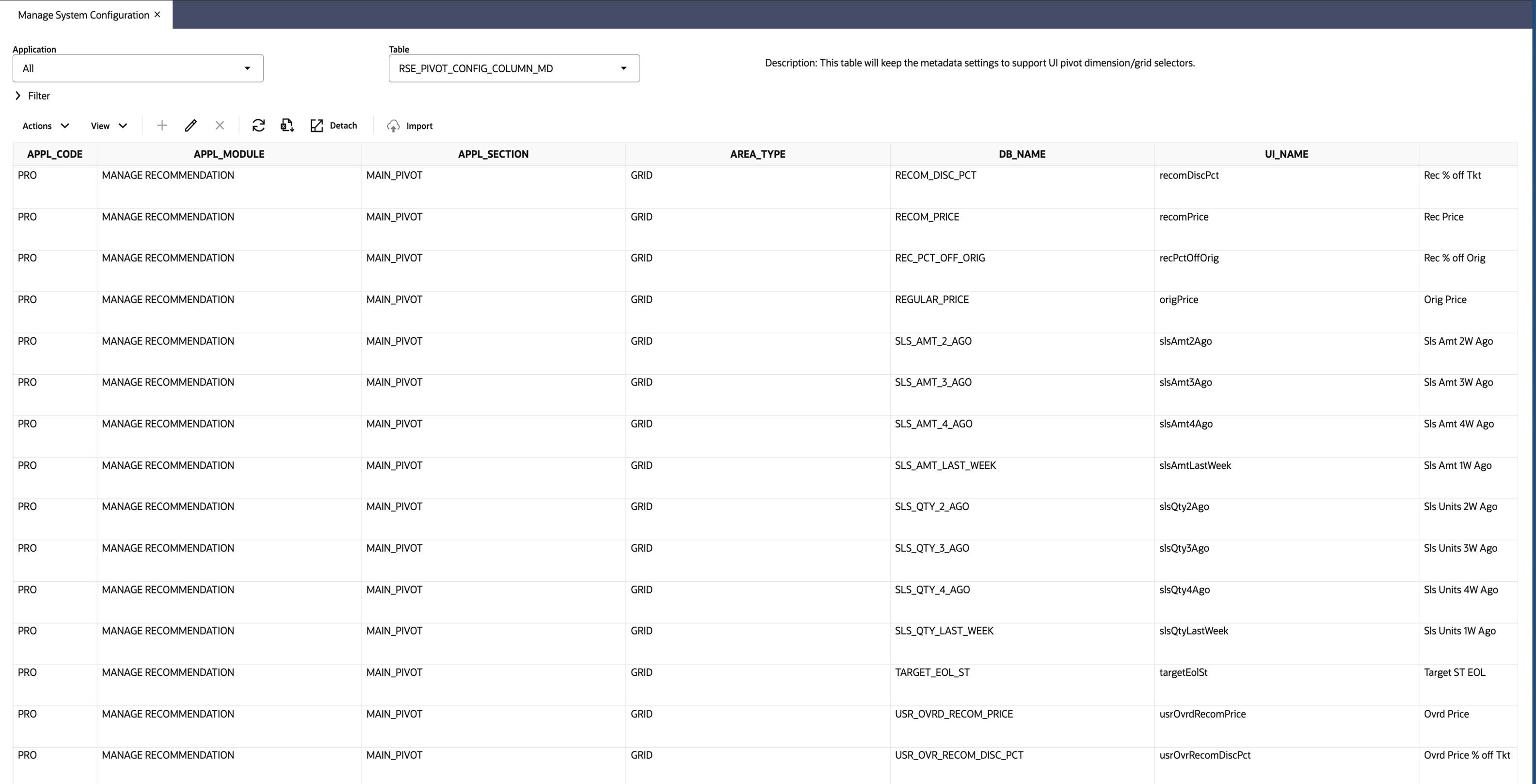
Users can specify which columns are available for pivoting and select aggregation options through the metadata table RSE_PIVOT_CONFIG_COLUMN_MD. These settings are managed through Manage System Configurations.
Figure 8-9 Manage Recommendations - Pivot Table Configuration
Pivot Tables
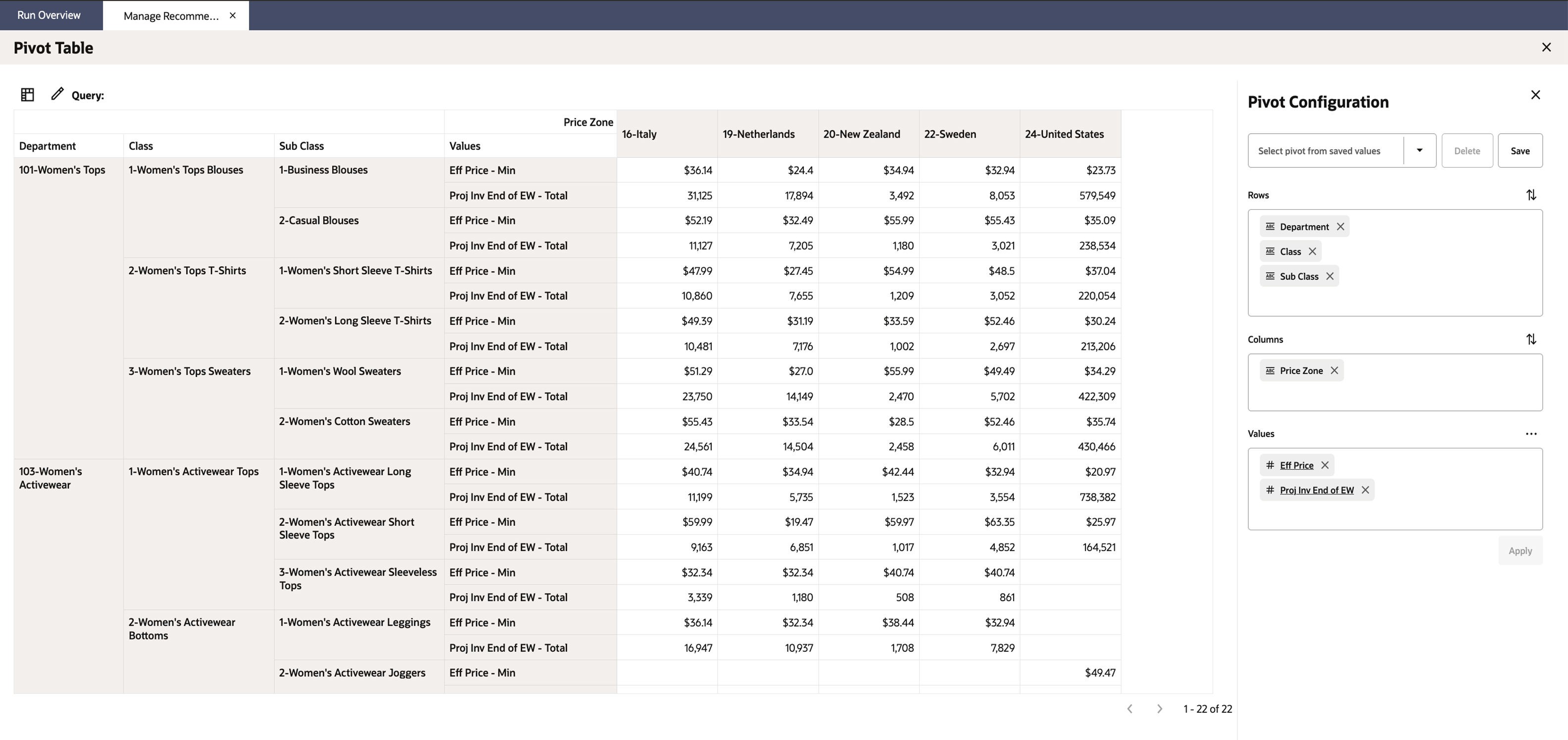
Pivot table functionality enables you to quickly summarize, analyze, and visualize recommendation data from multiple perspectives. You can easily configure rows, columns, and values such as Departments, Class, Sub Class, Price Zones, and key metrics (for example, Recommended Price, Total Inventory, and so on) using a flexible drag-and-drop interface. The Pivot Table can be accessed by selecting the Pivot option from the Actions menu in the Manage Recommendations table.
The configured pivot table also can be retrieved for later use.
Figure 8-10 Manage Recommendations - Pivot Table
Computed Columns
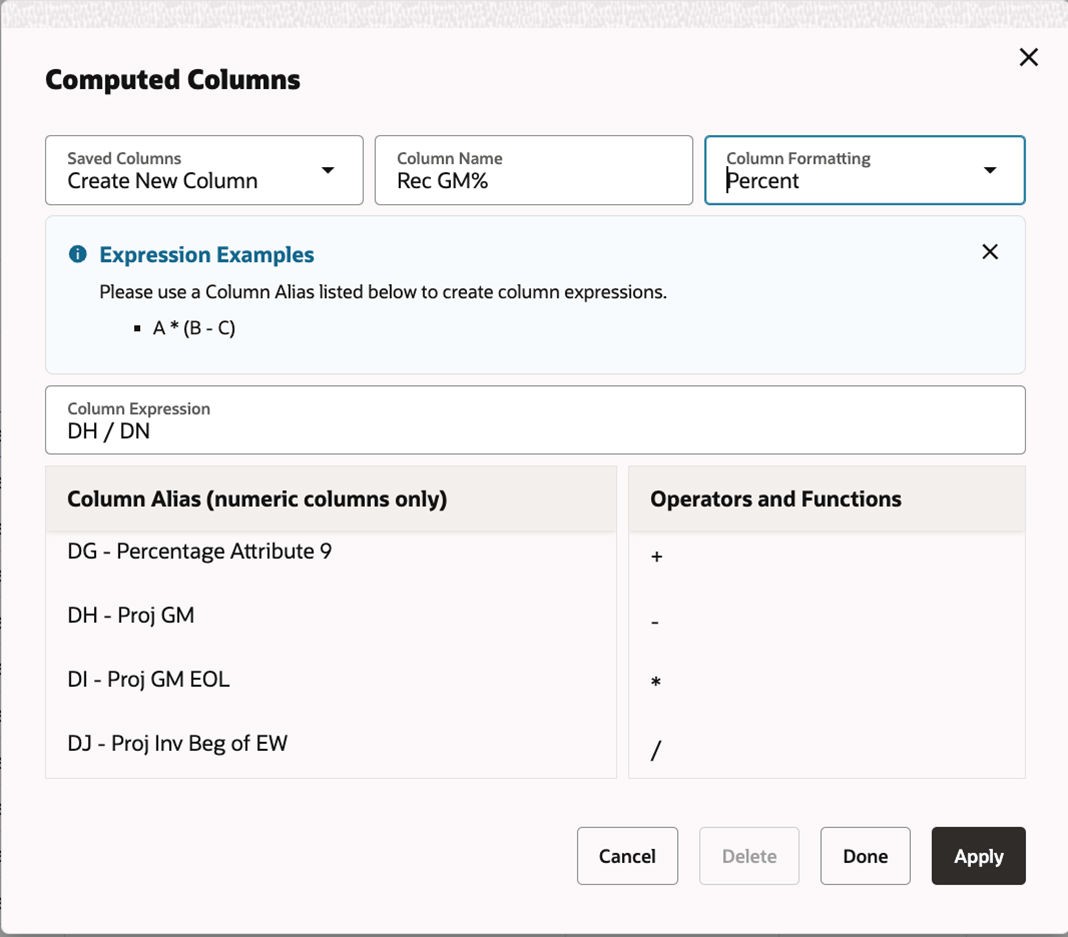
You can define custom calculations, such as “Price Difference = Recommended Price − Current Price” using available data fields and have these metrics displayed in your workspace for actionable insights. To add a custom calculated metric, select Computed Columns from the View Menu in the Manage Recommendations table and create a new column with your chosen expression.
Figure 8-11 Manage Recommendations - Computed Columns
Custom Attributes (Flex Facts)
Flex Facts are custom attributes that support business-specific metrics in the Manage Recommendation UI. They allow you to include additional information such as sales values, margins, percentages, descriptive text, or dates, helping you analyze recommendations based on metrics that matter to your business.
Flex Facts support multiple data types (numeric, currency, character/text, percentage, and date) and are available as predefined attribute slots in LPO (for example, multiple Currency, Number, Date, Percentage, and Text attributes). These attributes are populated in the W_RTL_FLEXFACT1_F table and processed using system jobs to make them available in the UI for analysis.
Figure 8-12 Manage Recommendations - Flex Facts
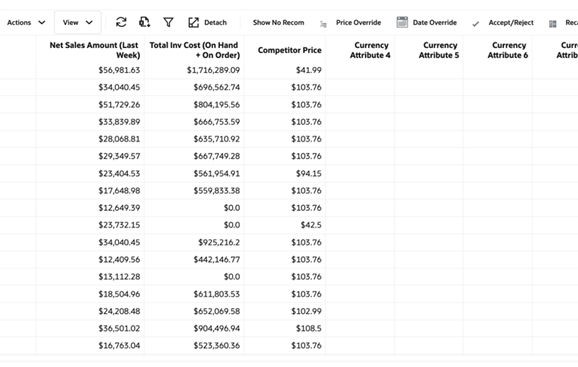
As shown in the table above, multiple Flex Fact attribute slots are available for each data type (for example, Currency Attribute 1-30, Number Attribute 1-40, and so on), which can be used to store different business metrics. These generic attribute slots can be customized into
meaningful business metrics by updating their labels. For example, Currency Attribute 1 can be used to display Net Sales Amount (Last Week), Currency Attribute 2 for Total Inventory Cost, and Currency Attribute 3 for Competitor Price. These attributes are then displayed in the UI as business-friendly metric columns, making them easier to interpret and use for decision-making.
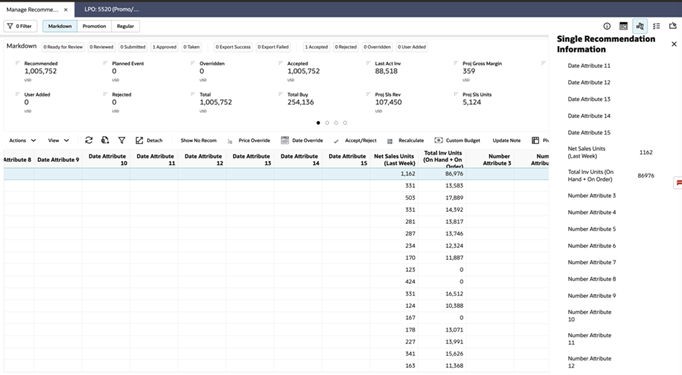
Custom Attributes can also be accessed from the Single Recommendation Information panel in the contextual pane by selecting an item from the Manage Recommendations table.
Figure 8-13 Manage Recommendations - Flex Facts in Single Recommendation Information Panel
Collaborating with Other Users
Recommendation review is often a collaborative process involving analysts, buyers, and other business users. This section explains how to document decisions, add notes, flag recommendations, and provide additional context to support the review and approval process.
Notes
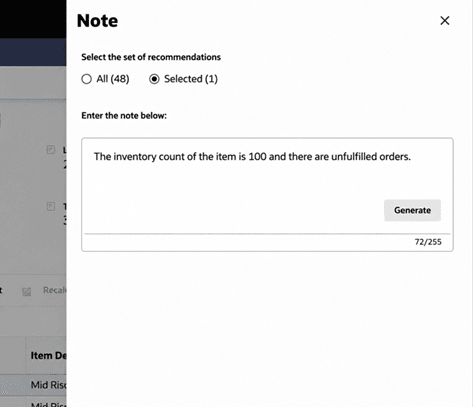
When you enter a note using abbreviations or short cuts (or even typos), you can select Generate, which make a GenAI call to expand or elaborate on the note, whenever possible.
Figure 8-14 Manage Recommendations - Update Note
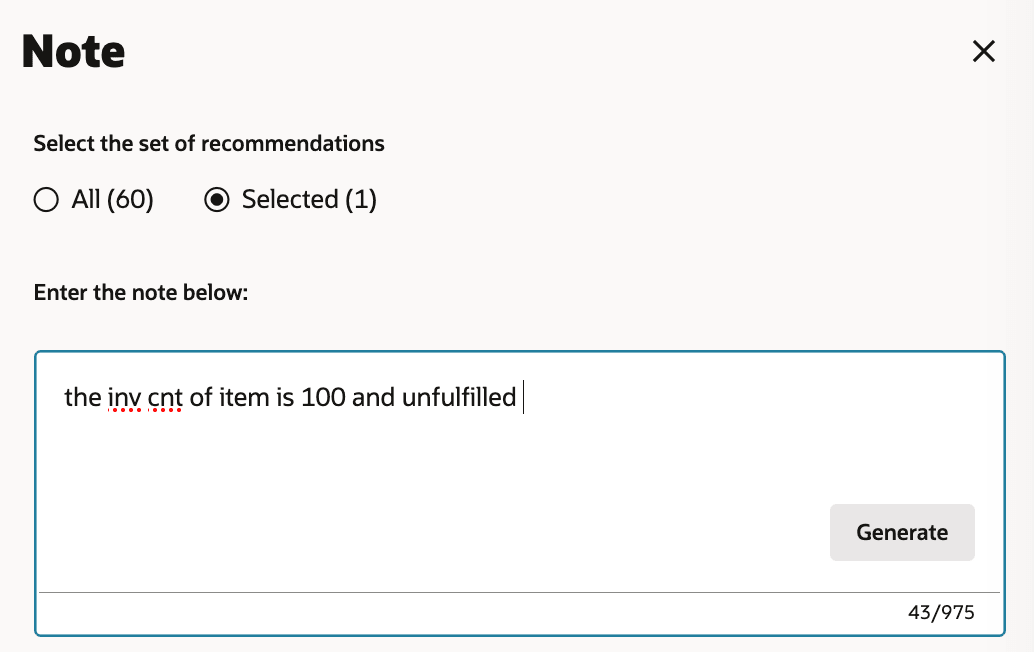
Figure 8-15 Screenshot for Collaborating with Other Users
Flags
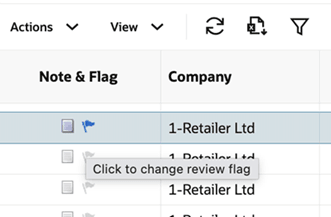
Flags help you identify and track recommendations that require additional attention during the review process. You can flag a recommendation to indicate that it needs further investigation, business review, follow-up action, or discussion with other users before it moves forward in the workflow.
Flags are particularly useful when multiple users participate in the recommendation review process. For example, a Pricing Analyst may flag a recommendation for a Buyer to review, or a user may flag a recommendation that is associated with an exception, unusual pricing outcomes, inventory concerns, or a planned business event.
A flagged recommendation remains visible in the recommendation table and can be used as a visual indicator that the item requires attention. Flags can be combined with notes to provide additional context and explain why the recommendation was flagged.
Figure 8-16 Manage Recommendations - Flag an Item