11 Price Modeling
Price Modeling allows pricing analysts to test a regular price or cost change for a Rules-Based Regular Pricing item-location combination. Analysts can review the resulting price, cost, margin, and rule outcomes before deciding how the recommendation should proceed. Select Finish Modeling to open the Price Cost Modeling Items page. From this page, select one or more recommendations and choose Review or Approve. Submission, export, and execution follow the configured downstream recommendation workflow.
The workspace is labeled Price Cost Modeling in LPO. Modeling is an analysis step: finishing a modeling session does not by itself submit, approve, export, or execute a recommendation.
When to Use Price Modeling
Use Price Modeling to evaluate a Rules-Based Regular Pricing recommendation in Ready for Review status before it is marked Reviewed or Approved. Typical scenarios include:
- A supplier cost increase is received. The pricing analyst models the new cost, reviews its effect on margin and applicable rules, and marks the recommendation as Reviewed.
- A competitor reduces the price of a comparable item. The pricing analyst models a competitive price, compares it with the available competitor data, reviews the margin impact, and submits the result for approval.
- A recommended price produces a margin below the business target. The pricing analyst tests a higher price, refreshes the rules, and confirms that the new margin and rule outcomes are acceptable.
- A modeled price violates a pricing rule. The pricing analyst adjusts or resets the modeled values, refreshes the rules, and continues until the outcome is acceptable or the violation is escalated for review.
Accessing Price Modeling
Use the entry point that matches the Rules-Based Regular Pricing recommendations you want to model. In the user interface, the feature is labeled Price Cost Modeling.
From the Task Menu
- Sign in to Oracle Retail AI Foundation.
- Open the Tasks menu.
- Select Price Cost Modeling.
The Price Cost Modeling workspace opens. Use the filter to define the item-location combinations in the working set.
From Manage Recommendation
- Open Manage Recommendation and select Regular.
- Apply a filter or use the table search tools to locate the required recommendations.
- Select one or more recommendations in Ready for Review status.
- Select Price Cost Modeling from the toolbar.
The Price Cost Modeling action is available only for recommendations in Ready for Review status. It is disabled for recommendations in other statuses.
The selected eligible item-location combinations form the working set for the modeling session.
Working Set (Cycle Set)
The working set contains the item-location or item-price-zone combinations available in the current modeling session.
- When Price Cost Modeling is opened from the Tasks menu, the Price Modeling filter defines the working set.
- When it is opened from Manage Recommendation, the selected recommendations in Ready for Review status define the working set.
- Each item-location or item-price-zone combination appears as a separate entry.
The workspace header shows the current position in the working set. Use the arrow controls to move to the previous or next combination.
Price Modeling Workspace
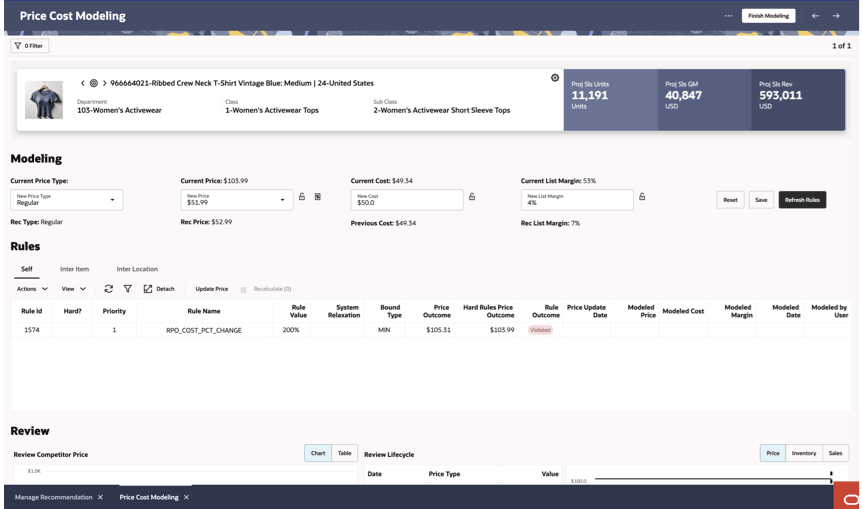
The Price Cost Modeling workspace brings product context, projected metrics, modeling inputs, rules, review information, and completion controls together on one page.
Work from top to bottom:
- Confirm the product and location context and review the current projected metrics.
- Enter the supported price, cost, or margin change, use the lock controls where needed, and save the current modeling work.
- Select Refresh Rules to evaluate the modeled values against the applicable rules. Where supported, select a rule and use Update Price to apply its calculated price, then refresh the rules again.
- Review Self, Inter Item, and Inter Location outcomes, including compliant or violated results.
- Review competitor and lifecycle context using the Price, Inventory, and Sales views.
- Use the projected-metrics summary to make the final decision, then select Finish Modeling.
Figure 11-1 Price Modeling Workspace
Filter Bar
Select Filter to define or refine the item-location combinations in the current modeling session.
When the workspace is opened from Manage Recommendation, the working set reflects the recommendations selected or filtered there.
Product Information Panel
The product information area identifies the item-location combination currently being modeled before you change a value.
It displays the product image, item and location or price zone, merchandise hierarchy, and position in the working set.
Projected Metrics
The projected-metrics tiles display the existing Projected Sales Units, Projected Sales Gross Margin, and Projected Sales Revenue associated with the recommendation. The tiles do not recalculate when the New Price, New Cost, or New List Margin is changed during modeling. Review the modeled price, cost, margin, and rule outcomes separately. The impact of the modeled values is reflected after the recommendations are approved from the Price Cost Modeling Items page.
Modeling Inputs and Locks
Use the Modeling area to compare the current and recommended values with a proposed price, cost, or list margin for the selected item-location combination.
The visible controls support the following tasks.
Table 11-1 Modeling Inputs and Controls
| Control | Purpose |
|---|---|
| New Price Type | Select the price type to model for the current regular-price recommendation. |
| Current, Recommended, and New Price | Compare the existing and recommended prices, then enter the proposed modeled price. |
| Current, Previous, and New Cost | Compare available cost values, then enter the cost to model. |
| Current, Recommended, and New List Margin | Review the existing and recommended margin and the margin produced by the modeled values. |
| Lock controls | Hold a supported value fixed while LPO recalculates a dependent price, cost, or margin value. |
| Reset | Restore the modeled inputs to the recommendation values for the selected item-location combination. After resetting the values, select Refresh Rules to re-evaluate the rules and update the Rule Outcome. |
| Save | Retain the current modeled inputs for the selected combination. |
| Refresh Rules | Evaluate the applicable rules against the current modeled values. |
| Update Price | Apply the calculated price from a selected applicable rule to the modeled price before refreshing rule outcomes again. |
The lock icons show which supported values are held fixed while a dependent value is recalculated. Select Save to retain the current modeled inputs for the selected combination. Select Reset to restore the recommendation values. After saving or resetting the values, select Refresh Rules to update the applicable rule outcomes.
Refresh Rules
Select Refresh Rules after changing and saving the modeled values to evaluate the rules that apply to the current item-location combination. If you use a rule's calculated price, select the applicable row, select Update Price, and refresh the rules again.
The Rules grid updates the calculated price outcomes and Rule Outcome. Review rule impact here; use the projected-metrics tiles later for the final commercial decision.
Note:
Refresh Rules evaluates the current modeled values but does not finish the modeling session.Rules Panel
After refreshing, use the Rules area to review the policy and relationship effects of the modeled values.
The three tabs represent different rule scopes:
- Self - Rules evaluated for the selected item-location combination.
- Inter Item - Rules that relate the selected item to other items.
- Inter Location - Rules that relate the selected item across locations or price zones.
For each tab, review the priority, Hard? indicator, configured value, calculated price outcomes, and Rule Outcome. Compliant indicates that the modeled values satisfy the rule; Violated identifies a relationship that needs attention.
Self Rules
The Rule Outcome is based on the values evaluated during the latest rule refresh. If the modeled values are changed or reset, select Refresh Rules before interpreting the outcome.
The Self tab evaluates rules on the selected item-location combination alone, such as cost change limits, margin requirements, item-specific price policies, or competitor price changes.
Compare the modeled price, cost, and margin with the displayed price outcomes and Rule Outcome before moving to the related-item rules.
Inter Item Rules
The Inter Item tab evaluates pricing relationships between the selected item and related items, such as an intended gap or relative price position.
Changing the modeled value of one item can affect the relationship with other items. Review the related items and their combined outcome before deciding whether the modeled value is acceptable.
Inter Location Rules
The Inter Location tab evaluates the selected item across related locations or price zones.
Changing the modeled value for one location can affect the relationship with other locations. Review all the related locations and their combined outcome before deciding whether the modeled value is acceptable.
Review Area
After reviewing rule outcomes, use the Review area to compare the proposal with competitor pricing and the item's price lifecycle.
The Review area contains:
- Review Competitor Price - Review the available competitor pricing information for the selected item. Switch between Chart and Table to view the information. The current, recommended, and modeled prices are displayed in the Modeling area and are not repeated in the competitor table. If competitor information is unavailable for the selected item, no competitor comparison is displayed.
- The competitor table displays:
- Competitor- Identifies the competitor associated with the pricing information.
- Date - Identifies the date associated with the competitor price observation.
- Most Common - Displays the most frequently observed competitor price.
- Average - Displays the average observed competitor price.
- Maximum - Displays the highest observed competitor price.
- Minimum - Displays the lowest observed competitor price.
- Review Lifecycle - Review dated price and cost events for the selected item-location combination.
- Price, Inventory, and Sales views - Examine historical price, inventory, and sales trends to understand the broader commercial context of the proposed change.
Use this information together with the modeled price, cost, margin, and rule outcomes to determine whether the proposed change is acceptable.
Finish Modeling
Before finishing, confirm the following information:
- The modeled price, cost, and margin.
- The Self, Inter Item, and Inter Location rule outcomes.
- The available competitor and lifecycle information.
- The existing projected metrics for the recommendation.
Select Finish Modeling at the top of the workspace. The Price Cost Modeling Items page opens and displays the recommendations included in the modeling session, summary counts, and the available impact comparison.
Select the required recommendations and use the table toolbar to perform one of the following actions:
- Review: Mark the selected recommendations as Reviewed.
- Approve: Approve the selected recommendations.
After the action is completed, the recommendation returns to Manage Recommendation with its updated status.
Because Price Cost Modeling is available only for recommendations in Ready for Review status, recommendations that have moved to Reviewed, Approved, or another status are no longer available in the Price Cost Modeling working set.
Any subsequent submission, export, or execution follows the configured recommendation workflow.
Note:
Selecting Finish Modeling alone does not approve, submit, export, or execute the recommendation.