10 Regular Pricing Optimization
Use this chapter to create, optimize, review, and complete Regular Pricing runs.
To access Regular Pricing, open Lifecycle Pricing Optimization from the Oracle Home Experience, select Run Overview, and open the Regular tab. Create a run or open an existing run to enter Scope.
Scope
In Scope, define the merchandise, location or price zone, effective week, and pricing strategy. The screen displays additional fields required by the selected run mode.
Save the run, review the applied rules, and select Optimize or Re-Optimize when ready.
Forecast-Based runs include Start Week, End Week, and Base Period fields. Rules-Based runs include the Best Feasible Solution option, which is enabled by default.
Figure 10-1 Regular Run - Forecast-Based and Rules-Based Scope
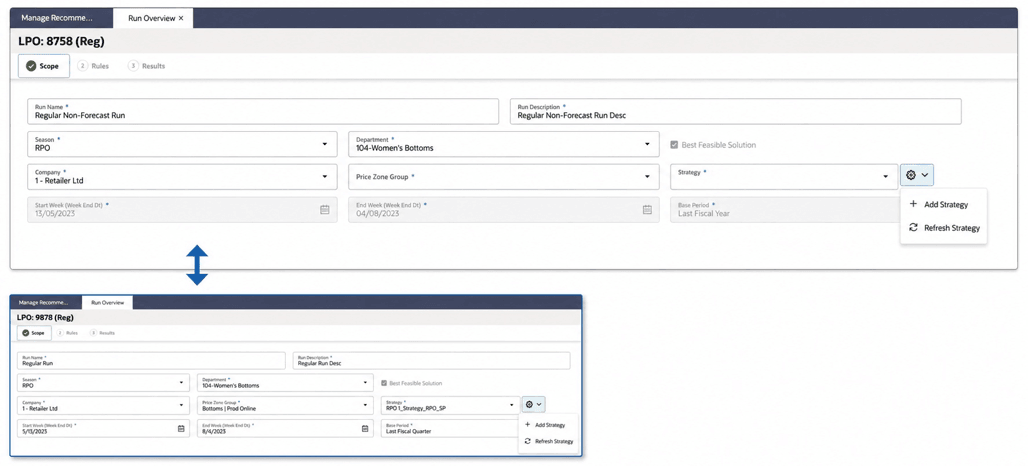
Table 10-1 Regular Run - Scope
| Name | Description |
|---|---|
| Run Name | The name identifying the run. The name must be 80 characters or fewer and can contain only alphanumeric characters. The value is case-sensitive. |
| Run Description | A brief description of the run. The value must be 200 characters or fewer and can contain only alphanumeric characters. |
| Season | Select the season for which the optimization run will be created. The available values are displayed in the Season drop-down list. |
| Product Hierarchy | Select the merchandise hierarchy level to be included in the run, such as Department or Class. Available values are determined by the PRO_PROD_HIER_RUN_SETUP_LVL configuration. |
| Location Hierarchy | Select the location hierarchy level to be included in the run, such as Region or District. Available values are determined by the PRO_LOC_HIER_PROCESSING_LVL configuration. |
| Price Zone | Select the price zone to be included in the run. The available price zones are determined by the forecast run type associated with the Lifecycle Pricing - Regular application. |
| Strategy | Select the pricing strategy to use for the run. A strategy contains a predefined set of business rules that control optimization behavior. By default, the application includes a strategy named DEFAULT_SET. Users can create additional strategies by selecting Add Strategy, which opens the Control and Tactical Center. |
| Start Week | Applicable only to forecast-based runs. Defines the starting week for regular price optimization and serves as the effective week for the generated regular pricing recommendations. |
| End Week | Applicable only to forecast-based runs. Defines the ending week for the regular price optimization period. |
| Base Period | Applicable only to forecast-based runs. Defines the historical reference period used by the optimization. Available values may include periods such as Last Fiscal Quarter, Current Fiscal Year, and other configured options. |
Rules
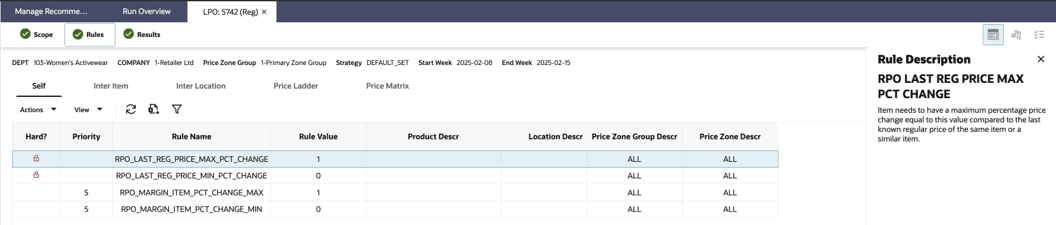
After saving Scope, select Rules in the Process Train. Unlike Promotion/Markdown runs, Regular Pricing rules are maintained in CTC and cannot be modified within the run.
This read-only stage shows rules from the selected strategy and DEFAULT_SET. Rules from the selected strategy take precedence; rule categories not defined there fall back to DEFAULT_SET.
Use the tabs in this stage to verify the rules and pricing relationships applied to the run. Select a row to view its description in the contextual panel.
Figure 10-2 Regular Run - Rules
For rule definitions, constraint behavior, and processing logic, see LPO Rules and Strategies. Use this section only to verify the rules applied to the current run.
Note:
None of these rules can have RULE_SUBTYPE_ALLOWED_FLG as Y. That is, there cannot be multiple values for the same rule at the same criteria.Self, Inter Item, and Inter Location Rules
The Self, Inter Item, and Inter Location tabs organize the Regular Pricing rules populated for the run. Use these read-only tabs to confirm that the expected rules and relationships are present before optimization.
Self: Applies rules independently to an item within its merchandise and location or price-zone scope. Examples include cost, margin, competitor, and price-range controls.
Inter Item: Enforces price relationships between two item sets, such as good-better-best tiers or related products. Both item sets must be included in the run scope for the rule to apply.
Inter Location: Enforces regular-price relationships for the same item across two locations, price zones, or price-zone groups. Both location sets must be included in the run scope for the rule to apply.
Price Ladder
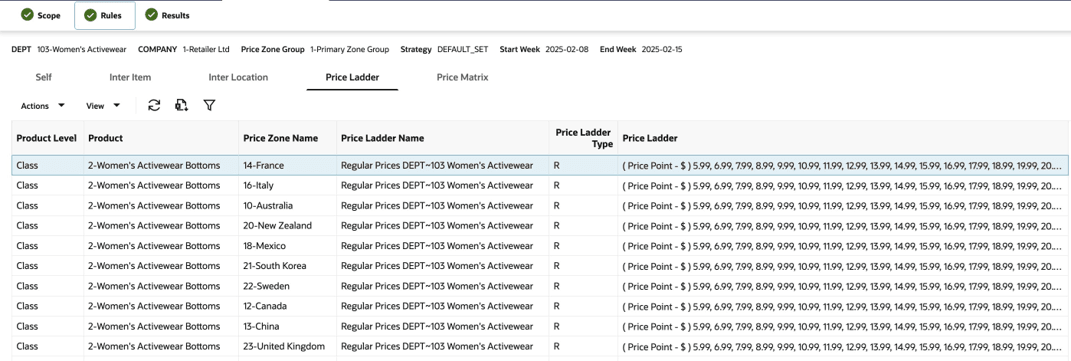
The Price Ladder tab displays Product Level, Product, Price Zone Name, Price Ladder Name, Price Ladder Type, and the valid Price Ladder values available to the run. Price ladders help ensure that recommendations follow retailer pricing conventions and support consistent pricing across merchandise groups.
Price ladders are assigned at PRO_REG_PROD_PROCESSING_LVL and are also used when users override recommendations in the Results or Manage Recommendation screens.
Figure 10-3 Regular Run - Price Ladders
Price Matrix
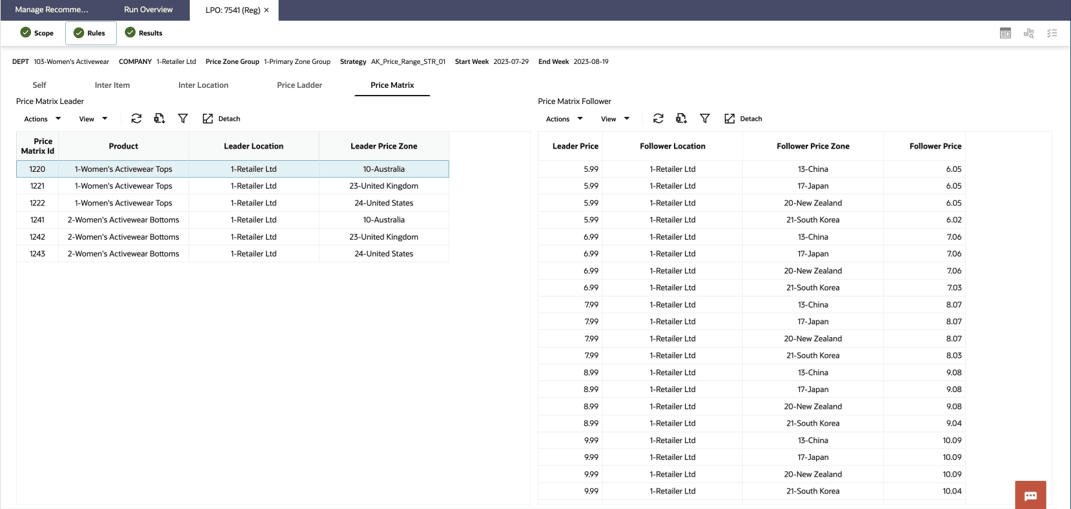
The Price Matrix tab displays pricing relationships from the selected strategy and associated Regular Pricing rules in two linked tables: Price Matrix Leader and Price Matrix Follower.
Select a leader row to review its product, leader location, and leader price zone, together with the corresponding follower locations, follower price zones, and mapped leader and follower prices.
This view is particularly useful when troubleshooting recommendation behavior, reviewing pricing relationships across products or locations, or validating complex Regular Pricing strategies that rely on multiple rule interactions.
Figure 10-4 Regular Run - Price Matrix
Run Optimization
After reviewing Scope and Rules, select Optimize or Re-Optimize in the footer to submit the run. Monitor processing status from Run Overview.
LPO evaluates the selected scope against the pricing strategy, applicable rules, price ladders, supporting business data, and forecasts when used.
When processing finishes, LPO notifies the user and the run moves to Ready for Review or Failed. See Table of Runs for the standard status meanings.
After processing:
- If the run reaches Ready for Review, proceed to the Results stage to evaluate the recommendations and projected business impact.
- If the run Fails, review the error details and verify that the required inputs and supporting data are available before re-running the optimization.
- If changes are required, return to the Scope or Rules stage, make the necessary updates, and select Re-Optimize to generate a new set of recommendations.
Rules-Based Batch Auto-Approval
After a scheduled Regular Pricing batch run completes, configured thresholds can automatically approve qualifying recommendations. The process evaluates the override price when one exists; otherwise, it evaluates the system-recommended price.
Table 10-2 Rules-Based Auto-Approval Thresholds
| Configuration | Purpose |
|---|---|
| PRO_REG_AUTOAPPROVE_RECOM_BELOW_PRICE | Auto approves when the regular price recommendation is below the configured price threshold. |
| PRO_REG_AUTOAPPROVE_RECOM_BELOW_PCT_CHG | Auto approves when the percentage change from the last regular price is below the configured threshold. |
| PRO_REG_AUTOAPPROVE_RECOM_BELOW_CHG | Auto approves when the absolute difference from the last regular price is below the configured threshold. |
Note:
Auto-Approved recommendations cannot be selected for price override, date override, accept/reject, review/submit/approve, undo review, or undo approve actions.Recommendation Effective-Date Timing
Recommendation effective dates are controlled separately from the batch schedule. The following configurations determine the earliest date when a regular price recommendation can take effect.
Table 10-3 Rules-Based Effective-Date Timing
| Configuration | Purpose |
|---|---|
| PRO_REG_MIN_DAYS_SINCE_LAST_REG | Minimum number of days to wait since the last regular price change before another regular price recommendation can take effect. |
| PRO_REG_MIN_DAYS_SINCE_LAST_PROMO | Minimum number of days to wait after the previous promotion before a regular price recommendation can take effect. |
| PRO_REG_MIN_DAYS_TO_EXECUTE | Minimum lead time required to execute a regular price recommendation. |
| PRO_REG_START_DAY | Preferred day of the week for regular price recommendations to take effect. |
Re-optimization and Failed Runs
When a run fails, review Run Overview error details and the run log for invalid scope parameters, missing items, or incomplete rule configuration. Correct the underlying issue and select Optimize or Re-Optimize to regenerate the recommendations.
Re-optimization is also appropriate after the pricing strategy or supporting N/F rules have changed. Re-optimizing replaces the previous recommendation set for that run.
Creating and Finalizing a What-If Run
- Create a Regular What-If run from Run Overview and select the same scope as the batch run you want to evaluate.
- Select the custom strategy, review the Self, Inter Item, Inter Location, Price Ladder, and Price Matrix tabs, and optimize the run.
- Compare the completed What-If run with the active batch run and finalize it only when its recommendations should become active.
Results
Use Results to evaluate regular price recommendations before accepting, overriding, or re-optimizing them.
Review the available summary tiles, then select an item to inspect its recommendation and supporting context.
To open Results, select a Regular run in Ready for Review status from Run Overview, or select Results in the Process Train for an open run.
Figure 10-5 Regular Run Results
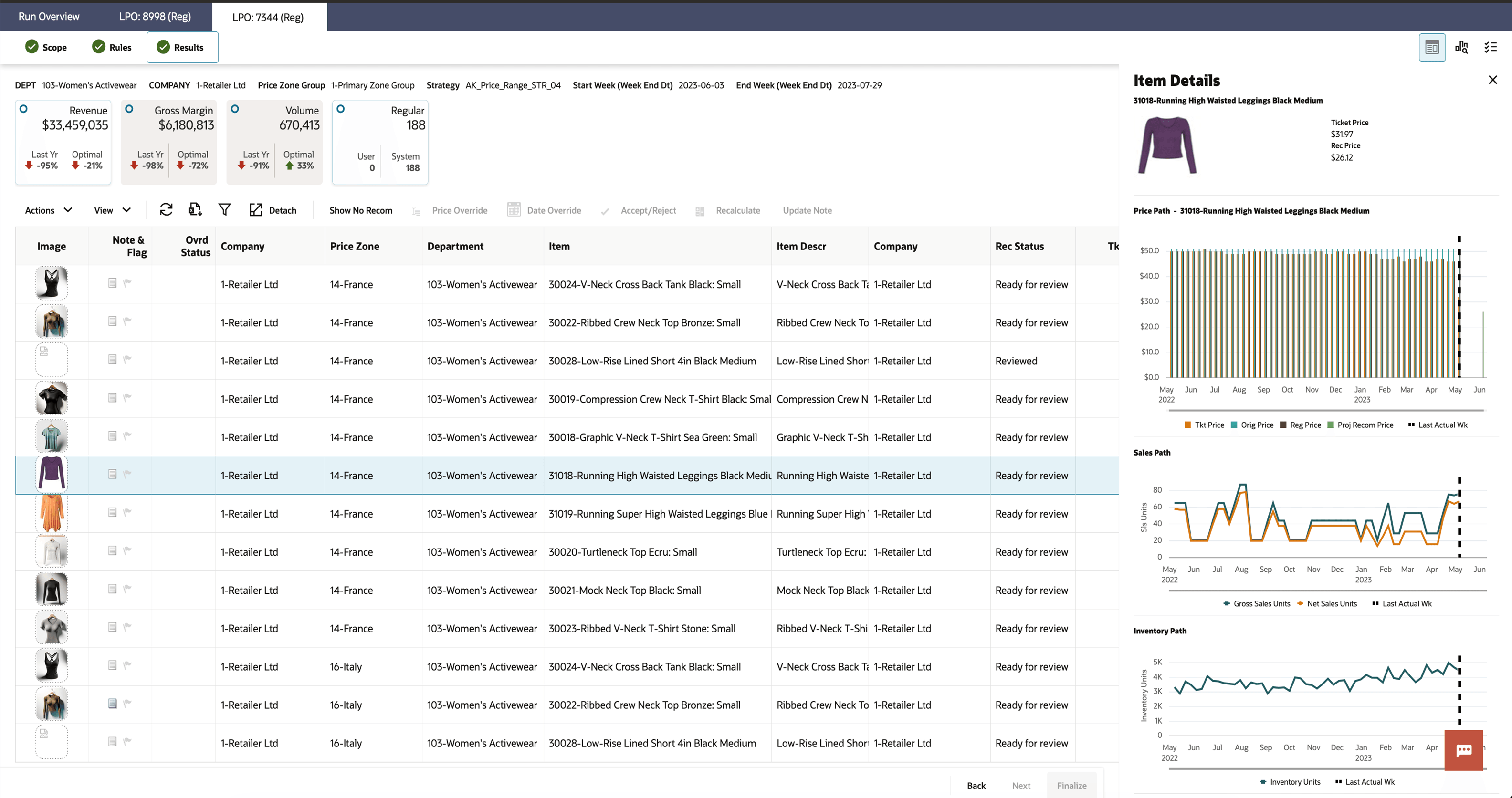
Select an item to open its available details and analysis in the contextual area. See Contextual Panel.
Possible Actions
From the Results stage, you can:
- Refresh the Results table to load the latest recommendation and status information, or export the table to Excel.
- Recalculate the projected metrics after making price overrides.
- Revisit earlier stages to make changes to the scope, strategy, or pricing rules and then re-optimize the run.
- Leave the run in the optimization list without taking any action. Runs can only be deleted from the Run Overview screen.
- Accept, reject, or override regular price recommendations that are in Ready for Review status.
Result Tiles
The Results stage displays the summary tiles available for the selected run.
Table 10-4 Regular Run - Result Tiles
| Tile | What it Measures | Optimal Field | Availability |
|---|---|---|---|
| Revenue | Projected total revenue at end of item life, assuming all recommendations are accepted. | Percentage gain or loss in revenue compared to maintaining current prices. | Forecast-based runs only. |
| Gross Margin | Projected gross margin at end of item life, assuming all recommendations are accepted. | Percentage gain or loss in gross margin compared to maintaining current prices. | Forecast-based runs only. |
| Volume | Projected sales volume at end of item life, assuming all recommendations are accepted. | Percentage gain or loss in sales volume compared to maintaining current prices. | Forecast-based runs only. |
| Regular | Count of system-generated regular price recommendations for the selected effective week, plus any user-added recommendations. | Not applicable. | Available for both forecast-based and rules-based runs. |
Rules-Based Result Tiles
Rules-Based results summarize recommendation coverage, price movement, rule violations, and items without recommendations.
Table 10-5 Rules-Based Regular Pricing Result Tiles
| Tile | Description |
|---|---|
| Regular | Total number of regular price recommendations generated for this run. |
| Price Increase | Count and percentage of recommendations where the recommended price is higher than the current regular price. |
| Price Decrease | Count and percentage of recommendations where the recommended price is lower than the current regular price. |
| No Change | Count and percentage of recommendations where the recommended price equals the current regular price. |
| Violations | Count of recommendations where at least one soft rule could not be fully satisfied. Best Feasible Solution was applied for these items. |
| No Recommendation | Count of items in scope for which no recommendation was generated, for example items with hard rule conflicts that could not be resolved. |
The Revenue and Regular tiles open the detailed recommendations table. The Gross Margin and Volume tiles are display only.
Forecast-Based Runs: Reading the Tiles Together
Start by reviewing Gross Margin Optimal and Volume Optimal together.
Table 10-6 Regular Run - Result Tiles - Reading Them Together
| Gross Margin Optimal | Volume Optimal | What the Engine Prioritized | Typical Scenario |
|---|---|---|---|
| Positive | Positive | Both profitability and sales volume improved. | Pricing flexibility exists and demand remains healthy. |
| Positive | Negative or Flat | Margin protection. Prices were increased or maintained to improve profitability. | Early-season pricing or margin-focused strategies. |
| Negative | Positive | Volume growth. Prices were lowered to increase demand. | Volume-driven or inventory-focused strategies. |
| Negative | Negative | Constraints prevented meaningful improvement. | Typically indicates conflicting or restrictive rules. |
Next, compare Revenue Optimal with Gross Margin Optimal.
- Revenue up and Margin down generally indicates price reductions that drive additional demand.
- Revenue down and Margin up indicates higher prices designed to protect profitability.
- When both metrics decline, pricing constraints may be limiting the optimization engine’s ability to improve performance.
Understanding the Volume Tile
Unlike Promotion and Markdown Optimization, Regular Pricing does not include a Sell-Through metric.
Instead, the Volume Optimal value indicates whether the recommended prices are expected to increase or decrease unit sales compared to the current pricing strategy.
A positive Volume Optimal value indicates additional projected demand, while a negative value suggests that higher prices are expected to reduce unit sales.
Rules-Based Runs: Interpreting the Regular Tile
For rules-based runs, the Regular tile displays the number of items that received regular price recommendations for the selected effective week.
The recommendation count indicates how many items received a recommendation, but not whether those recommendations are appropriate. To understand why a recommendation was generated, review the Rules Panel for the selected item.
If the recommendation count is lower than expected:
- Review Price Range rules that may be restricting valid recommendations.
- Verify that the assigned Price Ladder contains appropriate price points.
- Review Inter Item and Inter Location rules that may prevent recommendations from being generated for dependent products or locations.
Select a recommendation and open Rules in the contextual area to review the applicable rules, outcomes, and violations. See Contextual Panel in Chapter 2.
No Recommendation and Show No Recom
Rules-Based items can receive No Recommendation when hard-rule conflicts leave no valid candidate price, required competitor or cost data is missing, or the item falls outside the active rule criteria. These items cannot be reviewed, submitted, approved, or exported.
Use Show No Recom in the Results table toolbar to display the affected items, correct the data or rule configuration, and then re-optimize the run.
When to Investigate Before Accepting Recommendations
Review recommendations more closely when:
- Revenue, Gross Margin, and Volume metrics decline simultaneously.
- Recommendation counts are significantly lower than expected.
- Multiple rule violations appear in the Rules Panel.
- Forecast results differ from business expectations.
- Competitor, pricing group, or price range constraints appear to be restricting recommendations.