6 Run Overview
Run Overview is the central workspace for managing optimization activities in LPO. It is the starting point for creating new runs, monitoring optimization progress, comparing pricing scenarios, and accessing completed results.
To access Run Overview, select Run Overview from the LPO tasks. Use the Promotion/Markdown or Regular tab to display the required run type.
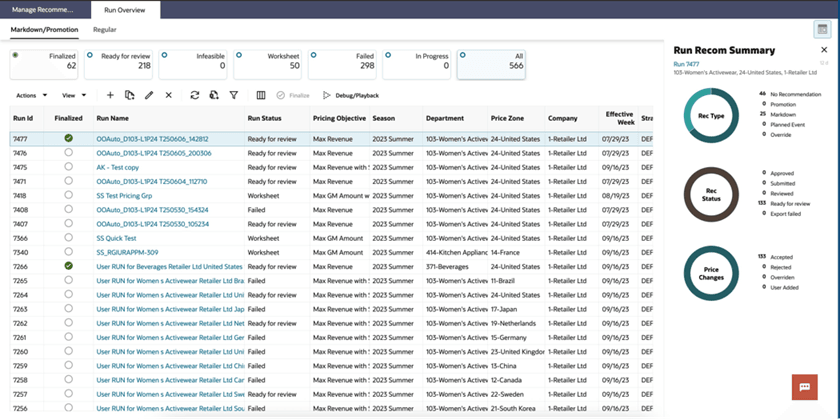
The Run Overview Dashboard is organized into three primary areas:
- Status Tiles, which provide a summary of runs by status and allow you to quickly filter the displayed runs.
- Table of Runs, which displays detailed information about each run, including optimization status and key business metrics.
- Contextual Panel, which provides additional insights into the selected run, including recommendation summaries and pricing impact information.
Figure 6-1 Run Overview - Markdown/Promotion
Status Tiles
The Status Tiles provide quick access to the number of runs by status - Finalized, Ready for Review, Infeasible, Worksheet, Failed, Submitted, In Progress, and All - and help you quickly focus on runs that require attention.
By default, the Finalized tile is selected, showing the list of finalized runs. Clicking a specific tile filters the Table of Runs to display only the runs with the selected status. For example, if you click the Ready for Review tile, the table will show only the runs that are in Ready for Review status.
Table of Runs
The Table of Runs is the operational center of Run Overview. Each row represents an optimization run and provides relevant information on all the runs in a tabular format where you can perform operations such as create, copy, delete, compare, and finalize runs invisibility into its scope, status, strategy, and projected business impact.
Use this table to compare optimization outcomes, monitor run progress, identify failed or infeasible runs, and access detailed run results.
See Appendix: Promotion and Markdown Run Overview and Appendix: Regular Run Overview for Run Overview field definitions and calculations.
-
For each run with a successfully completed optimization, certain KPIs such as Revenue, Gross Margin, and Sell-Through are shown in absolute numbers as well as by % gain. Note that each run can be in its own currency.
-
When the run is in Ready for Review status, clicking the run name in the overview screen automatically takes you to the Results stage. Otherwise, if the run is Worksheet status, the Results stage is disabled.
-
The table of runs also provides the information about the batch runs. Batch runs are prefixed with "Batch" in the run name, and the run status will say "Auto Run" when created.
- You cannot individually optimize batch runs, as they are scheduled for optimization as part of the batch process.
- If you want to execute batch optimizations on demand, you can use the Oracle Retail Process Orchestration and Monitoring Cloud Service (POM) UI to submit an ad hoc batch job for optimization. Batch runs then execute at the frequency specified by the batch process.
- The system extracts the latest sales data, updates relevant inputs, and sends the run for optimization.
- If the batch run completes successfully, LPO displays the results and finalizes the run.
- Click the Refresh button to update the table and run statuses.
Table 6-1 Run and Recommendation Status
| Status | Description |
|---|---|
| Worksheet | The user is setting up the run, which has not yet been sent for optimization. |
| Running | The run has been sent for execution, and the process of collecting data and optimization is currently running. When the user selects re-calculate, the run enters running status as well, but here it will be recalculating all the metrics based on the user price overrides (no re-optimization). |
| Ready for Review | The optimization process is complete, and the run status and item recommendations are ready for review. |
| Submitted | The run has been submitted for optimization and is queued for processing. The run will move to Running once the optimization engine picks it up. |
| Auto Run | This status indicates that the run is a batch run and will be executed as part of batch process. |
| Failed | Run execution was aborted due to technical or data errors. |
| Infeasible | Optimization could not find any solution due to the various business rules set for the run and thus it produces a current ticket or regular prices as the recommendations. |
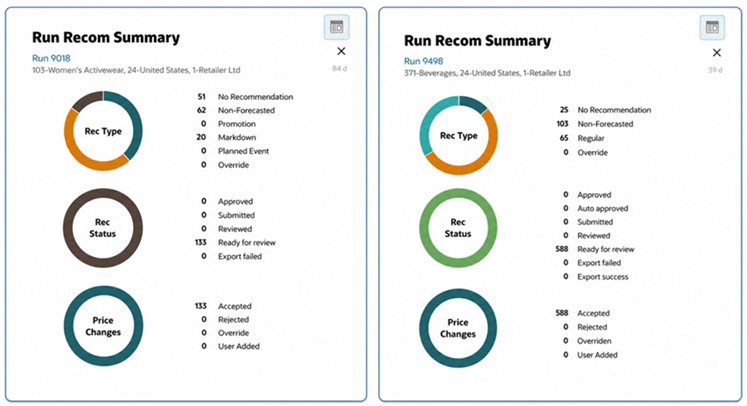
Figure 6-2 shows the contextual summaries available for selected Promotion/Markdown.
See the Contextual Panel section in Accessing and Navigating LPO for the common access pattern and workspace summary.
Figure 6-2 Run Overview - Promotion/Markdown and Regular Recommendation Summaries
Run Overview Actions
Use the Actions menu above the Table of Runs to create, duplicate, edit, delete, compare, finalize, or troubleshoot runs. Available actions depend on run status and assigned privileges.
Create a Run
A Pricing Manager (Analytical Super User) can create a new Promotion or Markdown run. To create a Regular Pricing run, the Pricing Manager must also have the Regular Price User role. Select Add to open the Run Workspace at the Scope stage, where you define the scope, select the appropriate strategy, and configure the applicable business rules.
Copy/Duplicate a Run
To duplicate an existing run, select the desired run from the list on the Overview screen and click the Duplicate icon. You continue with the existing effective week or select a new one from the drop-down list. The Scope stage opens with the source run's configuration inputs. Existing optimization results are not included.
The duplicated run appears in the list with a new Run ID and a Run Name prefixed with "Copy Of." All business rules from the source run are also copied. However, data elements such as demand data, price, cost, and inventory are not copied, as they are refreshed during optimization.
Open/Edit Run
Run Overview is used for both viewing and editing runs, with access to the Scope, Rules or Strategy Summary, Run Optimization, and Results stages. Select a run and click the Edit icon. You can open any run available through your data access for viewing. Editing is limited to runs you created and for which you have the applicable privileges; the Regular Price User role is also required for Regular Pricing runs. Runs in Running, Reviewed, Submitted, Approved, or Auto Run status open in read-only mode.
Delete a Run
You can delete runs based on their status and your permissions. Select one or more runs and click the Delete icon. An Administrator can delete runs created by any user, except while a run is Running or when any recommendation in the run has been Submitted or Approved. Other authorized users can delete only runs they created, provided the runs are not Running or Auto Run.
Compare Runs
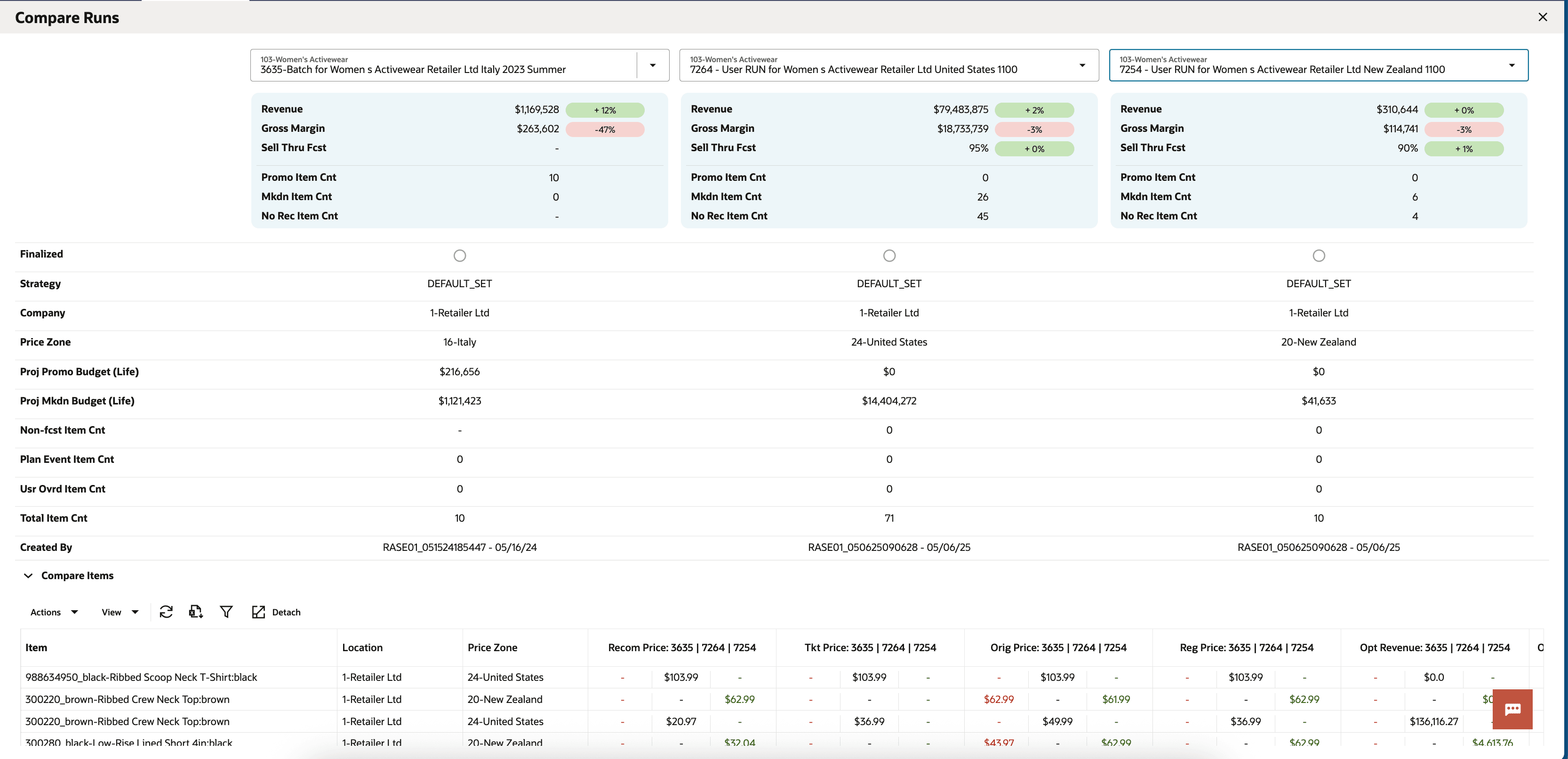
You can select one to three runs that share the same Merchandise Level and are in Ready for Review status, then click the Compare icon to initiate a comparison. The system evaluates the selected runs based on revenue, gross margin, volume, and other key metrics to help you identify the most favorable outcome. This feature is also useful for comparing different what-if strategies and selecting the best-performing option.
Figure 6-3 Run Overview - Compare Runs
Finalize Runs
After successfully optimizing a what-if run, select the run and click Finalize to make its recommendations available for further action. The finalized what-if recommendations replace those from the corresponding batch run in Manage Recommendation. Finalizing selects the recommendations to manage; it does not mark individual recommendations as Reviewed, Submitted, or Approved.
If there is a conflict, meaning the new run to be finalized has the same scope as an existing finalized run, an alert appears, asking you to un-finalize the existing run first. Exercise caution when un-finalizing a run, as any approved recommendations will be removed from the export integration views.
Debug/Playback
You can select a run and click the Debug/Playback button to download a zip file containing relevant data for debugging a what-if run. These files help you troubleshoot discrepancies between environments (for example, Stage versus Prod) or when submitting a Service Request (SR), making it easier to identify and resolve issues quickly.
The Process Train
From Run Overview, select a run name or select Edit to open the Run Workspace.
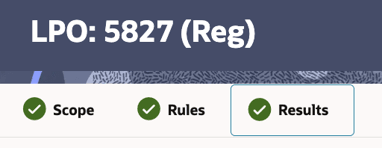
The Process Train at the top of the workspace shows the stages available for the selected optimization type, highlights the current stage, and indicates completed and upcoming stages. Select an enabled stage to navigate to it.
If results require adjustment, return to Scope or Rules, make the changes, and re-optimize the run.
Figure 6-4 Process Train for Promotion/Markdown Runs

Figure 6-5 Process Train for Regular Runs