2 Accessing and Navigating LPO
Before users begin creating optimization runs, it is helpful to become familiar with the LPO user interface and navigation. This chapter describes how to access LPO, navigate between workspaces, and use the common interface components available throughout the application.
Although the information displayed varies depending on the workspace, the overall navigation experience remains consistent across Promotion, Markdown, Targeted Offer, and Regular Pricing optimization workflows.
Accessing LPO
LPO is accessed through the Oracle Retail AI Foundation Cloud Service.
- Sign in to Oracle Retail AI Foundation Cloud Service using your assigned credentials.
- From the Oracle Home Experience, use the following controls:
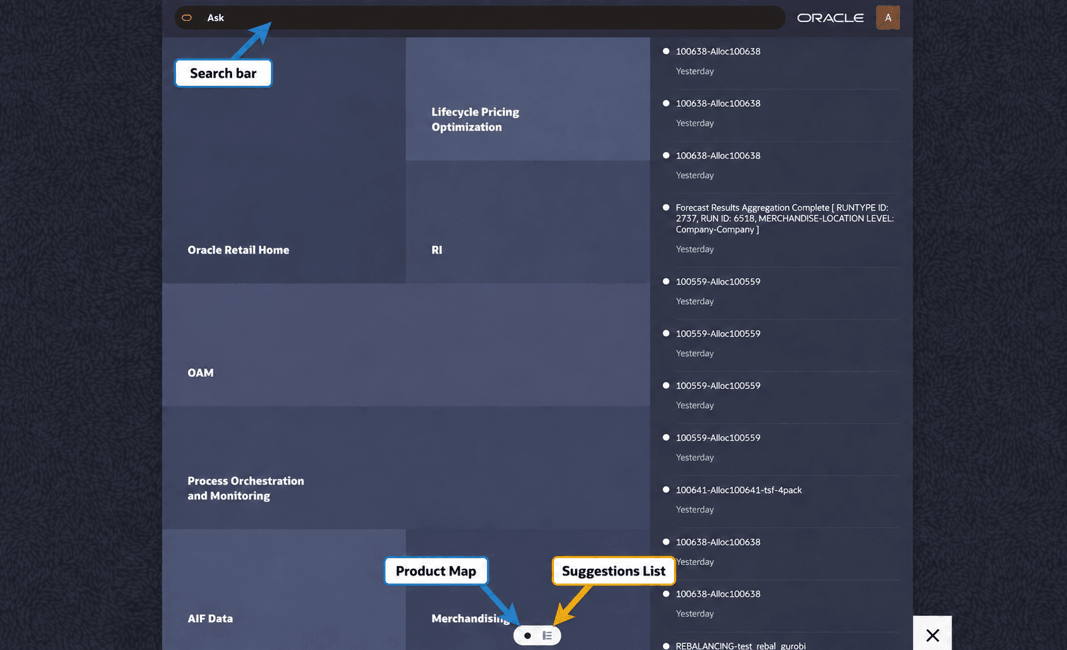
- Search Bar: Search for and open Lifecycle Pricing Optimization directly.
- Product Map: Browse the available applications and select Lifecycle Pricing Optimization.
- Suggestions List: Display available links in a list view, with frequently or recently selected links promoted for easier access.
- Notification Pane: Review recent processing messages, completion updates, and other system notifications.
- User Menu: Select the user icon in the upper-right corner to access preferences, Help, product information, and sign-out options.
- Click Lifecycle Pricing Optimization to display the available LPO tasks.
Figure 2-1 Oracle Home Experience
LPO Workspaces
LPO provides four operational workspaces together with Notifications and Digital Assistant. These options help users monitor activity, create and compare optimization runs, review recommendations, model price, and cost changes, and get natural-language assistance.
Figure 2-2 LPO Tasks - Product Map and Suggestions List
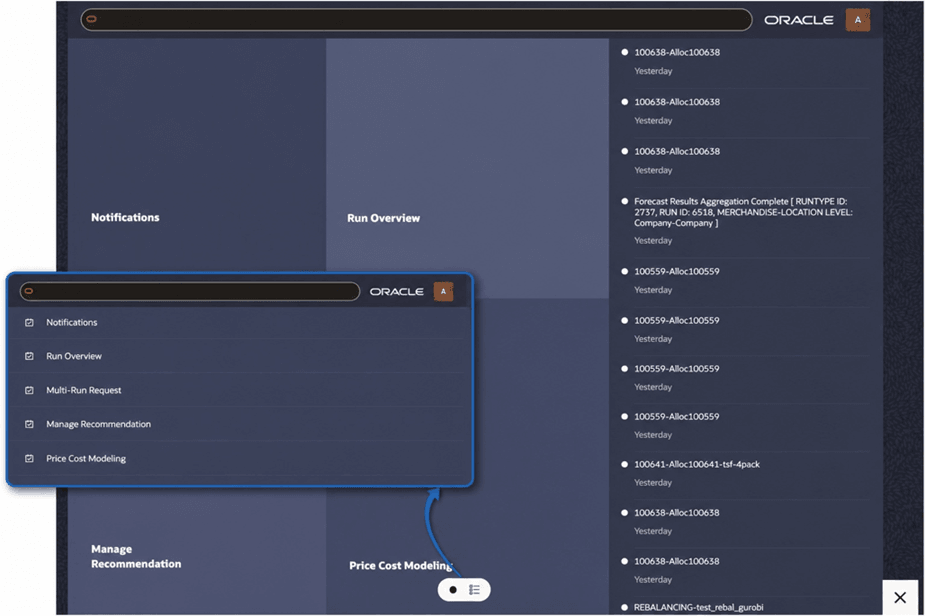
Table 2-1 LPO Workspaces
| Workspace | Purpose |
|---|---|
| Run Overview | Create, monitor, compare, and manage optimization runs. |
| Multi-Run Request | Create requests that generate multiple Promotion or Markdown What-If runs. |
| Manage Recommendation | Review recommendations; accept, reject, or override them where supported; mark recommendations as Reviewed; and, with the appropriate privileges, Submit or Approve them for export. |
| Price Cost Modeling | Explore supported price or cost changes and review projected metrics and business-rule impact before continuing through the recommendation workflow. |
| Notifications | Review batch processing, recalculation, batch, and other applications. |
| Digital Assistant | Use natural language to analyze pricing data, obtain workflow or product guidance, and provide the ‘Open Dashboard’ action. |
User Preference and Personalization
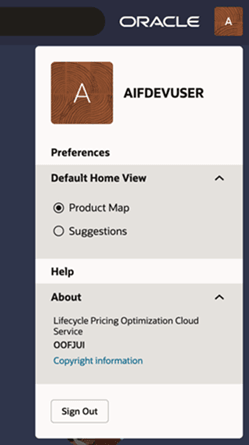
The User Menu provides access to personal preferences, Help, product information, and sign-out options. To open the menu, click your user profile icon in the upper-right corner of the application.
From the User Menu, you can:
- Preferences: Configure personal application settings, including your preferred language and default home view.
- Help: Access application help and supporting documentation.
- About: View product information, including the application name, version details, and copyright information.
- Sign Out: End your current session and securely sign out of the application.
- The Default Home View setting determines how application tasks are displayed in the Oracle Home Experience.
To change the setting, open the User Menu, select Preferences, choose Product Map or Suggestions List under Default Home View, and save your preference.
You can choose from the following views:
- Product Map: Displays available tasks as a visual tile layout.
- Suggestions List: Displays the available tasks as a list view.
Your selected home view is remembered and automatically displayed each time you access the application.
Application Preferences
Users with the administrator role can configure selected LPO application preferences. To access the page, open the user menu in the upper-right corner and select Preferences.
The Application Preferences page currently supports the following settings:
- Customize Manage Recommendation Tabs: Choose which Markdown, Promotion, and Regular tabs appear in Manage Recommendation. Select tabs from the available list and choose Add Selections. To remove a tab, select the X beside it in the selected list. You can also search the available and selected lists or use Clear Selections to remove the current selections.
- Filter Selection: Choose the filter layout used in Manage Recommendation. The Old layout presents individual filter fields, such as merchandise, location, season, effective week, and price zone. The New layout organizes filters into groups such as Products, Locations, Season, Price Zone, Effective Week, and Product Attributes.
Select Save to retain the preference changes or Cancel to leave the page without saving. Additional preference options may be introduced in future releases.
Figure 2-3 User Menu
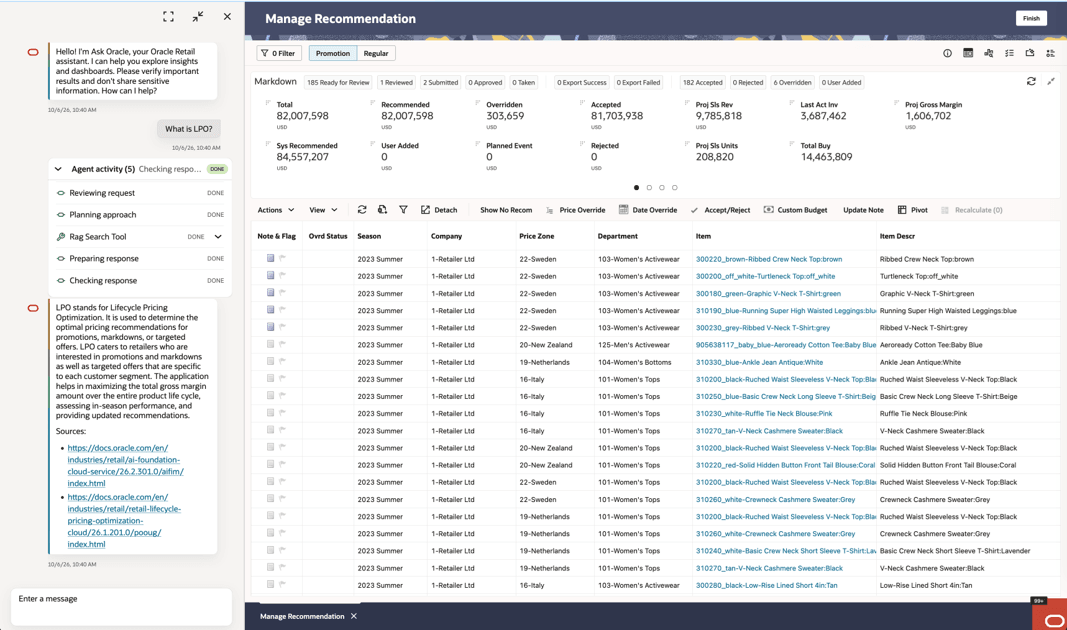
Digital Assistant
The Digital Assistant helps users turn a pricing question into analysis, guidance, or a dashboard without first learning every LPO screen. It can analyze available pricing data, explain recommendations and business rules, guide users through workflows, and answer product questions. Review generated responses for accuracy and do not share sensitive information with the assistant.
The Digital Assistant chapter describes Digital Assistant capabilities and example conversations.
Figure 2-4 Digital Assistant
Contextual Panel
The Contextual Panel displays supporting information for the current workspace selection, allowing you to review a run, rule, forecast, or recommendation without leaving the page. Depending on the workspace, it can show summary charts, item information, price paths, projected outcomes, applied rules, processing status, or explanations.
The panel opens on the right side of supported workspaces. Select the relevant row, item, or rule first, then select a panel icon. Available icons and tabs vary by workspace, optimization type, configuration, selected record, and assigned privileges.
Table 2-2 Contextual Panel
| Screen | Panel Purpose |
|---|---|
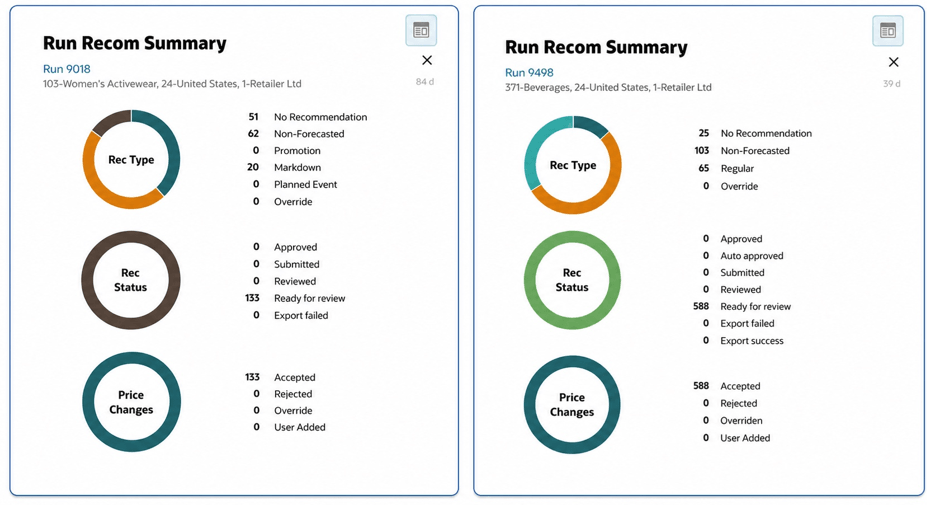
| Run Overview Dashboard | Summarizes the selected run through recommendation, status, and price-change charts and counts. |
| Run Rules Screens | Shows how rules or pricing groups are distributed and provides supporting context for the selected rule tab. |
| Promo/Mkdn Results | Shows selected-item pricing, price paths, projected sales and inventory, and budget impact. |
| Regular Results | Shows selected-item pricing and price paths. Forecast-based runs include forecast information; rules-based runs include applied rules, outcomes, or violations. Explanations may also be available. |
| Manage Recommendation | Provides Job Status, Details, Single Recommendation Information, Rules Panel, and Gen AI Explanation. |
Using the Contextual Panel
The panel is context-sensitive. Use the following pattern wherever the Contextual Panel is available:
- Select the run, rule, item, or recommendation that you want to inspect.
- Select the applicable panel icon on the right side of the workspace. The active icon is highlighted.
- Select another supported row to review the corresponding context without leaving the workspace.
- Select X to close the panel. Opening or closing the panel does not change application data.
Selection-dependent tabs may be unavailable until a supported row is selected. In Manage Recommendation, Job Status can be opened independently; the other tabs use the selected recommendation.
Run-Level Context
In Run Overview, select a run and open the recommendation summary. The panel groups recommendation types, workflow statuses, and price-change outcomes into charts and counts. Use this view to identify runs that require attention, then use the Table of Runs or Results screens for detailed analysis.
Figure 2-5 Run Overview - Contextual Recommendation Summary
Recommendation-level panels and their item analysis are described with the recurring review workflow in Manage Recommendation.
Common UI Components
Although each workspace supports a different business process, they all share a common user interface that provides a consistent navigation experience.
Most LPO workspaces include the following areas:
- Global navigation and application header
- Workspace toolbar
- Filter and query area
- Data grid or dashboard
- Contextual Panel
- Action menus
The primary work area changes depending on the selected workspace, while the navigation controls and common interface components remain consistent throughout the application.
Pull Down Menus
The user interface has two pull-down menus that provide access to a variety of functionality.
The Actions and View menus appear in the toolbar above supported tables. Select the relevant table or row before opening a menu so that the available options reflect the current workspace and selection.
Use the Actions menu to perform operations that change data or advance a workflow. The available actions depend on the current workspace, the run or recommendation status, and your assigned privileges. Examples include creating or optimizing runs, recalculating recommendations, marking recommendations as Reviewed, submitting or approving reviewed recommendations, and exporting results.
Use the View menu to change how information is displayed without modifying the underlying data. The available options vary by workspace and table. Examples include showing or hiding columns, creating computed columns where supported, sorting or filtering data, saving and loading column sets, and detaching or expanding tables for analysis.
Freeze Columns
To keep a column visible while reviewing a wide table, open the table’s Actions menu and select Freeze Columns. Choose the column to freeze. The selected column remains visible as you scroll horizontally through the other columns, making it easier to compare values while keeping key information in view.
Manage Columns
The Manage Columns feature in the View menu of the LPO Manage Recommendation, LPO Run Overview, and LPO What-if Results screens is particularly useful when different users require different views of the same data.
For example, a Pricing Analyst may focus on projected metrics while a Buyer may focus on approval status and execution readiness. This allows users to easily switch between different column setups for exporting, reporting, or analysis, without needing to reselect columns each time.
To create a new column set:
- From the table toolbar, open the View menu and select Manage Columns.
- Choose or remove the desired columns.
- Select Save Column Set to store your configuration.
- To access a saved column set, click Load Column Set and select the preferred column set name from the list.
Where supported, select Create New Column to define a computed column using available numeric and text fields. Specify the column name and format, enter the required expression, and apply the definition. The computed column can then be added to the table through Manage Columns.
Query Builder
Query Builder allows you to isolate specific recommendations, products, or business scenarios using complex filtering conditions.
To open Query Builder, go to a supported table and select Query Builder from the View menu or select the Query Builder icon in the table toolbar.
Typical queries include:
- Find markdown recommendations for a specific brand.
- Find items with high inventory and low sell-through.
- Identify recommendations within selected price zones.
- Review products with specific pricing patterns.
Query Builder can identify items where Recommended Price Type = Markdown AND (Brand = Green OR Markdown Number <= 2) AND Remaining Inventory (at BOP) is between 10 and 20.
Another query can be constructed as follows:
Price Zone Not Contains 'CO' AND (Ticket Price ends with .97 OR Ticket Price ends with .93 OR Ticket Price ends with .87 OR Ticket Price ends with .84)
This query returns records whose Price Zone does not contain “CO” anywhere in the value and whose Ticket Price ends in .97, .93, .87, or .84.
To build a query:
- Select a column in the Query Builder window.
- Choose the applicable operator, enter the required value or values, and select the appropriate AND or OR condition.
- Repeat these steps to add additional conditions.
- To create a nested group, open the menu beside a condition and select the conditions to group. A vertical line identifies the grouped conditions.
- Run the query to display the matching records.
Table Toolbar Icons
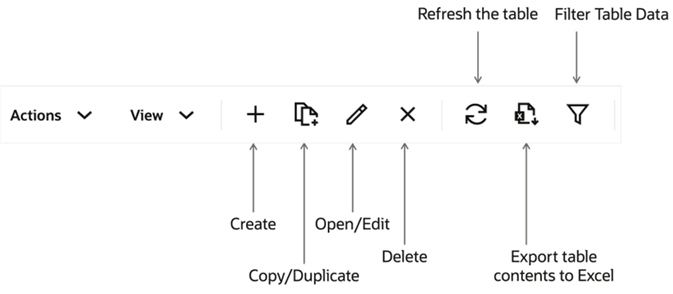
The table toolbar appears above supported tables. Depending on the screen and assigned privileges, it can include Add to create a record, Edit to modify the selected record, Delete to remove a record, Refresh to reload the data, Filter or Query by Example to limit the displayed rows, Query Builder to create compound conditions, Manage Columns to show or hide columns, Export to download table data, and Detach or Expand to open a larger table view.
To use Query by Example, select Filter or Query by Example from the View menu or table toolbar, then enter values in the filter row above the applicable columns.
Select the Question Mark icon beside a supported field to display embedded help for that input.
When LPO is processing data, the progress indicator changes state. Wait for processing to complete before starting an action that depends on the result.
Figure 2-6 Table Toolbar