5 Manage Recommendation
Manage Recommendation is the primary workspace for recurring pricing work. It brings the active recommendation set, filters, summary metrics, item-level evidence, supported actions, review status, approval, and export into one workflow.
In the standard batch run flow, scheduled batch runs use DEFAULT_SET, generate recommendations, and are automatically finalized. The resulting recommendations appear here for review. Use a What-If run only when you need to test an alternative strategy or rule set. If an analyst finalizes a What-If run, its item recommendations replace the corresponding batch run recommendations and are displayed in Manage Recommendation.
Recurring Review Workflow
Use the following sequence during a regular pricing cycle:
- Apply event and user filters to focus the recommendation set you own.
- Review summary metrics and reports to identify the areas that need attention.
- Select an item and inspect its price path, projected sales and inventory, rule outcomes, and explanation where available.
- Accept, reject, override, recalculate, or use Price Modeling where supported and appropriate.
- Mark completed recommendations as Reviewed.
- Submit or Approve the reviewed recommendations for export according to your role and configured workflow.
Finding Recommendations
Begin each review cycle by narrowing the active recommendation set to the work you own. Use Filter by Event to choose the recommendation category, then use User Filters to define the applicable merchandise, location, season, effective week, price zone, or product attributes.
Filter by Event
Filter by Event allows you to switch among Promotions, Markdowns, Regular Pricing, and items with No Recommendation. Selecting an event type adds the corresponding recommendations to the Item Recommendations table so that you can review similar pricing activity together.
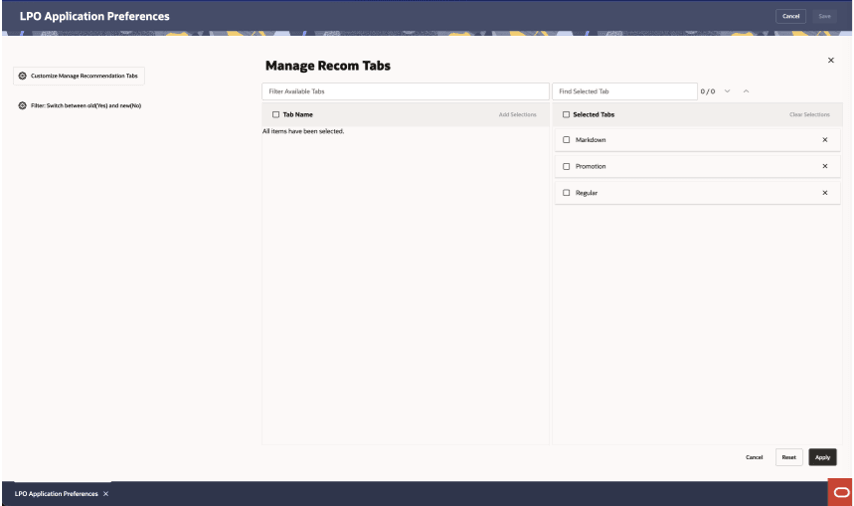
A Pricing Administrator can choose to display the events from from User Menu > Preferences > Customize Manage Recommendation tab. See Application Preferences in Chapter 2.
Figure 5-1 Manage Recommendation - Filter by Event
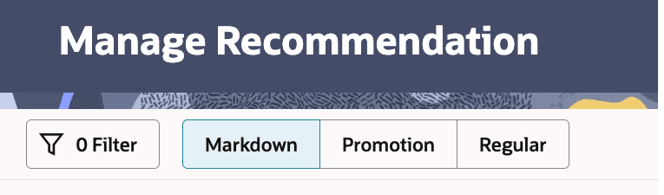
Figure 5-2 Manage Recommendation - Filter by Event - Preferences
User Filters
User Filters help you narrow the recommendation set to the merchandise, locations, seasons, effective weeks, price zones, and product attributes that are relevant to your area of responsibility. By applying filters, you can focus on the recommendations that require your attention without being distracted by unrelated data.
The User Filter (also known as the Big Filter) opens on the right when you click Filter in the upper-left corner. The Filter button displays the number of active filters, and hovering over it lists the applied filters. Use the panel to filter the table by Merchandise Level, Merchandise, Location Level, Location, Season, Effective Week, Price Zone, and Product Attributes. You can save multiple filters for your user and maintain separate filters for Promotion/Markdown and Regular recommendations. The first time you log in, you must define a filter and click Apply. Available merchandise and locations are limited by the data security assigned to your user ID. For example, a user without access to Europe locations cannot view recommendations for those locations.
Figure 5-3 Manage Recommendation - User Filters for Regular and Promo/Mkdn
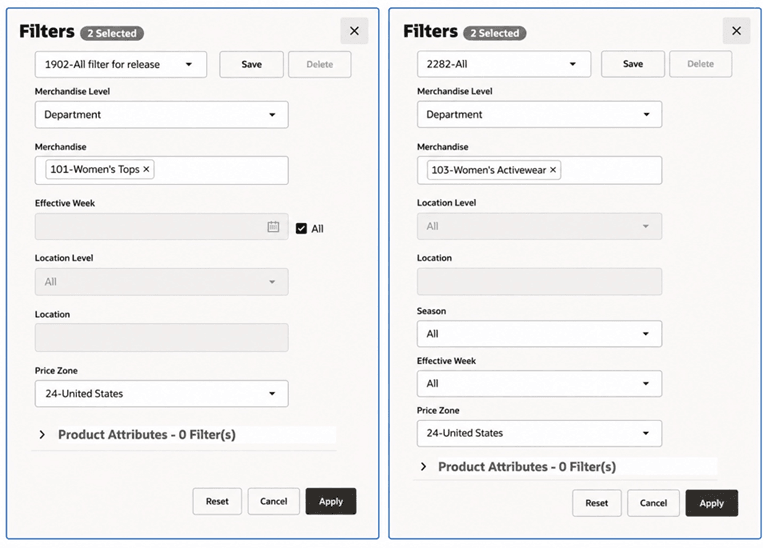
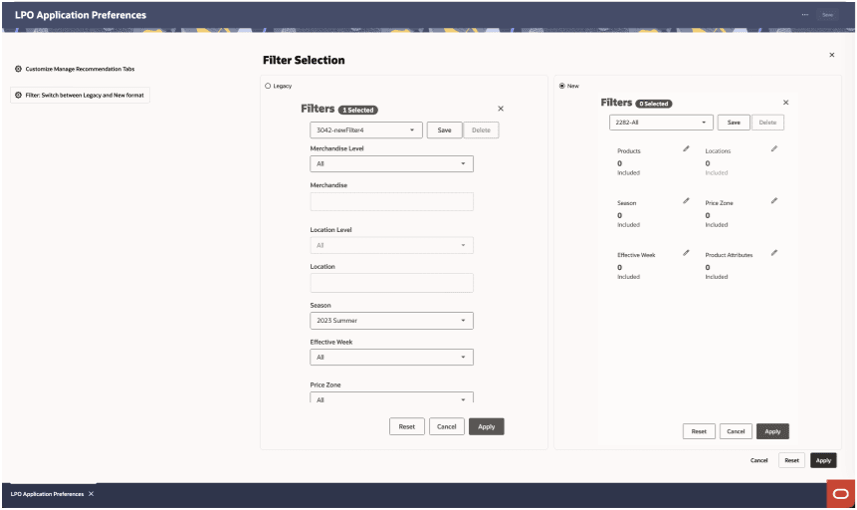
A Pricing Administrator can choose between the Old or New User Filter layout from User Menu > Preferences > Filter Selection. See Application Preferences in Chapter 2.
Figure 5-4 Manage Recommendation - User Filters Preference
Workspace Summary
Use Workspace Summary to assess the selected recommendation set before reviewing individual items. Its metrics and reports provide a high-level view of projected outcomes and update as you filter or select recommendations.
Summary Metrics
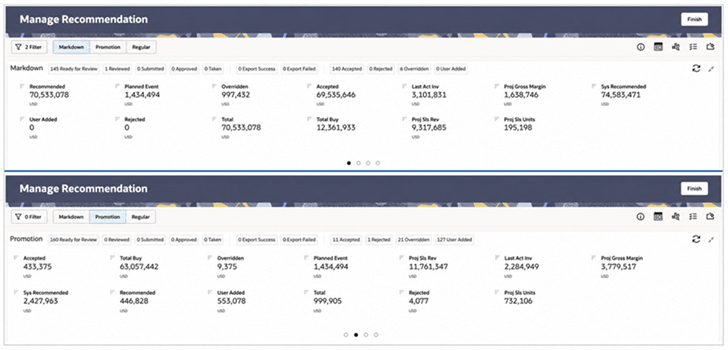
Summary Metrics provide a high-level view of recommendation performance and projected business impact for Markdown, Promotion, No Recommendation, and Regular recommendations. The film strips show projected values and counts by recommendation status and price change status. When you select one or more items in the table, the displayed totals refresh for the selection. Each summary film strip shows 14 metrics and can be customized to add, delete, or reorder metrics from the available list.
Figure 5-5 Manage Recommendation - Summary Metrics for Markdown and Promotion
The strip can also be collapsed into a one-line view. In the collapsed view, the remaining metrics can be accessed by scrolling down.
Figure 5-6 Manage Recommendation - Summary Metrics - Expanded and Collapsed Views
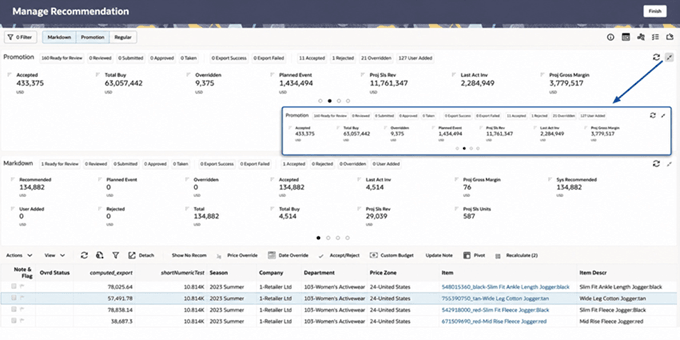
When an item is selected, the film strip refreshes to show the metrics for the selected item.
Following are the metrics that can be displayed. Other metrics can be found in the Appendix: Promotion and Markdown Manage Recommendation.
| Metric | Description |
|---|---|
| Total | Overall projected value of all recommendations combined across statuses. |
| Accepted | Projected amount associated with system recommendations that users retained without changing the recommended pricing action. |
| Rejected | Total value of recommendations that have been declined. |
| Overridden | Total value of recommendations where users modified system suggestions. |
| Sys Recommended | Total value of recommendations generated by the system before user actions. |
| Recommended | Total value of all active recommendations currently available. |
| User Added | Value of recommendations manually created by users. |
| Planned Event | Value associated with scheduled promotional or markdown events. |
| Proj Gross Margin % | Projected gross margin expressed as a percentage of sales. |
| Sys Recom GM / GM% | Gross margin value and percentage based on system-generated recommendations. |
| Approved GM / GM% | Gross margin value and percentage for approved recommendations. |
| Recom GM / GM% | Gross margin value and percentage across all current recommendations. |
| Override GM / GM% | Gross margin value and percentage resulting from overridden recommendations. |
| User Added GM / GM% | Gross margin value and percentage from user-created recommendations. |
| No Recom User Added | User-added entries where no system recommendation existed. |
| Non Fcst User Added | User-added entries not originally part of the forecast. |
Reports
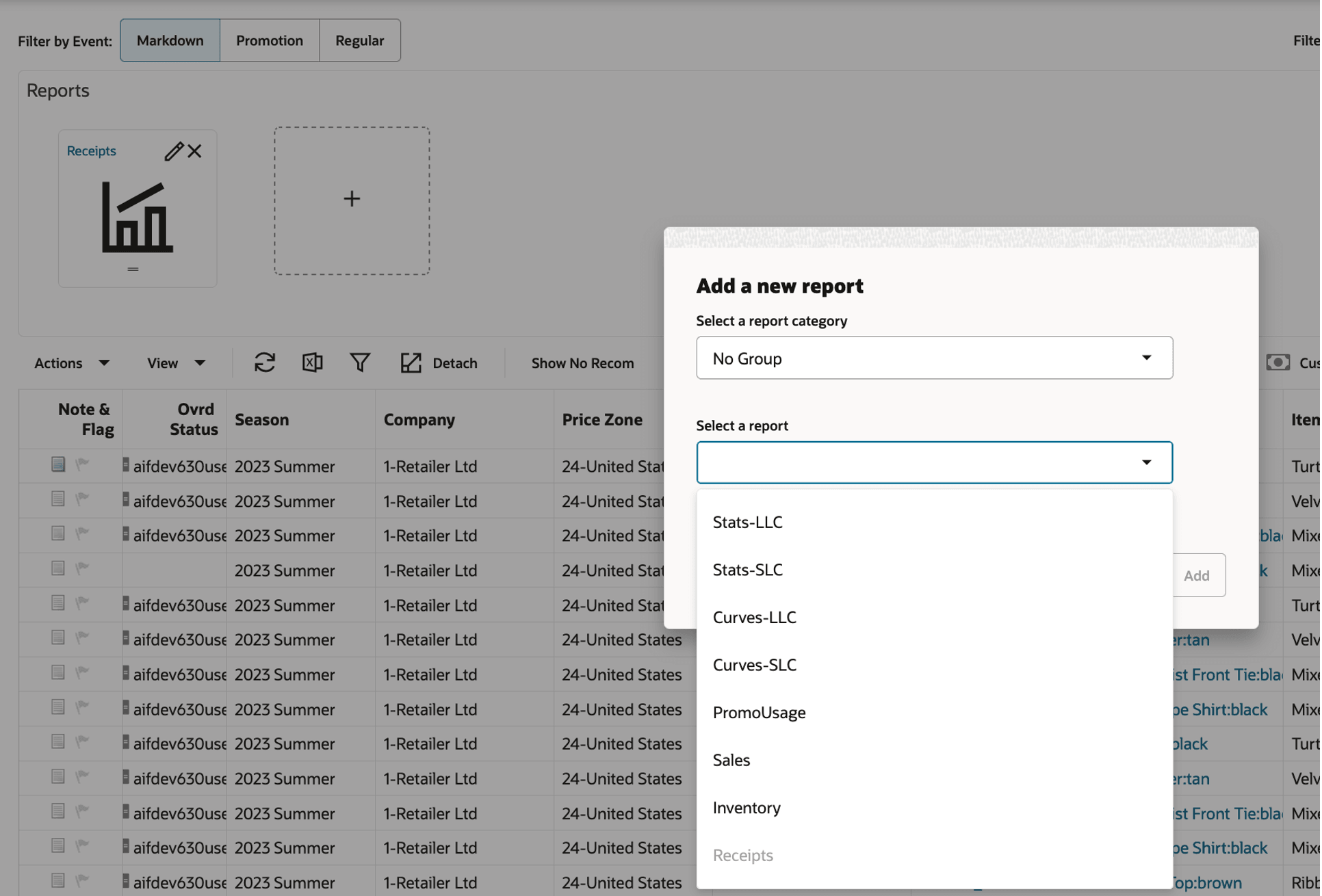
The Reports area provides access to configured analytical reports and dashboards that support deeper investigation of recommendation performance and business outcomes. It allows you to add, delete, or reorder any reports that exist either in the Data Visualizer or in APEX. You must specify the report URLs in Manage System Configurations > RSE_DYNAMIC_URL. Clicking the Report Header link for each report navigates to the respective Data Visualizer or the source report page.
Figure 5-7 Manage Recommendation - Reports
Item Recommendations
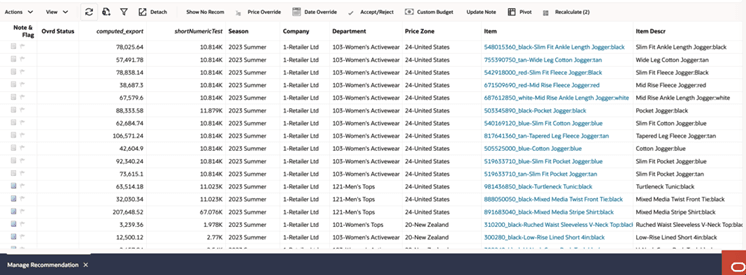
The Item Recommendations table, shown in the following figure, provides relevant information for each item.
- The table actions are used to select multiple items for a price change operation such as accept, reject, override, or add a promotion, markdown, or regular price change.
- A user can also move the effective start/end dates for a promotion/markdown.
- Once you make the necessary price or date changes, you can click Recalculate, which updates all the projected metrics for the modified items.
- When recommendations are ready, use Review, Submit, or Approve as permitted. Submit or Approve sends the recommendation to the Export Interface and, when integrated with RPCS, initiates the corresponding web-service request.
Figure 5-8 Manage Recommendation - Item Recommendations
For details, see Appendix: Promotion and Markdown Manage Recommendation and Appendix: Regular Manage Recommendation.
Item Recommendation Statuses
As recommendations move through the review and approval process, their status changes to reflect their current stage in the workflow. Understanding these statuses helps you track recommendation progress, identify items that require action, and determine which operations are available for a recommendation at any given time.
For example, recommendations that are ready for analyst review have a different status than recommendations that have already been approved or exported. Certain actions, such as modifying, reviewing, submitting, or approving recommendations, may only be available when a recommendation is in a specific status.
Table 5-1 Manage Recommendation - Item Recommendation - Status
| Status | Description |
|---|---|
| Ready for Review | The optimization process is complete, and the run status and item recommendations are ready for review. |
| Reviewed | The analyst has completed the review and marked the recommendations as Reviewed, making them available for Buyer submission or approval. |
| Submitted | The recommendations have been reviewed and submitted for execution. They are available for export to downstream applications. |
| Approved | The recommendations have been reviewed and approved for execution. They are available for export to downstream applications. |
| Rejected | The recommendations have been reviewed and rejected and will not proceed to execution. |
| Export Success | The recommendations were successfully exported to downstream systems. |
| Export Failed | The export process encountered an error and the recommendations could not be successfully delivered. |
| Taken | The recommendations have been approved by an external system (for example, RPCS), and the status has been communicated back to LPO. |
| Auto Approved | The recommendations were automatically approved because they met the configured auto-approval criteria. |
Select a recommendation to open its contextual panels; Job Status opens independently. See Accessing and Navigating LPO for panel guidance and Manage Recommendation for review and approval procedures.
Use this chapter while working in Manage Recommendation to review, modify, recalculate, and advance recommendation decisions.
Open Lifecycle Pricing Optimization from the Oracle Home Experience, select Manage Recommendation, apply the required User Filter, and select the recommendations you want to work with.
Recommendation Details and Contextual Analysis
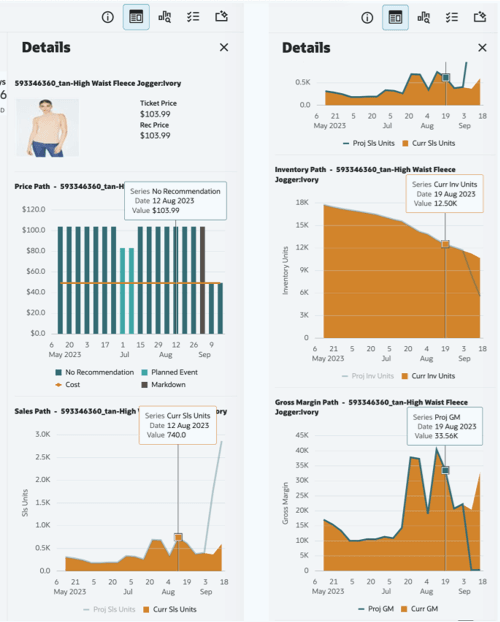
Select a recommendation to open the contextual information that explains the item and the projected effect of the recommendation. Use the price path to understand the sequence of prices, the sales and inventory charts to assess projected movement over time, and the rule and explanation panels to understand why the recommendation was generated before taking action.
In Manage Recommendation, select a recommendation to activate the tabs that explain the item, recommendation, and supporting decision context.
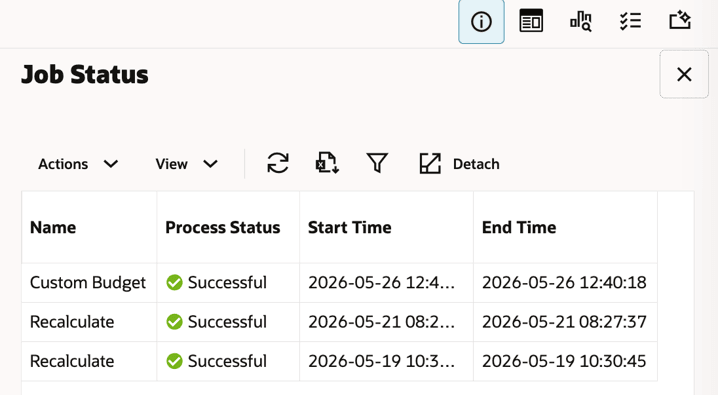
Job Status: Lists background jobs, processing status, and start and end times. Use it to confirm whether recalculation, override, approval, or export activity has completed.
Figure 5-9 Manage Recommendation - Job Status
Details: Shows the selected item, ticket and recommended prices, and its price path. Forecast-based recommendations also include projected sales, inventory, and gross margin paths where available.
Figure 5-10 Manage Recommendation - Details
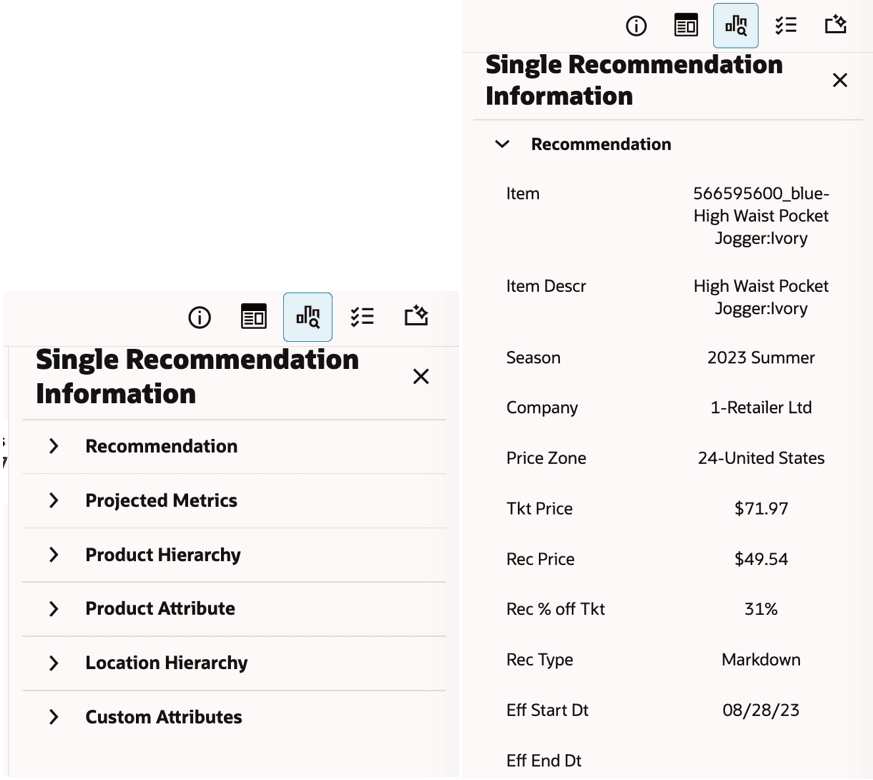
Single Recommendation Information: Summarizes the recommendation, current and projected metrics, merchandise and location hierarchy, product attributes, and configured custom attributes.
Figure 5-11 Manage Recommendation - Single Recommendation Information
Rules Panel: Shows the business rules applied to the selected recommendation, including configured values and any outcomes or violations presented by the application.
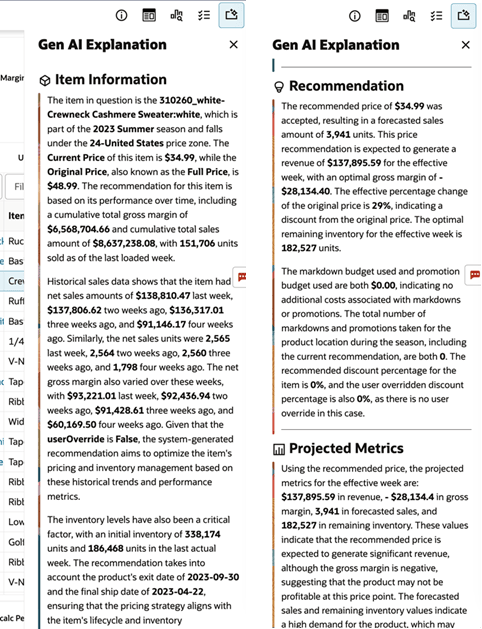
Gen AI Explanation: Provides a plain-language summary of the item information, recommendation, projected metrics, execution status, and business rules that influenced the recommendation when the capability is enabled.
Figure 5-12 Manage Recommendation - Gen AI Explanation
Rules Context
On run Rules screens, the panel summarizes the distribution or context for the selected rule tab. In Manage Recommendation, the Rules Panel shows the rules that influenced the selected recommendation. Promotion and Markdown rules appear in a consolidated list. Regular Pricing separates Non-Forecast and Forecast rules when both types are applicable. Rules that were not satisfied are highlighted by the application for investigation.
Figure 5-13 Manage Recommendation - Rules Panels for Promotion/Markdown (Left) and Regular Pricing (Right)
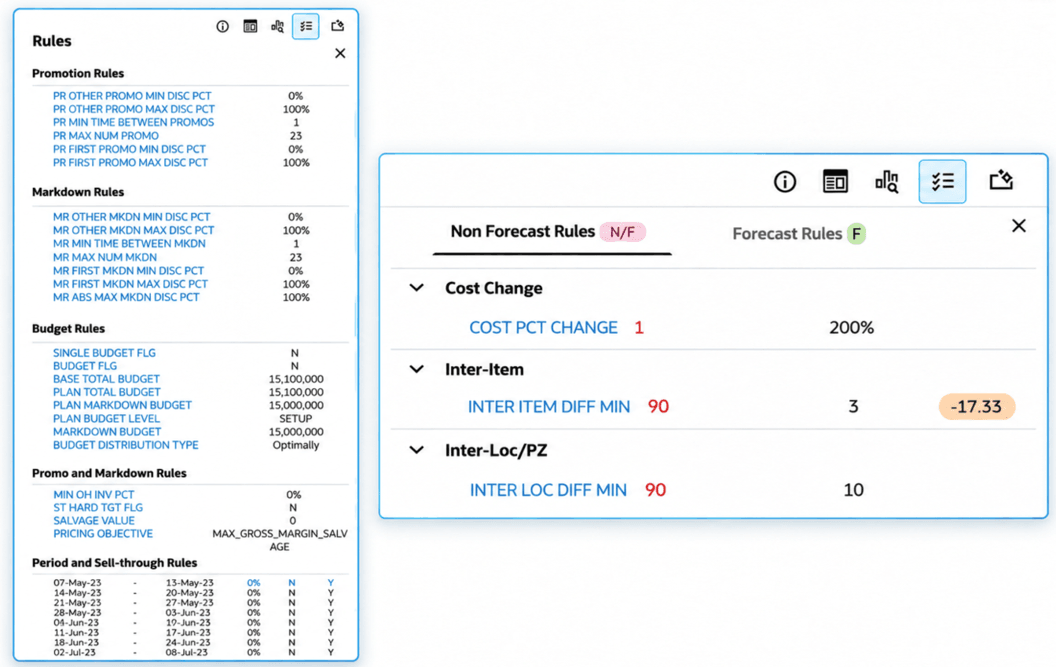
In the above Regular Pricing rule example for Inter Item, the INTER ITEM DIFF MIN rule requires the Set A item to be priced at least $3 higher than the related Set B item. The compared prices are $35.66 for Set A and $52.99 for Set B, producing the displayed difference of -17.33:
$35.66 − $52.99 = −$17.33
The negative value indicates that Set A is $17.33 lower than Set B. Therefore, the relationship misses the configured $3 minimum by $20.33. Because this is a non-hard rule, LPO surfaces the difference as a rule violation for review rather than necessarily forcing the recommendation to comply. This value is separate from the item’s recommended-price percentage change.
Reviewing Recommendations
Start in the Item Recommendations table. Select a recommendation, then use the Contextual Panel to review details, projected outcomes, forecasts where applicable, business rules, explanations, comments, and exceptions.
Recommendations are initially assigned the Ready for Review status and remain editable while they are in that status. After a recommendation is marked as Reviewed, use Undo Review before making further changes.
From Ready for Review, you can accept or reject the system recommendation and, where supported, override or recalculate it before it moves forward.
Accepting and Rejecting Recommendations
When reviewing system-generated recommendations, you can accept or reject each one based on whether it aligns with your business expectations.
Accepting a recommendation records that the suggested pricing action - a promotion, markdown, or regular price change - should be retained. The recommendation must still complete the applicable Review and Submit or Approve workflow before execution.
Rejecting a recommendation instructs LPO to retain the current ticket price rather than apply the suggested change. Rejected recommendations remain visible in the recommendation set and can still be reviewed before submission or approval.
Both actions are available individually or in bulk. They apply only to recommendations in Ready for Review status that have no pending recalculations. If a recommendation has been modified and a recalculation is pending, the recalculation must complete before the recommendation can be accepted or rejected.
For example, you might accept a markdown recommendation that aligns with your sell-through target for the season, while rejecting a promotion recommendation on a line where inventory is already constrained or where an upcoming event is expected to lift demand without a discount.
Figure 5-14 Manage Recommendation - Show No Recommendation and Accept/Reject
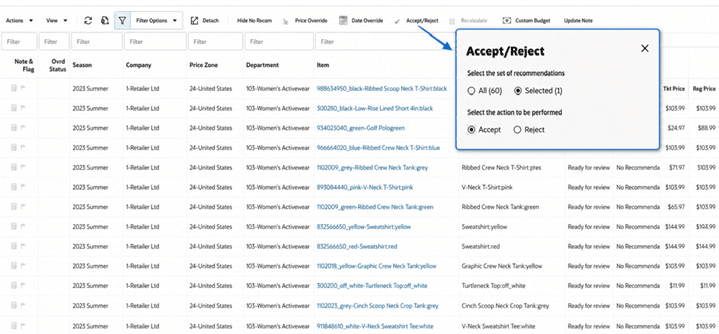
Show No Recom
-
Non-Forecasted: Items that cannot be forecasted.
-
No Recommendation: For Forecast-Based runs, this indicates that LPO recommends retaining the current retail price. For Rules-Based Regular Pricing, it can indicate hard-rule conflicts, missing operational data, or that no candidate price satisfies the configured rule criteria. Rules-Based items with No Recommendation cannot be reviewed, submitted, approved, or exported.
Modifying Recommendations (Overrides)
Actions depend on assigned privileges, recommendation status, and optimization type. Regular F means Forecast-Based Regular Pricing; Regular N/F means Rules-Based Regular Pricing.
Table 5-2 Recommendation Action Applicability
| Action | Promotion | Markdown | Regular F | Regular N/F |
|---|---|---|---|---|
| Accept/Reject | Yes | Yes | Yes | Yes |
| Price Override | Yes | Yes | Yes | Yes |
| Date Override | Yes | Yes | No | No |
| Recalculate | Yes | Yes | Yes | No |
| Custom Budget | Yes | Yes | No | No |
| Submit/Approve | Yes | Yes | Yes | Yes |
Use an override when new business information justifies changing a system-generated recommendation.
For forecast-based recommendations, use Recalculate after an override refresh projected business impact. Table 5-2 shows action availability by optimization type.
To evaluate supported regular-price and cost changes in the Price Cost Modeling workspace, see Price Modeling.
You can override:
- Recommended prices
- Discount percentages for Promotion and Markdown recommendations
- Effective dates for Promotion and Markdown recommendations
- Recommendation types, where supported
For Promotion and Markdown recommendations, overrides can be based on either percentage discounts or price-point selections, depending on the configured price ladders.
Overrides are commonly used when:
- Additional inventory becomes available.
- Local business conditions require a different pricing action.
- Upcoming events are not reflected in the optimization inputs.
- Merchants want to test an alternative pricing approach before approval.
Price Override
Price Override is used to either modify the discount (or price) for an item for which the system recommends a promotion or markdown or add a promotion or markdown to an item that did not receive a promotion or markdown. The former is counted towards Overrides, and the latter is counted towards User Added.
For Regular Pricing recommendations, Price Override changes the recommended regular price. Forecast-Based Regular Pricing overrides require Recalculate to refresh projected metrics. For Rules-Based Regular Pricing, review the override directly.
For Promotion and Markdown recommendations, select the recommendations and click Price Override. In the Price Override window, select Promotion or Markdown as the Price Type, then use percentage or price-point logic. The result depends on the assigned price ladder, rounding criteria, and tolerance, as described in the following table:
Table 5-3 Manage Recommendation - Price Override
| Price Type | Logic | Price Ladder Assigned | Calculation of Override Price |
|---|---|---|---|
|
Promotion |
Percentage |
Percent Off Original or Ticket Price ladder (for example, 5%, 10%, …) |
First % off ladders are converted into amounts either using the original or current price specified in the UI. After applying the discount as specified, the nearest price on the ladder subject to rounding criteria and tolerance is used. |
|
Promotion |
Percentage |
Price point ladder (for example, 13.97, 15.97, 16.97, …) |
After applying the discount as specified, the nearest price on the ladder subject to rounding criteria and tolerance is used. |
|
Promotion |
Price point |
Price point ladder (for example, 13.97, 15.97, 16.97, …) |
Price point is applied as selected from the drop-down list. If a price point higher than the current ticket price is selected, that item's price override will not be successful. |
|
Markdown |
Percentage |
Percent off Original Price or Current ticket price ladder (for example, 10%, 20%, 30%…) |
First % off ladders are converted into amounts either using the original or current price specified in the UI. After applying the discount as specified, the nearest price on the ladder subject to rounding criteria and tolerance is used. |
|
Markdown |
Percentage |
Price point ladder (for example, 13.97, 15.97, 16.97…) |
After applying the discount as specified, the nearest price on the ladder subject to rounding criteria and tolerance is used. |
|
Markdown |
Price point |
Price point ladder (for example, 13.97, 15.97, 16.97, …) |
Price point is applied as selected from the drop-down list. If a price point higher than the current ticket price is selected, that item's price override will not be successful. |
This can be illustrated through an example. Consider Original Price as 159.99 and Ticket Price as 127.99 (20% Off). Suppose the price ladder supplied is of type PT (Percentage Off Ticket Price), with points {0%, 5%, 15%, 20%, 25%, 30%}. If the user requests 22% and uses Original Price, then translating the PT ladder with % off from the Original Price provides the following results: {159.99, 151.99, 135.99, 127.99, 119.99, 111.99}. So, 22% off on the Original Price would give us 124.792.
Depending on the tolerance and rounding criteria, different results are possible, as explained below.
If tolerance is 0%, then 124.792 is not on the price ladder and the price override is unsuccessful.
If tolerance is 3%, the tolerance is 3% * 159.99 = 4.7997. The range around 124.792 is therefore 119.99 to 129.59, making 119.99 and 127.99 eligible ladder prices. With upward rounding, the closest eligible price is 127.99. With downward rounding, it is 119.99.
Price Override can be applied only to recommendations in Ready for Review status that have no pending calculations.
Date Override
Date Override is used to adjust the effective start and end dates for a promotion or the effective start date for a markdown recommendation. You can select the recommendations that are in Ready for Review status and click Date Override, which displays the Override Effective Dates screen, as shown in the following figure. You can select Price Type and then pick the corresponding dates from the date picker. The Price Type can be either Promotion or Markdown.
The Promo Bdgt Used and Mkdn Bdgt Used values are updated respectively after the recalculation, which reflects projected sales from the current date to the newly selected effective date. This behavior can be controlled using the configuration parameter PRO_DATE_OVERRIDE_RECALCULATE, where Y enables adjustment and N (the default) leaves the value unchanged.
Figure 5-15 Manage Recommendation - Date Override
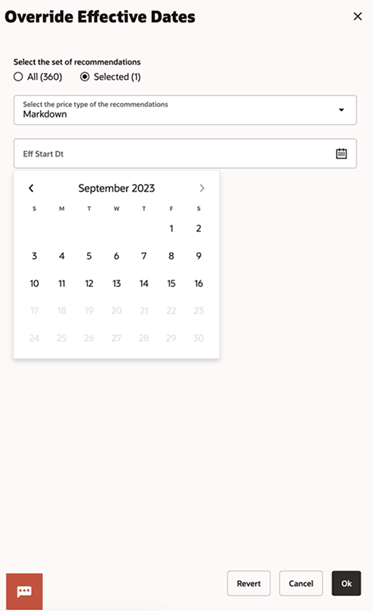
Description of "Figure 5-15 Manage Recommendation - Date Override"
If you wanted to modify the effective start date for a Markdown recommendation, but accidentally selected both Promotion and Markdown recommendations, after the Date Override operation, the system would update only the effective start date, and the budget used value only for Markdown. Successful date overrides are shown with a green check mark and a recalculate icon; the latter indicates that this item must be submitted for a recalculation to adjust the projected metrics due to the date override.
Recalculate
After a recommendation is overridden, LPO marks the recommendation as requiring recalculation. Recalculating updates the projected sales, revenue, margin, inventory, and budget metrics based on the override values.
To recalculate, select the affected recommendations in the Item Recommendations table and click Recalculate. Wait for the job to finish before completing the review action.
The overridden recommendation then becomes the effective recommendation used during the approval process unless further changes are made.
Recalculate refreshes the forecast-dependent projected metrics shown for the affected recommendations.
Custom Budget
Custom Budget is available only for Promotion and Markdown recommendations. It identifies recommendations that fit a specified budget for a defined time frame. For example, you may know the markdown budget for only the effective period or for the next two months and want LPO to select recommendations that fit that budget. You do not select recommendations manually; the operation considers all items that satisfy the criteria in the User Filter.
In Manage Recommendation, click Custom Budget above the Item Recommendations table to open Custom Optimize to Budget. Specify a combined or separate promotion and markdown budget, time frame, objective, price zones, and whether to retain previous recommendation work.
To improve user experience, your selections for checkboxes, including Retain OverriddenPromotions, Retain Overridden Markdowns, Include Planned Promotions, RetainApproved, Retain Reviewed, Retain Submitted, and Separate Budgets, are automatically saved and restored each time you access the Custom Budget window, even after actions such as Revert or Optimize. This ensures that your preferences are consistently applied across sessions and helps streamline your workflow.
The Revert option lets you reset prices back to the batch recommendations. When you select Reset or Optimize, the custom budget optimization job is submitted, and a push notification is sent to you to indicate the status of this job.
Figure 5-16 Manage Recommendation - Custom Budget
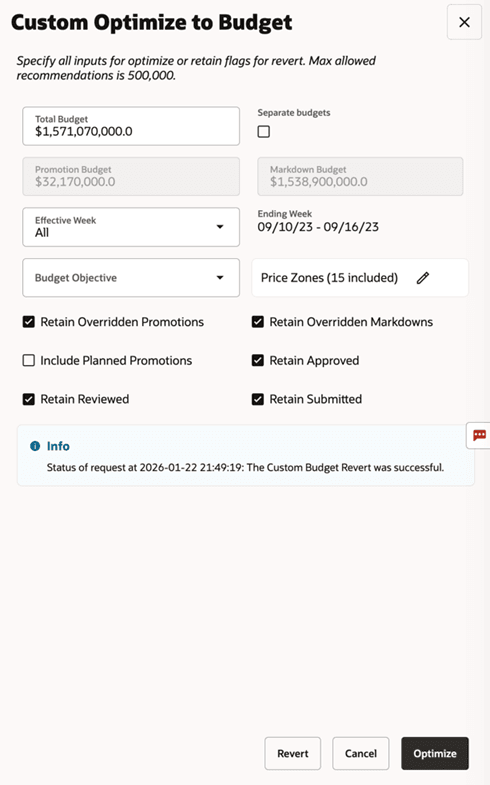
Description of "Figure 5-16 Manage Recommendation - Custom Budget"
Analyzing Recommendations
LPO provides several tools that help you explore recommendation data from different perspectives. This section explains how to use Computed Columns and Flex Facts to gain additional insight into recommendation performance and business impact. You can also use the saved column sets and Query Builder filters described in Chapter 2 to organize or isolate recommendation data before analysis.
Computed Columns
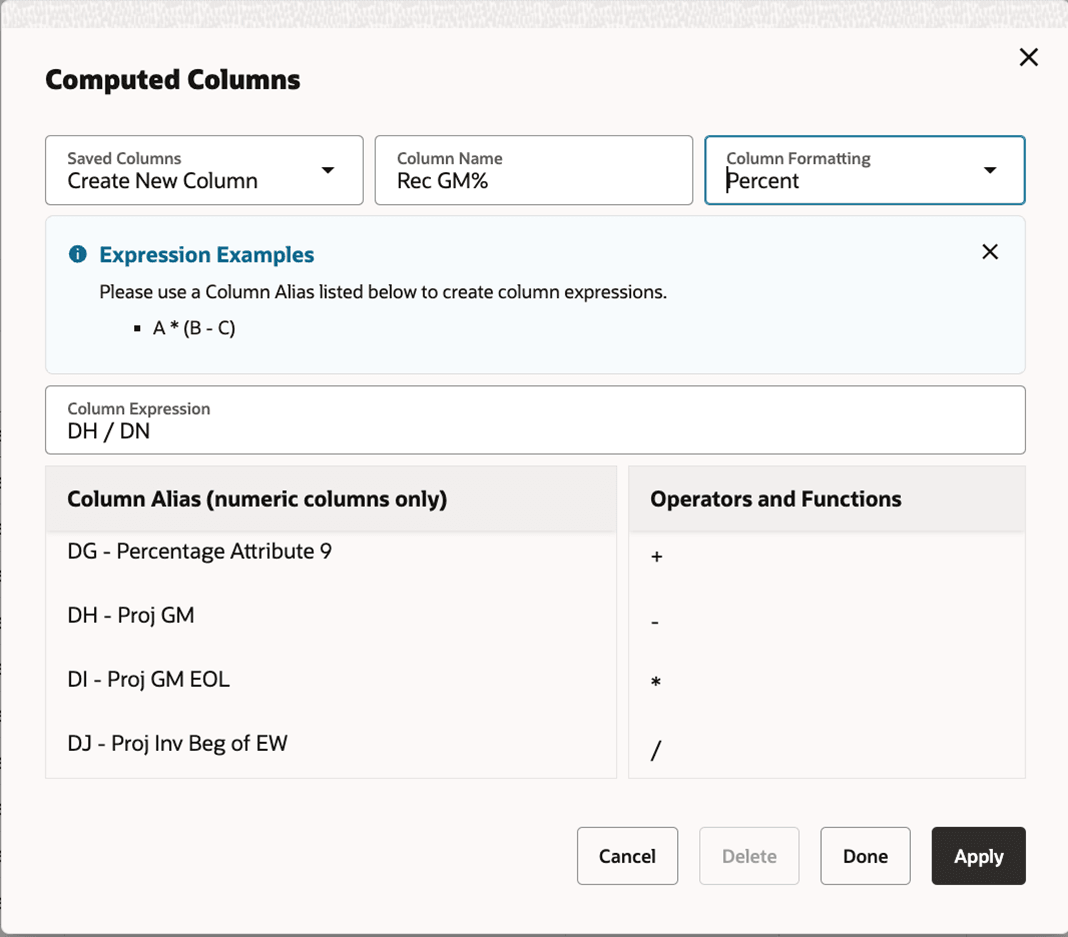
You can define custom calculations, such as "Rec GM % = Proj Gross Margin $ / Proj Sales $", using available numeric fields and display the resulting metrics in the workspace. Select View > Computed Columns, click Create New Column, provide the column name and format, enter the expression, and then click Apply and Done. Add the new column to the table through View > Manage Columns. Computed columns can be sorted, filtered, and used in Query Builder like standard columns.
Figure 5-17 Manage Recommendation - Computed Column
In Manage Recommendation and supported Run Results tables, you can create computed columns that return text. Select View > Computed Columns, select Create New Column, enter a column name, and set Result Type to Text. Build the expression using the column aliases shown in the dialog.
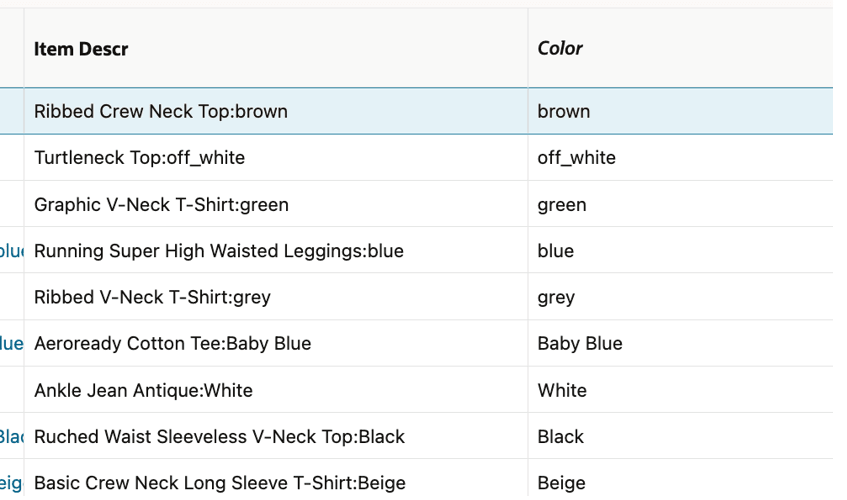
Split Text returns a selected part of a source value. For example, if Item Descr contains Ribbed Crew Neck Top:brown, the expression splitPart(BH, ":", 1) returns brown. Here, BH is the Item Descr column alias; use the alias shown for the source column in your table. After creating the computed column, add it through View > Manage Columns, where it appears as Column Name (Computed).
Figure 5-18 Manage Recommendation - Computed Column - Split
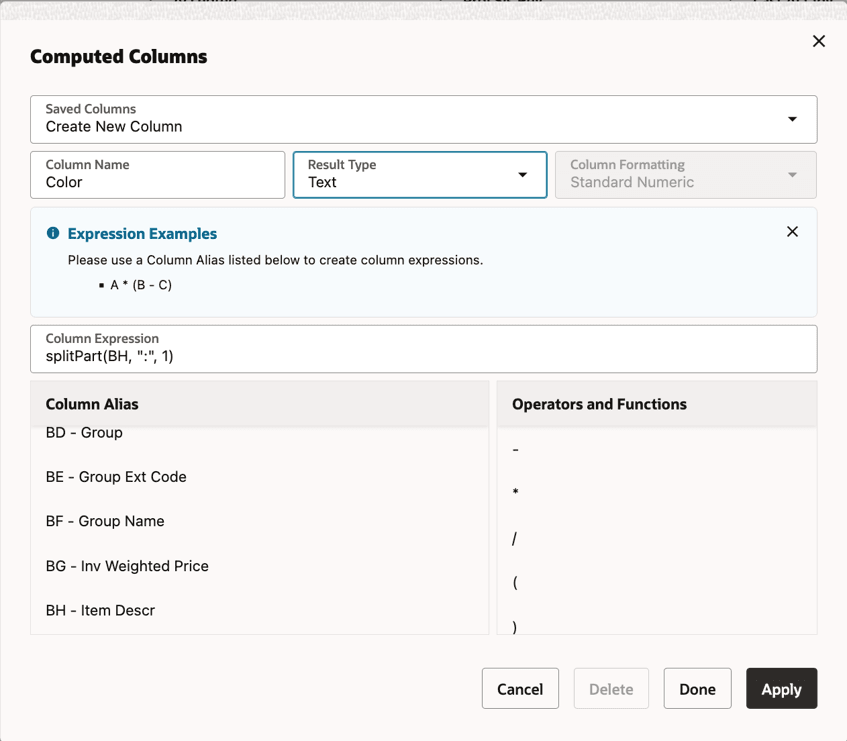
Figure 5-19 Manage Recommendation - Computed Column - Split - New Column
Concatenate joins values into one text result. For example, concat(F, "-", G) returns 9-Gray when F contains Color ID 9 and G contains Color Description Gray.
Select Apply and Done, then use View > Manage Columns to display the new columns. You can sort and filter their values, including through Query Builder.
Custom Attributes (Flex Facts)
Flex Facts are custom attributes that support business-specific metrics in the Manage Recommendation UI. They allow you to include additional information such as sales values, margins, percentages, descriptive text, or dates, helping you analyze recommendations based on metrics that matter to your business.
Flex Facts support multiple data types (numeric, currency, character/text, percentage, and date) and are available as predefined attribute slots in LPO (for example, multiple Currency, Number, Date, Percentage, and Text attributes). These attributes are populated in the W_RTL_FLEXFACT1_F table and processed using system jobs to make them available in the UI for analysis.
Figure 5-20 Manage Recommendation - Flex and Single Recommendation Information
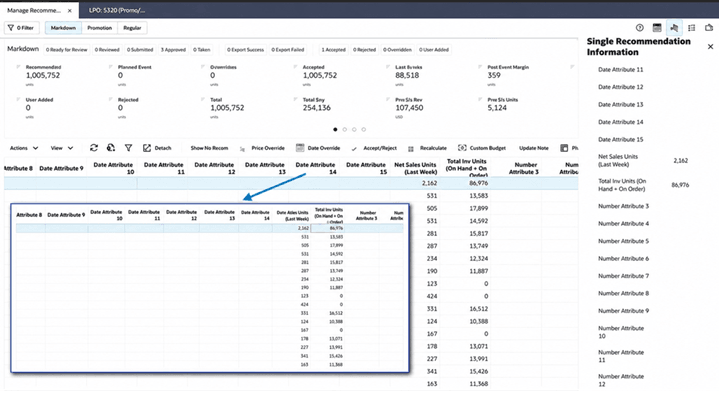
As shown in the figure above, multiple Flex Fact attribute slots are available for each data type, such as Currency Attribute 1-30 and Number Attribute 1-40. You can use these generic slots for different business metrics and customize their labels. For example, Currency Attribute 1 can display Net Sales Amount (Last Week), Currency Attribute 2 can display Total Inventory Cost, and Currency Attribute 3 can display Competitor Price. The customized labels appear in the UI as business-friendly metric columns.
Custom Attributes can also be accessed from the Single Recommendation Information panel in the contextual pane by selecting an item from the Manage Recommendation table.
Approving Recommendations
After recommendations have been reviewed and any necessary modifications have been completed, they are ready to move through the approval process. Depending on your role and business workflow, recommendations can be reviewed, submitted, or approved before they are executed.
These workflow actions are available from Finish in the footer of the Manage Recommendation workspace. The available options depend on your role and the current recommendation status.
Figure 5-21 Finish Action Window
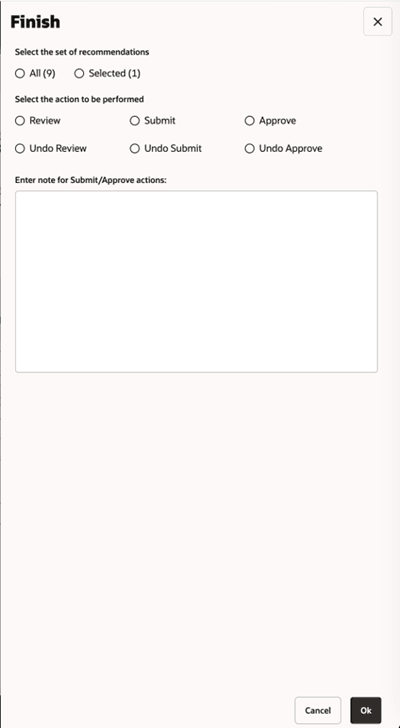
Once recommendations are submitted or approved, they become available for export and can be sent to downstream pricing and execution systems.
The following sections describe each Finish action and the resulting recommendation status.
Marking Recommendations as Reviewed
After recommendations have been analyzed and any required modifications have been completed, a Pricing Analyst or Pricing Manager (Analytical Super User) can mark them as Reviewed. This indicates that the evaluation is complete and the recommendations are ready for Buyer action.
The recommendation status changes from Ready for Review to Reviewed. Reviewed recommendations are then available for submission or approval by authorized users.Submitting Recommendations
A user with the Buyer role can Submit recommendations after the recommendation set has been reviewed and is ready to move forward in the execution process.
Only recommendations in Reviewed status can be submitted. When recommendations are submitted:
- The recommendation status changes to Submitted.
- Recommendations become available to the export process.
When integrated with downstream pricing systems, recommendations can be transmitted with a Submitted status.
Approving Recommendations
A user with the Buyer role can Approve recommendations as final business acceptance of the pricing action before execution. Only recommendations in Reviewed status can be approved.
When recommendations are approved:
- The recommendation status changes to Approved.
- Recommendations become available for export and execution.
Integrated systems can receive recommendations with an Approved status.
Undo Actions
If additional review or modifications are required, select the recommendations and choose Undo Review, Undo Submit, or Undo Approve in the Finish window.
-
Undo Submit and Undo Approve are available only when LPO is not integrated with Oracle Retail Pricing Cloud Service (RPCS).
-
Undo Approve is available only until the daily export batch is executed. After the approved recommendation is included in the export batch, the approval cannot be undone in LPO.
Exporting Recommendations
After recommendations have been submitted or approved, they become available for export and execution. The export process transfers recommendation data from LPO to downstream systems where the pricing actions can be implemented.
Depending on the organization’s integration configuration, recommendations may be exported as files, transmitted through web services, or consumed by external pricing applications. Export processing helps ensure that approved pricing decisions are communicated to the systems responsible for executing them.
Export Interface
LPO makes recommendation data available through export interfaces that can be consumed by downstream applications. Submitted and approved recommendations are written to the appropriate export views, making them available for extraction and processing.
Depending on the recommendation type, recommendation data is exposed through the corresponding export interface and integration process.
For flat-file integrations, the export job can produce store-level output or recommendation-level output at the configured location or price zone level. Export data is available through PRO_PRICE_RECOM_INT_VW, PRO_PRICE_RECOM_LVL_INT_VW, PRO_REG_PRICE_RECOM_INT_VW, and PRO_REG_PRICE_RECOM_LVL_INT_VW.
RPCS Integration
When integrated with Oracle Retail Pricing Cloud Service (RPCS), recommendations can be transmitted directly through web services.
When you Submit or Approve recommendations, LPO initiates the RPCS web-service request using the corresponding Submitted or Approved status. This streamlines the transition from recommendation review to price execution.
Export Status Tracking
Return to Manage Recommendation and review the recommendation and export status columns. Open Job Status from the Contextual Panel for background processing details. If an export fails, review the associated error information and verify that the downstream system and integration processes are available before attempting to reprocess the recommendation.
Common export-related statuses include:
Export Success: The recommendation was successfully exported to a downstream system.
Export Failed: The export process encountered an error and the recommendation could not be successfully delivered.
Taken: The recommendation was approved by an external system, such as RPCS, and the status was communicated back to LPO.
Rules-Based Approval and Export Behavior
Rules-Based Regular Pricing recommendations use the standard review, submission, approval, and export lifecycle, with the additional batch and auto-approval behaviors summarized below.
Table 5-4 Rules-Based Optimization and Export Behavior
| Area | Rules-Based Regular Pricing Behavior |
|---|---|
| Manual optimization | Users can trigger optimization from the run toolbar by clicking Optimize, or by selecting Actions > Optimize, after reviewing the scope and rules. |
| Scheduled batch processing | Configured environments commonly use scheduled batch runs. Completed batch runs produce recommendations that appear in Manage Recommendation for review or approval. |
| Auto approval | Batch-generated recommendations may move to Auto Approved when configured to do so. Auto Approved recommendations cannot be manually rejected, overridden, submitted, approved, or unapproved. |
| Export pickup | The outbound integration process picks up Auto Approved and Export Failed recommendations. Recommendations already marked Export Success are not picked up again. |
Collaborating with Other Users
Recommendation review is often a collaborative process involving analysts, buyers, and other business users. This section explains how to document decisions, add notes, flag recommendations, and provide additional context to support the review and approval process.
Notes
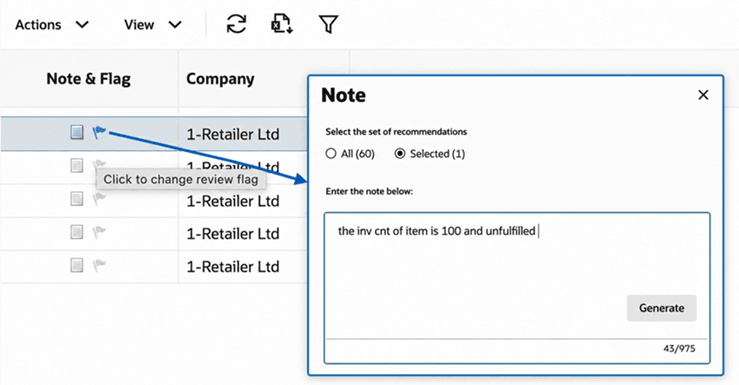
Select a recommendation and click the Note icon in the Actions column to record context or explain a decision. If a note contains abbreviations, shortcuts, or typing errors, select Generate to have GenAI expand or refine the note when possible. Review the generated text before saving it.
Figure 5-22 Manage Recommendation - Notes and Review Flags
Flags
Select a recommendation and click the Flag icon in the Actions column to mark it for additional investigation, business review, follow-up action, or discussion before it moves forward.
Flags are particularly useful when multiple users participate in the recommendation review process. For example, a Pricing Analyst may flag a recommendation for a Buyer to review, or a user may flag a recommendation that is associated with an exception, unusual forecast behavior, inventory concerns, or a planned business event.
A flagged recommendation remains visible in the recommendation table and can be used as a visual indicator that the item requires attention. Flags can be combined with notes to provide additional context and explain why the recommendation was flagged.
Flags are also available from the Exceptions workflow, allowing users to carry important observations and follow-up actions from forecast and exception analysis into the recommendation review process.