9 Promotion and Markdown Results, Forecasts, and Exceptions
Use this chapter after a Promotion/Markdown run reaches Ready for Review. Open the run from Run Overview and use the Process Train to review Results, Sales Forecast, Returns Forecast, and Exceptions before managing the recommendations.
Select Results, Sales Forecast, Returns Forecast, or Exceptions in the Process Train to move between the available analysis screens.
Results
Results compares current and optimized outcomes and supports recommendation review before the recommendations continue to Manage Recommendation screen.
Start with the summary tiles, use the charts to review the forecast horizon, and then validate item-level recommendations. If results do not align with business expectations, adjust Scope or Rules and re-optimize.
Figure 9-1 Promo/Mkdn Run - Results
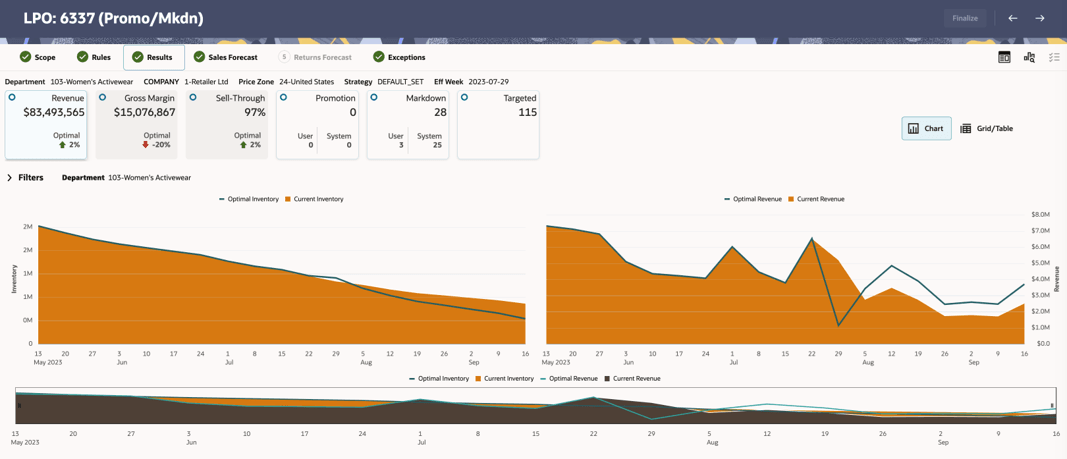
From Results, you can:
- Refresh or export the displayed information.
- Accept, reject, override, or add supported Promotion and Markdown recommendations that are in Ready for Review status.
- Recalculate after making changes so the projected metrics reflect the updated recommendations.
- Return to Rules and re-optimize when the run configuration must change.
- Move to Manage Recommendation after validating the run and its recommendations.
- Delete a run from Run Overview when it is no longer required.
Results Tiles
Six tiles summarize the projected outcome of the run. Revenue, Gross Margin, and Sell- Through show end-of-life projections across all items in scope. Promotion and Markdown show recommendation counts for the selected effective week. The Targeted tile shows targeted recommendations when Targeted Offers are enabled.
Figure 9-2 Promo/Mkdn Run - Result Tiles
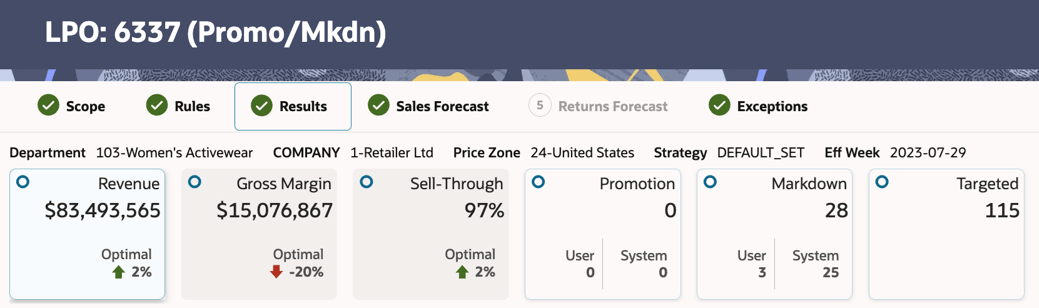
The Gross Margin and Sell-Through tiles are not clickable. To drill into item-level detail, use the Revenue, Promotion, Markdown, or Targeted tile - each opens a detailed table for that recommendation type.
Table 9-1 Promo/Mkdn Run - Results Tiles
| Tile | What it measures |
|---|---|
| Revenue | Projected total revenue at end of item life, assuming all recommendations are accepted. |
| Gross Margin | Projected gross margin at end of item life, assuming all recommendations are accepted. |
| Sell-Through | Projected end-of-life sell-through percentage across items in scope. |
| Promotion | Count of promotion recommendations for the selected effective week. Recommendations are split between User (manually added promotions) and System (engine-generated promotions). |
| Markdown | Count of markdown recommendations for the selected effective week. Recommendations are split between User (manually added markdowns) and System (engine-generated markdowns). |
| Targeted | Total number of targeted offer recommendations generated for the selected effective week, when Targeted Offers are enabled. |
Sell-Through: The Optimal value is the projected gain or loss against the no-change baseline, not the absolute sell-through rate. Compare it with the configured Sell-Through Target before deciding whether the inventory objective is met.
Promotion and Markdown: The tiles show system and user-added recommendation counts for the effective week. If the counts are unexpected, review the applicable budget, temporal, discount-depth, and price-ladder rules.
Targeted: When Targeted Offers are enabled, select the tile to review offers by channel, customer segment, deal type, discount, and predicted redemption rate. Select an offer for its recommended target price, override, targeted amount, and acceptance status.
Interpreting the tiles: Read the tiles together in the context of the run objective and lifecycle stage. Gross Margin Optimal and Sell-Through Optimal provide useful diagnostic signals when reviewed side by side.
Table 9-2 Promo/Mkdn Run - Reading the Results Tiles
| Gross Margin Optimal | Sell-Through Optimal | Possible interpretation | Check before acting |
|---|---|---|---|
| Positive | Positive | Both measures improve against the no-change baseline. | Confirm that the gains are supported by item-level results. |
| Positive | Negative or flat | May indicate margin protection with limited clearance improvement. | Review the Sell-Through Target, inventory position, and pricing recommendations. |
| Negative | Positive | May indicate greater discounting to improve clearance. | Review the run objective, lifecycle stage, margin constraints, and discount depth. |
| Negative | Negative | Neither measure improves against the no-change baseline. | Investigate the selected objective, constraints, and item-level recommendations. |
Use these combinations as diagnostic signals, not as proof of the optimization objective. Confirm the selected objective, lifecycle stage, constraints, and item-level results before acting.
Reviewing recommendations: Use the Chart and Grid/Table controls in Results to switch between the two views.
In Chart View, compare Current and Optimal inventory and revenue across the forecast horizon. Hover over a chart to compare a selected week, investigate late-season inventory gaps and large week-level differences, and determine whether projected gains are sustained or concentrated in a small number of periods.
In Grid/Table View, validate item-level recommendations, make supported changes, and confirm outcomes before continuing to Manage Recommendation. Each row represents an item in the optimization scope.
Figure 9-3 Promo/Mkdn Run - Results - Table View
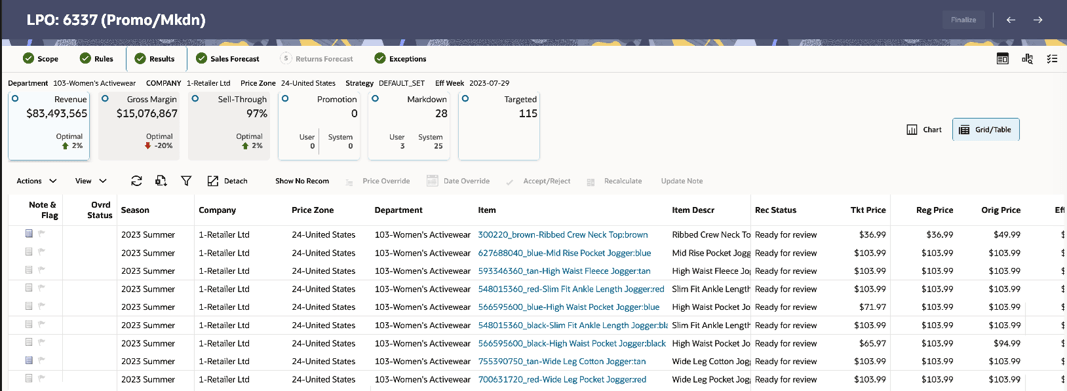
After validating Results, continue in Manage Recommendation to complete review and the applicable Submit or Approve workflow. See Manage Recommendation.
When to Investigate Before Acting
Not every run needs a deep dive into the Sales Forecast, Returns Forecast, and Exceptions screens. Use the following signals to decide:
Table 9-3 Promo/Mkdn Run Results - Signals to Investigate
| What you see | Possible interpretation | Suggested next step |
|---|---|---|
| Projected end-of-life sell-through is materially below the configured target | Demand forecast may be overstating sales at recommended prices, inventory may be stale, or constraints may be limiting markdown depth. | Open Sales Forecast, then Review Forecast. Validate forecast sales units, inventory, and discount-bin behavior at the recommended prices. |
| Gross Margin Optimal is more negative than expected for the run type | Discount depth may be higher than expected, or configured constraints may be allowing a trade-off between margin and sell-through. | Open the Rules Panel for a sample of high-value items. Orange-flagged violations on margin rules indicate the engine traded margin for sell-through. Consider tightening the markdown depth rule and re-optimizing. |
| Revenue, Gross Margin, and Sell-Through tiles all show improvement but the Promotion count is low | Budget or temporal rules may be concentrating recommendations in a smaller set of items. | Select the Promotion tile and review coverage by class. Confirm that the configured budget and temporal rules match the intended event before re-optimizing. |
| Exception count in the Exceptions screen is high (significant proportion of items in scope) | Sell-through exceptions indicate items projected to miss their end-of-life target. Returns exceptions indicate unusually high return rates affecting forecast reliability. | Open Exceptions, then Review. Use the forecast links for exception items to compare demand, returns, and inventory before bulk acceptance. |
| Targeted tile shows a large proportion of rejected recommendations | The proposed channel, deal type, discount, or customer segment may not align with business expectations. | Review the affected segments and decision reasons before changing rules or applying overrides. |
| Tiles look reasonable and exception count is low | Run has converged well against configured objectives. | Proceed to the item table. Accept, reject, or override as needed, then move to Manage Recommendation. |
Note:
The Exceptions screen is a useful diagnostic entry point. A high number of exception items, or a high inventory value associated with those items, indicates that the run should be investigated before bulk acceptance. Use the Product Description hyperlink in the Exceptions table to open the item in Manage Recommendation.Sales Forecast
Use Sales Forecast to validate aggregate demand, inventory, and returns and to investigate results that differ from business expectations. The overview summarizes forecast coverage and provides access to completed runs.
Summary shows aggregate demand, inventory, and returns by class and customer segment. Review Forecast explains weekly sales, inventory, pricing-action components, discount bins, and detailed metrics. Customer Segment compares demand patterns across segments.
To open Sales Forecast, select it in the Process Train. In the overview table, select a run name to open the Summary, Review Forecast, and Customer Segment tabs.
Summary
The Summary tab compares inventory, forecast sales, and forecast returns by class and customer segment. Use it to identify high inventory exposure, weak forecast demand, and customer segments that contribute materially to projected sales.
Figure 9-4 Promo/Mkdn Run - Sales Forecast - Summary Tab
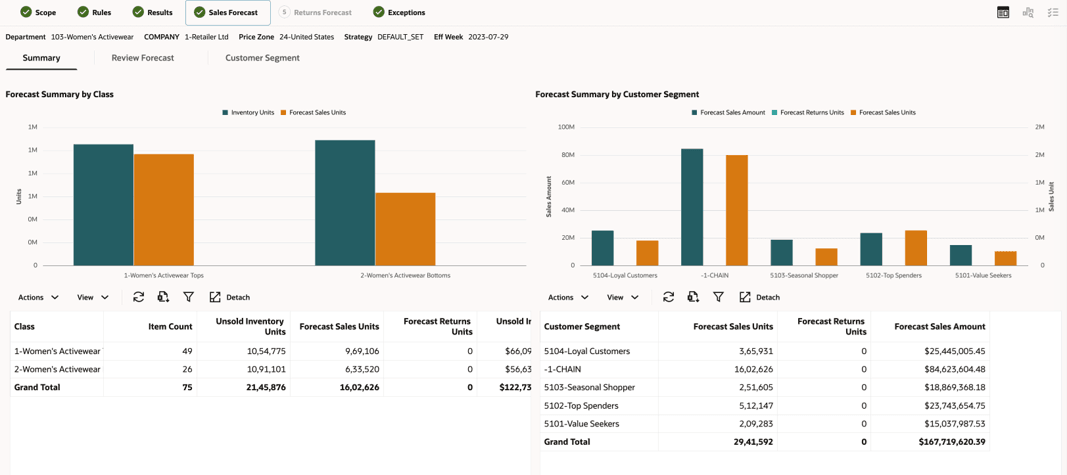
Description of "Figure 9-4 Promo/Mkdn Run - Sales Forecast - Summary Tab"
Compare Inventory Units with Forecast Sales Units and Forecast Return Units. Use the supporting tables to review item count, unsold inventory value, and forecast sales amount by class and to compare forecast contribution by customer segment.
Classes with high inventory relative to forecast demand, or customer segments with unexpected demand patterns, may require deeper review in Review Forecast.
Review Forecast
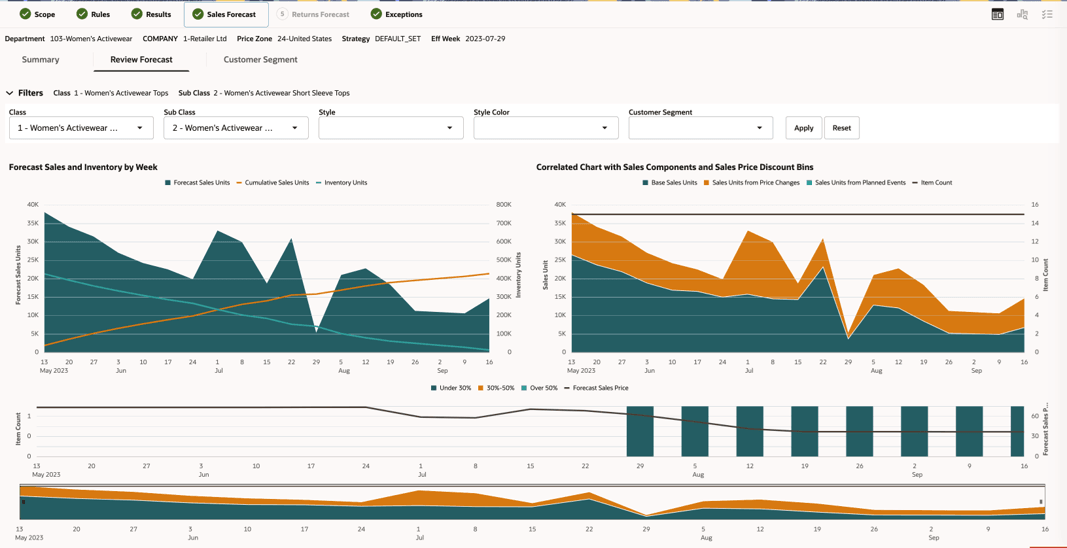
Review Forecast shows week-level sales, inventory, pricing-action components, discount bins, and detailed metrics for selected merchandise and customer segments. Use it when run results differ from expectations or when validating forecast assumptions before acting.
Figure 9-5 Promo/Mkdn Run - Sales Forecast - Review Forecast Tab
Description of "Figure 9-5 Promo/Mkdn Run - Sales Forecast - Review Forecast Tab"
Use merchandise and customer segment filters to narrow the analysis. You can drill from the run setup level to lower merchandise levels supported by the hierarchy.
The sales and inventory chart shows weekly forecast sales, cumulative sales, and projected inventory.
The sales components chart separates base sales, demand attributed to price changes, and demand attributed to planned events. Discount bins show the relative discount level for each week.
The lower time-selection window can be used to focus on specific periods when reviewing long forecast horizons.
Use the weekly table to validate forecast sales, inventory, revenue, pricing, and discount activity for specific weeks.
For detailed metric definitions and calculations, see Appendix: Promotion and Markdown Review Forecast.
Customer Segment
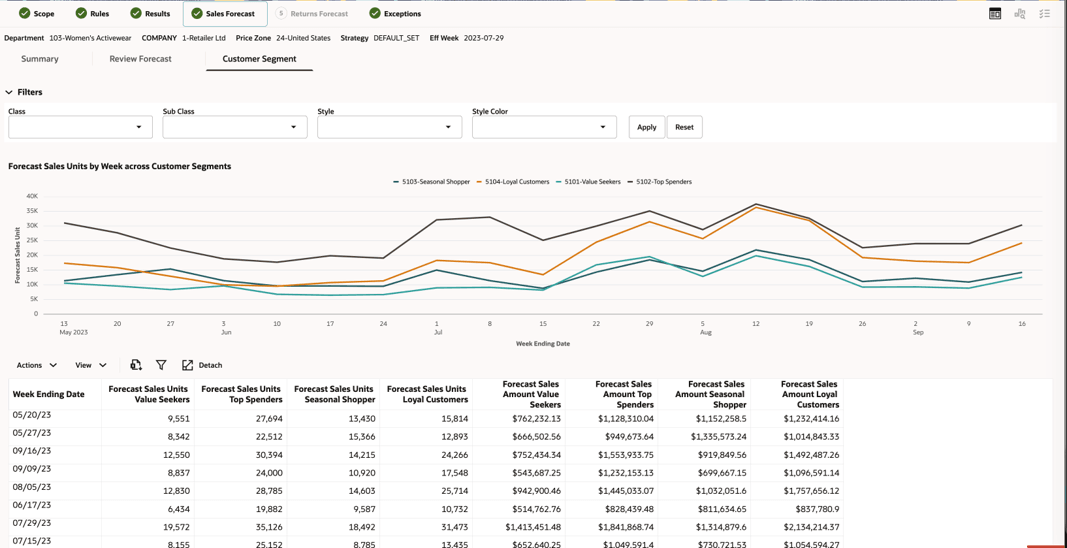
Customer Segment compares forecast sales trends by customer segment for the selected merchandise. Use it to validate segment demand patterns and targeted offer recommendations.
Figure 9-6 Promo/Mkdn Run - Sales Forecast - Customer Segment Rescaled View
Description of "Figure 9-6 Promo/Mkdn Run - Sales Forecast - Customer Segment Rescaled View"
Use merchandise filters to narrow the analysis. Select or deselect segments in the chart legend to update and rescale the display, which can make lower-volume segment patterns easier to compare.
Returns Forecast
The Returns Forecast follows the same Summary, Review, and Customer Segment pattern as Sales Forecast.
Use it to compare forecast and observed returns, identify high-return classes or customer segments, and understand how returns may affect inventory and revenue.
To open the Returns Forecast, select it in the Process Train, then use the Summary, Review Returns, or Customer Segment tab for the current run.
Summary
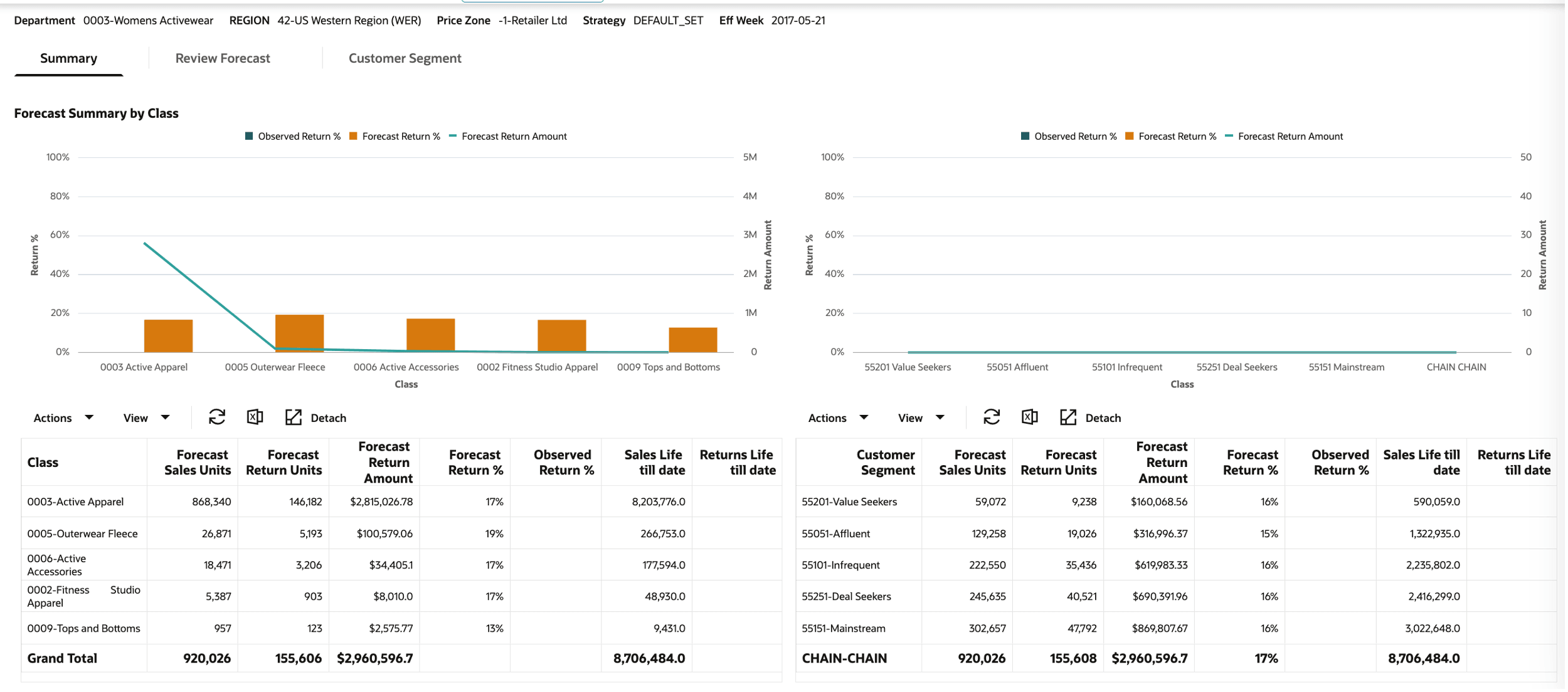
The Summary tab compares forecast return percentages and amounts by class and customer segment. Use it to identify elevated return activity and potential effects on projected sales and inventory.
Figure 9-7 Promo/Mkdn Run - Returns Forecast - Summary Tab
Description of "Figure 9-7 Promo/Mkdn Run - Returns Forecast - Summary Tab"
Compare Forecast Return %, Forecast Return Amount, and observed return measures by class and customer segment. Investigate groups where projected returns differ materially from historical behavior or business expectations.
Review Returns
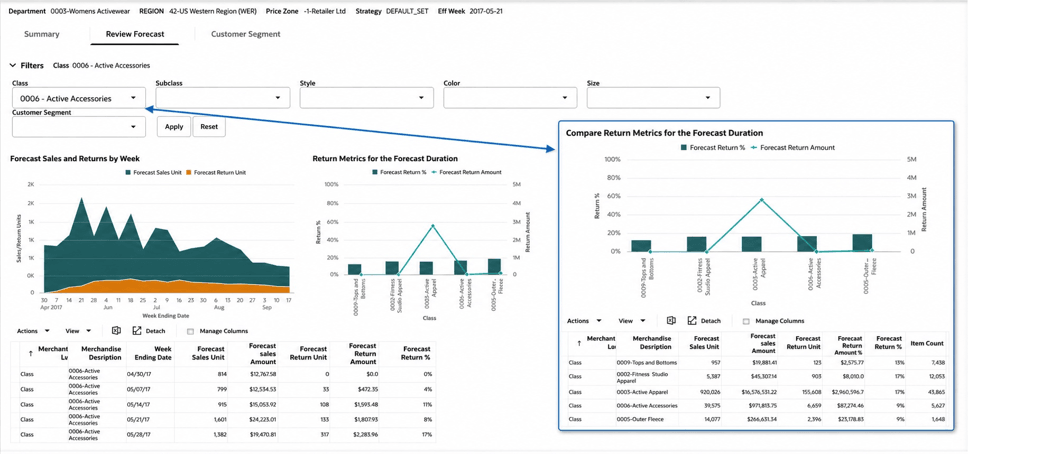
Review Returns shows week-level forecast sales and returns for selected merchandise and customer segments. Use it to investigate unusual return patterns, exception items, and the effect of returns on inventory and revenue.
Figure 9-8 Promo/Mkdn Run - Returns Forecast - Review and Compare Return Metrics
Description of "Figure 9-8 Promo/Mkdn Run - Returns Forecast - Review and Compare Return Metrics"
Use the same merchandise and customer segment filters described for Sales Forecast to narrow the return analysis.
The weekly chart compares forecast sales and return units, and the comparison chart highlights return percentages and amounts across peer merchandise groups. Use them to identify unusual periods or groups that require investigation.
Use the weekly and merchandise hierarchy tables to validate forecast sales, return units and amounts, observed return percentages, and item counts.
Customer Segment
Customer Segment compares forecast return trends across customer groups. Use the filtering, legend, and rescaling controls described for Sales Forecast; this tab focuses on return-specific measures such as Forecast Return Units and Forecast Return Amount.
Figure 9-9 Promo/Mkdn Run - Returns Forecast - Customer Segment Tab
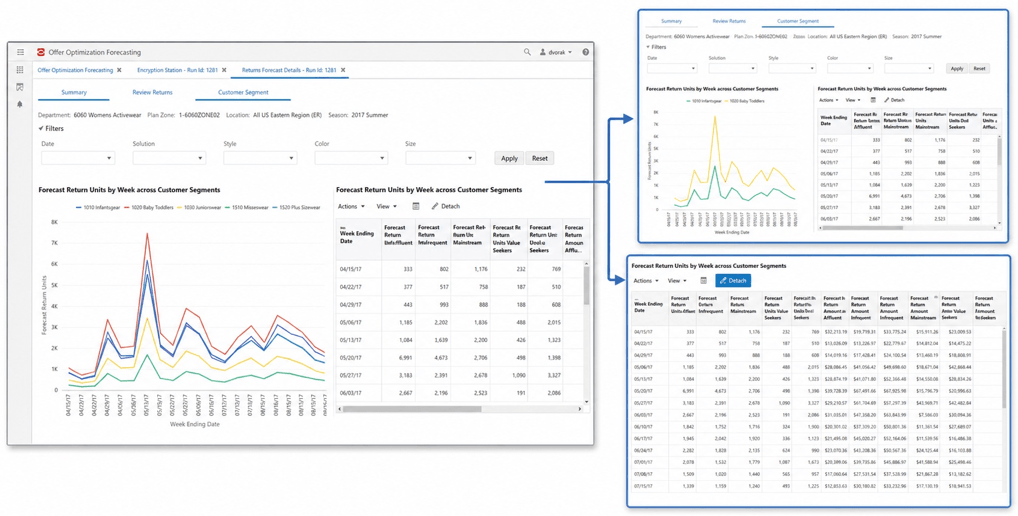
Description of "Figure 9-9 Promo/Mkdn Run - Returns Forecast - Customer Segment Tab"
Exceptions
Exceptions identify products whose forecast performance falls outside configured business thresholds and may require investigation before recommendations are accepted or finalized.
LPO currently supports two exception types:
- Sell-Through Exceptions: Products projected to miss their end-of-life sell-through targets.
- Returns Exceptions: Products with forecast return rates that exceed the configured returns threshold.
Exception thresholds are configured globally through RSE_CONFIG and are applied consistently across optimization runs.
To open Exceptions, select it in the Process Train. Use Summary for the aggregated view and Review for item-level exceptions.
Use Summary to locate classes with material exception counts or inventory exposure. In Review, filter to the affected merchandise, follow forecast or return links for diagnosis, and open the product in Manage Recommendation when action is required. Add a note or flag to carry investigation context forward.
Summary
The Summary tab shows sell-through and returns exception counts by class together with product counts and associated inventory exposure.
Figure 9-10 Promo/Mkdn Run - Exceptions - Summary
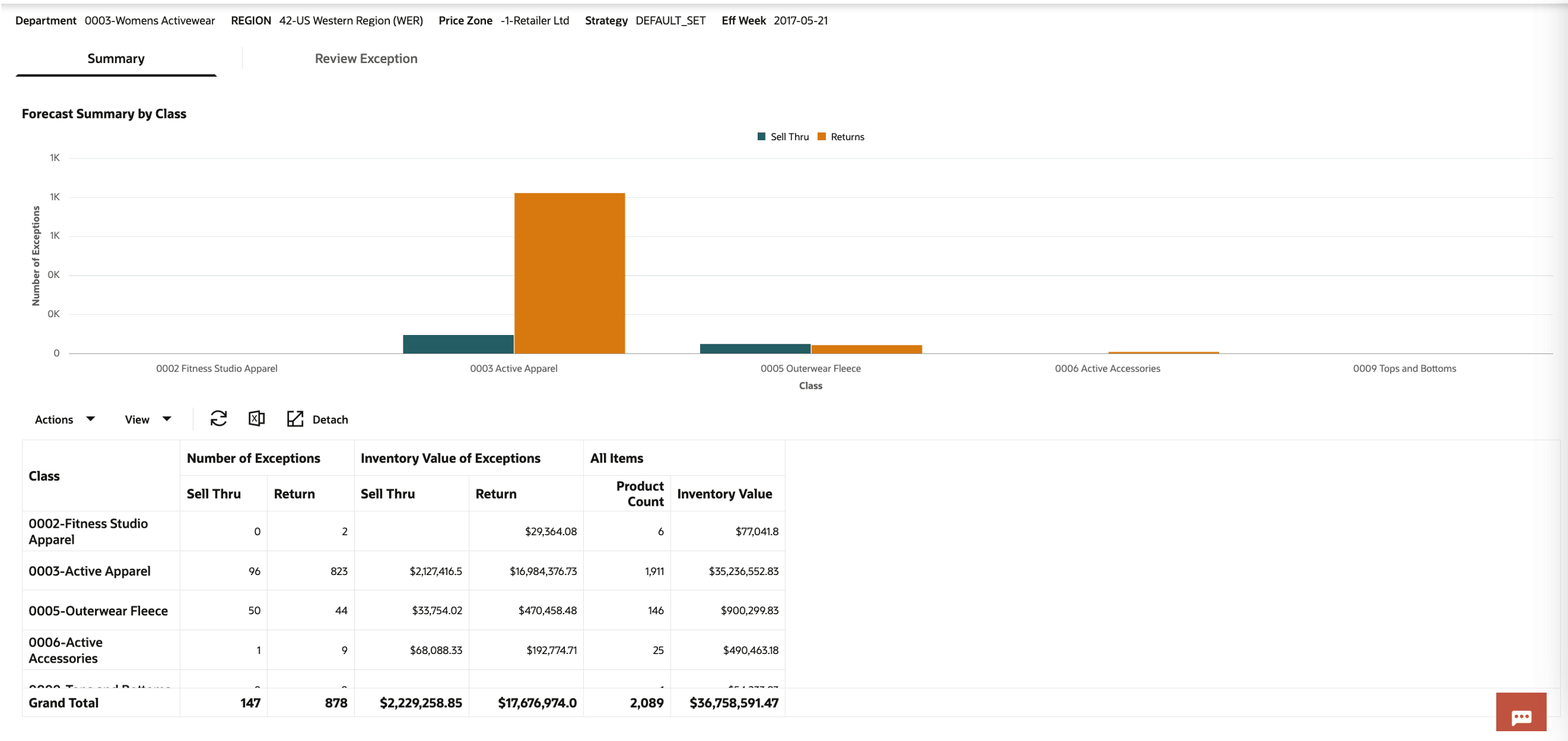
Description of "Figure 9-10 Promo/Mkdn Run - Exceptions - Summary"
Use the class chart and table to determine whether exceptions are isolated or affect a meaningful share of items or inventory value. Investigate classes with material exception counts and inventory exposure before acting on recommendations.
Review
Filter the table by merchandise hierarchy. Forecast Sales Units links to Review Forecast, Forecast Return Units links to Review Returns, and Product Description links to Manage Recommendation.
Figure 9-11 Promo/Mkdn Run - Exceptions - Review Exception
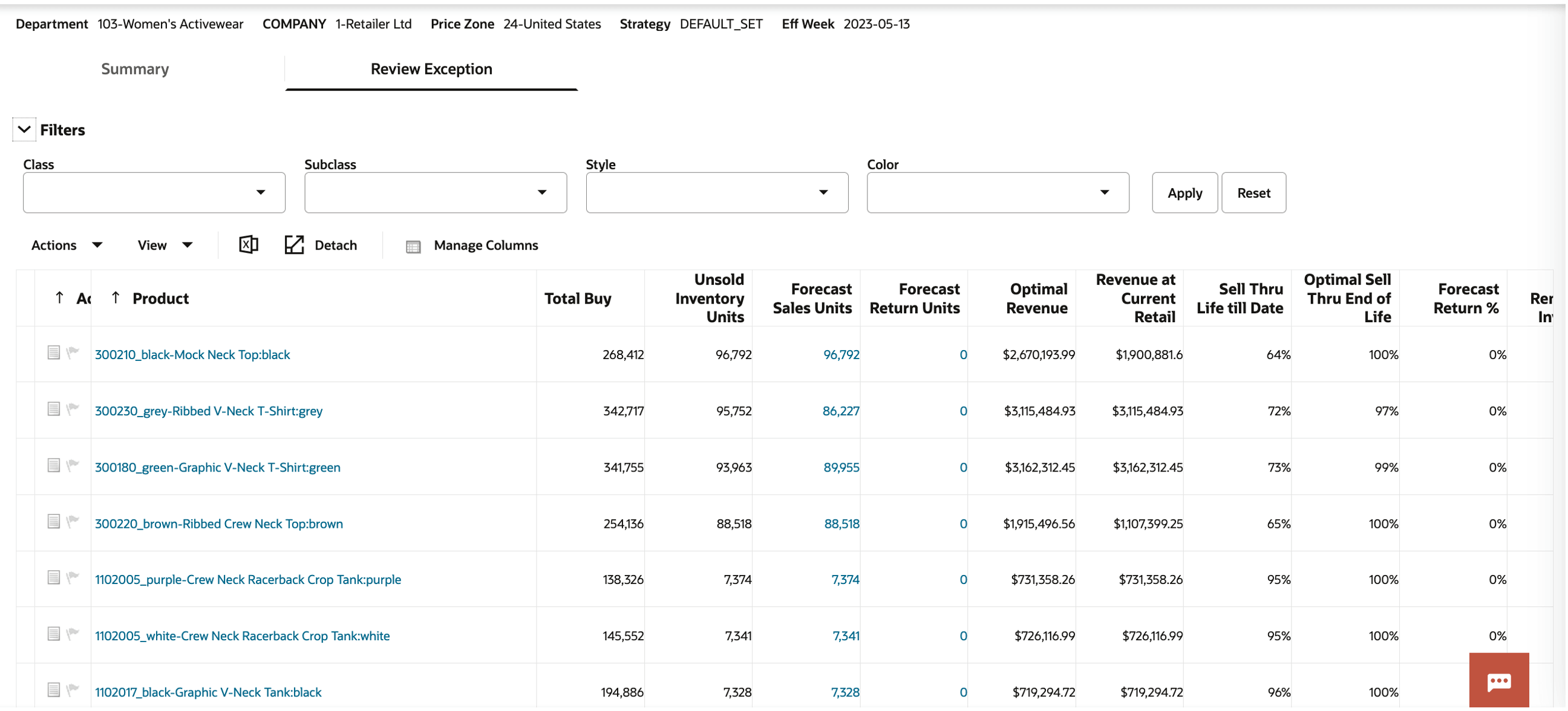
Description of "Figure 9-11 Promo/Mkdn Run - Exceptions - Review Exception"