8 Promotion/Markdown What-If Analysis
Use a Promotion/Markdown and Targeted Offer What-If run to test alternative scope, objectives, budgets, strategies, and business rules before replacing active batch recommendations. When Targeted Offers are enabled, the run can also evaluate segment-specific offers using the configured redemption objective.
This chapter explains how to create the run, complete the Scope and Rules stages, optimize the scenario, and move to Results.
To create a What-If run:
- On the Run Overview page, select the Promotion/Markdown tab.
- Click Create in the Run Overview table, then define the scope, select the strategy, and review or update the applicable business rules.
Prerequisite - Forecast Configuration
Before creating the run, verify that the Promotion/Markdown Forecast Configuration is aggregated, active, and mapped to LPO. See Understanding the LPO Process for the verification procedure and the Oracle Retail AI Foundation Cloud Service Implementation Guide for configuration details.
Scope
In Scope, define the merchandise, location or price zone, effective week, strategy, objectives, and budget for the scenario.
Select Save to apply the Scope changes and populate Review Information, then select Rules in the Process Train.
Figure 8-1 Promo/Mkdn Run - Scope

Table 8-1 Promo/Mkdn Run - Scope
| Field | Description |
|---|---|
| Run Name | Enter a unique name of 80 characters or fewer. The value is case sensitive. |
| Run Description | Enter a brief description of 200 characters or fewer. |
| Season | Select the season to be evaluated. |
| Merchandise | Select the available merchandise scope, such as Department or a higher level. |
| Location | Select the available location scope, such as Company or a lower level. |
| Effective Week | Select an available effective week for the recommendations. |
| Price Zone | Select an available price zone mapped to the Promotion/Markdown application. |
| Strategy | Select the strategy whose rules should populate the run. |
| Objectives | Select the pricing objective for Promotion/Markdown and, when enabled, the Targeted Offer objective. |
Objectives
In Scope, select the pricing objective and, when enabled, the Targeted Offer objective for the run.
For Promotion/Markdown, choose one of the following objectives:
- Maximize Revenue
- Maximize Gross Margin Amount
- Maximize Revenue with Salvage
- Maximize Gross Margin Amount with Salvage
For Targeted Offers, the supported objective is Maximize Redemption Rate.
Be sure to save any changes made in this section by clicking Save.
Rules
To access Rules, save Scope and select Rules in the Process Train. Select a rule tab to review inherited values or adjust supported run-level settings.
Changes apply only to the current run. General Strategy values apply across the run unless a more-specific merchandise rule overrides them.
Common Components
Most rule tabs identify the merchandise context using the same fields. These fields are shown once below; the following sections describe only the controls unique to each tab.
Table 8-2 Promo/Mkdn Run - Rules - Common Fields
| Common Field | Description |
|---|---|
| Merchandise | Merchandise hierarchy member to which the rule applies. |
| Merchandise Level | Hierarchy level at which the rule is defined. |
| Merchandise External Code | Retailer-defined identifier for the merchandise. |
In a rule tab, the read-only Summary Panel shows configured values and hierarchy levels. Select General Strategy to review or change run-level values, or select an item and select Update to change supported item-level values.
Temporal
In Rules, select Temporal to review when promotions and markdowns are allowed during the season.
Period eligibility is populated from configured enterprise inputs as Promotion Allowed, Markdown Allowed, or Ineligible. Use editable minimum participation limits and the General Strategy no touch controls to restrict price changes at the beginning or end of an item's lifecycle.
Figure 8-2 Promo/Mkdn Run - Rules - Temporal Strategy and General Strategy
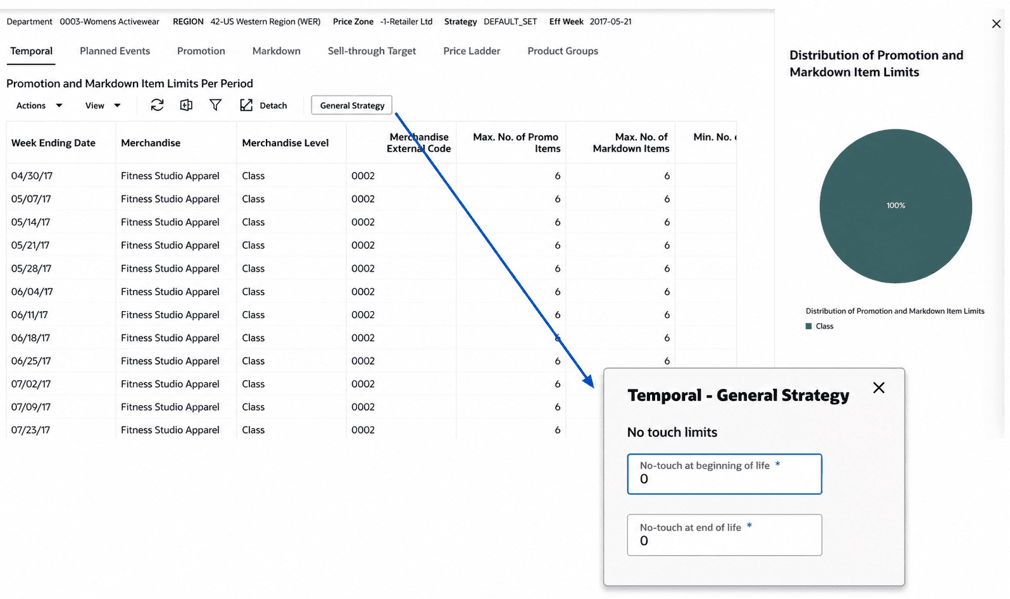
Description of "Figure 8-2 Promo/Mkdn Run - Rules - Temporal Strategy and General Strategy"
Table 8-3 Promo/Mkdn Run - Rules - Temporal Rules
| Control | Editable? | Purpose |
|---|---|---|
| Week Ending Date | No | Identifies the period to which the rule applies. |
| Maximum Promotion or Markdown Items | No | Shows the maximum eligible item count for the period. The inapplicable value is set to 0. |
| Minimum Promotion or Markdown Items | Yes | Sets the minimum participating item count for an eligible period. The value is 0 when the pricing type does not apply. |
| No Touch After Landing | General Strategy | Prevents price changes for the specified number of weeks after an item begins selling. |
| No Touch at End of Life | General Strategy | Prevents price changes for the specified number of weeks before an item's exit date. |
Example: No-Touch Periods
If No Touch After Landing is set to 2 weeks, LPO does not recommend a promotion or markdown during the item's first two selling weeks. If No Touch at End of Life is set to 1 week, LPO also avoids a price change in the final week before the item's exit date.
Planned Events
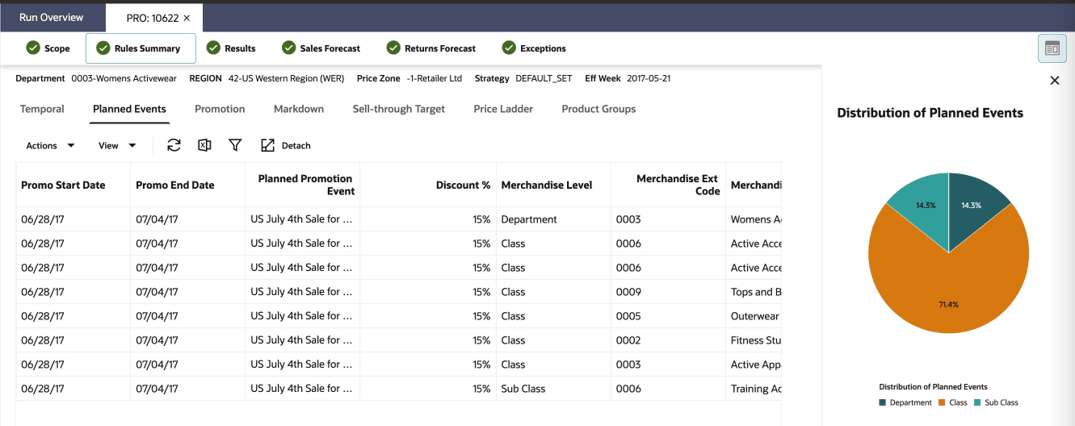
In Rules, select Planned Events to review the scheduled promotions included in the run. The read-only table shows event timing, discount, merchandise and location or price-zone scope, whether the event is applied, and its identifying information.
Confirm that the intended events are included before optimization. Correct planned-event source data through the appropriate upstream process before creating or re-optimizing the run.
Figure 8-3 Promo/Mkdn Run - Rules - Planned Events
Promotion
In Rules, select Promotion to review promotion timing, frequency, duration, and discount controls. Promotions generated by optimization do not exceed one week.
Values are inherited from the strategy selected in Scope; changes made here apply only to the current run.
Example: Min First Promotion and Max First Promotion Discount
For an item with a $100 full price, a minimum first promotion discount of 10% and a maximum of 30% define an eligible promotion price range of $70 to $90 before any additional ladder, timing, budget, or pricing-group constraints are applied.
Figure 8-4 Promo/Mkdn Run - Rules - Promotion
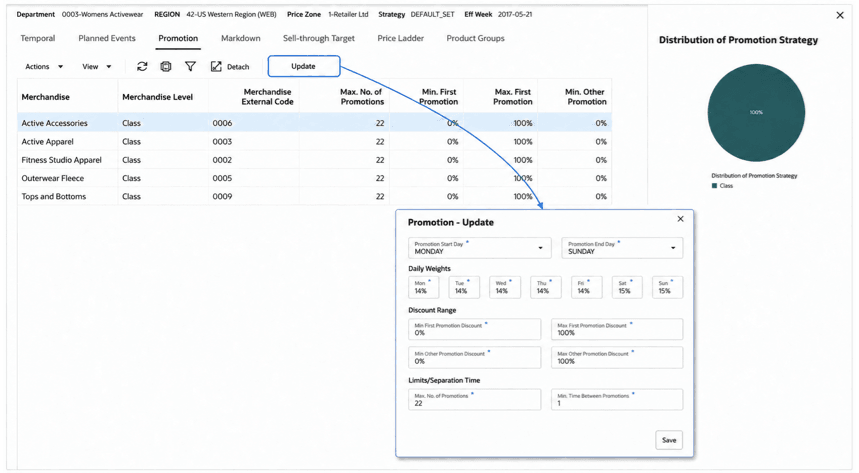
Description of "Figure 8-4 Promo/Mkdn Run - Rules - Promotion"
Markdown
In Rules, select Markdown to review markdown timing, frequency, and first, subsequent, and lifecycle-wide discount limits. Values are inherited from the strategy selected in Scope; changes made here apply only to the current run.
Example: Min Other Markdown and Max Other Markdown Discount
Suppose you set Min Other Markdown Discount to 25% and Max Other Markdown Discount to 50% for an item with a full price of $100. If the first markdown is 20%, the item’s ticket price drops to $80.
For the second markdown:
- The minimum allowable reduction is 25%, resulting in a ticket price of $60 ($80 × (1 - 0.25)).
- The maximum allowable reduction is 50%, resulting in a ticket price of $40 ($80 × (1 - 0.50)).
If a Max Absolute Markdown Discount of 50% is also configured, the ticket price cannot be reduced below $50, further restricting the available markdown range. In this case, the second markdown would be limited to a value between $50 and $60.
Figure 8-5 Promo/Mkdn Run - Rules - Markdown
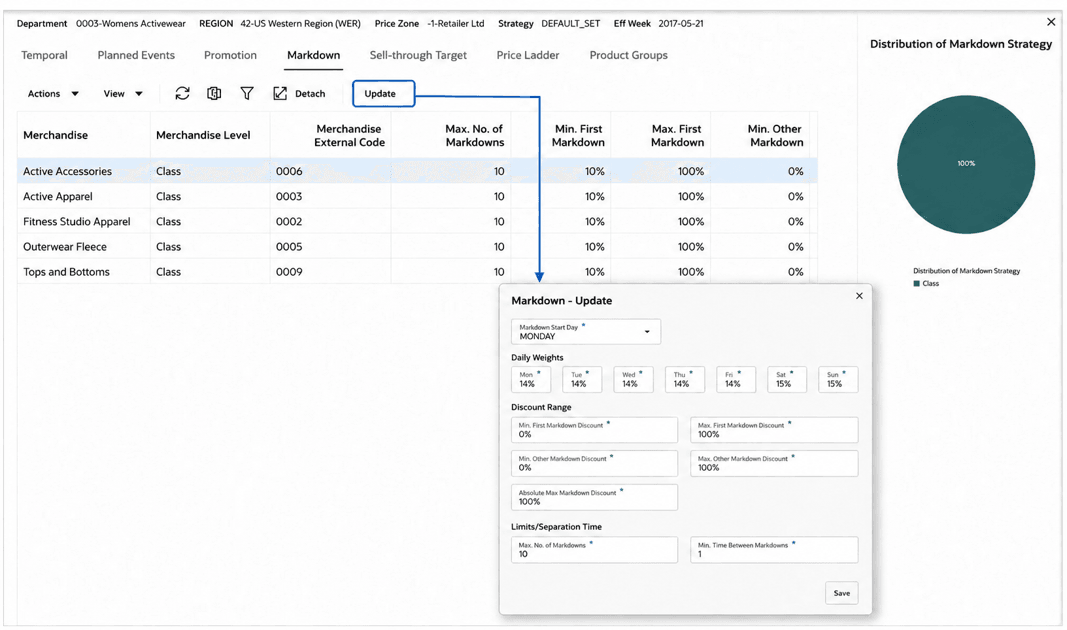
Description of "Figure 8-5 Promo/Mkdn Run - Rules - Markdown"
Editing note: Fields identified as General Strategy are edited for the run as a whole. Other editable values can be changed at supported merchandise levels. Daily Weights is read only.
Table 8-4 Promo/Mkdn Run - Rules - Promotion and Markdown Controls
| Control Area | Promotion | Markdown |
|---|---|---|
| Timing | Promotion Start Day and Promotion End Day set the allowed days (General Strategy). | Markdown Start Day sets the allowed start day (General Strategy). |
| Activity Limits | Max No. of Promotions and Max Length of Promotion limit activity (General Strategy). | Max No. of Markdown Weeks limits markdown activity (General Strategy). |
| First Price Change | Min First Promotion Discount and Max First Promotion Discount define the range; the maximum is a General Strategy value. | Min First Markdown Discount and Max First Markdown Discount define the range; the maximum is a General Strategy value. |
| Later Price Changes | Min Other Promotion Discount and Max Other Promotion Discount define subsequent ranges; the maximum is a General Strategy value. | Min Other Markdown Discount and Max Other Markdown Discount define subsequent ranges; the maximum is a General Strategy value. |
| Spacing | Min Time Between Promotions sets the required interval. | Min Time Between Markdowns sets the required interval. |
| Lifecycle Limit | Not applicable. | Max Absolute Markdown Discount limits the total markdown from full price (General Strategy). |
| Demand Allocation | Daily Weights allocates weekly demand across days and is read-only. | Daily Weights allocates weekly demand across days and is read-only. |
Sell-Through Target
In Rules, select Sell-Through Target to set weekly and end-of-season inventory clearance goals.
Values are inherited from the strategy selected in Scope. Use hard enforcement only when an unmet target should make the run Infeasible.
Sell-through targets can be enforced in two ways:
- Hard Constraint: The target must be achieved for optimization to return a valid solution. If LPO cannot satisfy the target within the configured business rules and constraints, the run returns an Infeasible result.
- Soft Target: When hard enforcement is not selected, LPO treats the target as a preference and can return the best feasible solution even if the target is not fully achieved.
Example: Hard Constraint and Soft Target
Suppose Target Sell-Through is 80% and the best feasible solution reaches 75%. If the target is enforced as hard, the run is Infeasible. If it is a soft target, LPO can return the 75% solution when the remaining rules and constraints are satisfied.
Figure 8-6 Promo/Mkdn Run - Rules - Sell-Through Target
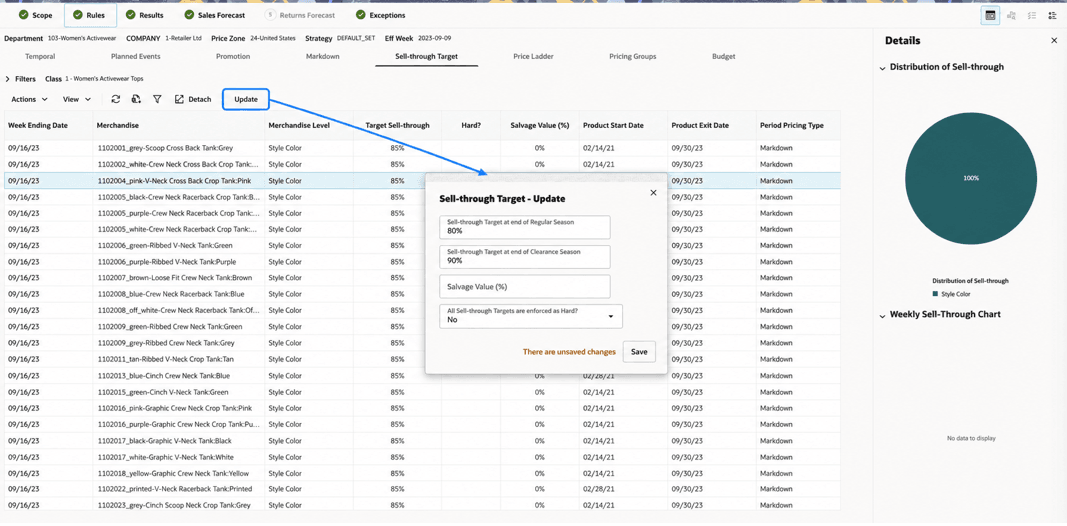
Description of "Figure 8-6 Promo/Mkdn Run - Rules - Sell-Through Target"
Table 8-5 Promo/Mkdn Run - Rules - Sell-Through Target
| Control | Editable? | Purpose |
|---|---|---|
| All Sell-Through Targets are Enforced as Hard? | General Strategy | Requires all configured targets to be satisfied; otherwise the run is Infeasible. |
| Lifecycle and Period Context | No | Shows Period Pricing Type, Product Start Date, Product Exit Date, Salvage Value, Week Ending Date, and Weeks From Start. |
| Sell-Through Target at End of Regular Season | General Strategy | Sets the target for the end of the regular selling season. |
| Sell-Through Target at End of Clearance Season | General Strategy | Sets the target for the end of the clearance season. |
| Target Sell-Through | Yes | Sets the desired sell-through percentage for the specified merchandise and week. |
Price Ladder
In Rules, select Price Ladder to review or assign the loaded promotion and markdown ladders available for the run. The tab identifies each ladder by name, type, and its permitted percentage or price-point values.
Confirm that an appropriate ladder is assigned before overriding recommendations in Manage Recommendation; otherwise the override may fail or produce an unexpected price.
When a run is created, LPO assigns the closest applicable promotion and markdown ladders available for the included merchandise. More-specific assignments can be used where configured.
Example: Promotion Price Ladder
For a $100 item, a promotion ladder containing 10%, 20%, and 30% discounts provides prices of $90, $80, and $70. A 25% discount is not available from that ladder, so an override must use one of the configured ladder values.
Pricing Groups
In Rules, select Pricing Groups to coordinate promotion and markdown behavior across related products.
To create a group, select Create New, enter a group name, select a group type, add products individually or by using Query by Example and Select All, and then select Save.
Supported pricing group types include:
- Promote At Most One: Only one product in the group can be promoted during a period.
- Promote All or Nothing: If one product is promoted, all products in the group must be promoted; otherwise, none are promoted. The products do not have to receive the same discount.
- Markdown All or Nothing: If one product is marked down, all products in the group must be marked down; otherwise, none are marked down. The products do not have to receive the same discount.
- Same Promotion Discount: When promoted, all products are promoted together and receive the same percentage discount. Their recommended prices can differ.
- Same Markdown Discount: When marked down, all products are marked down together and receive the same percentage discount. Their recommended prices can differ.
- Same Promotion and Markdown Discount: All products receive the same percentage discount throughout their lifecycle. Their recommended prices can differ because their full prices can differ.
- Promote Nothing: No products in the group can be promoted.
- Markdown Nothing: No products in the group can be marked down.
For example, a retailer can place two competing jacket brands in a Promote At Most One group so that only one brand is promoted during a period.
Note:
Conflict validation is limited. Review products assigned to multiple pricing groups carefully, especially combinations such as Promote At Most One and Promote All or Nothing.Figure 8-7 Promo/Mkdn Run - Rules - Create Pricing Group
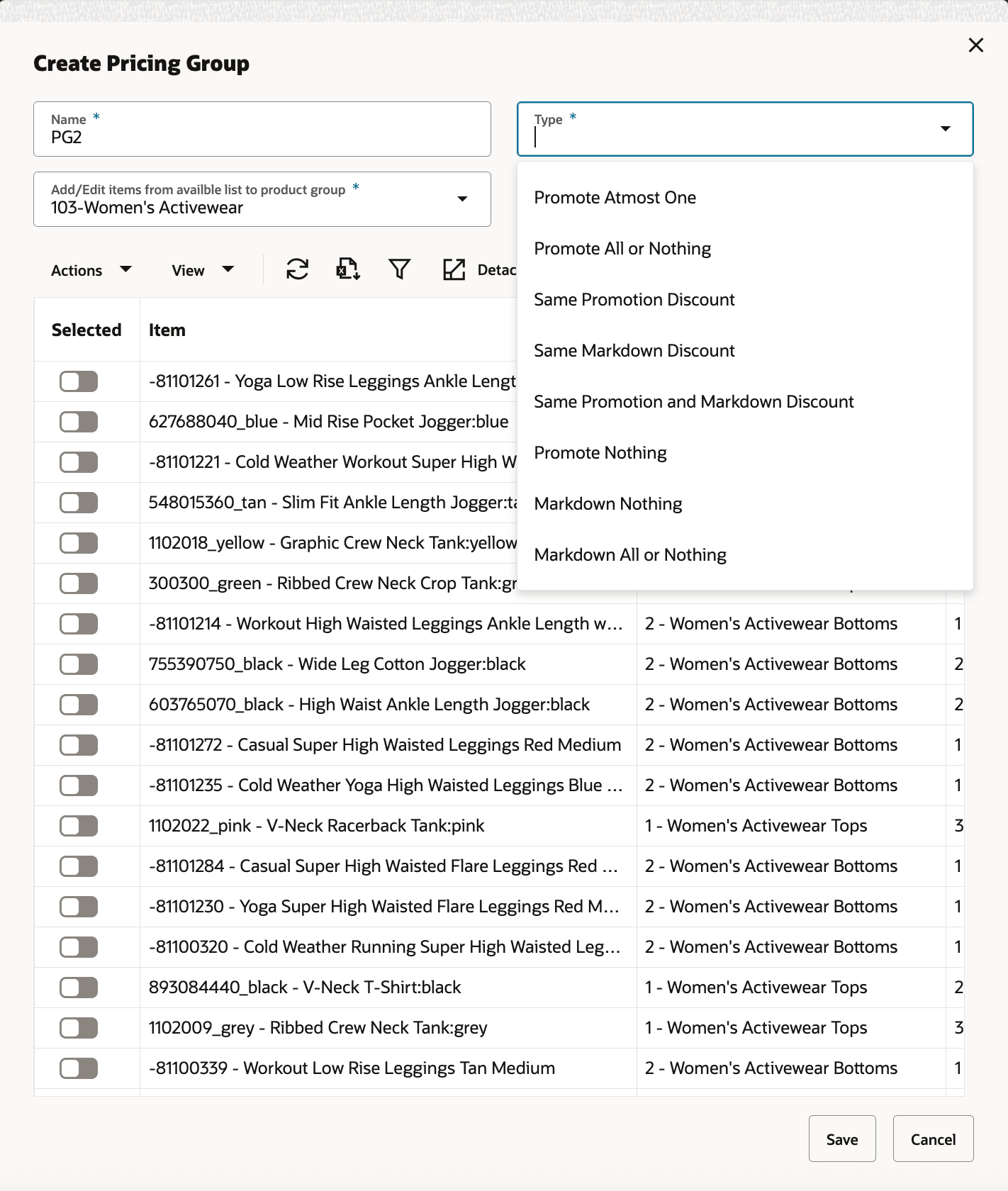
Description of "Figure 8-7 Promo/Mkdn Run - Rules - Create Pricing Group"
Budget
In Rules, select Budget to choose whether promotion and markdown recommendations are unconstrained by budget or must remain within a total or separate budget.
Budget values can be entered in the run or populated from configured enterprise inputs.
Budget Allocation Options
Choose one of the following budget options:
- No Budget Limit: Optimization is not constrained by budget.
- Total Budget: A single budget is used for both promotions and markdowns over the life of the items in the run.
- Separate Budgets: Independent budgets are maintained for promotions and markdowns.
Figure 8-8 Promo/Mkdn Run - Rules - Budget Allocation Schemes
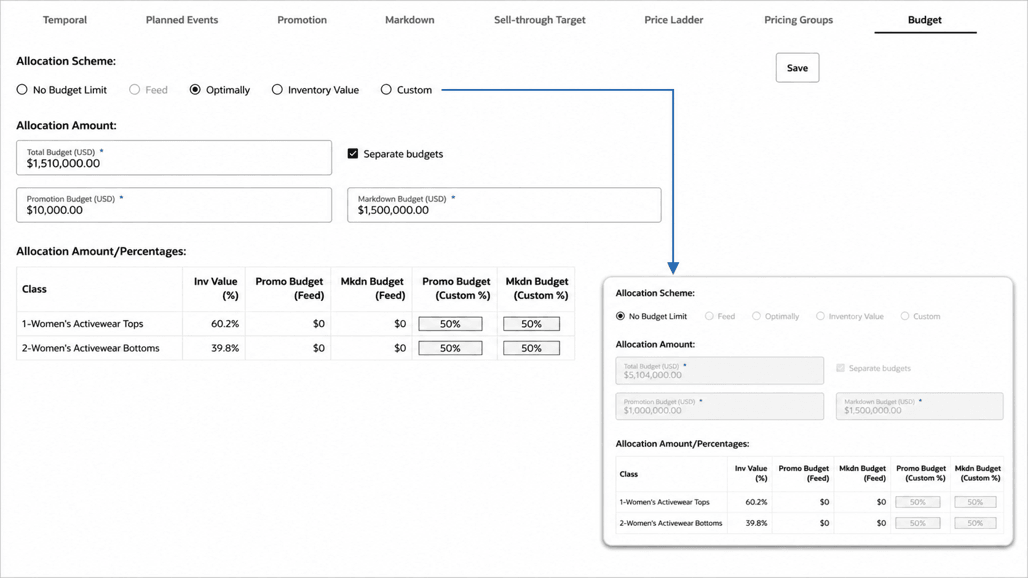
For a budgeted run, select one of the following allocation methods:
- Feed: Uses budget values supplied through the budget interface at the run processing level. Feed is selected by default when budget values are supplied at that level and is unavailable otherwise.
- Optimally: Allows LPO to determine the most effective allocation across merchandise groups.
- Inventory Value: Allocates budget proportionally based on inventory value (current price × unsold inventory).
- Custom: Allows users to manually define allocation percentages. Allocation percentages must total 100%.
Example: Inventory Value Allocation
If two merchandise groups represent 60% and 40% of the inventory value in a $100,000 budget, Inventory Value allocation assigns $60,000 and $40,000, respectively. Optimization then works within those allocated amounts.
Multi-Run Request
To create several What-If runs for a broader scope, open Lifecycle Pricing Optimization from the Oracle Home Experience and select Multi-Run Request. Use Setup to define the request, Request Details to review its configuration, and the Queued, Created, and All tiles with Request Summary to monitor processing. Created runs appear in Run Overview; delete queued requests when they are no longer required and your privileges allow it.
Figure 8-9 Promo/Mkdn Run - Multi-Run Request for Four Departments Under Women’s Clothing Group

Run Optimization
Once the Scope and Rules are complete, select Optimize or Re-Optimize to submit the existing run for processing and view the status update from Run Overview.
During optimization, LPO evaluates forecast demand, inventory positions, pricing objectives, budget constraints, planned events, and all applicable business rules to determine the set of promotions, markdowns, and targeted offers, when enabled, that best satisfy the selected objective.
When processing finishes, the run moves to Ready for Review, Failed, or Infeasible. See Table of Runs for the standard status meanings.
What should I do after optimization?
- If the run reaches Ready for Review, proceed to the Results stage to evaluate the recommendations and projected business impact.
- If the run returns an Infeasible result, review the configured business rules and constraints. Common causes include aggressive sell-through targets, restrictive budget limits, pricing group conflicts, or promotion and markdown constraints that prevent the optimization engine from identifying a valid solution.
- If the run is Failed, review the error details and verify that the required inputs, forecasts, and supporting data are available before re-running the optimization.
- If changes are required, return to the Scope or Rules stage, make the necessary updates, and select Re-Optimize to generate a new set of recommendations.