Add a Translation
To add a translation, follow the steps below:
- Select Actions > Translate or use the Translate button, if available. The Translations drawer appears as an overlay on top of the screen.
-
Click the Create Translation button. The New Translation drawer appears.
Figure 3-2 New Translation
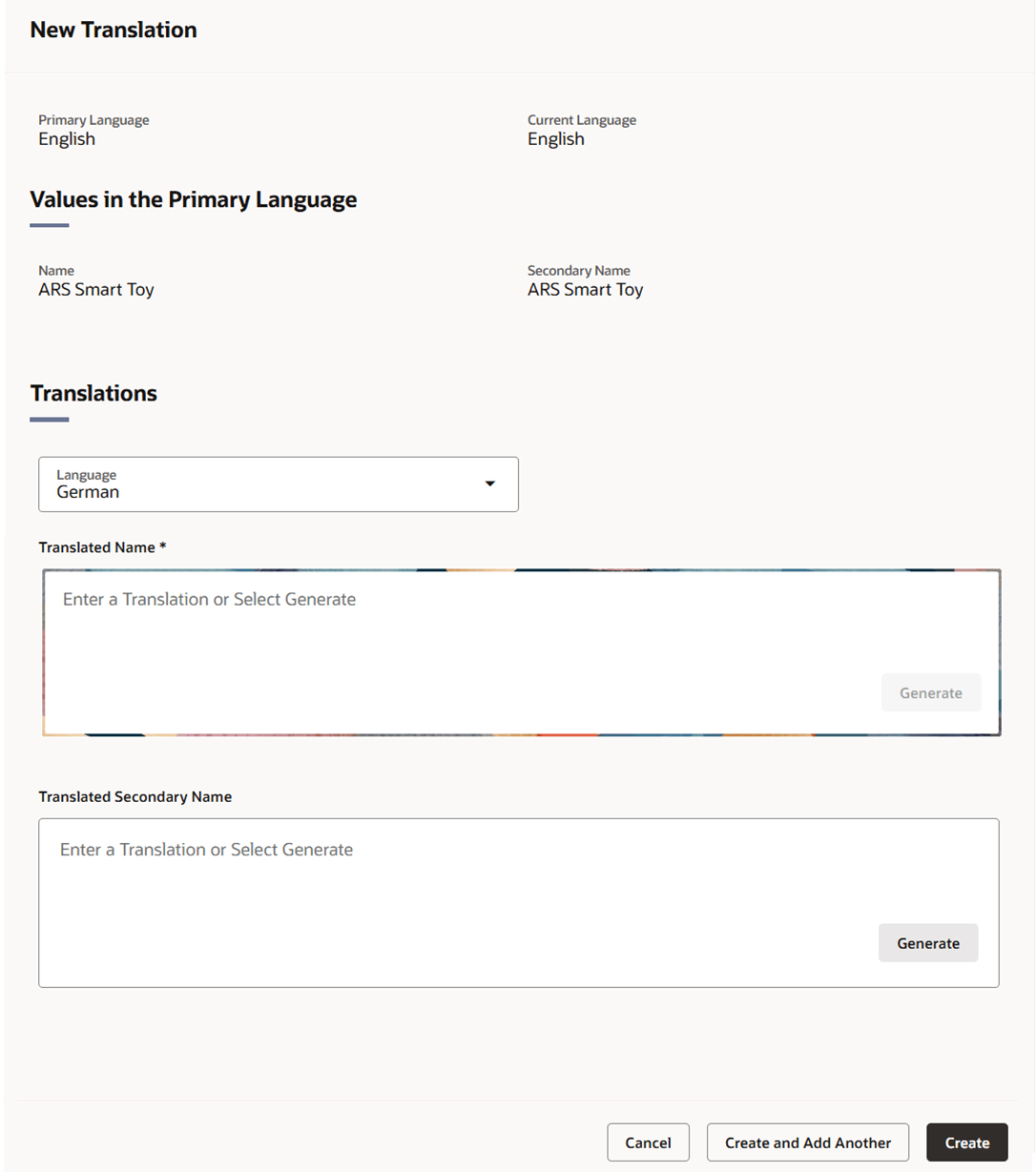
- The system’s primary language and your current language are displayed at the top of the page along with the primary language values for the fields that can be translated.
- In the Language field, select the desired language from the list. This is a required field.
- In the Translated fields, enter the desired translation or click the Generate button to obtain an AI-generated translation. Depending on the entity being translated, there may be more than one translatable field. For example, stores have two translatable fields, store name and secondary name.
- If the translation was generated, review and refine the translation as desired.
- Then choose one of the following options.
- Click Create to add the translation to the table and close the page.
- Click Create and Add Another to add translations in additional languages.
- Click Cancel to reject all entries and close the page.
- To exit the Translations drawer, click the X at the top of the drawer.