Edit a Translation
To edit a translation, follow the steps below:
-
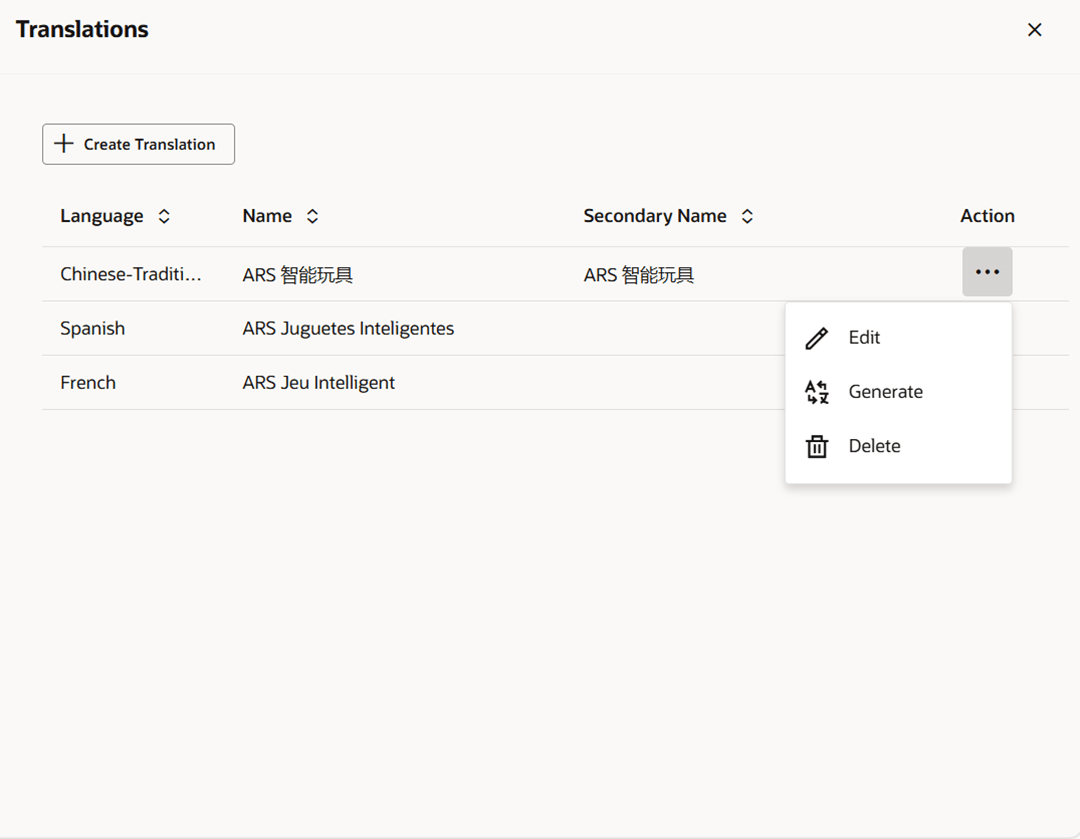
Select Actions > Translate or use the Translate button, if available. The Translations drawer appears.
Figure 3-3 Translations Drawer
-
Edit the description directly in the table by double-clicking the row or by selecting Edit from the Overflow Menu in the Action column.
Note:
The Language field cannot be edited. If a desired language is no longer wanted, the row should be deleted and a new row added for the desired language.Figure 3-4 Edit Translation Inline
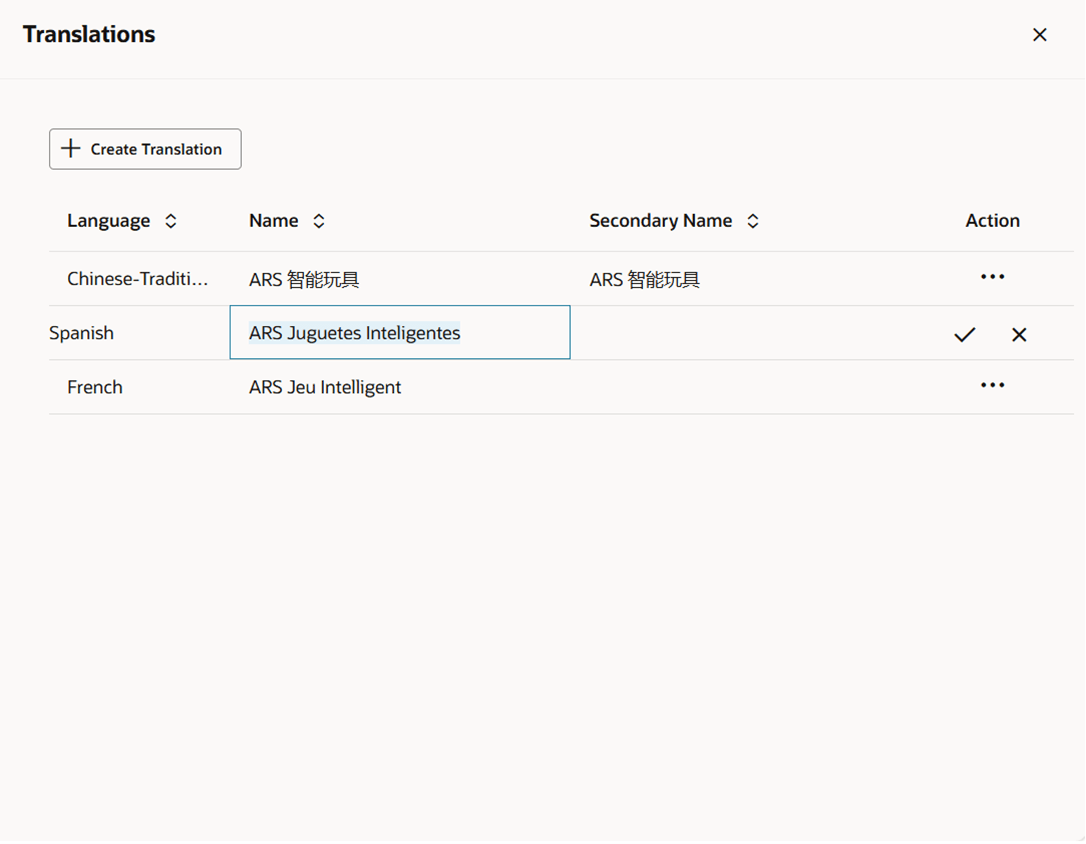
- Click the checkmark button to update the translation or click the X on the row to discard your changes.
- Click the X at the top of the drawer to close the page.