2 Common Actions and Items
This section describes some of the common actions, menus, and icons that you see throughout the Locations Destination to help familiarize you with how to navigate through the solution.
Table Level
Note:
The figures in this section are representations. Tables may differ slightly, depending on the page, table, or pop up you are viewing.At the table level, there are commonly one or more action buttons on the left of the table’s toolbar and one or more display configurations on the right side of the table toolbar.
Action Buttons and Menus
The Actions available to you, against one or more rows in a table, will be displayed just above the table on the far left of the table toolbar, and/or on a card in a card view, or contained in an Actions menu in an Action column on the table.
These actions, such as create, edit, delete, submit, approve, and so on, will vary from table to table, depending on the functionality available for the records displayed in the table. Some pages may provide additional options, based on the functionality of the page. The details on those more unique options can be found in the documentation for that particular page.
Figure 2-1 Action Buttons in Table Toolbars

Figure 2-2 Action Buttons and Menus on Cards
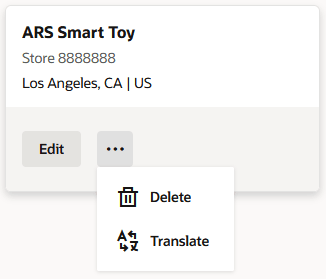
Figure 2-3 Action Menus in Table Columns
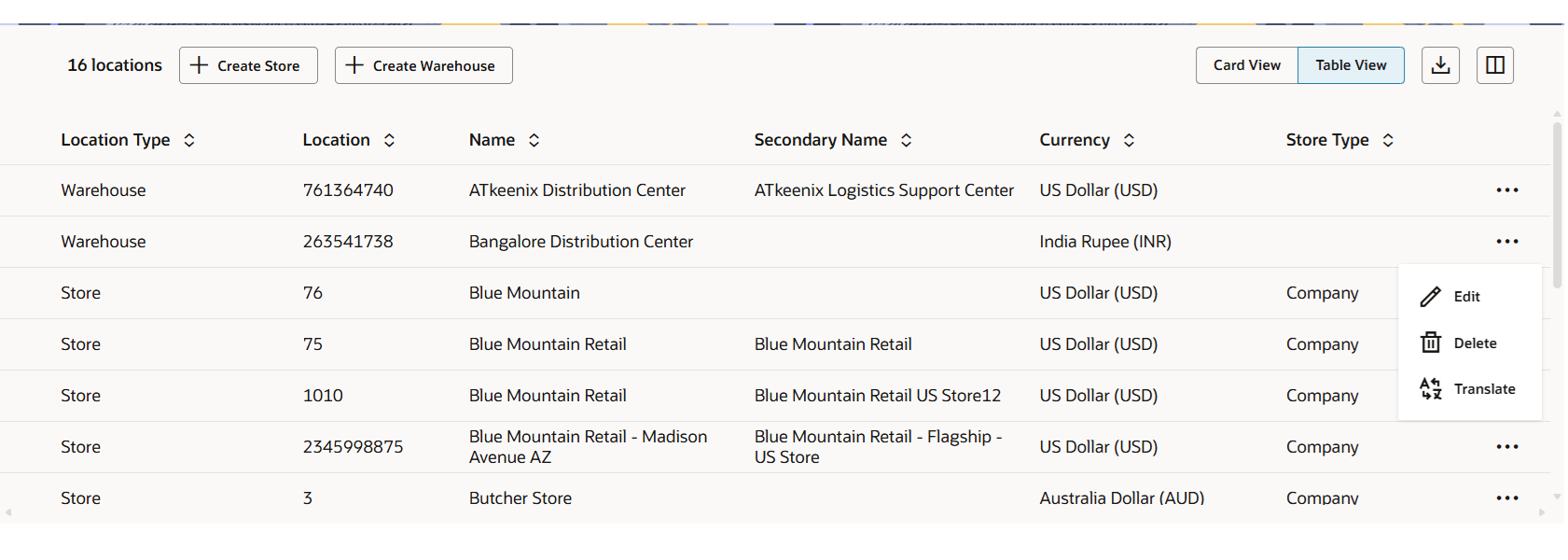
Table Display Options
The View toggles, Sort menu, and Column Configuration menu provide the options for managing the display of table data.
Table View Toggle
In some tables you have the option to choose a view such as a card view, table view or list view. This is a way to toggle the display of the same information to align with your preferred viewing experience. The view toggle, if available on the table, will display on the right side of the table toolbar. The currently displayed view will be highlighted in blue.
Figure 2-4 Table View Toggle Button
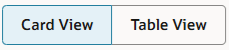
Figure 2-5 Table Displayed in the Card View

Sort Options
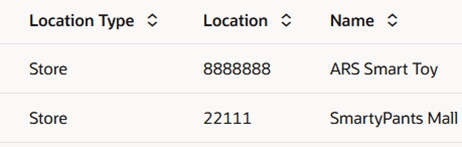
When in a standard table view, there may be sorting buttons available next to table column headers. These buttons will allow you to sort the table data on that column in either an ascending or descending order.
Figure 2-6 Table View - Column Sorting Buttons
When in a card view, there may be a Sort By menu that will allow you to choose a desired column on which the cards should be sorted.
Figure 2-7 Card View – Sort By Menu

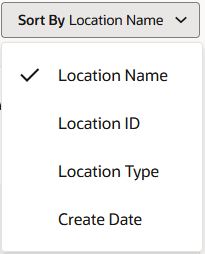
Once a column is selected from the Sort By menu, the selected value will be checked and will display in the Sort By menu button’s label.
Figure 2-8 Sort By Menu Expanded
Column Configuration
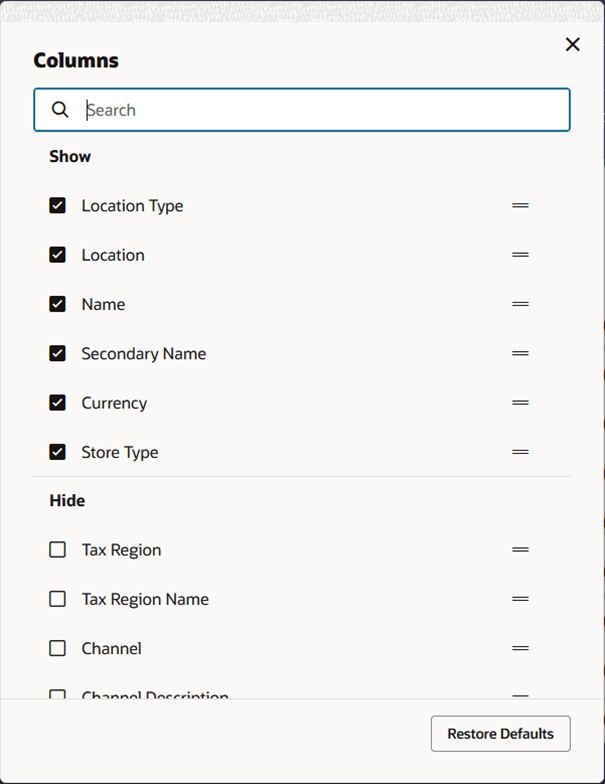
In a table view there may be a column configuration button  in the table toolbar. When clicked, the Columns dialog opens.
The Columns dialog includes a list of the table columns that are currently being shown with checkboxes checked, and a list of columns that are currently hidden with checkboxes unchecked.
You can uncheck columns to hide them, check hidden columns to show them, or drag columns between the Show and Hide sections using the handlebar icon on the right side.
To find a desired column, you can use the search box at the top of the dialog.
To restore the display of the table to the original setting, you can click the Restore Defaults button at the bottom of the dialog.
To close the Columns dialog, click the X at the top right of the dialog.
Figure 2-9 Table Column Configuration – Columns Dialog
Ask Oracle Search
You can search for a particular entity by entering a keyword or selecting filter chips to set criteria to narrow the list of records displayed.
Figure 2-10 Ask Oracle Search

Search Using Keyword Entry
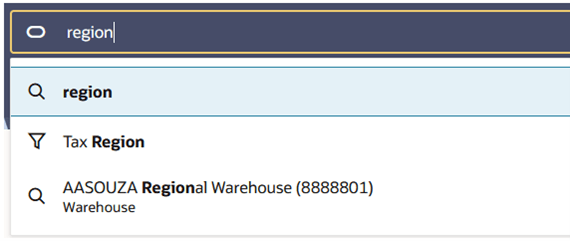
Enter a keyword in the Ask Oracle search bar to filter the data on the screen to records that contain values that match the keyed value. As you type, a suggestions list will display with suggested filters (with a filter icon next to it) that match the keyed value and/or records that match (with a magnifying glass icon next to it). You can choose from this list of suggestions, or you can press [Enter] and the data on the screen will be filtered by the keyed in value.
Figure 2-11 Ask Oracle – Suggestions List
Search Using Filter Chips
The Ask Oracle search bar may contain filter chips which allow for quick filtering based on a particular attribute of the data. As filter chips are applied, the data on the screen will be filtered.
Figure 2-12 Ask Oracle Search with Filter Chips Not Yet Applied

To apply a filter, click the desired filter chip. Doing this will move the chip into the search bar. Depending on the type of filter chip applied, you may have to select or enter a value for the filter chip. For example, when a Currency filter chip is applied, a dropdown will display allowing you to choose a currency (or in some cases multiple currencies) based on which the data in the screen should be filtered. The selected value will display in the applied filter chip with an underline.
Figure 2-13 Close-up View of a Single Applied Filter Chip

Figure 2-14 Multiple Applied Filter Chips in Ask Oracle Search

To change the value, click this underlined value and the dropdown will display allowing you to change the selected value(s).
To remove a filter, click the X on the applied filter chip.
When a filter chip allows multiple values to be selected you will see checkboxes that can be checked next to the desired values. As you select values, they are displayed in the filter chip’s field along with a count of how many have been selected on the right side of the field.
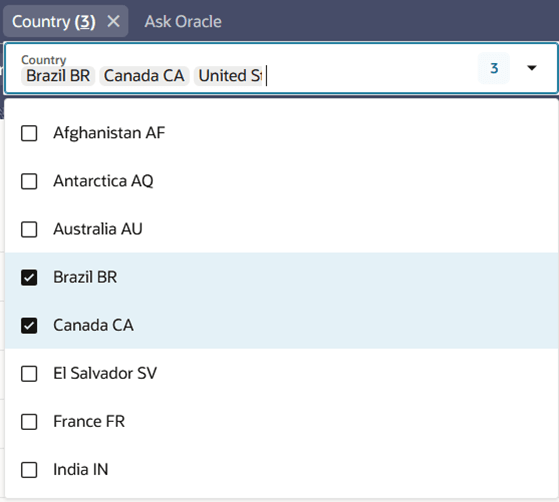
If you click the blue shaded number on the right side of the field, the dropdown will be limited to only the values that were selected, allowing you to see all of the values at a glance.
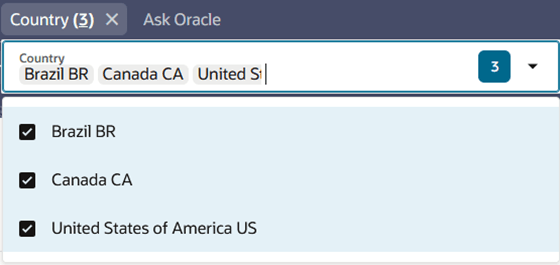
You can also key in the desire value in the dropdown field to filter the list, in order to help you find the desired value to include in the filter.