Search Using Filter Chips
The Ask Oracle search bar may contain filter chips which allow for quick filtering based on a particular attribute of the data. As filter chips are applied, the data on the screen will be filtered.
Figure 2-12 Ask Oracle Search with Filter Chips Not Yet Applied

To apply a filter, click the desired filter chip. Doing this will move the chip into the search bar. Depending on the type of filter chip applied, you may have to select or enter a value for the filter chip. For example, when a Currency filter chip is applied, a dropdown will display allowing you to choose a currency (or in some cases multiple currencies) based on which the data in the screen should be filtered. The selected value will display in the applied filter chip with an underline.
Figure 2-13 Close-up View of a Single Applied Filter Chip

Figure 2-14 Multiple Applied Filter Chips in Ask Oracle Search

To change the value, click this underlined value and the dropdown will display allowing you to change the selected value(s).
To remove a filter, click the X on the applied filter chip.
When a filter chip allows multiple values to be selected you will see checkboxes that can be checked next to the desired values. As you select values, they are displayed in the filter chip’s field along with a count of how many have been selected on the right side of the field.
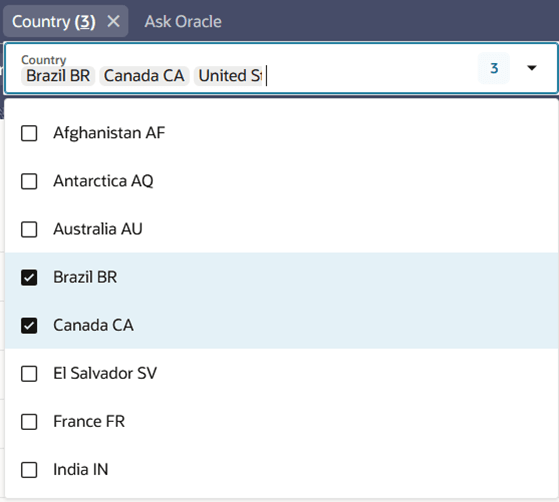
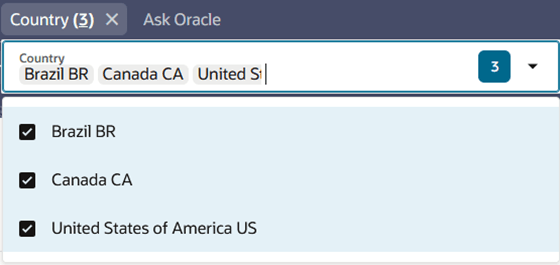
If you click the blue shaded number on the right side of the field, the dropdown will be limited to only the values that were selected, allowing you to see all of the values at a glance.
You can also key in the desire value in the dropdown field to filter the list, in order to help you find the desired value to include in the filter.