Store Conditions
Conditions that occurred at the store that may have impacted customer traffic at the store can be captured in the Store Conditions section. The list of condition types is configurable using the SCND code type which can be maintained through the Codes and Descriptions foundation data spreadsheet template. If information has already been entered in the section, it will display in a read-only format upon entering the page. To edit the information, click the Edit button in the upper right corner of the section. This will display the section in an input state where the fields are enabled for entry and edit. After changes are made to return to the read-only state, click the Update button to save changes or the Cancel button to discard all edits.
To add Location Traits to a store, follow the steps below.
- Navigate to the Store Conditions section. Click the Add Store Condition hyperlink. Alternatively, to add another condition to the store, click the Edit button in the upper right corner of the Store Conditions section.
- A table will be displayed having five columns, Type, Start Date, End Date, Comments, and Action.
- Select a the type of condition that occurred at the store and enter or select the date on which the condition started.
- Optionally, enter the date the condition ended and provide any comments to further describe the condition.
- The Action column will have Add Row/Save or Cancel options in the Add Row.
- Select the Add Row/Save action to create a Store Condition.
- After adding a condition, the row will be populated below and an empty row will display at the top of the table allowing you to set up another condition if desired.
Figure 3-31 Store Conditions
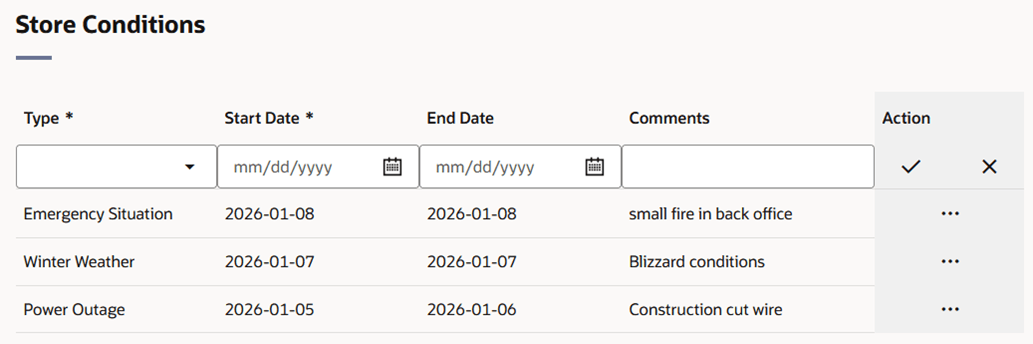
Table 3-11 Store Conditions - Fields and Description
| Fields | Description |
|---|---|
| Type |
Select the type of condition that occurred at the store. This field is a required field. |
| Start Date |
Enter the date when the condition started or use the Calendar icon to select a date. This field is a required field. |
| End Date | Enter the date when the condition ended or use the Calendar icon to select a date. |
| Comments | Enter comments to describe the condition that occurred in more detail. |