Format
The store’s format related information is displayed and entered in the Format section. If information has already been entered in the section, it will display in a read-only format upon entering the page. To edit the information, click the Edit button in the upper right corner of the section. This will display the section in an input state where the fields are enabled for entry and edit. After changes are made to return to the read-only state, click the Update button to save changes or the Cancel button to discard all edits.
Figure 3-27 Format
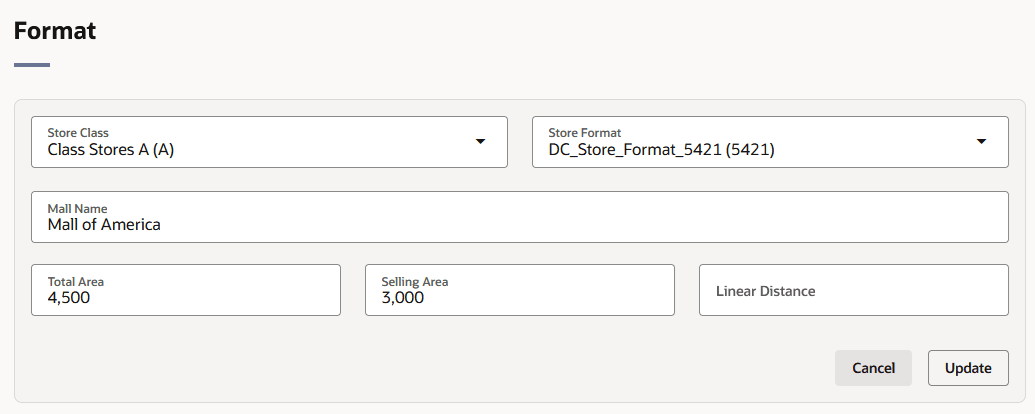
Table 3-7 Format - Fields and Description
| Fields | Description |
|---|---|
| Store Class |
The Store Class field is enabled, if you selected the store type Company. The Store Class field is defaulted to Class X and disabled if you selected the store type Franchise. Select the Store Class from the list. A store is grouped under the class based on the sales for the location. |
| Store Format | Enter, select or search for the store format, such as Strip Mall. |
| Mall Name | Enter the mall name, if necessary. |
| Total Area | Enter the total space of the store. |
| Selling Area | Enter the selling space available at the store. |
| Linear Distance | Enter the shelving space available at the store. |