Inventory
The store’s inventory related information is displayed and entered in the Inventory section. If information has already been entered in the section, it will display in a read-only format upon entering the page. To edit the information, click the Edit button in the upper right corner of the section. This will display the section in an input state where the fields are enabled for entry and edit. After changes are made to return to the read-only state, click the Update button to save changes or the Cancel button to discard all edits.
Figure 3-28 Inventory
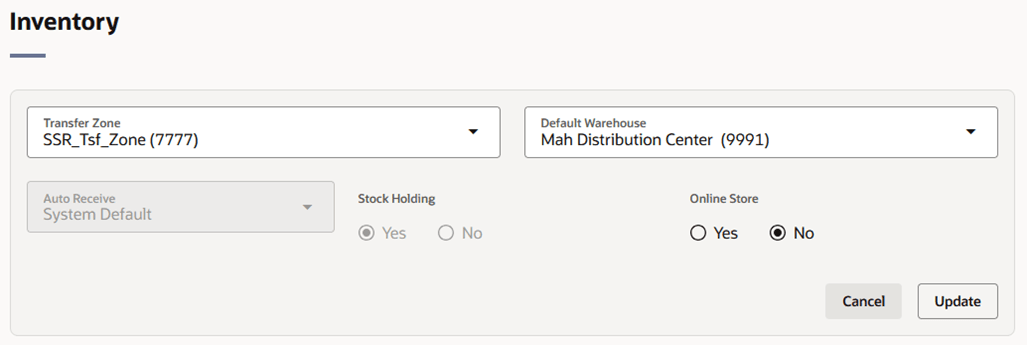
Table 3-8 Inventory - Fields and Description
| Fields | Description |
|---|---|
| Transfer Zone |
Enter, select, or search for the transfer zone. This field is a required field. |
| Default Warehouse |
Enter, select, or search for the default warehouse of the store. This field is only enabled if you have specified a channel. For Franchise stores, this field is a required field. |
| Auto Receive | Select and search for the automatic receiving for the store. |
| Stock Holding |
If the store is intended to be stock holding, this option must be selected. The Stock Holding option is set to Yes by default. |
| Online Store |
This option allows the retailer to specify if the location is an online store. |