Walk-through Stores
Walk-through stores are displayed and entered in the Walk-through Stores section. Each walk-through store may operate as a separate entity; however, the stores are located in the same physical location.
You can associate multiple stores as walk through locations. Walk-through stores can be uploaded into the system, or you can add walk-through locations to a store. You must set up the stores and then associate one with another. Walk-through stores can be added during store creation itself. If information has already been entered in the section, it will display in a read-only format upon entering the page. To edit the information, click the Edit button in the upper right corner of the section. This will display the section in an input state where walk-through stores can be added or deleted.
To add walk-through stores, follow the steps below.
- Navigate to the Walk-through Stores section. Click the Add Walk-Through Stores hyperlink. Alternatively, to add another walk-through store, click the Edit button in the upper right corner of the Walk-Through Stores section.
- A table will be displayed having two columns: Store and Action. Store will display the walk-through store that is linked to the store. The Action column will have Add Row/Save or Cancel/Undo options.
- In the Store field, select the walk-through store from the drop down.
- Select the action to create a Walk-Through Store.
- After adding one record, the saved row will be populated below and an empty box will be displayed at the top, allowing you to set up another walk-through store if desired.
- Click the Delete action from the Action menu to remove a walk-through store.
Figure 3-33 Walk-through Stores
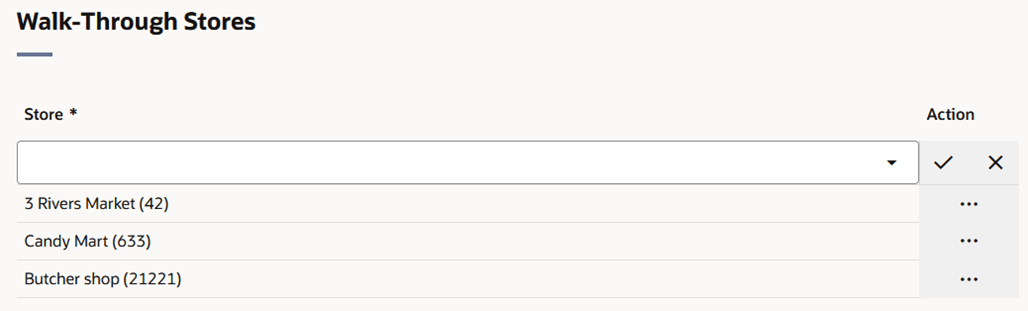
Table 3-13 Walk-through Stores - Fields and Description
| Fields | Description |
|---|---|
| Store |
Enter, select or search for a walk-through store. This field is a required field. |