2 Reclassify Items
Reclassification page allows you to move an item or item list from one department/class/subclass to another.
You can define the item or item list that needs to be reclassified, the new department, class and subclass under which it would be moved, and the effective date. A batch process reclassifies items for which the effective date is the next business day.
The Reclassification page contains the following sections.
Figure 2-1 Reclassifications Page
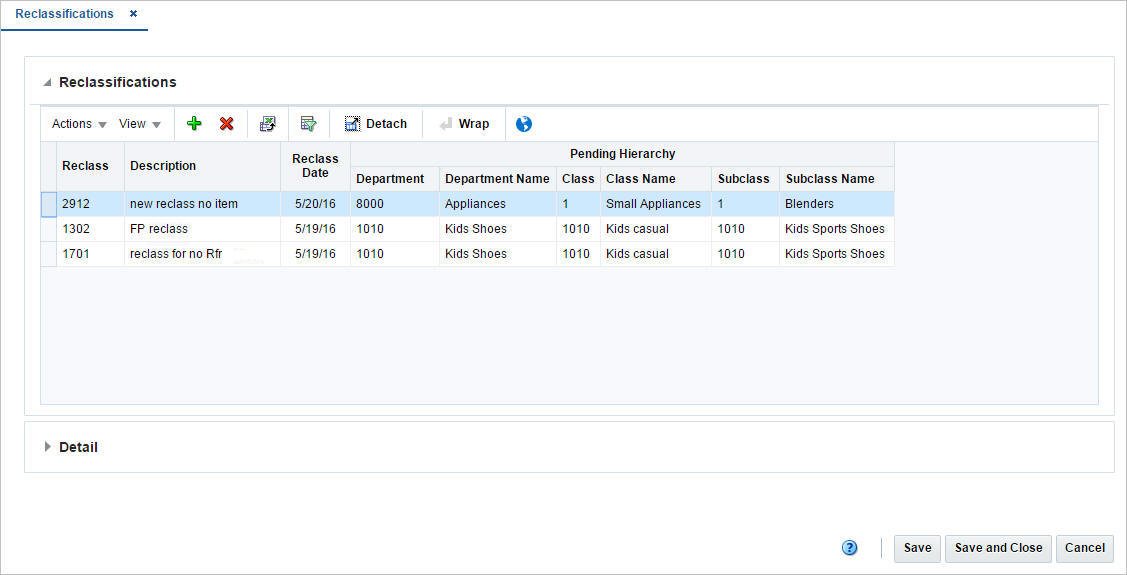
Reclassifications
The Reclassification table lists the reclassification ID, description, date as well as the pending hierarchy level information. In this table you can add, delete, or view the reclassification events that have not been processed yet.
Detail
The Detail section lists the item ID, description and current merchandise hierarchy level information.
Adding a New Reclassification
To add a reclassification, follow the steps below.
-
From Task Menu, select Foundation Data > Item Foundation > Reclassifications. The Reclassification page appears.
-
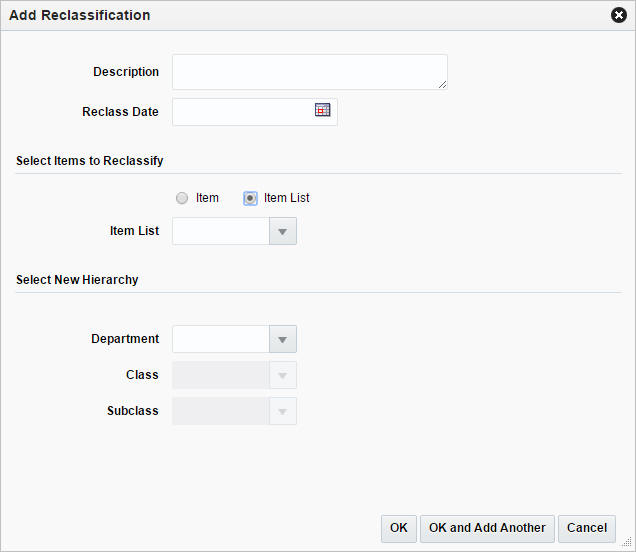
In the top table, select Actions > Add, or use the Add icon. The Add Reclassification page appears.
Figure 2-2 Add Reclassification Page
-
In the Description field, enter a description for the new reclassification event.
-
In the Reclass Date field, enter the date when the item/item list must be reclassified, or use the Calendar icon to select a date.
-
Then select, if you want to reclassify an item or item list.
-
Enter, select or search for the desired item or item list.
-
Next, select the new hierarchy for the item or item list. In the Department field, enter select, or search for the new department.
-
In the Class field, enter, select or search for the new class.
-
In the Subclass field, enter, select or search for the new subclass.
-
Then choose one of the following options.
-
Click OK to save the new reclassification and close the page.
-
Click OK and Add Another to add additional reclassifications.
-
Click Cancel to reject all entries and close the page.
-
-
The Effects of Reclassifying Items
When items are moved from one department, class, and subclass combination to another, several other modules can be affected.
-
Sales history: Within Merchandising, aggregated sales history is maintained at three different levels of the merchandise hierarchy: Department, Class, and Subclass. A reclassification event does not automatically rebuild or modify previously recorded sales history. While historical sales data remains unchanged following a reclassification, optional batch processes are available to rebuild the aggregated sales history, allowing retailers to realign historical sales information with the updated merchandise hierarchy when required.
-
Stock ledger: During item reclassification, new Stock Ledger transactions are generated to transfer the inventory value associated with the item from its original Department, Class, and Subclass to the corresponding levels in the new merchandise hierarchy. Existing Stock Ledger transactions remain unchanged and are not retroactively updated to reflect the reclassification, thereby preserving the original transaction history.
-
Open to buy: Open to buy (OTB) records are updated for all orders that are approved but have not yet been received. For reclassifications involving open orders, the OTB amounts pertaining to the unreceived units of the items are moved from the old hierarchy to the new one.
-
Forecasts: If a reclassified item is forecastable and the updated merchandise hierarchy results in the item being assigned to a different forecast domain, an indicator is reset at the item/store level. This signals the sales history extraction process to perform a full extraction of historical sales data for the affected item/store combination during the next extraction cycle. Under regular circumstances, the extraction process retrieves only incremental sales history recorded since the previous export. However, when the indicator is reset following reclassification, the process extracts the complete available sales history to ensure that the new forecast domain receives the historical data required for accurate forecasting.
- Purchase Orders: For partially received purchase orders, the quantity that has already been received at the destination location would have been factored under the old item hierarchy in all purchase order and transaction data related tables. Once the reclassification has been done, any future receipts will be captured against the new hierarchy in all the related tables. Any late posted transactions, unit and cost adjustments related to items that are a part of a reclassification process will be captured under the new hierarchy.
Reclassification Edit Checks
The following check are performed when you reclassify an item.
Online Edit Checks
The following edit checks are performed as you set up a reclassification event. The event cannot be created if:
-
The item exists in another reclassification event.
-
One or more items on the reclassification event exist on approved partially received orders if the ‘Reclass Items on Approved Orders’ system option is set to ‘Never Allow’. This can be set to one of the following based on the business setup:
- With or Without Receipts: Reclassification can occur for items on approved orders, including those where one or more item/location combinations have receipts, and even if the order has been fully received.
- With No Receipts: Reclassification can occur for items on approved orders, but only if no receipts have been posted against the entire order.
Batch Processing Edit Checks
Other edit checks that can cause a reclassification event to fail also occur during the batch processing of the event. A reclassification cannot occur if:
-
The item is on a Unit and Value stock count. The items to be counted have already been determined based on the department, class, and subclass specified when the stock count was created. The stock count is scheduled after the effective date of the reclassification event. This can be bypassed by checking the ‘Reclass Items on Open Stock Counts’ system option which will work in sync with another option ‘Stock Count Lockout Period’, which prevents any modifications to the items within a scheduled stock count by the specified number of days. Even with the option selected, a reclassification cannot happen on the same business day as a stock count.
-
The item is forecastable, but the new hierarchy values with which the item is associated do not have an associated forecast domain.
-
The new department has been recently created and does not contain the Initial Price Zone Definition.
-
The new department, class, and subclass contain a required user defined attribute that must be entered at the item level.
-
The new department, class, and subclass contain a user defined attribute that defaults at the item level, but the item does not have this UDA defined.