13 Item Basket
Item Basket is a way of creating a list of items that can be utilized for other things such as line busting, gift registries, and so on. Item Basket allows a user to capture items and their quantities.
Note:
An item basket that has only items on it is considered 'static' meaning that the number of items does not change. An item basket that has only hierarchies or hierarchies and items is considered 'dynamic' meaning that the items on the basket can change based upon the items associated to the hierarchy. The desktop allows for item baskets that are 'dynamic' or 'static' to be created, viewed and edited. Whereas, on the mobile application only static item baskets (ones with items) can be created, viewed, and edited.
Features:
-
Create a new item basket
-
View or edit and existing item basket
-
Delete an In Progress Item Basket
-
Copy a Completed Item Basket
Figure 13-1 Item Basket Mobile Screen Flow
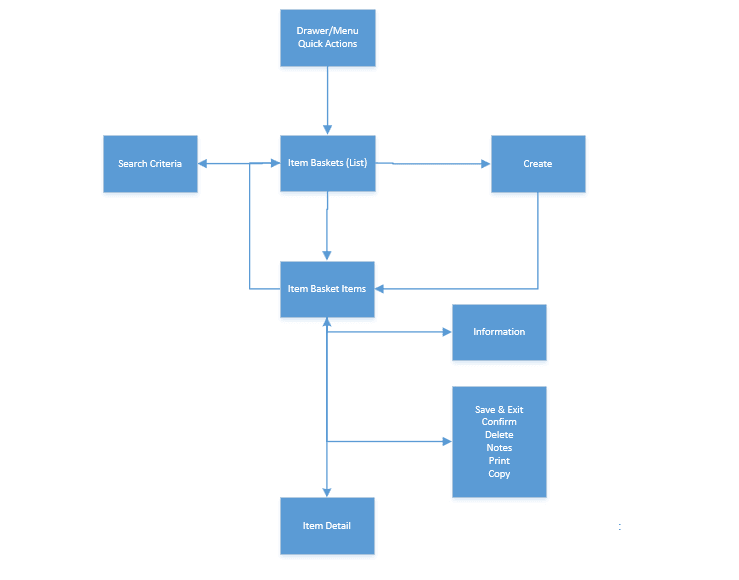
Item Basket is accessed through the Item Basket menu within the drawer or from Quick Actions. Selecting the menu option takes the user to the Item Baskets (List) screen. On this screen, the option is given to search for Item Basket records which will be presented on the Item Baskets (List) screen. From here one can edit or view an item basket, or create an item basket. In all cases the user is directed to the list of items on the Item Basket Items screen. The user can select an existing item or scan/enter a new item directing to the Item Detail screen where functions allow the user to add, view, and edit the details of the items. The user can specify values for CFAs (Custom Flexible Attributes) that have been setup for the item basket within the Information screen. Lastly, additional functions will include Notes, Print, Copy, Delete, Save, and Confirm.
Item Baskets
Figure 13-2 Item Baskets Screen
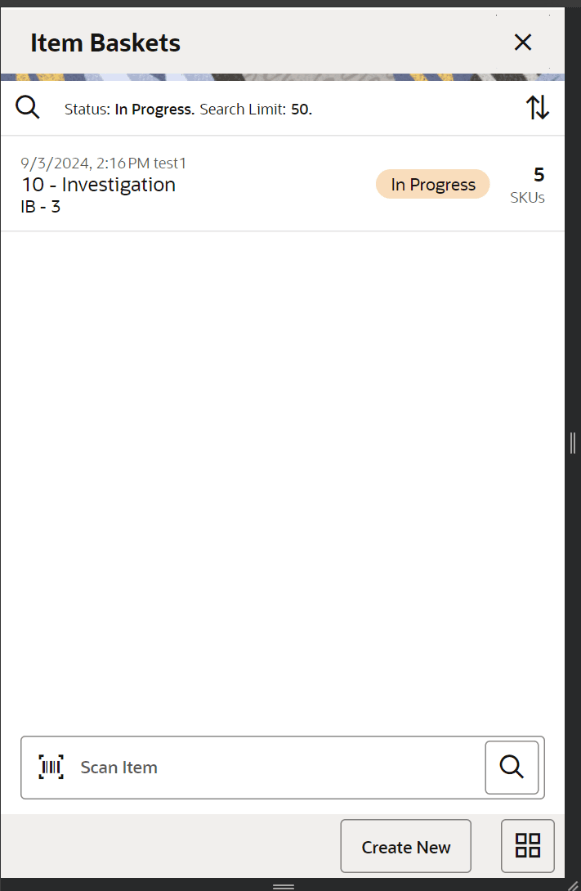
When navigating to Item Basket, the Item Baskets screen displays the In Progress item baskets as the default list. The list can be sorted by selecting the sort icon.
A search can be done by selecting the magnifying glass to navigate to the Search Criteria (Item Basket) screen to enter search criteria for item baskets. The user will return to the Item Baskets (list) screen with the search updated.
When scanning/ entering an item in the scan bar, the system adds the item to the entered search criteria and narrows down the current list of item baskets.
Creating a new item basket navigates to the Create Item Basket popup to enter in header level information for the newly created basket. Selecting an item basket from the list navigates directs the user to the details for that item basket.
Details on the list include: Last Update Date, User, ID, Type, Basket Description, Status, and Number of SKUs.
Search Criteria (Item Basket)
Figure 13-3 Search Criteria Screen (Item Basket)
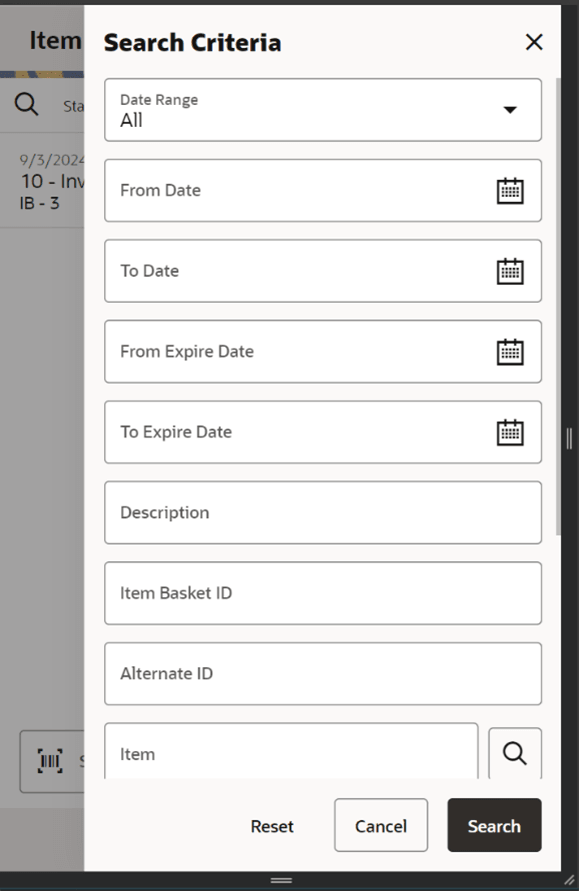
The Item Basket Search Criteria screen is accessed by the magnifying glass on the Item Baskets screen. After applying the search criteria, the results are listed on the Item Baskets screen and the criteria applied is shown.
Criteria include:
-
Date Range – based on the Last Update Date
-
From / To Date – based on the Last Update Date
-
From Expiration / To Expiration
-
Description
-
Item Basket ID
-
Alternate ID
-
Item
-
Type
-
Status
-
User – with a search and an "Apply My User ID”
-
Search Limit – defaulted per system config and can be updated.
Create Item Basket
Figure 13-4 Create Item Basket Screen
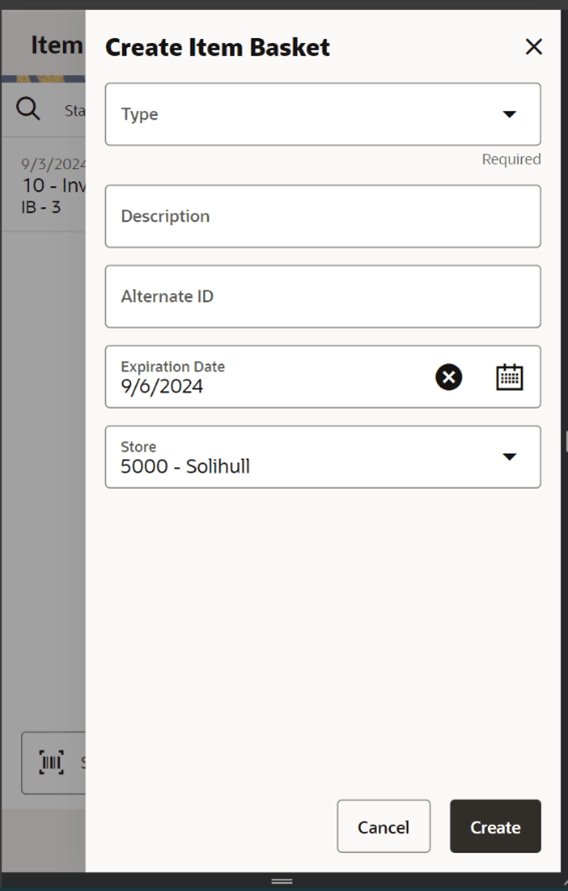
The Create Item Basket screen is used when creating a new item basket and it is accessed when selecting Create New from the Item Baskets (list) screen. All item baskets created on mobile will be static.
Note:
A user must have create permissions to create a new item basket.The Create Item Basket screen shows the following fields:
-
Type – type of item basket is required to be selected from the list. The type is populated from the list of item basket types defined in Code Info dialog within the desktop application.
-
Description – is an optional text field to describe the item basket.
-
Alternate ID – is an optional field to hold an alternate ID given to the item basket by the user, different from that of the system generated item basket ID.
-
Expiration date – is an optional field for the expiration date. It is used to update item baskets to 'canceled' status when the expiration date has passed. This occurs via a batch process.
-
Store – the store field is required and the options will include the user's store or 'All Stores'. 'All Stores' is only available to users that have the proper permission, and this option will allow for the creation of item baskets in which all stores would have access to use the item basket.
Item Basket Items
Figure 13-5 Item Basket Items Screen
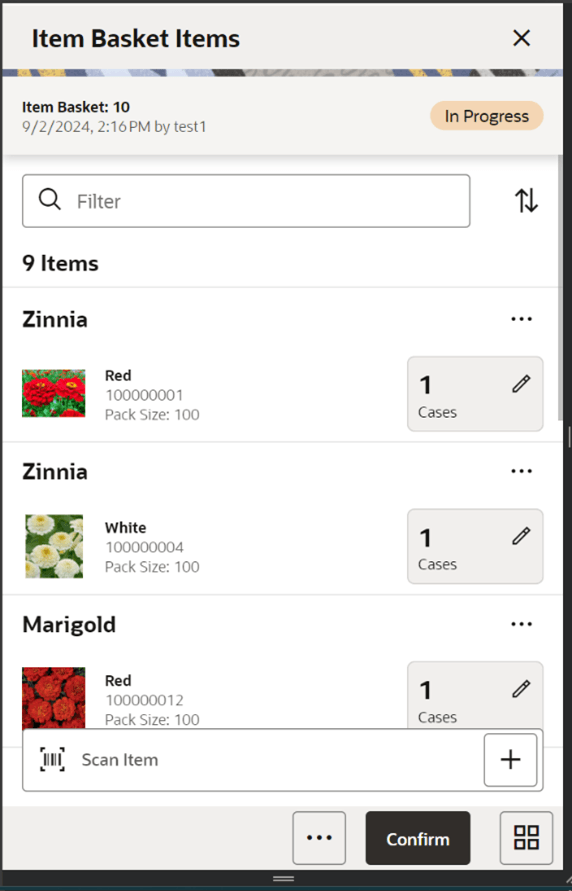
The Item Basket Items screen is where the details or line items for the item basket are displayed. When creating a new item basket, initially, this screen will not have any items.
The screen is displayed when selecting an existing item basket transaction from the Item Baskets (list) screen as well as from Open Transactions and Recently Edited. The items are listed for the item basket.
Line items appear in a list and selecting a line item navigates to the item details of that item. Scrolling in the list of items displays a filter. The filter can be used to narrow down the list of items. Filtering can occur by item ID, item description, and UOM.
Selecting a line item navigates to the item details of that item. Scanning or entering an item in the scan bar will navigate the user per the User Preference, Scan Navigate. The user will either go to the Item Detail for the item or stay on the Item Basket Items screen. The quantity may be updated depending on the scan mode.
Fields include: The item image for the line items is displayed per user preference. Item ID, description, quantity, UOM, and pack size.
All items are allowed on an item basket: any status, consignment/concession, non-inventory and non-ranged. Non-ranged items will be addressed at the time the item basket is being used.
Confirm: Confirms and completes the Item Basket setting it to 'Completed' status.
Footer Menu
The footer menu is accessed from the ellipsis footer menu on the Item Basket Items screen. The menu functions include the following:
-
Notes: Accesses the notes dialog to capture notes.
-
Print: Displays the common print dialog to print the item basket report.
-
Info: Accesses the Info popup.
-
Cancel: Exits the item basket; changes made in that session are not saved.
-
Delete: Marks the item basket to 'Canceled' status. Item Basket must be in ‘In Progress’ or ‘Completed’ status.
-
Copy: The copy function is only available for those item baskets in a 'Completed' or ‘Canceled’ status. It takes the current item basket, copies the items and quantities, and creates a new editable item basket with a new ID. It references the copied item basket's ID.
-
Save and Exit: Saves the item basket in 'In Progress' status to be completed later.
Item Detail
Figure 13-6 Item Detail Screen
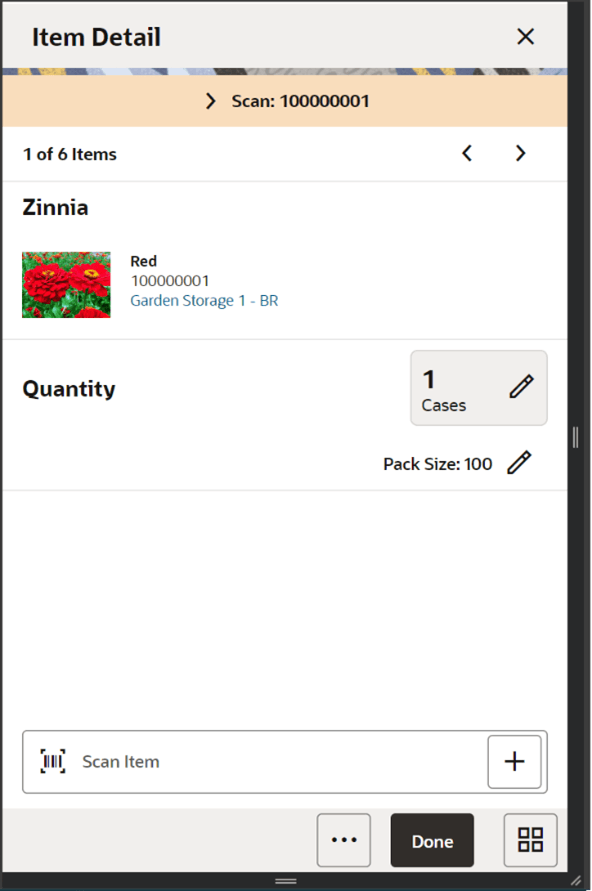
The Item Detail screen is navigated to by selecting an item from Item Basket Items or by entering/scanning an item based upon Scan Navigate user preferences. Scanning or entering an item on this screen in the scan bar, updates the quantity per the scan mode and refreshes the Item Detail screen for the item and quantity scanned.
The header contains the Scan Details which will display the contents of the last entered or scanned barcode. It is purely informational. There is also paging, where you can page through existing items on the item basket using the arrows.
The item information including the image (which is user preference) displays in the header along with Item ID, description, and location (primary). The location is only displayed if the Display Sequence Fields system setting is set to ‘Yes’. Selecting the location will display the Item Locations screen within Item Lookup.
The quantity is displayed with UOM and Pack Size (for cases) and can be edited and updated manually if permissions allow.
The footer menu, ellipsis button, contains a delete function which allows the item to be removed from the Item Basket.
Information Screen (Item Basket)
Figure 13-7 Item Basket Information Screen
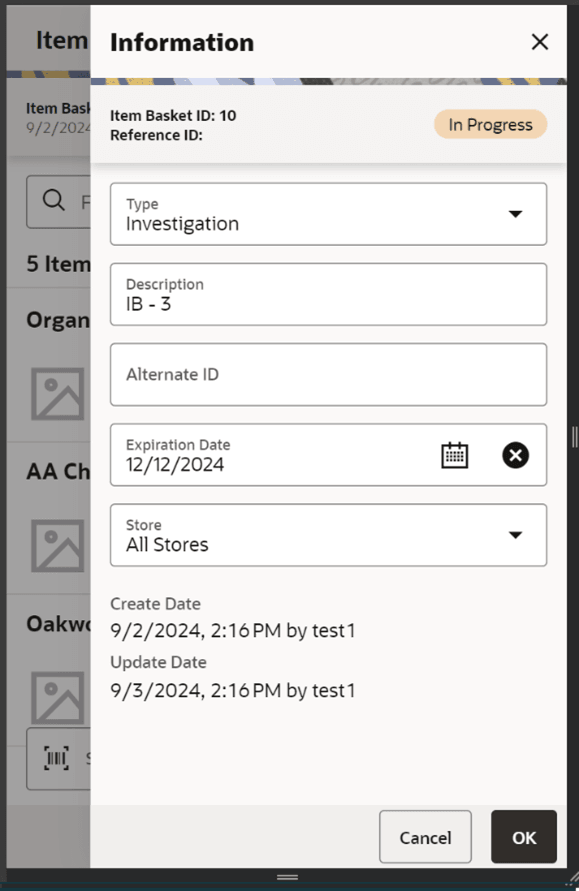
The Information screen contains header level information about the item basket. Information is accessed by selecting Info from within the footer menu of Item Basket Items screen.
Details include ID, status, reference ID, alternate ID, description, type, expiration date, store, create date/user, and last update date/user.
The CFAs that are set up as being required must have a value entered for it before confirming the item basket. The value can be one of the following: Date, Text, Decimal, Long depending on the 'data type' set up for the CFAs defined during setup in the desktop application. Appropriate security permission is needed for entering CFA values.