Print Engagement AMI Customer Education Report - Residential
The print Engagement Customer Education Report is the second report sent to residential customers in the program. By default, it is delivered 90 days after smart meter installation. It directs the customer to utility web pages where they can view more of their energy use trends and enroll in other AMI programs and communications offered by the utility. It also includes a smart meter insight that shows customers the time of day when they use the most energy.
Report Front
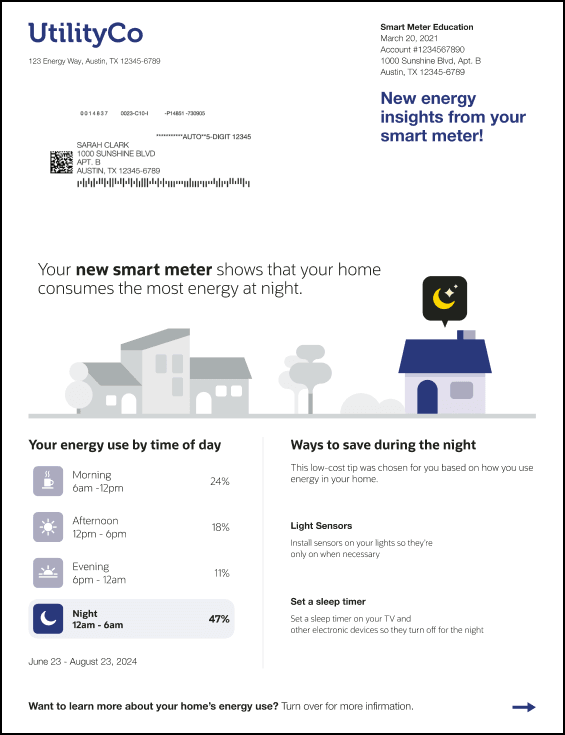
The front page of the Engagement Report includes:
- Header and greeting
- Time of Day Designation
- Time of Day Use Highlights
- Tips
- Footer
This image shows an example of the front page of the report:
Header and Footer
The header appears in the top section of the front of every report and includes:
- The left side of the header contains the utility logo and the customer service address. Below this is the customer's mailing address and postal information that appears when the report is inserted into an envelope.
- The right side of the header contains the customer mailing address and customer account number.
- Below this information is a greeting statement, which reads "New energy insights from your smart meter!".
The footer on the front page of the report contains a prompt telling the customer to turn over the report. For example, "Want to learn more about your home's energy use? Turn over for more information." The statement is followed by an arrow.
Time of Day Designation
The Time of Day Designation module tells customers when they tend to use the most energy. The module includes a graphic that shows multiple houses, highlighting the customer's house, and a time of day icon above the customer's house that corresponds with their highest usage period. The module includes:
Time of Day Statement: At the top of the module, the statement tells the customer when they use the most energy. For example, "Your new smart meter shows that your home uses the most energy at night." The time period identified in this statement corresponds with the time period that is highlighted in the Time of Day Use Highlights.
Graphic: A graphic appears below this statement that depicts multiple houses, highlighting the customer's house. Above the customer's house, an icon is displayed that corresponds with their highest use period. For example, if the customer uses the most energy at night, a moon icon is displayed.
Time of Day Use Highlights
The Time of Day Use Highlights module identifies the part of the day—morning, afternoon, evening, or night—in which the customer tends to use the most energy and expresses this as a percentage of total daily use. For example, the module may show that from 6am-12pm, a customer uses 40% of their average daily usage. If this is the largest category of energy spending, the period is highlighted to make it easily identifiable to the reader. Below the list of time periods is the date range associated with the displayed data.
Note:
Some customers may see that the night period (12am-6am) is their highest usage period. This may be due to the customer charging an electric vehicle or running a large energy-intensive appliance during those hours.Tips
Next to the Time of Day Use Highlights module, the email provides tips that the customer can use to save energy. The Tips module delivers two dynamic personalized tips that are relevant to a customer's unique needs. The tips are automatically selected and prioritized based on each customer's attributes and their highest-use period, continually refreshed with new information, and designed to cover a wide variety of energy-saving categories. This module includes these components:
Header and Explanatory Statement: The module begins with the header that reads, "Ways to save during <highest use period>". Below the header, a statement reads, "This low cost tip was chosen for you based on how you use energy for your home."
Tips: The module includes two tips. Each tip includes:
- Header: Each tip begins with a heading to identify what the tip information is about. For example, "Light Sensors".
- Tip Text: Each tip includes details about how you can use the tip to save energy. For example, the light sensors tip text reads, "Install sensors on your lights so they're only on when necessary".
Report Back
The back page of the report contains personalized smart meter insights and a URL where customers can enroll in other Oracle Utilities AMI communications. The back page is the same for both the Introduction and the Engagement report, and can include a mix of the following modules:
- Day by Day Breakdown
- Hourly Breakdown
- Smart Meter Explainer
- Space to insert a Marketing Module, if needed
- Footer
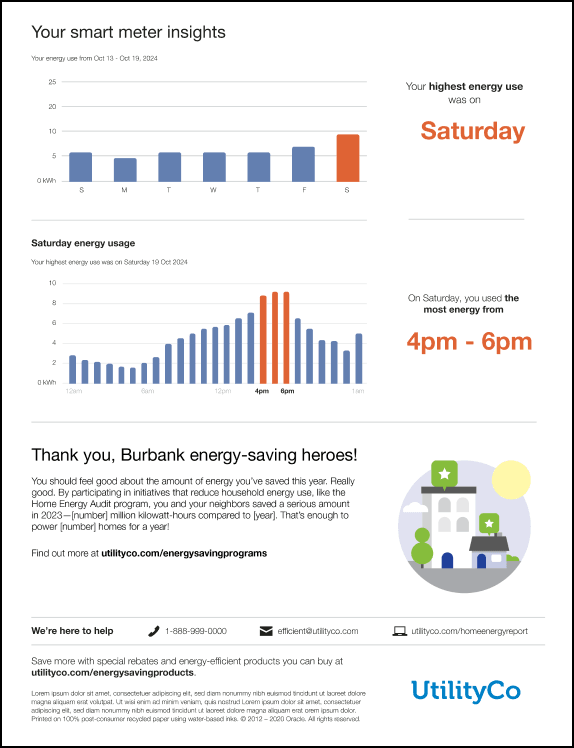
This image shows an example of the back of the report using the Day by Day Breakdown, Hourly Breakdown, and Marketing Modules.
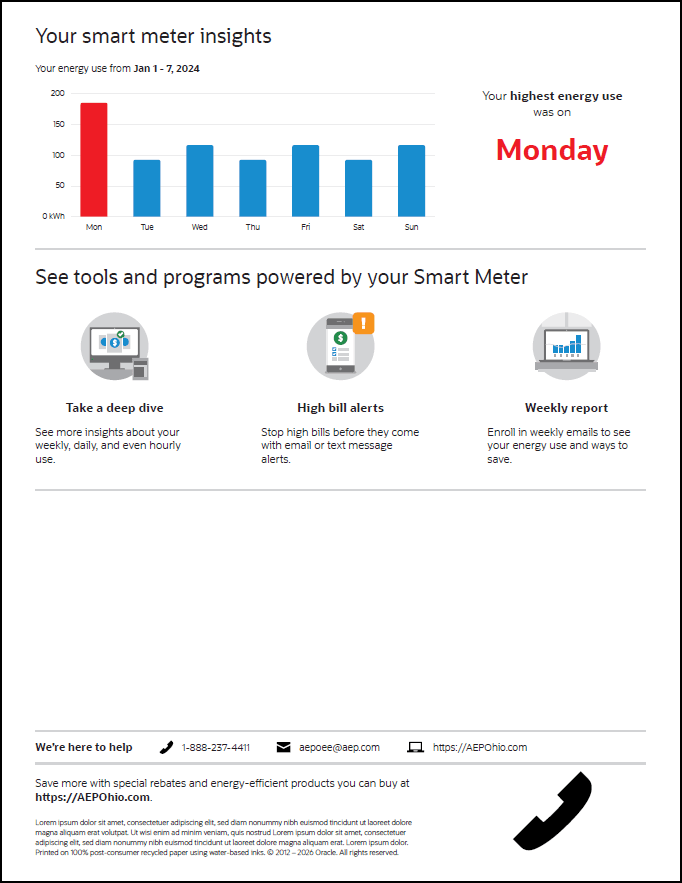
This image shows an example of the back of the report with the Day by Day Breakdown, the Smart Meter Explainer, and no Marketing Module.
See the module details below for additional information.
Day by Day Breakdown
The Day by Day Breakdown module shows daily energy use for the past week and identifies the highest-use day. The module includes:
Date Range: The date range associated with the graph is displayed above the graph. For example, "Your energy use from Oct 13 - Oct 19, 2024.
Graph: A graph displays one bar for each day that shows kilowatt-hours (kWh) used. The highest-usage day is displayed in a different color.
Highest Usage Statement: Text specifies which day was the highest-usage day. For example, "Your highest energy use was on Saturday". The day is displayed in large letters in a contrasting color to make it easy to see at a glance.
Hourly Breakdown
The Hourly Breakdown module show a 24-hour breakdown of the customer’s highest-use day from the past week, and highlights the highest-use period during that day. For example, if a customer used the most electricity on Saturday, an hourly breakdown for Saturday is shown.
The module includes:
Header: The heading identifies which day is included in the graph. For example, "Saturday energy use".
Energy Use Statement: A statement identifies the date of the highest energy use day. For example, "Your highest energy use was on Saturday 19 Oct 2024."
Graph: The graph includes a bar for each hour of the day, and uses a different color to highlight the bars that make up the highest usage period during that day.
Highest Usage Statement: Text beside the graph specifies the highest-usage period during the selected day. For example, "On Saturday, you used the most energy from 4pm - 6pm". The time period is displayed in large letters in a contrasting color to make it easy to see at a glance.
Smart Meter Explainer
The Smart Meter Explainer module introduces customers to the programs that they are now eligible for because they have a smart meter. The module includes:
Header: The module begins with the heading, "See tools and programs powere by your Smart Meter".
Deep Dive: This section of the module includes an image, the heading "Take a deep dive", and the statement, "See more insights about your weekly, daily, and even hourly use."
High Bill Alerts: This section of the module includes an image, the heading "High bill alerts", and the statement, "Stop high bills before they come with email or text message alerts."
Weekly Report: This section of the module includes an image, the heading "Weekly report", and the statement, "Enroll in weekly emails to see your energy use and ways to save."
Footer
The Footer appears at the bottom of the back page of the report, and includes:
Contact Information: The statement "We're here to help" is followed by the utility's phone number, email address, and website.
Configuration Text: Use this space to include any additional text you want the reader to know, or that you need to include for legal reasons.
Logo: The utility's logo appears as the last item on the report.