Explorer Zones
The product provide several zone types that are used to find or display a set of information. These are called explorer zones. There are two types of explorer zones:
-
Info zones. An info zone displays a list of information about an object. These types of zones often display information without requiring any input from the user.
-
Query zones. A query zone allows users to find objects matching a given search criteria.
Virtually every aspect of an info or query zone is controlled by its zone configuration. However, most share basic common components described in the subsequent sections.
- Search Criteria / Filter Area
- Description Bar
- Results Area
- Title Bar
- Configurable Columns
- Multi-Query Zones
Parent topic: Zone Types and Characteristics
Search Criteria / Filter Area
For query zones, the Search Criteria Area (also called Filter Area) contains the criteria used to find objects. The design of the zone controls the number and type of filters that appear in this area. After search criteria is entered, clicking the Search button causes the system to look for records that match the criteria. The results are shown in the Results Area.
The system automatically collapses the filter area to allow more space for displaying the results. At that time the Expand Filters button may be used to open the filter area to enter different criteria. When the filter area is expanded the Hide Filters button may be used to collapse the filter area again without performing a new search.
For info zones, the zone's configuration indicates whether or not a Filter area is applicable and if so, whether or not it is open or closed by default. If the filter area is configured, the Show Filter icon is visible in the zone header. Click this icon to expose the Filter Area, if it is not visible and click the icon to hide the Filter Area if desired. Use this area to filter the information that appears in the zone by different values. Click the Search button to rebuild the Results Area using the specified filters.
For example, the following shows an info zone listing user groups that have access to a given Application Service where a filter area has been configured to allow users to refine the list by various criteria.
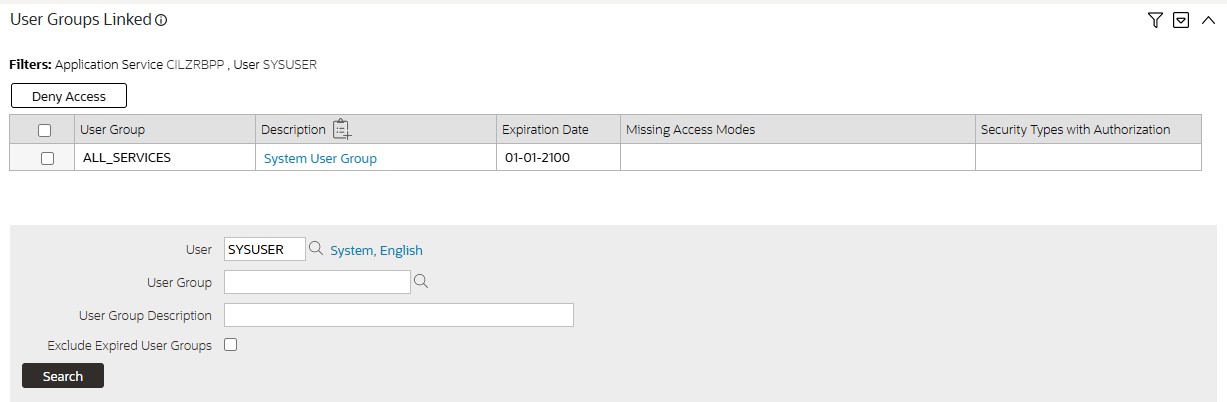
The info zone includes configuration to indicate whether the filter area, when exposed, should be shown at the top of the zone (above the results) or at the bottom of the zone (below the results). For query zones, the search criteria is always displayed at the top.
Parent topic: Explorer Zones
Description Bar
The Description Bar describes the search criteria that were used to build the Search Results Area.
Parent topic: Explorer Zones
Results Area
The Results Area displays the appropriate list of objects. For an info zone, this is the list of appropriate objects with any input filter criteria considered. The following is an example of the results for an info zone. For a query zone, this is the list that matches the search criteria defined in the Filter Area. The following is an example of the results set of an Info Zone.
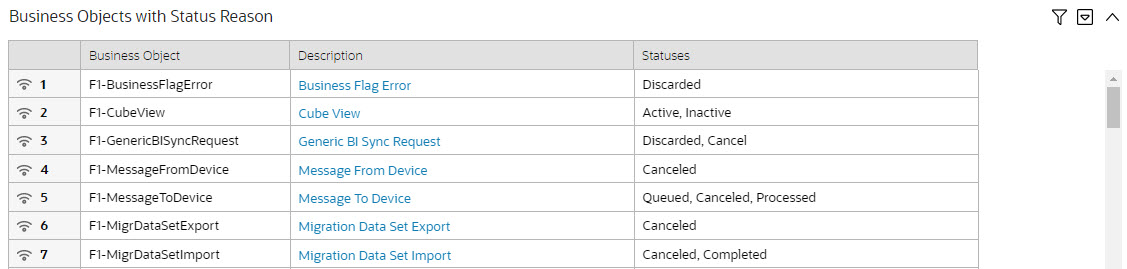
For a query zone, the columns that appear may differ depending on the search criteria. For example, if you search for a customer by their driver's license number, the resulting columns may be different than the ones displayed when you search by customer name.
The following points highlight details related to viewing and working with the result set:
-
Broadcast. If the results set is configured to display a broadcast icon,
 , it means that at least one other zone on the portal is configured to display
data related to the record selected in the results list. Clicking this icon will cause the
other zone or zones to be built or refreshed to display related data.
, it means that at least one other zone on the portal is configured to display
data related to the record selected in the results list. Clicking this icon will cause the
other zone or zones to be built or refreshed to display related data.
-
Hypertext. One or more columns in the zone may be configured as hypertext. Clicking the hypertext will result in navigating to another page to display data related to that column based on the configuration for that column.
-
Maximum height. The maximum height of the report area is controlled by the zone's configuration. A vertical scroll will appear when more rows exist than fit into the height.
-
Maximum rows. The maximum number of rows that can appear is controlled by the zone's configuration. Excess rows are truncated before display. Please note, you can configure the zone to export more rows than appear in the Results Area.
-
Control column sorting. By default zones are designed to allow a user to sort the results list by clicking any column heading. Clicking once sorts ascending. Clicking again sorts descending. However, a zone may be configured to not allow this type of sorting.
- Work list. Columns may be configured to enable the work list icon,
 . Clicking this pushes all the data into the Work List zone.
-
Rearranging columns. A zone may be configured to allow a user to rearrange columns and add or remove columns visible in the Result Area. Refer to Column Configuration for the details.
The type and variety of columns that appear in the Results Area is controlled by the zone's configuration.
Parent topic: Explorer Zones
Title Bar
The Title Bar contains the zone's description along with other icons and functions described in this section.
In the corner of the Title Bar, you will see an indicator that tells you whether the zone is collapsed or expanded. Each time you click the indicator, the zone toggles between expanded and collapsed. The following image shows a collapsed zone.

Note:
Recommendation: For zones that are configured to show on portal preferences, set up Portal Preferences to collapse zones that aren't needed every time a portal is displayed. Rationale: The system doesn't build collapsed zones when a portal is displayed. Instead, collapsed zones are only built when a user expands them. Thus, indicating a zone is collapsed improves response times.If the zone is configured with help text, a help icon appears to the right of the zone title. Click this icon to view the help text.
The following sections describe additional icons and tools visible on the title bar. Note that in addition to the information described in this section, additional actions that are specific to a zone may appear based on configuration. The actions may appear in the form of hypertext, an icon or a button.
Parent topic: Explorer Zones
Explorer Zone Menu
Click the Explorer Zone Menu icon  to list available tools. The following topics describe each tool.
Parent topic: Title Bar
Clear Filters
Click the Clear Filters link in the Explorer Zone menu to clear the filter values and zone data.
Parent topic: Explorer Zone Menu
Export Data
Click the Export link in the Explorer Zone menu to download the zone's data in csv format. This link is hidden if the zone has been configured to not download rows.
-
Clicking export performs the search because it is possible to configure a number of records for download that differs from the number of records configured to display.
-
Because the search is performed, you can request an export even without first searching on the zone. The filters populated (or not populated) at time of exporting are the ones used for the export. If the user did not search at all or did a search and then changed the filters and exported before searching again, the results in the export may not match what is visible on the zone.
-
It is possible through zone configuration to mark columns that are visible to the user interface as suppressed in the export. Conversely, it's also possibly to mark columns as suppressed on the user interface but included in the export. As such, the columns visible in the export may not always match what is visible in the user interface. This applies when for zones that support configurable columns. Columns removed from view through this technique are still included in the export if not marked to suppress.
-
If the column results include any HTML, the HTML is stripped out before exporting.
Parent topic: Explorer Zone Menu
Save Search Options
Query zones and info zones that include filter areas, allow a user to capture and save filter criteria so that the same search can be more quickly executed in the future. Users may save many different search options for the same zone. Users also have the option to nominate one search as the default so that this search is automatically loaded upon entering the zone. In addition, users may choose to set one or more searches as a Favorite, which causes the search to appear in the Favorite Searches zone in the sidebar, as well as through the Menu. This allows a user to navigate to the portal for that zone and load the saved search in one click.
The Explorer Menu includes various options for supporting Saved Searches that are described below.
Note the following additional points about this functionality:
-
Click Search before Saving. When a user wants to save a search, the search criteria should be entered and the Search button should be clicked prior to saving the search.
-
Criteria is saved, not results. Although a user must click Search prior to saving the search, the system saves the criteria, but not the results. When returning to the query or info zone in the future and opening a given saved search, the results displayed will be the current records in the system that match the saved search criteria.
-
Multi-Query Zones. When a user is on a multi-query zone, the searches are saved at the multi-query zone level so that all saved searches for the various search dropdowns for a given multi-query zone are visible in the Open Saved Searches menu option.
-
Functionality is Secured. If for any reason an implementation wishes to restrict which users are allowed to save searches, the functionality is securable. Only users with Inquire access to the F1_USRFAVSCH application service will see these options in the explorer menu. This is the same application service that is used to provide access to the Favorite Searches sidebar zone.
- Save As
- Open Saved Search
- Save
- Set As Default
- Remove As Default
- Add To Favorites
- Remove From Favorites
- Delete
Parent topic: Explorer Zone Menu
Save As
The Save As... option in the Explorer Zone menu allows a user to save the current entered search criteria. This should be clicked after executing the search.
The user is prompted to provide a name for the search. This search is now available from the Open Saved Searches option. If desired, a user can also choose to make this search the Default or may choose to Add to Favorites.
This option is visible whether or not an existing saved search is loaded. When a saved search is loaded, this option allows a user to make changes to the search criteria and save a new search with that criteria.
Parent topic: Save Search Options
Open Saved Search
The Open Saved Search... option in the Explorer Zone menu is visible if there are any saved searches for the zone that is currently visible. Select this menu entry to view the current list of saved searches for the zone. For multi-query zones, any saved search for any of the query zones that are part of the multi-query zone are visible. Choose the desired saved search. The criteria is updated with this information and the search is performed.
Parent topic: Save Search Options
Save
The Save option in the Explorer Zone menu is visible if a Saved Search is already loaded. This option allows a user to save changes to the criteria of an existing saved search (overwriting the previously saved criteria).
Parent topic: Save Search Options
Set As Default
The Set As Default option in the Explorer Zone menu is only visible if a saved search is loaded and it is not currently the default. Click this option to nominate this search to be the one that is loaded when navigating to this zone from the menu.
Parent topic: Save Search Options
Remove As Default
The Remove As Default option in the Explorer Zone menu is only visible if a saved search is loaded and it is currently the default. Click this option to no longer load this search automatically when navigating to this zone from the menu.
Parent topic: Save Search Options
Add To Favorites
The Add To Favorites option in the Explorer Zone menu is only visible if a saved search is loaded and it is not currently included in the favorite searches zone. Click this option to include this search in the Favorite Searches zone. Once a search is in the Favorite Searches zone, you can use the link to the search in the sidebar to navigate to the portal for this zone and load the saved search in one click.
Note:
Not available for dependent zones There are some portals that include a zone that is not the main query or info zone on the portal, but is rather a zone providing additional information for a record that is displayed. If a zone like this has filter options or configurable columns, a user is able to save searches and mark one as a default, but will not be able to add the saved search to favorites because the zone is dependent on other data on the page that is not captured for the individual zone.Note:
Sidebar Zone Preferences. Be sure that your portal preferences are configured to include the Favorite Searches sidebar zone.Parent topic: Save Search Options
Remove From Favorites
The Remove From Favorites option in the Explorer Zone menu is only visible if a saved search is loaded and it is currently included in the Favorite Searches zone. Click this option when you want to keep the saved search but you no longer want it visible in your Favorite Searches zone. (Deleting a saved search that is also marked as a favorite will automatically remove the search from the favorite searches zone.)
Parent topic: Save Search Options
Delete
The Delete option in the Explorer Zone menu is only visible if a saved search is loaded. Click this option to remove the currently opened saved search from the list of saved searches.
Note that if the saved search had been configured as favorite, deleting the saved search remove it from the favorite searches zone.
Parent topic: Save Search Options
Show Filters
Click the Show Filters icon  to show the Filter Area. This button only appears if the zone has been configured to have
filters.
to show the Filter Area. This button only appears if the zone has been configured to have
filters.
Note:
If the zone is configured to have filters and the drag and drop (column configuration) area, only one or the other is shown at any given time. It means that a user can either change the filter criteria and refresh the search results or change the column configuration and refresh the results.Parent topic: Title Bar
Show Column Configuration Area
Click the Column Configuration icon  to show the Column Configuration Area. This button only appears if the zone has been configured to
allow columns to be dragged and dropped into the Results Area.
to show the Column Configuration Area. This button only appears if the zone has been configured to
allow columns to be dragged and dropped into the Results Area.
Note:
If the zone is configured to have filters and the drag and drop (column configuration) area, only one or the other is shown at any given time. It means that a user can either change the filter criteria and refresh the search results or change the column configuration and refresh the results.Parent topic: Title Bar
The Open Zone Maintenance Icon
Click the Go To Zone icon  to switch to the zone's zone maintenance page. On this page, you can change the parameters that control the
zone's behavior.
to switch to the zone's zone maintenance page. On this page, you can change the parameters that control the
zone's behavior.
Parent topic: Title Bar
Configurable Columns
Info zones and query zones may be configured to allow users to rearrange columns and to remove or add columns to the output. This is also referred to as "drag and drop" of columns.
When a zones is configured to support this functionality, the Show Column Configuration Area icon is visible in the zone title area. Click this icon to expose the Column Configuration Area, if it is not visible and click the icon to hide the Column Configuration Area if desired.
If configurable columns are allowed, a user may rearrange the order of columns currently displayed in the Results Area by clicking the column heading and "dragging" it to the desired location.
In addition, the column configuration area may display columns that are not currently in the Results Area. These are indicated by a color cream background. A user can drag one of these columns to the results area and then click Refresh to rebuild the zone.
To remove a column that is currently in the results area, click the trash can icon next to the column name in the column configuration area and then click Refresh to rebuild the zone.
The following is an example of how the Column Configuration Area looks:

Parent topic: Explorer Zones
Multi-Query Zones
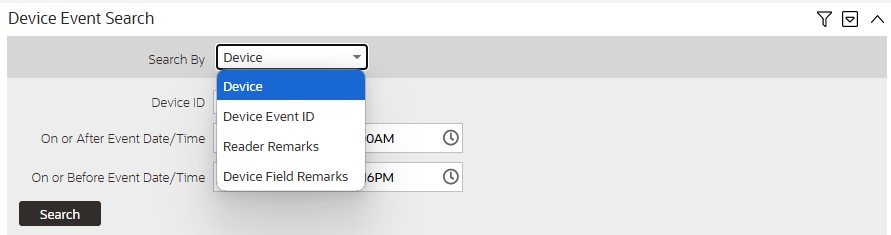
This type of zone combines individual Query Zones into a single query zone. A Search By dropdown, built from the zone descriptions of the individual Query Zones, allows you to select the desired query to execute. Selecting a specific Query Zone display the filters of that query in the filter area. At this point the zone simply executes the selected Query Zone, as if it was executed on a standalone zone. By default, the first query zone option is selected.
Parent topic: Explorer Zones