Customer Intelligence Hub
The Customer Intelligence Hub (the Hub) simplifies standard work processes for customer service agents and managers by providing a variety of tools in a single location that reduce the cost-to-serve and provide elevated customer service. You use the Hub to manage utility billing account information and transactions, and to assist you in answering customer calls.
Accessing the Hub
You access the Hub in a number of ways, depending on the features your utility uses:
- After answering a call using Service Guide, if the system recognizes the phone number, the Hub for that account is displayed.
- Use the search bar at the top of your screen to search for and select the account by name or account number.
- Use the Customer 360 Search screen where you can search using multiple filters.
Understanding the Hub Interface
Before using the Hub, you should have a solid understanding of the components that are available to you. This image, and the following table describe each area of the interface.
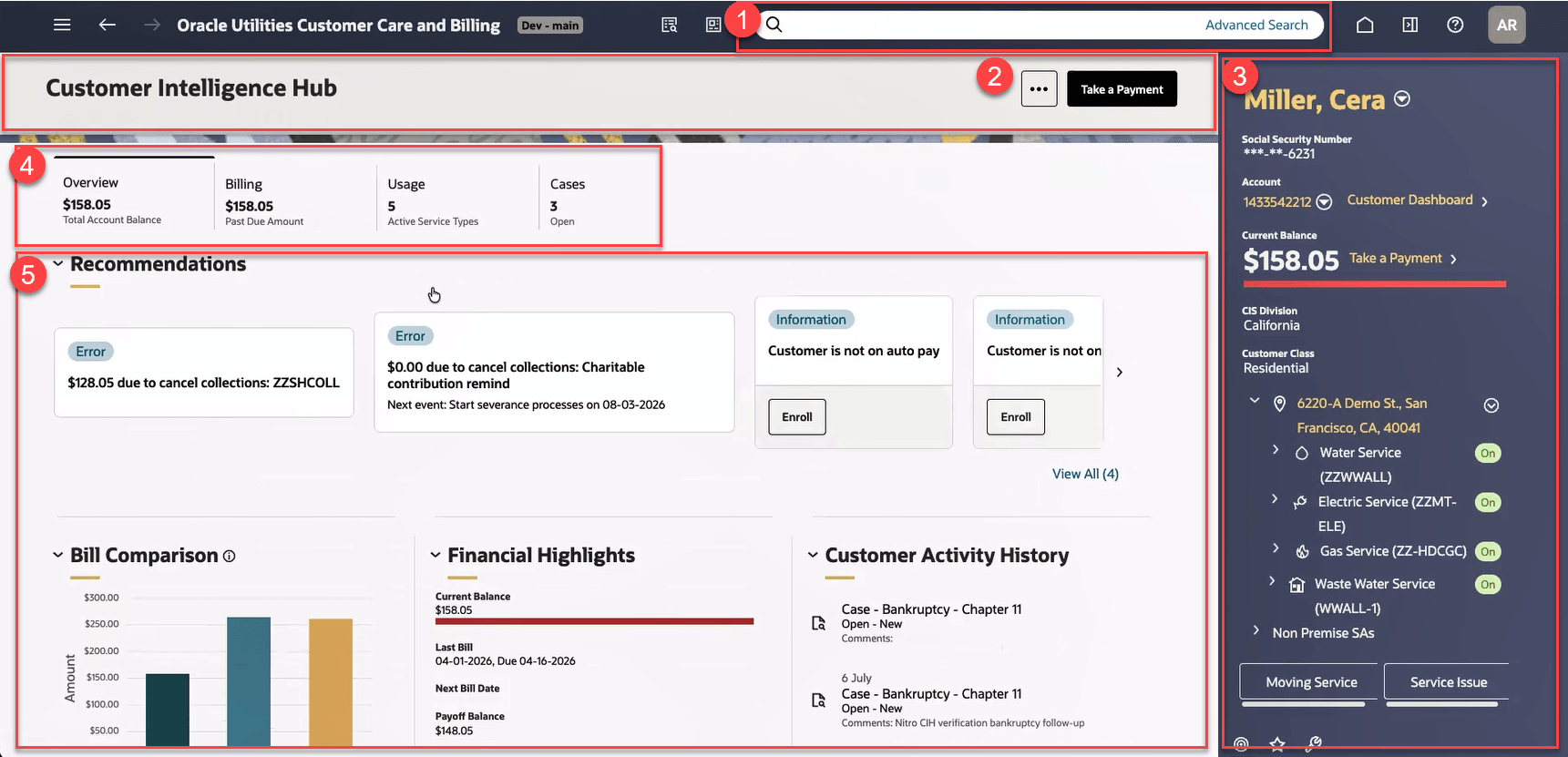
| Area | Description |
|---|---|
| 1. Search Bar | Use the Search bar to search for and select the accounts you want to view in the Customer Intelligence Hub. |
| 2. Hub Header | Use the Hub Header to access the Take a Payment button, or to complete the following actions by selecting an option from the Action menu:
|
| 3. Sidebar Portal |
The Sidebar is a portal that always appears on the Oracle Utilities Customer application desktop. Its zones contain tools and data that are useful regardless of the object being displayed. Additionally, if your system is integrated with Oracle Utilities Opower, this section can display utility configured badges to notify users of important information. For example, you might see a badge that the customer is potentially a Low or Moderate Income (LMI) customer, and might be eligible for affordability programs. Note: When using the Hub, it is recommended that the Sidebar Portal be configured to show the Current Context Zone at or near the top so that the user can see which account they are viewing. |
| 4. Tabs | Use tabs to view different types of account information. Each tab header include an important customer data point. For example, the Overview tab header displays the total account balance. Tabs include:
|
| 5. Work Area |
Below the tabs is the work area. This area of the form is made up of different zones, and changes depending on which tab you select and which task you are completing. Use this section of the screen to search for, select, and manage records. If your utility is using Oracle Fusion Knowledge Management, zones can be configured to display a book icon in the header. These icons can be configured to launch specific knowledge articles that can assist agents during their calls. |