Viewing Meter Reading Data
If meter reading data is available in your customer information system, you can access that data for each meter associated with the billing account. To view this data, you first access the Premise drawer. Then you can click the action menu next to the premise associated with the meter readings you want to view, and then select View Meter Readings.
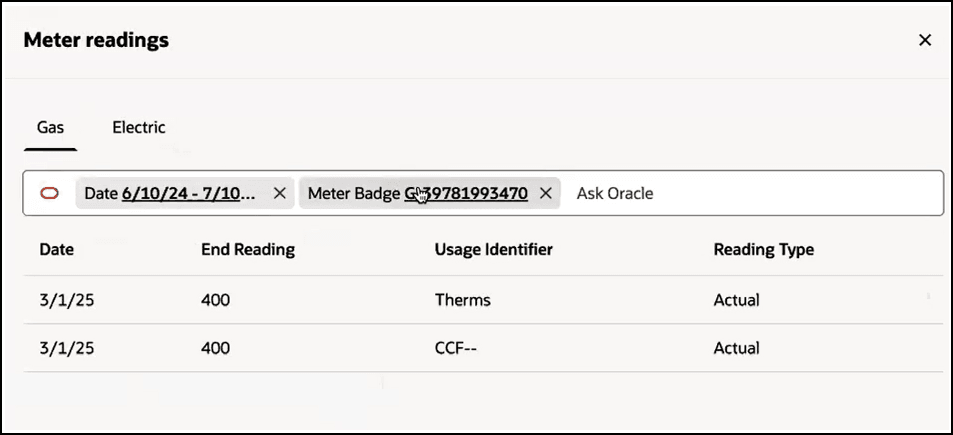
The Meter readings drawer includes the following components:
- Tabs: At the top of the drawer, you can select the tab associated with the service type you want to view. For example, select Electric to view meter readings for an electric service point.
-
Filters: The drawer is pre-populated with two filters that can be used to specify which meter readings you want to view. When using filters, be aware of the following:
- The date range filter is automatically set to display the most recent 13 months of data. You can change the date range, but it cannot exceed 13 months of data.
- To select a different meter, click on the Meter Badge filter, and select the meter you want to view. Note that only the meters associated with the service type tab you are viewing are available for selection. For example, you cannot select an electric meter when you are on the Gas tab.
- This drawer currently does not support other filters. If you enter additional filters in this search bar, the system will not return any results.
- Data: Each meter reading that meets the search criteria is displayed, and includes the date of the reading, the value of the reading, the unit of measure, and whether the reading is an actual or estimated read.
This image shows an example of the Meter readings drawer:
To View Meter Reading Data
To view meter reading data, complete these steps:
- Access the Premises drawer.
- Click the Action menu next to the premises you want to view, and then select View Meter Readings.
- In the Meter readings drawer, select the tab associated with the service type you want to view.
- Click in the Date filter to select the date range you want to view. By default the date range is set to display the last 13 months of data, starting with the current date. You cannot select more than 13 months in your date range.
- Click in the Meter Badge filter to specify which meter you want to view. Note that only meters associated with the selected service type tab are available in this filter.
- Review the data.
- Click the X at the top right of the drawer to return to Account 360.
Parent topic: Viewing Premise and Service Details