Viewing Usage History Data
To view usage history for a service contract, complete one of these actions:
- Click on a pin in the map
- Click on a service contract from the list
Note:
Your utility can configure the system to disable links associated with service contracts that are billed using a flat fee, and do not have any usage data. For this reason, some service contracts might not be clickable from this list or the map.The system displays the Usage History chart for the selected service contract. Once you have navigated to the Usage History chart, you can change your view by:
- Selecting a different unit of measure. For example, select Kilowatt Hours.
- Selecting a different usage interval. For example, select View Bill Period. This option might be disabled if you are viewing a flat-fee service contract, as there is only one available view.
- Use the < and > buttons to change the time period you are viewing.
Note:
Be aware that the date range available for viewing is determined by the Historical Data Range Profile Option set by your utility. By default, the Historical Data Range is set to allow you to view 3 years of data. Click the Select Service Contract button to select and view a different service contract.
You can also view the service contract number, address, number of service points, and the rate code associated with the selected service contract. This information displays above the chart.
This image shows an example of the Usage History chart:
Figure 5-17 Usage History Chart
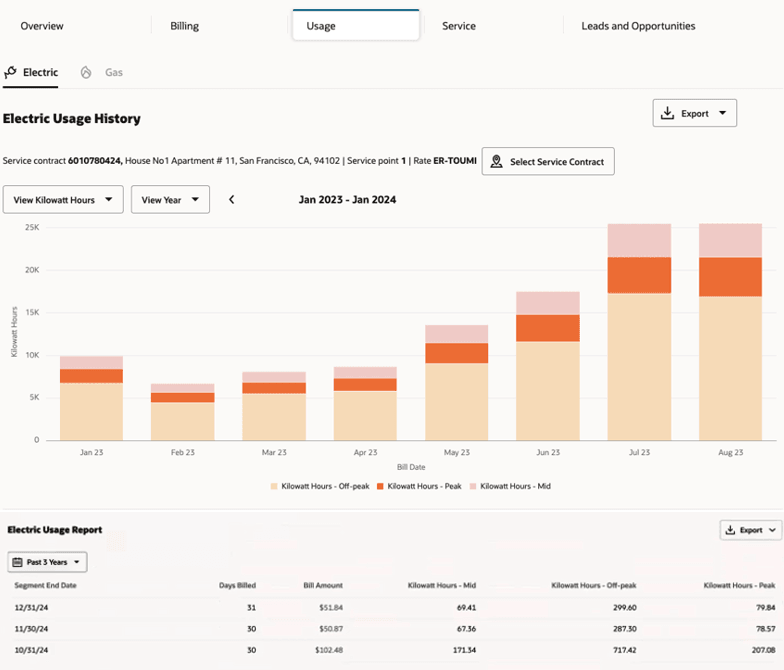
You can hover over a bar in the chart to view additional details in a tool tip, or you can click on a bar to change the chart view to a more granular view. For example, if you hover over a bar that represents a bill period, you can click on that bar to view a more detailed chart for that bill period. If available, the chart would then include a bar for each day in the bill period.
Note:
You can only access a more detailed chart if the detailed data is available. For example, if hourly data is not available, you can't click on a bar that represents a day to display an hourly chart. Similarly, when viewing the chart for services that are billed using a flat-fee and do not have any usage data, this option is not available.Below the chart, the Usage Report displays a list of detailed records about the usage for the selected service contract. You can click on the Bill Amount in any of the records to view the Bill Segment Drawer. You can also export the data in the list and change the date range of the displayed data. Be aware that the date range filter uses the billing date to determine which records to display.
See these topics for additional information:
Parent topic: Using the Service Contract Usage Map