Using the Service Contract Usage Map
You can use the Service Contract Usage Map to view all active and inactive service contracts for a selected billing account on a map and access detailed usage history. To access the map, you first access Account 360 for your key account, then you search for and select an individual billing account. Then select the Usage tab to view the map.
By default, the map displays a list of active service contracts for the selected service type. You can use the drop down filter to display active or inactive contracts only, or to display all service contracts.
This image shows an example of the Service Contract Usage Map with the Electric service type selected:
Figure 5-16 Service Contract Usage Map
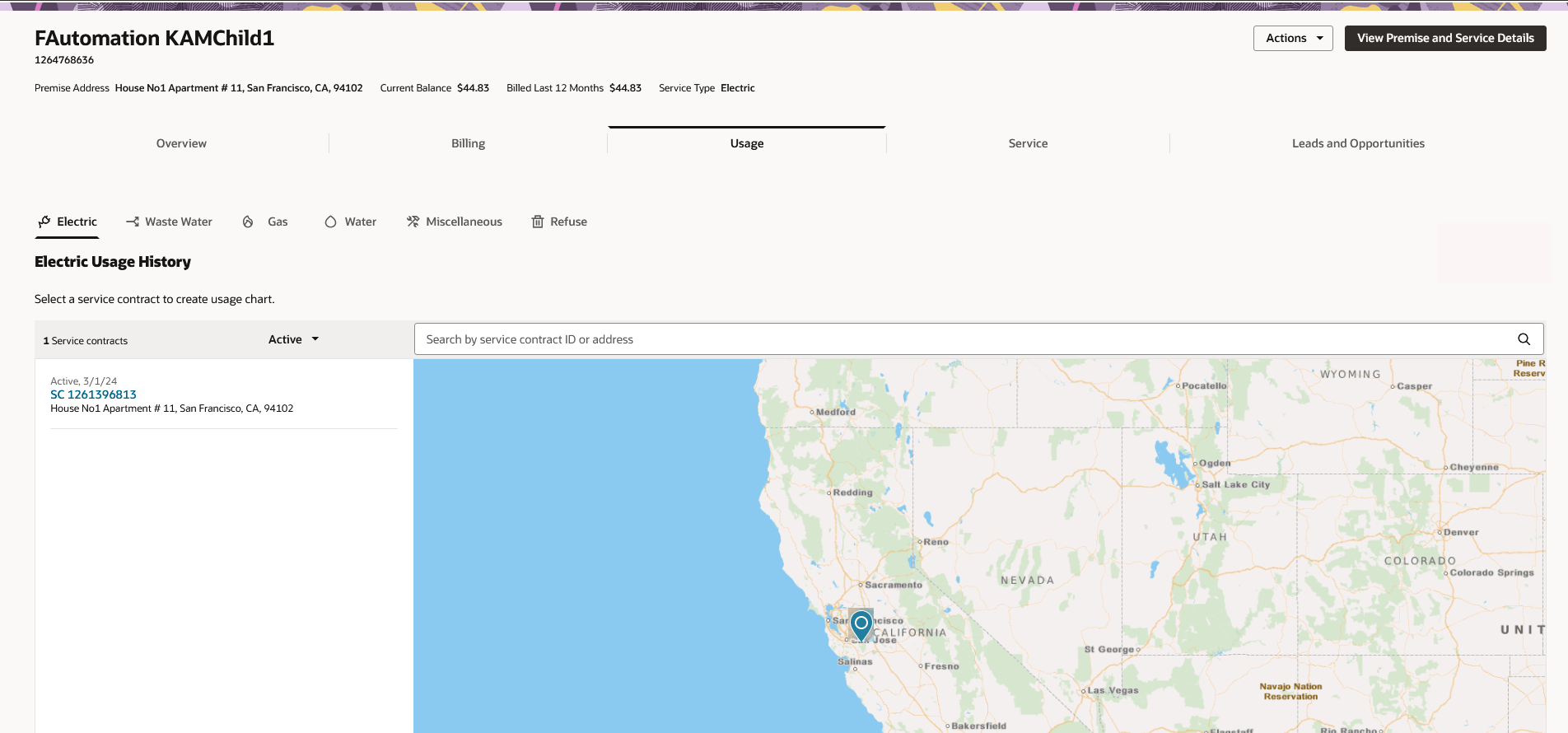
Each service contract associated with the account and service type is plotted on the map using the latitude and longitude of the premise address, and a list of the service contracts is displayed to the left of the map.
You can click within the map and narrow or move your focus to view service contracts in a specific area. You can also search for specific service contracts using the search bar and the filter options. When you enter search criteria, the map view narrows in on your search results. You can then click on a location in the map or a service contract in the list to view detailed usage data.
Note:
Your utility can configure the Service Contract Usage Map so that links associated with flat-fee service contracts that have no usage data are disabled.Topics in this section include: