Managing Flow Test Data Using Spreadsheets
In addition to using the Oracle Utilities Testing Accelerator's workbench GUI for adding/updating test data in a flow, spreadsheets can also be used to add/update test data in the flows. The supported spreadsheet format is .xlsx, which provides versatile formatting for easier input of test data. Each flow has a download spreadsheet option that allows you to download a template corresponding to the flow definition. Each worksheet in the .xlsx spreadsheet holds the test data pertaining to an individual component in the flow. Test data can also be added/updated for test data sets in the flow. You can even create new test data sets in the spreadsheet. Once the spreadsheet is updated with appropriate test data, you can import the spreadsheet to update the test data in the flow from which it was downloaded.
To manage test data using spreadsheets:
- Navigate to the Create/Update Flow Structure for the test flow.
- Click Test Data Spreadsheet in the flow creation frame.
- In the Manage Test Data Through Spreadsheet popup, click Download.
- Download and save the spreadsheet to your laptop/desktop.
- Open the spreadsheet and edit the test data:
- The spreadsheet has multiple worksheets where each worksheet maps to a component in the flow definition.
- The Documentation worksheet holds the high-level list of all the worksheets.
- The worksheets are named based on the scenario number and the components sequence in the flow.
Example: The prefix SC1_SEQ1 is used to denote scenario 1 and component sequence 1.
- Test data corresponding to a component in a flow is held in each individual worksheet. The columns marked as element name, hold the names of each individual element in the component and the columns marked with the header test data sets holds the flow test data corresponding to the flow test data set.
- Multiple values under group/list elements in the component definition can be added in the spreadsheet by duplicating the corresponding rows.
Figure 8-18 Duplicated spreadsheet list rows
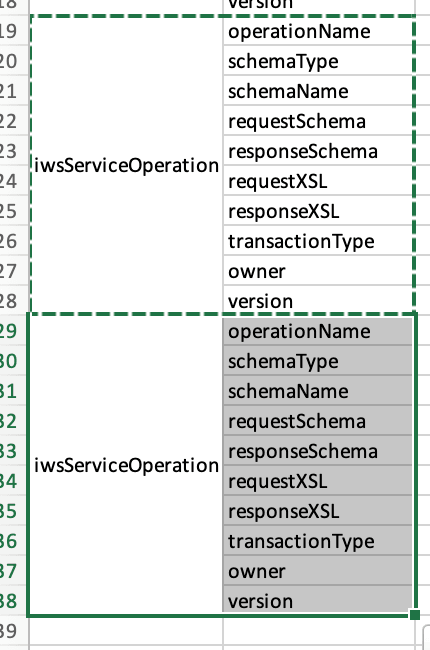
- The test data for elements in the component definition can be set against each of the rows, under the appropriate flow test data sets.
- New flow test data sets can be added in the spreadsheet. Deletion of flow test data sets through the spreadsheet is not allowed.
- After the test data is updated, the spreadsheet can be uploaded into the flow definition through the popup window displayed under step 3 in this process.
Please note the following:
- The sequence of the worksheets in the spreadsheet should not be altered.
- The flow variables defined in the flow are marked in the spreadsheet as “Global Variable”, in the test data. Similarly, the pointers used for mapping test data between components in Oracle Utilities Testing Accelerator GUI are also marked.
- Test data pertaining to subroutine flow calls cannot be managed through the spreadsheet. If the flow has a subroutine flow as a flow step, then the spreadsheet will not have test data or worksheet pertaining to the subroutine flow call step.