Note:
- This tutorial requires access to Oracle Cloud. To sign up for a free account, see Get started with Oracle Cloud Infrastructure Free Tier.
- It uses example values for Oracle Cloud Infrastructure credentials, tenancy, and compartments. When completing your lab, substitute these values with ones specific to your cloud environment.
Configure OCI Search with OpenSearch SAML Authentication Using Okta
Introduction
In modern enterprise environments, Single Sign-On (SSO) simplifies user access management and enhances security. Oracle Cloud Infrastructure OCI Search with OpenSearch supports SAML 2.0 authentication, allowing seamless integration with identity providers such as Okta.
This tutorial walks you through configuring Okta as an SSO provider for OCI Search with OpenSearch Dashboard using SAML 2.0 authentication.
Objectives
By the end of this tutorial, you will be able to:
- Configure an Okta SAML 2.0 application for OCI Search with OpenSearch
- Enable SAML authentication in your OCI Search with OpenSearch cluster
- Enable Okta group-based role mapping for OpenSearch Dashboard access
- Test and verify SSO login via Okta
Prerequisites
Before you begin, ensure the following:
- An operational OCI Search with OpenSearch cluster
- Okta Admin access
- An Okta group named
opensearch-admins - An Okta user assigned to the
opensearch-adminsgroup
Tip: Keep your
<DS_URL>handy—you will reuse it across multiple steps.
Task 1: Retrieve Your OCI Search with OpenSearch Dashboard URL
- Log in to the OCI Console.
- Navigate to your OCI Search with OpenSearch cluster details page.
-
Copy the Dashboard URL — refer to this as
<DS_URL>throughout this tutorial.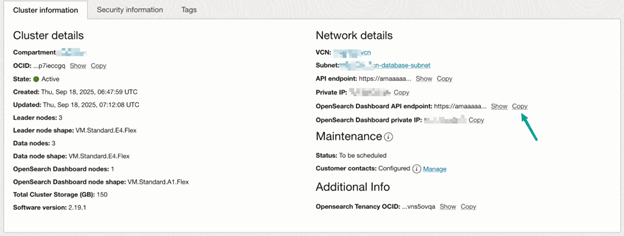
Task 2: Configure Okta SAML Application
Step 1: Create a SAML 2.0 Application
- Log in to the Okta Admin Console.
- Click Create App Integration.
- Select SAML 2.0 as the application type.
- Provide a descriptive application name.
Step 2: Configure SAML Settings
Enter the following values:
- Single sign-on URL:
<DS_URL>/_opendistro/_security/saml/acs - Audience URI (SP Entity ID):
<DS_URL> - Default Relay State: Leave blank
- Name ID Format: EmailAddress
- Application Username: Email
- Update application username: Create and update (default)
Step 3: Configure Attributes
User Attributes
- Name: NameID
- Name Format: Unspecified
- Value:
user.email
Group Attributes
- Name: group
- Name Format: Unspecified
- Filter: Starts with → opensearch
Step 4: Assign Users and Get Metadata
- Assign the application to the
opensearch-adminsgroup. - Navigate to the Sign On tab.
- Click View SAML setup instructions.
- Keep this page open for the next step.
Step 5: Configure OCI Search with OpenSearch SAML
-
Ensure your OpenSearch cluster is set to
ENFORCINGsecurity mode.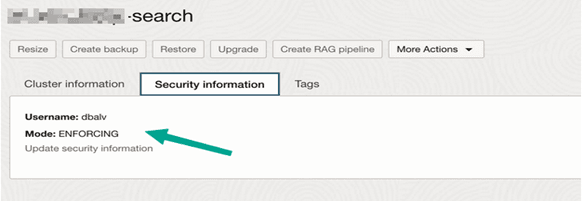
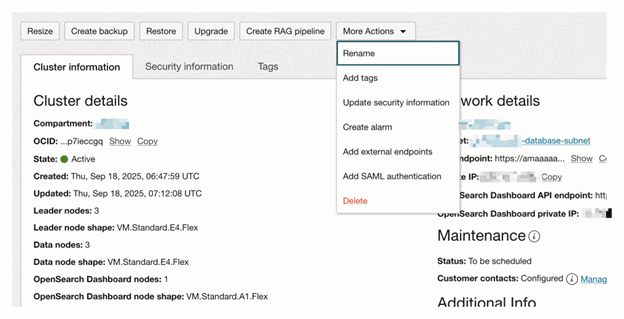
- In the OCI Console, open your OpenSearch cluster and click More Actions.
-
Select Add SAML Authentication.
-
Configure the following parameters:
- Disable SAML Authentication: Set to OFF
- Metadata Content: Copy XML from Okta setup instructions
- Entity ID: Copy from Identity Provider Issuer in Okta
- Dashboard URL:
<DS_URL> - Admin Backend Role:
opensearch-admins - Roles Key:
group
Task 3: Test the Integration
- Open your OCI Search with OpenSearch Dashboard URL (
<DS_URL>). - You will be redirected to Okta for login.
- Log in using a user from the
opensearch-adminsgroup. - Upon successful authentication, you will gain admin access to the OCI Search with OpenSearch Dashboard.
Troubleshooting and Tips
Note: If you encounter the error “No roles available for this user,” verify that:
- The
opensearch-adminsgroup is assigned to the Okta application- The user belongs to this group
- The group name matches exactly in OCI Search with OpenSearch configuration
- The Roles Key is set to
group
Tip: After enabling SAML, the OCI Search with OpenSearch Dashboard may restart. Wait a few minutes and retry. If issues persist, clear browser cache or use an incognito window.
Note: Switching the OCI Search with OpenSearch security mode to
ENFORCINGafter SAML setup resets existing configuration. Always enable this mode before integrating with Okta.
Next Steps
After successfully configuring SAML authentication between Okta and OCI Search with OpenSearch, consider the following:
- Define additional role-based access controls for multiple user groups
- Enable audit logging for monitoring user activity
- Integrate Okta lifecycle management for automated provisioning
- Periodically validate SSO functionality after configuration changes
Related Links
- Oracle Cloud Infrastructure Search with OpenSearch
- Access OCI Search with OpenSearch Dashboards and REST APIs outside a VCN
Acknowledgements
- Authors - Pavan Upadhyay (Principal Cloud Engineer), Saket Bihari (Principal Cloud Engineer)
More Learning Resources
Explore other labs on docs.oracle.com/learn or access more free learning content on the Oracle Learning YouTube channel. Additionally, visit education.oracle.com/learning-explorer to become an Oracle Learning Explorer.
For product documentation, visit Oracle Help Center.
Configure OCI Search with OpenSearch SAML Authentication Using Okta
G55778-01