12 Manage Logical Table Sources (Mappings)
This chapter contains the following topics:
About Logical Table Sources
Logical table sources define the mappings from a single logical table to one or more physical tables.
Use the physical to logical mapping to specify transformations that occur between the Physical layer and the Business Model and Mapping layer, and to enable aggregate navigation and fragmentation.
You can view logical table sources in the Business Model and Mapping layer.
Logical tables can have many physical table sources. A single logical column might map to many physical columns from multiple physical tables, including aggregate tables that map to the column such as if a query asks for the appropriate level of aggregation on that column.
This section contains the following topics:
How Fact Logical Table Sources Are Selected to Answer a Query
The system uses criteria to select the fact logical table source to answer a query.
The following criteria is listed from the highest precedence to the lowest precedence:
-
Logical table source priority group. A higher priority logical table source is used before a lower priority logical table source, even if the higher priority source is at a more detailed grain. A lower number indicates a higher priority. See Set Priority Group Numbers for Logical Table Sources.
-
The grain of the logical table source. A higher-grain logical table source is used before a lower-grain logical table source, given that the priority group numbers are the same.
-
Number of elements at this level. If the grains aren't comparable, the number specified for the Number of elements at this level field is considered.
For example, assume you've the following two logical table sources with grains that aren't comparable: LTS1(year, city) and LTS2(month, state). If you've 10 years, 100 cities, 120 months, and 9 states, the worst case size of LTS1 is 10 x 100 = 1000, and the worst case size of LTS2 is 120 x 9 = 1080. In this scenario, LTS1 is selected because the source with the lowest estimated number of total elements is assumed to be the fastest.
-
First logical table source listed. If all other criteria are equal, the first logical table source listed is selected, as shown in the Business Model and Mapping layer.
Every column in a query is sourced from a single logical table source based on these expected performance factors. Queries aren't load-balanced across multiple logical table sources.
How Dimension Logical Table Sources Are Selected to Answer a Query
After the appropriate fact logical table sources have been selected, the system selects the best dimensional logical table sources to answer the query.
Oracle BI Server uses the following criteria to select the dimension logical table source. The criteria are listed from the highest precedence to the lowest precedence:
-
Logical table source priority group
A higher priority dimension logical table source is used before a lower priority dimension logical table source. A lower number indicates higher priority.
-
Lower join cost
The dimension logical table source with the lowest join cost is selected before dimension logical tables sources with higher join costs, given that the priority group numbers are the same.
-
Higher level
If the priority group and join cost are the same, the higher level logical table source is chosen, because that logical table source could require joining fewer rows.
Change the Default Selection Criteria for Dimension Logical Table Sources
You can change the default logical table source selection criteria to favor dimension logical table sources that are at the same level as the fact logical table source before considering the higher level logical table source.
In Model Administration Tool, set the DIMENSION_LTS_JOIN_RESTRICTIONS session variable to
PREFER_SAME_LEVEL.
If a suitable dimension logical table source at the same level as the fact logical table source doesn't exists, then Oracle BI Server selects the highest level dimension logical table source that's joinable to the fact. These factors are only considered after priority group and join cost.
The PREFER_SAME_LEVEL value for the DIMENSION_LTS_JOIN_RESTRICTIONS session variable sets the following criteria for selecting the dimension logical table source to answer the query:
-
Logical table source priority group
-
Lower join cost
-
Same level as the fact logical table source
-
Higher level than other dimension logical table sources if no other logical table source is at the same level as the fact logical table source
When DIMENSION_LTS_JOIN_RESTRICTIONS is set to NONE, the default value, you can join fact logical table sources to a higher level dimension logical table source even if there is another joinable dimension logical table source at the same level as the fact.
Consistency Among Data in Multiple Sources
It's important to ensure that the data in your sources is consistent.
For example, your year-level logical table source and your month-level logical table source for your time dimension should cover the same time period.
Be aware that consistency issues with data in your sources might become apparent when you issue queries that override null suppression, in other words, when you create an analysis in Answers and select Include Null Values. For example, some aggregate tables might not include the dimension records that correspond to the null fact values such as a yearly sales aggregate table that doesn't include years with no sales. All years in the year dimension must exist for the null values to be included in the result.
Define Physical to Logical Table Source Mappings and Creating Calculated Items
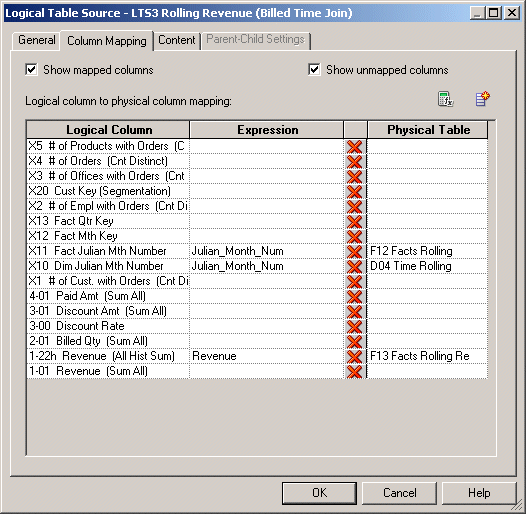
Use the Column Mapping tab of the Logical Table Source dialog to map logical columns to physical columns.
The physical to logical mapping can also be used to specify transformations that occur between the Physical layer and the Business Model and Mapping layer. The transformations can be simple, such as changing an integer data type to a character, or more complex, such as applying a formula to find a percentage of sales per unit of population. Applying these transformations is typically referred to as creating calculated items.
The data type of a logical column is determined by its logical table source mappings. For example, if a logical column has one physical source with a data type of VARCHAR(50) not-nullable, and another physical source with a VARCHAR(20) data type, nullable, then the data type of the logical column is VARCHAR(50) nullable. This final type is called a promoted type. Because of the rules governing logical table source mappings, you can't map physical sources with data types that are promotable such as an INT with a VARCHAR.
- In the Column Mapping tab, maximize or enlarge the dialog to show all the contents, as shown in the image.
In the Column Mapping tab, in the Logical column to physical column mapping area, sort the rows by clicking a column heading.
Unmap a Logical Column from Its Source
You can edit the logical table sources from which the column derives its data, or unmap it from its sources.
In the Logical Column dialog, the Column Source tab contains information about the logical column.
- In the Business Model and Mapping layer of the Model Administration Tool, double-click a logical column.
- In the Logical Column dialog, click the Column Source tab.
- In the Logical Table Source list, select a source and click Unmap.
- Click OK.
Define Content of Logical Table Sources
To use a source correctly, the Oracle BI Server has to know what each source contains in terms of the business model.
Therefore, you need to define aggregation content for each logical table source of a fact table. The aggregation content rule defines at what level of granularity the data is stored in this fact table. For each dimension that relates to this fact logical table, define the level of granularity, making sure that every related dimension is defined. See Set Up Aggregate Navigation by Creating Sources for Aggregated Fact Data.
If a logical table is sourced from a set of fragments, it isn't required that every individual fragment maps the same set of columns. However, the server returns different answers depending on how columns are mapped.
-
If all the fragments of a logical table map the same set of columns, then the set of fragmented sources is considered to be the whole universe of logical table sources for the logical table. This means that measure aggregations can be calculated based on the set of fragments.
-
If the set of mapped columns differ across the fragments, then the Oracle BI Server assumes that it doesn't have the whole universe of fragments, and therefore it would be incorrect to calculate aggregate rollups, since some fragments are missing. In this case, the server returns NULL as measure aggregates.
Note:
Oracle highly recommends that all the fragments map to the same set of columns.
Use the Content tab of the Logical Table Source dialog to define any aggregate table content definitions, fragmented table definitions for the source, and WHERE clauses, if you want to limit the number of rows returned. See Set Up Fragmentation Content for Aggregate Navigation.
Verify Joins from Dimension Tables to Fact Tables
Joins tells the Oracle BI Server where to send queries for physical aggregate fact tables joined to and constrained by values in the physical aggregate dimension tables.
Oracle recommends that you use logical levels exclusively as the Aggregation content, group-by option. Don't mix aggregation by logical level and column in the same business model.
See About WHERE Clause Filters and Set Up Fragmentation Content for Aggregate Navigation.
You can type the formula directly into the Fragmentation content text area , or click Expression Builder. In the Expression Builder for Fragmentation Content, you can specify content in terms of existing logical columns. See Set Up Fragmentation Content for Aggregate Navigation.
Choose This source should be combined with other sources at this level if all fragments on this level are disjointed. Consider the following examples:
- Example 1 - Suppose you've two fragments, all sales including current year, and current year sales with the fragmentation predicate set to year = 2015. You shouldn't select the This source should be combined with other sources at this level option because the two fragments overlap. Oracle BI Server can use any single fragment based on query predicate or fragmentation predicate compatibility.
-
Example 2 - Suppose you've two fragments, sales for year 2000 and before, according to the fragmentation predicate, and sales for year 2001 and after, according to the fragmentation predicate. You should select the This source should be combined with other sources at this level option because the fragments don't overlap. The Oracle BI Server creates a union of all the logical table sources on this level that can't be disqualified based on query predicate or fragmentation predicate compatibility.
See Logical Table Source Options Reference to learn which option to use in the Logical Table Source dialog.
Joins from Dimension Tables to Fact Tables
You must create joins between the aggregate fact tables and the aggregate dimension tables in the Physical layer.
You can verify joins by selecting a fact logical table and opening a Business Model Diagram (Selected Tables and Direct Joins). Only the dimension logical tables that are directly joined to this fact logical table appear in the diagram. It doesn't show dimension tables if the same physical table is used in logical fact and dimension sources.
The image shows a Fact - Assess logical fact table in a Business Model Diagram in the Selected Tables and Direct Joins view.
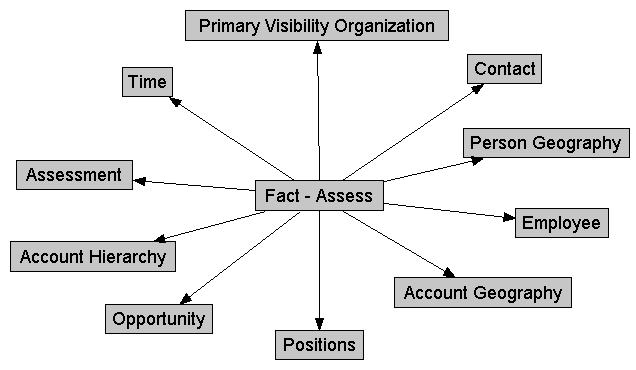
The table contains a list of the logical level for each dimension table that's directly joined the Fact - Assess fact table.
| Dimension | Logical Level |
|---|---|
|
Account Geography |
Postal Code Detail |
|
Person Geography |
Postal Code Detail |
|
Time |
Day Detail |
|
Account Organization |
Account Detail |
|
Opportunity |
Opty Detail |
|
Primary Visibility Organization |
Detail |
|
Employee |
Detail |
|
Assessment |
Detail |
|
Contact (W_PERSON_D) |
Detail |
|
FINS Time |
Day |
|
Positions |
Details |
Logical Table Source Options Reference
Learn how to use the options from the Logical Table Source dialog.
| Options | Description |
|---|---|
|
Aggregation content, group by |
Specifies how the content is aggregated. |
|
Copy |
The Copy option is only available with fact tables. Copies aggregation content to the Windows clipboard. You can paste the Copy isn't available if the expression is empty. |
|
Copy from |
The Copy from option is available for fact tables and dimension tables. Copies aggregation content from another logical table source in the same business model. You need to specify the source from which to copy the aggregation content. Multiple business models appear but only the logical table sources from the current business model are selectable. |
|
Get Levels |
The Get Levels option is only available for fact tables. Changes aggregation content. If joins don't exist between fact table sources and dimension table sources, for example, if the same physical table is in both sources, the aggregation content determined by the Model Administration Tool doesn't include the aggregation content of this dimension. |
|
Check Levels |
The Check Levels option is only available for fact tables. Checks the aggregation content of logical fact table sources, not dimension table sources. The information returned depends on the existence of dimensions and hierarchies with logical levels and level keys, and physical joins between tables in dimension table sources and the tables in the fact table source. If the same tables exist in the fact and dimension sources and there are no physical joins between tables in the sources, Check Levels doesn't include the aggregation content of this dimension. |
|
Fragmentation content |
A description of the contents of a data source in business model terms. Data is fragmented when information at the same level of aggregation is split into multiple tables depending on the values of the data. A common situation would be to have data fragmented by time period. |
|
This source should be combined with other sources at this level |
Select this option when data sources at the same level of aggregation don't contain overlapping information. In this situation, all sources must be combined to get a complete picture of information at this level of aggregation. |
|
Select distinct values |
Used if the values for the source are unique. |
About WHERE Clause Filters
The WHERE clause filter is used to constrain the physical tables referenced in the logical table source.
If there are no constraints on the aggregate source, leave the WHERE clause filter blank.
Each logical table source should contain data at a single intersection of aggregation levels. You wouldn't want to create a source, for example, that had sales data at both the Brand and Manufacturer levels. If the physical tables include data at multiple levels, add an appropriate WHERE clause constraint to filter values to a single level.
Any constraints in the WHERE clause filter are made on the physical tables in the source.
Set Up Fragmentation Content for Aggregate Navigation
When a logical table source doesn't contain the entire set of data at a given level, you need to specify the portion, or fragment, of the set that it does contain.
You describe the content in terms of logical columns in the Fragmentation content box in the Content tab of the Logical Table Source dialog.
The examples in this section illustrate techniques and rules for specifying the fragmentation content of sources.
This section contains the following topics:
Specify Fragmentation Content for Single Column, Value-Based Predicates
You can replace the IN predicates with either an equality predicate or multiple equality predicates separated by the OR connective.
Fragment 1:
logicalColumn IN <valueList1>
Fragment n:
logicalColumn IN <valueListN>
Specify Fragmentation Content for Single Column, Range-Based Predicates
When a logical table source doesn't contain the entire set of data at a given level, you need to specify the fragment of the set that it does contain.
Use >= and < predicates to ensure that the fragment content descriptions don't overlap. For each fragment, you must express the upper value as <. An error occurs if you use <=. You can't use the BETWEEN predicate to describe fragment range content.
Fragment 1:
logicalColumn >= valueof(START_VALUE) AND logicalColumn < valueof(MID_VALUE1)
Fragment 2:
logicalColumn >= valueof(MID_VALUE1) AND logicalColumn < valueof(MID_VALUE2)
Fragment n:
logicalColumn >= valueof(MID_VALUEN-1) AND logicalColumn < valueof(END_VALUE)
Pick your start point, midpoints, and endpoint carefully.
The valueof referenced here is the value of a repository variable. If you use repository values in your expression, the following construct doesn't work for Fragment 2:
logicalColumn >= valueof(MID_VALUE1)+1 AND logicalColumn < valueof(MID_VALUE2)
Use another repository variable instead of valueof(MID_VALUE1)+1.
The same variables, for example, valueof(MID_VALUE1), aren't required to appear in the content of both fragments. You could set another variable, and create statements of the following form:
Fragment 1:
logicalColumn >= valueof(START_VALUE) AND logicalColumn < valueof(MID_VALUE1)
Fragment 2:
logicalColumn >= valueof(MID_VALUE2) AND logicalColumn < valueof(MID_VALUE3)
Specify Multicolumn Content Descriptions
An arbitrary number of predicates on different columns can be included in each content filter. Each column predicate can be value-based or range-based.
Fragment 1:
<logicalColumn1 predicate> AND <logicalColumn2 predicate > ... AND <logicalColumnM predicate>
Fragment n:
<logicalColumn1 predicate> AND <logicalColumn2 predicate > ... AND <logicalColumnM predicate>
Ideally, all fragments have predicates on the same M columns. If there is no predicate constraint on a logical column, the Oracle BI Server assumes that the fragment contains data for all values in that logical column. See Specify Parallel Content Descriptions for exceptions using the OR predicate.
Specify Parallel Content Descriptions
Use the parallel OR to handle dates that cross logical columns such as across years, or across months in a date range.
Use the parallel OR technique to handle the multiple hierarchical relationships across logical columns such as from year to year month to date, and from month to year month to date. For example, consider fragments delineated by different points in time such as year and month. Constraining sufficiently far back in a year is enough to drive the selection of just the historical fragment. The parallel OR technique supports this, as shown in the next example. This example assumes that the snapshot month was April 1, 12:00 a.m. in the year 1999.
Fragment 1 (Historical):
EnterpriseModel.Period."Day" < VALUEOF("Snapshot Date") OR
EnterpriseModel.Period.MonthCode < VALUEOF("Snapshot Year Month") OR
EnterpriseModel.Period."Year" < VALUEOF("Snapshot Year") OR
EnterpriseModel.Period."Year" = VALUEOF("Snapshot Year") AND
  EnterpriseModel.Period."Month in Year" < VALUEOF("Snapshot Month") OR
EnterpriseModel.Period."Year" = VALUEOF("Snapshot Year") AND
  EnterpriseModel.Period."Monthname" IN ('Mar', 'Feb', 'Jan')
Fragment 2 (Current):
EnterpriseModel.Period."Day" >= VALUEOF("Snapshot Date") OR
EnterpriseModel.Period.MonthCode >= VALUEOF("Snapshot Year Month") OR
EnterpriseModel.Period."Year" > VALUEOF("Snapshot Year") OR
EnterpriseModel.Period."Year" = VALUEOF("Snapshot Year") AND
  EnterpriseModel.Period."Month in Year" >= VALUEOF("Snapshot Month") OR
EnterpriseModel.Period."Year" = VALUEOF("Snapshot Year") AND
  EnterpriseModel.Period."Monthname" IN ('Dec', 'Nov', 'Oct', 'Sep', 'Aug', 'Jul',
  'Jun', '', 'Apr')
If the logical model doesn't go down to the date level of detail, then omit the predicate on EnterpriseModel.Period."Day" in the preceding example.
Notice the use of the OR connective to support parallel content description tracks.
Examples of Parallel Content Descriptions
These examples explain how to use labels with fragment content statements.
The Track number labels in the examples are shown to help relate the examples to the discussion that follows. You wouldn't include these labels in the actual fragmentation content statement.
Fragment 1 (Historical)
Track 1  EnterpriseModel.Period."Day" < VALUEOF("Snapshot Date") OR
Track 2  EnterpriseModel.Period.MonthCode < VALUEOF("Snapshot Year Month") OR
Track 3  EnterpriseModel.Period."Year" < VALUEOF("Snapshot Year") OR
Track 4  EnterpriseModel.Period."Year" = VALUEOF("Snapshot Year") AND
  EnterpriseModel.Period."Month in Year" < VALUEOF("Snapshot Month") OR
Track 5  EnterpriseModel.Period."Year" = VALUEOF("Snapshot Year") AND
  EnterpriseModel.Period."Monthname" IN ('Mar', 'Feb', 'Jan')
For example, consider the first track on EnterpriseModel.Period."Day." In the historical fragment, the < predicate tells the Oracle BI Server that any queries that constrain on Day before the Snapshot Date fall within the historical fragment. Conversely, the >= predicate in the current fragment on Day indicates that the current fragment doesn't contain data before the Snapshot Date.
The second track on MonthCode, for example, 199912, is similar to Day. It uses the < and >= predicates, as there is a non-overlapping delineation on month because the snapshot date is April 1. The key rule to remember is that each additional parallel track must reference a different column set. You can use common columns, but the overall column set must be unique. The Oracle BI Server uses the column set to select the most appropriate track.
The third track on Year, < in the historical fragment and > in the current fragment, tells the Oracle BI Server that optimal (single) fragment selections can be made on queries that just constrain on year. For example, a logical query on Year IN (1997, 1998) should only hit the historical fragment. Likewise, a query on Year = 2000 should only hit the current fragment. However, a query that hits the year 1999 can't be answered by the content described in this track, and therefore hits both fragments, unless additional information can be found in subsequent tracks.
The fourth track describes the fragment set for Year and Month in Year (month integer). Notice the use of the multi-column content description technique, described previously. Notice the use of < and >= predicates, as there is no ambiguity or overlap for these two columns.
The fifth track describes fragment content in terms of Year and Month name. It uses the value-based IN predicate technique.
As an embellishment, suppose the snapshot date fell on a specific day within a month: therefore, multi-column content descriptions on just year and month would overlap on the specific snapshot month. To specify this ambiguity, <= and >= predicates are used.
Fragment 1 (Historical):
EnterpriseModel.Period."Day" < VALUEOF("Snapshot Date") OR
EnterpriseModel.Period.MonthCode <= VALUEOF("Snapshot Year Month") OR
EnterpriseModel.Period."Year" < VALUEOF("Snapshot Year") OR
EnterpriseModel.Period."Year" = VALUEOF("Snapshot Year") AND
  EnterpriseModel.Period."Month in Year" <= VALUEOF("Snapshot Month") OR
EnterpriseModel.Period."Year" = VALUEOF("Snapshot Year") AND
  EnterpriseModel.Period."Monthname" IN ('Apr', 'Mar', 'Feb', 'Jan')
Fragment 2 (Current):
EnterpriseModel.Period."Day" >= VALUEOF("Snapshot Date") OR
EnterpriseModel.Period.MonthCode >= VALUEOF("Snapshot Year Month") OR
EnterpriseModel.Period."Year" > VALUEOF("Snapshot Year") OR
EnterpriseModel.Period."Year" = VALUEOF("Snapshot Year") AND
  EnterpriseModel.Period."Month in Year" >= VALUEOF("Snapshot Month") OR
EnterpriseModel.Period."Year" = VALUEOF("Snapshot Year") AND
  EnterpriseModel.Period."Monthname" IN ('Dec', 'Nov', 'Oct', 'Sep', 'Aug', 'Jul',
  'Jun', '', 'Apr')
Specify Unbalanced Parallel Content Descriptions
In an order entry application, time-based fragmentation between historical and current fragments is insufficient.
For example, records might still be volatile, even though they're historical records entered into the database before the snapshot date.
Assume, in the following example, that open orders can be directly updated by the application until the order is shipped or canceled. After the order has shipped, however, the only change that can be made to the order is to type a separate compensating return order transaction.
There are two parallel tracks in the following content descriptions. The first track uses the multicolumn, parallel track techniques described in the preceding section. Notice the parentheses nesting the parallel calendar descriptions within the Shipped-or-Canceled order status multicolumn content description.
The second parallel track is present only in the Current fragment and specifies that all Open records are in the Current fragment only.
Fragment 1 (Historical):
Marketing."Order Status"."Order Status" IN ('Shipped', 'Canceled') AND
  Marketing.Calendar."Calendar Date" <= VALUEOF("Snapshot Date") OR
Marketing.Calendar."Year" <= VALUEOF("Snapshot Year") OR
Marketing.Calendar."Year Month" <= VALUEOF("Snapshot Year Month")
Fragment 2 (Current):
Marketing."Order Status"."Order Status" IN ('Shipped', 'Canceled') AND
  Marketing.Calendar."Calendar Date" > VALUEOF("Snapshot Date") OR
Marketing.Calendar."Year" >= VALUEOF("Snapshot Year") OR
Marketing.Calendar."Year Month" >= VALUEOF("Snapshot Year Month") OR
Marketing."Order Status"."Order Status" = 'Open'
The overlapping Year and Month descriptions in the two fragments don' cause a problem, as overlap is permissible when there are parallel tracks. The rule is that at least one of the tracks has to be non-overlapping. The other tracks can have overlap.
Specify Fragmentation Content for Aggregate Table Fragments
Information at a given level of aggregation is sometimes stored in multiple physical tables.
Information at a given level of aggregation is sometimes stored in multiple physical tables. When individual sources at a given level contain information for a portion or fragment of the domain, the Oracle BI Server needs to know the content of the sources in order to pick the appropriate source for the query.
For example, suppose you've a database that tracks the sales of soft drinks in all stores. The detail level of data is at the store level. Aggregate information, as described in the image, is stored at the city level for the sales of Coke and Pepsi, but there is no aggregate information for the sales of 7‐Up or any other of the sodas.
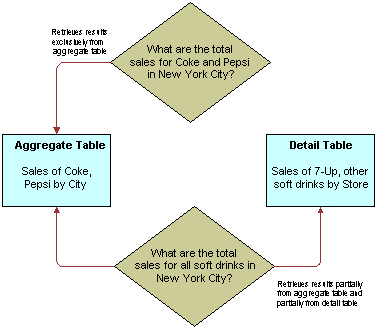
The goal of this type of configuration is to maximize the use of the aggregate table. If a query asks for sales figures for Coke and Pepsi, the data should be returned from the aggregate table. If a query asks for sales figures for all soft drinks, the aggregate table should be used for Coke and Pepsi and the detail data for the other brands.
The Oracle BI Server handles this type of partial aggregate navigation. To configure a repository to use aggregate fragments for queries whose domain spans multiple fragments, you need to define the entire domain for each level of aggregate data, even if you must configure an aggregate fragment as being based on a less summarized physical source.
This section contains the following topics:
Specify the Aggregate Table Content
You configure the aggregate table navigation in the logical table source mappings.
In the soft drink example, the aggregate table contains data for Coke and Pepsi sales at the city level. Its Aggregate content specification, in the Content tab of the Logical Table Source window, is similar to the following:
Group by logical level:
GeographyDim. CityLevel, ProductDim.ProductLevel
Its Fragmentation content specification also in the Content tab of the Logical Table Source dialog is similar to the following:
SoftDrinks.Products.Product IN ('Coke', 'Pepsi')
This content specification tells the Oracle BI Server that the source table has data at the city and product level for two of the products. Additionally, because this source is a fragment of the data at this level, you must select This source should be combined with other sources at this level, in the Content tab of the Logical Table Source dialog, to indicate that the source combines with other sources at the same level.
Define a Physical Layer Table with a Select Statement to Complete the Domain
The data for the rest of the domain (the other types of sodas) is all stored at the store level.
To define the entire domain at the aggregate level, for example, city and product, you need to have a source that contains the rest of the domain at this level. Because the data at the store level is at a lower, more detailed level than at the city level, it's possible to calculate the city and product level detail from the store and product detail by adding up the product sales data of all of the stores in a city. You can use a query involving the store and product level table.
One way to do this is to define a table in the Physical layer with a Select statement that returns the store level calculations. To define the table, create a table in the Physical layer on the physical schema object that the SELECT statement uses for the query and selecting New Physical Table. Choose Select from the Table Type list, and type the SQL statement in the Default Initialization String box.
The SQL statement must define a virtual table that completes the domain at the level of the other aggregate tables. In this case, there is one existing aggregate table, and it contains data for Coke and Pepsi by city. Therefore, the SQL statement has to return all of the data at the city level, except for the Coke and Pepsi data.
Specify the SQL Virtual Table Content
Create a new logical table source for the Sales column that covers the remainder of the domain at the city and product level.
This source contains the virtual table created in the previous section. Map the Dollars logical column to the US Dollars physical column in this virtual table.
The Aggregate content specification, in the Content tab of the Logical Table Source dialog, for this source is:
Group by logical level:
GeographyDim.CityLevel, ProductDim.ProductLevel
This tells the Oracle BI Server this source has data at the city and product level.
The Fragmentation content specification might be:
SoftDrinks.Products.Product = '7-Up'
Additionally, because it combines with the aggregate table containing the Coke and Pepsi data at the city and product level to complete the domain, you need to select the option in the Content tab of the Logical Table Source dialog indicating that the source is combined with other sources at the same level.
Create Physical Joins for the Virtual Table
Provides an image that shows how to construct physical joins.
Construct the correct physical joins for the virtual table. Notice that CityProductSales2 joins to the Cities and Products tables in the image below.
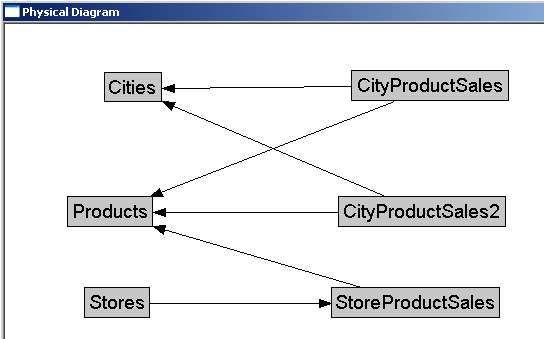
In this example, the two sources comprise the whole domain for soda sales. A domain can have many sources. The sources have to all follow the rule that each level must contain sources that, when combined, comprise the whole domain of values at that level. Setting up the entire domain for each level helps ensure that queries asking for Coke, Pepsi, and 7‐Up don't leave out 7‐Up. It also helps ensure that queries requesting information that has been precomputed and stored in aggregate tables can retrieve that information from the aggregate tables, even if the query requests other information that isn't stored in the aggregate tables.