5 Use a Source Control Management System for Repository Development
The Model Administration Tool achieves this integration through the ability to save repository metadata as a set of XML documents in MDS XML format rather than as a single binary Oracle BI repository file (RPD). Using this integration, you can configure the Model Administration Tool to work with your own source control management system and save your repository output as MDS XML.
This chapter contains the following topics:
About Using a Source Control Management System with the Administration Tool
You can integrate Model Administration Tool with a third-party source control management systems such as Subversion, Rational ClearCase, or Git during your repository development process.
In the Model Administration Tool:
-
Convert your binary Oracle BI repository file to a set of MDS XML documents.
You can save your repository in MDS XML format rather than using a single large binary repository file. In the MDS XML format, each repository object such as a connection pool, physical table, or business model is represented in its own XML file. You can manage the set of XML files that make up your repository in your source control management system.
-
Set up a Source Control Management (SCM) configuration file.
Use the SCM Configuration Editor in the Model Administration Tool to specify commands specific to your SCM system such as add file, delete, and check out and specify environment variables required by your SCM system.
-
Designate your repository as under source control.
The first time you open your MDS XML repository in the Model Administration Tool, you're prompted to specify whether the repository is a standalone MDS XML repository, or whether it's under source control. Choose Use Source Control to enable SCM integration for this repository in the Model Administration Tool.
About MDS XML
MDS XML format is used for repositories under source control.
MDS XML represents the Oracle BI Repository across a set of XML files rather than in a single file.
Each repository connection pool is stored in its own file, with an XML representation like the following:
<?xml version="1.0" encoding="UTF-8" ?>
<ConnectionPool mdsid="m80ca62c5-0bd5-0000-714b-e31d00000000"
name="SampleApp_Lite_Xml" xmlns:xsi="http://www.w3.org/2001/XMLSchema-instance"
xmlns="http://www.oracle.com/obis/repository"
password="94F9321C85340FC48E4D9093AA941FF28844074B88D5AA6364E4815DEED7F9B
8792EF452219C2155DB68F61EE1555B4FA886F77E060E2E17F45AD8D18CAB2E4D3EFA15B75E
30D8B4BFA8C7B2D70552BD" timeout="4294967295" maxConnDiff="10" maxConn="10"
dataSource="VALUEOF(BI_EE_HOME)/sample/SampleAppFiles/Data" type="Default"
reqQualifedTableName="false" isSharedLogin="false"
isConcurrentQueriesInConnection="false" isCloseAfterEveryRequest="true"
xmlRefreshInterval="2147483647" outputType="xml" ignoreFirstLine="false"
bulkInsertBufferSize="0" transactionBoundary="0" xmlaUseSession="false"
multiThreaded="false" supportParams="false" isSiebelJDBSecured="false"
databaseRef="/oracle/bi/server/base/Database/Sample App Lite Data_80ca62c4
-0bcf-0000-714b-e31d00000000.xml#m80ca62c4-0bcf-0000-714b-e31d00000000"
>
<Description>
<![CDATA[
SampleAppLite connection pool to XML datasource. This connection pool points the
database to the location where physical XML files are stored. The location uses
the value of an RPD variable : BI_EE_HOME.
This variable needs to be correctly set in order for the server to connect to the
files.
]]>
</Description>
</ConnectionPool>
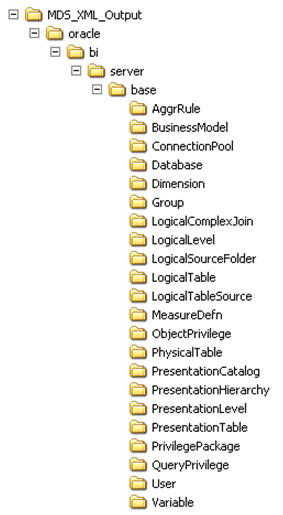
The SampleAppLite repository generates MDS XML files in a structure like the following:
Note:
There is no one-to-one relationship between repository objects in the Model Administration Tool and the set of files produced as XML output. For example, physical columns appear as independent objects in the Administration Tool, but in MDS XML they're considered part of the Physical Table object.
See About the Oracle BI Server MDS XML API in XML Schema Reference for Oracle Business Intelligence Enterprise Edition for full information about the MDS XML schema representation of repository objects.
Set Up Your System for Repository Development Under Source Control Management
To set up your system for repository development under source control management, you must set up an SCM configuration file with commands specific to your SCM system, and generate an MDS XML repository and check it into your SCM system.
This section contains the following topics:
Create an SCM Configuration File
To integrate the Model Administration Tool with your source control management system (SCM), you must create an XML configuration file based on your specific SCM system.
The configuration file contains the SCM system commands for adding, deleting, checking out, and renaming files. The Model Administration Tool issues these commands to the SCM system when repository objects are created or updated, resulting in corresponding new or changed MDS XML files. The Model Administration Tool doesn't commit the changes to the SCM system. The repository developer must always check the files into the SCM system directly. The separate check-in in the SCM system facilitates viewing any conflicts or implementing merge decisions in the SCM environment rather than the Model Administration Tool environment.
If you create or edit an SCM configuration file while an MDS XML repository is open, you must ensure that Use Source Control is selected to enable the New or Edit buttons.
The default location for SCM configuration files is Oracle_Home/user_projects/domains/bi/config/fmwconfig/biconfig/OBIS.
You shouldn't store security-sensitive environment variables in the configuration file. If security-sensitive variables are required by your SCM system, to avoid the security risk, you can launch the Model Administration Tool from Windows Command Prompt with any security-sensitive variables already set.
Create an MDS XML Repository and Check In Files to the SCM System
To integrate with an SCM system, you must convert your Oracle BI repository to MDS XML format.
Use one of the following options to create an MDS XML repository and check it into your source control system:
Save an Existing Repository File in MDS XML Format
If you've an existing repository file, use these steps for initial import to convert it to MDS XML.
You can also use the biserverxmlgen utility with the -M and -D options to generate MDS XML from an existing Oracle BI repository. See Generating MDS XML from an Existing RPD Using a Command-Line Utility in the XML Schema Reference for Oracle Business Intelligence Enterprise Edition.
Create a New Repository in MDS XML Format
Use these steps to create a new repository in MDS XML format.
- Open the Model Administration Tool and select File, then select New Repository to open the Create New Repository Wizard.
- Select the MDS XML Documents option in the wizard. Complete the other wizard steps.
- Perform the necessary steps in your source control management system to add and check in the files. For large repositories, use the specialized commands for bulk file import for your SCM system.
Don't create a new MDS XML-format repository, add objects, and then select Link to Source Control. This method doesn't work, and SCM commands aren't generated.
Link to Source Control Files to Convert Your Repository (Small Repositories Only)
For very small repositories, you can use the Link to Source Control files method to convert a binary Oracle BI repository file to MDS XML format.
Using the Link to Source Control Files method to initially import your repository is only recommended for very small repositories. This method is too slow for large repositories, tens of thousands of files, because the Model Administration Tool imports the files one at a time using the standard add file command, rather than using specialized commands for bulk file import.
The repeated invocation of the add file command might increase the chances of transient errors. If these occur, you might need to restart the process a few times before all files are successfully imported to source control.
Use Source Control Management in Day to Day Repository Development
These topics describes typical scenarios that occur during day to day repository development.
This section contains the following topics:
Update, Save, and Check In Changes for Repositories Under Source Control
After your MDS XML repository is set up under source control, follow these steps to update, save, and check in changes to your repository.
Handle Errors
Learn how to handle errors in the SCM system.
Sometimes errors, such as an expired label or network problem, occur when the Model Administration Tool delivers changes to the SCM system.
Saving to a binary Oracle BI repository file is the simplest option for transient problems like network errors, where you just need to try again later. Saving as MDS XML is required when some sort of work is required to fix the problem, such as merging conflicting changes.
Steps 4 and 5 of this procedure cause the Model Administration Tool to keep memory objects loaded from the saved Oracle BI repository file or MDS XML files, but to then consider them to belong to the source control MDS XML repository instead. When you click Save, the Model Administration Tool saves the memory objects to the source control repository.
Test Repositories Under Source Control
During the course of repository development, you need to perform testing in online mode to validate your repository.
You can only load an Oracle BI repository in RPD format into the Oracle BI Server to make it available for queries. Because of this, you must save your development MDS XML repository in Oracle BI repository format from time to time when you want to perform online testing.
- In the Model Administration Tool, open your MDS XML repository in offline mode, select Save As, then select Repository to make the repository available for queries.
View the Source Control Log
The Source Control Log window shows the commands that the Model Administration Tool issues to your SCM system.
It also shows any post-save text you specified in the Post-save comment tab of the SCM Configuration Editor.
By default, the Source Control Log window appears when SCM commands are being run. Alternatively, you can select File, then select Source Control, then select View Logs to see the Source Control Log window.
You can choose the following options for this dialog:
-
Close when commands finish: Causes the log window to close automatically when commands are complete, unless errors occur.
-
Only show dialog when errors occur: Hides the window during SCM command processing unless errors occur. By default, the Source Control Log appears automatically when SCM commands are being run unless this option is selected.
The text displayed in the Source Control Log is persistent until you close the repository. This means that all SCM command output is available for view, regardless of whether the dialog is open during individual operations. While SCM commands are being run, the Close button is disabled until the SCM commands have finished or have stopped with an error, unless Only show dialog when errors occur has been selected.
The Source Control Log does have a 32K character limit. When the window buffer becomes full, then the oldest commands are removed from the Source Control Log display to make room for the latest command output. To see the full output, go to the Model Administration Tool log at:
ORACLE_INSTANCE/diagnostics/logs/OracleBIServerComponent/coreapplication_obisn/user_name_NQSAdminTool.log
Use Source Control Management with MUD
You can use source control management with your multiuser development environment.
For example, if you've an existing repository under multiuser development and you want to begin using source control management, you might follow the steps described in the following subsections:
Put the MUD Master Repository and MUD Log File Under Source Control
Use this procedure to put the MUD master repository and MUD log file under source control.
Run the mhlconverter command-line utility to convert your MUD log file (*.mhl) to an XML file.
See Save an Existing Repository File in MDS XML Format to convert your master MUD Oracle BI repository file to a set of MDS XML files on the file system.
Check In New Versions of the MUD Master and MUD Log File to Source Control
After creating and checking in the initial version of the master MUD repository, you need to check in updated versions of the MUD master repository on an ongoing basis.
This section describes two different ways to perform this task.
Manually Check In the Updated MUD Master Repository and Log File
Use these steps to manually check in changes to the master Oracle BI repository and log file that have occurred as part of the multiuser development process.
Consider using the automated check-in method described in Use a Script to Check In the Updated MUD Master Repository and Log File if you've a large repository. See Create an SCM Configuration File.
-
Open the latest copy of the master Oracle BI repository file in the Model Administration Tool.
-
Create or select the appropriate SCM configuration file.
-
Select File, then select Source Control, then select Link to Source Control. Select the directory that contains the MDS XML version of the master MUD repository.
Using Link to Source Control isn't recommended for large repositories and might cause time-outs.
-
Click Save to save changes from the master MUD repository into the MDS XML files under source control. The Model Administration Tool determines which files to add, check out, modify, and delete and issues the commands to your SCM system.
-
Close the Model Administration Tool.
-
Follow these steps to update the MUD log file:
-
In your SCM system, check out the XML-format MUD log file.
-
Use the
mhlconverterutility to overwrite the XML-format MUD log file with the latest changes from the.mhlversion. -
Check in the latest XML-format MUD log file to your SCM system.
-
-
Check all changes into your SCM system.
It's recommended that you perform the steps in this section regularly to avoid having too many changes in a single transaction.
Use a Script to Check In the Updated MUD Master Repository and Log File
As an alternative to manually checking in changes, you can create a script to perform the check-in tasks and then schedule it to run at regular intervals.
See Compare Repositories Using comparerpd.
-
Identify the latest copy of the master Oracle BI repository file that you want to check into your SCM system.
-
Identify the last version of the master Oracle BI repository file that was checked into the SCM system. You can review the latest XML-format MUD log file under source control to determine this version.
If you don't have the last checked-in version of the master repository in Oracle BI repository file format, you can use the
biserverxmlexecutility with the -D option to read the latest MDS XML files checked into source control and re-create an Oracle BI repository file version. -
Use the
comparerpdutility with the-Moption to compare the latest copy of the master Oracle BI repository file, the modified version, with the version that was last checked in, the original version. An MDS XML format diff is generated. -
Create a script that does the following:
-
Reads the MDS XML diff directory to identify which files are present.
-
Issues commands in source control to check out the identified files or add new files.
-
Copies the latest version of the files from the MDS XML diff directory to the source control directory.
-
Reads the
oracle\bi\server\base\DeletedFiles.txtfile inside the MDS XML diff directory to determine which files to delete. -
Issues commands in source control to delete the appropriate files.
-
Checks out the MDS XML-format MUD log file, runs the
mhlconverterutility to convert the latest MHL-format log file to XML format, overwrites the existing MDS XML-format MUD log file with the new one, and checks it in. -
Performs all necessary check-in steps in the SCM system.
-