7 Work with ADF Data Sources
Connecting to ADF data sources enables users to query data from any application that's built using the ADF Framework. For example, because Oracle CRM applications are developed using the ADF Framework, users can report on CRM data using an ADF data source that implements the required ADF Application Programming Interface (API).
By using the ADF components as a data source to the Oracle BI Server, users can quickly integrate operational reporting with any application that's built on top of the ADF Framework.
This chapter contains the following topics:
What Are ADF Business Components?
Oracle Application Development Framework (Oracle ADF) is an object-relational framework used to create J2EE business services and expose underlying database objects.
This framework provides an abstraction layer that enables application developers to build applications quickly and efficiently.
When you use Oracle ADF to build service-oriented Java EE applications, you implement your core business logic as one or more business services. These back-end services provide clients with a way to query, insert, update, and delete business data as required, while enforcing appropriate business rules. ADF Business Components are prebuilt application objects that provide a ready-to-use implementation of Java EE design patterns and best practices.
The ADF model is represented through the ADF Business Component constructs called Entity Objects and View Objects, usually constructed and defined during design time:
-
Entity Objects
Entity objects are ADF framework components that represent a row in a database table and simplify modifying its data. Entity object enable encapsulating domain business logic for those rows to ensure your business policies and rules are consistently validated.
-
View Objects
View objects are ADF framework components that encapsulate a SQL query and simplify working with its results. In addition to read-only view objects, there are entity-based view objects that support updatable rows. The view object queries just the data needed for the client-facing task at hand, then cooperates with one or more entity objects in your business domain layer to automatically validate and save changes made to its view rows. An entity-based view object encapsulates a SQL query. You can link an entity object into master/detail hierarchies using view links. You can use entity objects in the data model of your application modules.
Applications built using ADF obtain their data by querying the defined View Objects using the ADF APIs.
The ADF model also includes an application module, which is the transactional component that UI clients use to work with application data. It defines an updatable data model along with top-level procedures and functions, called service methods, related to a logical unit of work related to an end-user task.
The application module serves as a container for multiple View Objects and Entity Objects, and also contains configuration related to the JDBC data source.
About Operational Reporting with ADF Business Components
You can use integrated ADF Business Components to generate reports on data within your applications.
For example, you can generate reports based on expense data entered into an expense application. You would import the expense application metadata into the Oracle BI Repository using the Model Administration Tool, map the data from the Physical layer to the Business Model and Mapping layer, and then map the data to the Presentation layer. After you restart the Oracle BI Server and reload the metadata into Oracle BI Presentation Services, you can log in to Answers and drag and drop the columns to generate a report using the expense application data. You could select columns to view a report of your expenses grouped by a specific category such as airline travel expenses.
Set Up ADF Data Sources
These topics explain how to configure your ADF Business Components.
This section contains the following topics:
Create a WebLogic Domain for ADF Business Components
To configure your ADF Business Components for use with Oracle Analytics Server, you need to create a WebLogic Domain for your ADF Business Components that supports WebLogic Server, Oracle Application Core (Webapp), and Oracle JRF.
You can start and stop the Oracle WebLogic Server for this domain using command-line scripts in the domain directory. For example, on Windows, use the following:
-
BI_DOMAIN\bin\startWebLogic.cmd -
BI_DOMAIN\bin\stopWebLogic.cmd
Deploy OBIEEBroker as a Shared Library in Oracle WebLogic Server
To configure your ADF Business Components for use with Oracle Analytics, you need to install OBIEEBroker, making its physical file or directory known to Oracle WebLogic Server, and start it.
This process deploys the OBIEEBroker library as a shared library in Oracle WebLogic Server.
After the library has been installed and started, other deployed modules can reference the library. The OBIEEBroker shared library is installed by default.
Deploy the Application EAR File to Oracle WebLogic Server from JDeveloper
To configure your ADF Business Components for use with Oracle Analytics Server, you need to deploy the application EAR file to Oracle WebLogic Server from JDeveloper.
Before beginning this procedure, ensure that the following conditions are true:
-
You've an ADF Model project that contains
ApplicationModulesand view objects that are exposed to Oracle Analytics Server. -
You've deployed
OBIEEBrokeras a shared library in Oracle WebLogic Server. See Deploy OBIEEBroker as a Shared Library in Oracle WebLogic Server. -
Oracle WebLogic Server is running.
-
Start JDeveloper, on Windows, run
MW_HOME\jdeveloper\jdev\bin\jdev.exe. -
Select File, then select Open to open the project that contains your ADF Business Components in JDeveloper. If prompted, allow JDeveloper to migrate the project to the latest version.
-
Create a new Application Module configuration, as follows:
-
In the Model project, double-click the application module, then click the Configurations tab for that application module.
-
Create a new configuration with the following characteristics:
-
Select JDBC DataSource for Connection Type.
-
Keep the default DataSource Name, for example,
java:comp/env/jdbc/ApplicationDBDS.
When you set up the JDBC data source in Oracle WebLogic Server in a later step, you use part of this DataSource Name as the JNDI name required by Oracle WebLogic Server. The JNDI name is the DataSource Name without the
java:comp/envcontext prefix, for example,jdbc/ApplicationDBDS. -
-
-
Create a Business Component Archive deployment profile, as follows:
-
In the Projects window, right-click the Model project and choose New.
-
Select Deployment Profiles under General in the left pane, then choose Business Components Archive in the right pane and click OK.
-
Provide a name for the deployment profile, for example, MyApplication_Archive, and click OK.
-
On the Deployment page, click OK.
-
-
In the Projects window, right-click the Model project and select Deployyour_deployment_profile_name from Deploy, or use the deployment wizard by selecting Deploy to File.
After the project has been deployed, two jar files are created in the deploy directory for the Model project, for example,
MyApplication_Archive_Common.jarandMyApplication_Archive_MiddleTier.jar. -
Create a new web project for the application, as follows:
-
Right-click the global application and select New Project.
-
Select Projects from the left pane, then select Web Project from the right pane.
-
Provide a project name, for example, OBIEEBroker.
-
Click Next until you reach the Web Project Profile page.
-
Modify the Java EE Context Root to a name that better represents your application, for example, MyApplication.
This value determines the URL that you use to connect to the application from Oracle Analytics Server, for example,
http://localhost:7001/MyApplication/obieebroker.
-
-
Edit the Profile Dependencies of the WAR deployment, as follows:
-
Right-click the Web Project you just created, for example, OBIEEBroker, and select Project Properties.
-
From the left pane, select Deployment. Then, open the WAR File deployment profile on the right pane.
-
Select Profile Dependencies from the left pane, and then, on the right pane, select the Common and Middle Tier deployment profiles of your Model project.
-
-
Expand the Web Project and open
web.xml. Then, go to the source view of the file. -
In the
web.xmlsource, replace the content within the<web-app>element with the following:<context-param> <description>This holds the Principals (CSV) that a valid end user should have (at least one) in order to query the ADF layer from BI.</description> <param-name>oracle.bi.integration.approle.whitelist</param-name> <param-value>Application_Roles_List</param-value> </context-param> <filter> <filter-name>ServletADFFilter</filter-name> <filter-class>oracle.adf.share.http.ServletADFFilter</filter-class> </filter> <filter-mapping> <filter-name>ServletADFFilter</filter-name> <servlet-name>OBIEEBroker</servlet-name> <dispatcher>FORWARD</dispatcher> <dispatcher>REQUEST</dispatcher> </filter-mapping> <servlet> <servlet-name>OBIEEBroker</servlet-name> <servlet-class>oracle.bi.integration.adf.v11g.obieebroker.OBIEEBroker </servlet-class> </servlet> <servlet-mapping> <servlet-name>OBIEEBroker</servlet-name> <url-pattern>/obieebroker</url-pattern> </servlet-mapping>Following this step ensures that the OBIEEBroker servlet is used to access your application from Oracle Analytics Server.
For application_roles_list, provide a list of application roles in CSV form. For example:
<param-value>FBI_TRANSACTION_ANALYSIS_GENERIC_DUTY, OBIA_ANALYSIS_GENERIC_DUTY,
OBIA_EXTRACT_TRANSFORM_LOAD_DUTY, FUSION_APPS_BI_APPID</param-value>
If you provide a list of application roles, a user's application role is checked before access is allowed to the application. This runtime check requires the following grant to be present in the
domain_name/config/fmwconfig/system-jazn-data.xmlfile for the WebLogic domain:<grant> <grantee> <codesource> <url>file:${domain.home}/servers/${weblogic.Name}/tmp/ _WL_user/oracle.bi.integration.adf/-</url> </codesource> </grantee> <permissions> <permission> <class>oracle.security.jps.JpsPermission</class> <name>IdentityAssertion</name> <actions>execute</actions> </permission> <permission> <class>oracle.security.jps.JpsPermission</class> <name>AppSecurityContext.setApplicationID.obi</name> </permission> </permissions> </grant>If you don't want application roles to be checked by the OBIEEBroker servlet, use DISABLE_WHITELIST_ROLE_CHECK as the value for the <context-param> in web.xml. For example:
<param-value>DISABLE_BI_WHITELIST_ROLE_CHECK</param-value>
-
Create an EAR deployment profile for the application, as follows:
-
Right-click the global application and select Application Properties.
-
From the left pane, select Deployment, then click New on the right pane to create a new deployment profile.
-
For Archive Type, select EAR File. Then, provide a name for the deployment profile, for example, MyApplication.
The deployment profile name is used as the name displayed in the list of deployments in Oracle WebLogic Server.
-
From the left pane, select Application Assembly. Then, on the right pane, select the webapp deployment profile of your Web Project.
Following this step ensures that the WAR file from your Web Project is included in the EAR file.
-
-
Under Application Resources, select Descriptors, select META-INF , and then select
weblogic-application.xml. -
On the left, select the Libraries tab.
-
Create two new Shared Library References, as follows:
-
Create the first Shared Library Reference with the following characteristics:
-
Library Name:
oracle.bi.integration.adf -
Implementation Version:
11.1.1.2.0
-
-
Create the second Shared Library Reference with the following characteristics:
-
Library Name:
oracle.applcore.model -
Implementation Version:
11.1.1.0.0
-
These two Shared Library References create the following entries in the
weblogic-application.xmlfile for the application:<library-ref> <library-name>oracle.bi.integration.adf</library-name> <implementation-version>11.1.1.2.0</implementation-version> </library-ref> <library-ref> <library-name>oracle.applcore.model</library-name> <implementation-version>11.1.1.0.0</implementation-version> </library-ref>
-
-
Right-click and select Deploy EAR_deployment_profile_name to deploy the EAR file to Oracle WebLogic Server by the global application.
-
From the dialog that appears, select Deploy to Application Server, and then follow the instructions in the wizard.
-
To verify that the application has been deployed, log in to the WebLogic Server Administration Console and click Deployments under Your Deployed Resources. Verify that your application appears in the list, for example,
obieebroker_app_name.
Set Up a JDBC Data Source in the WebLogic Server
You must configure the ADF Business Components that you plan to use with Oracle Analytics Server.
To configure your ADF Business Components for use with Oracle Analytics Server, you must set up a JDBC data source in Oracle WebLogic Server for your application.
- Ensure that Oracle WebLogic Server is running. If it isn't running, start it. For example, on Windows, run
BI_DOMAIN\bin\startWebLogic.cmd. - Open the WebLogic Server Administration Console. For example, if your Oracle WebLogic Server is running locally on port 7001, go to
http://localhost:7001/console. - Log in to the WebLogic Server Administration Console with the credentials you created when you set up your WebLogic domain.
- On the Home Page, select JDBC, then select Data Sources.
- Click New.
- Provide information for your data source. For Name and JNDI Name, provide the DataSource Name you specified in the Application Module configuration for the application, without the
java:comp/envcontext prefix, for example,jdbc/ApplicationDBDS. In addition, make sure to select the target on which you want to deploy the data source before exiting the wizard. - Click Finish when you're done providing JDBC data source settings.
Set the Logging Level for the Deployed Application in Oracle WebLogic Server
The server_name-diagnostic.log file for the server where your application is deployed contains information about your deployed application.
You can find this file in the server-specific directory within your domain. For example, on Windows, the log file for the AdminServer is located in:
BI_DOMAIN\servers\AdminServer\logs.
Log levels include:
-
SEVERE
-
WARNING
-
INFO
-
CONFIG
-
FINE
-
FINER
-
FINEST
Import Metadata from ADF Data Sources
There are different ways to import metadata from ADF data sources.
Before you can import metadata from ADF sources, you must complete the steps in Set Up ADF Data Sources
This section contains the following topics:
Perform an Initial Import from ADF Data Sources
You can use the Import Metadata Wizard to perform an initial import from the Oracle Application Development Framework (ADF) data sources.
In the Import Metadata wizard, you can search for a specific item by typing a keyword in Find.
Use Show complete structure to view all objects, including those that have already been imported. Deselecting this option shows only the objects that are available for import. When this option is selected, objects that have already been imported appear grayed out.
If this import is creating a new connection to the data source, when you move the items from the Data source view to the Repository View list, the Connection Pool dialog opens to show the values that you provided in Select Data Source page of the Import Metadata Wizard. You can provide the name of a SQL Bypass Database field.
-
See Automatically Map Flex Object Changes to the Logical Model.
-
See Create a new Application Module configuration, in Deploy the Application EAR File to Oracle WebLogic Server from JDeveloper.
Use Incremental Import to Propagate Flex Object Changes
If you make changes to flexfields in your ADF applications, then you can use the Import Metadata Wizard in the Model Administration Tool to incrementally import the changes to the Physical layer of the Oracle BI repository.
The Import Metadata Wizard includes a synchronization feature for ADF data sources that enables you to import only the changes made to objects. Synchronization detects the changed objects, including new joined dimensions (KFF) and new attributes (DFF and EFF) to enable adding the objects automatically, without the need to search for the changed object.
The synchronization feature detects the following:
-
Changes in columns
-
Additions or deletions of tables and columns
-
Additions of keys and foreign keys
-
Newly joined tables
New tables that are joined to any existing table are only imported when you select the option Automatically include any missing joined objects on the Select Metadata Objects screen.
Because data is imported incrementally, modifications to properties of attributes are detected and propagated. For example, if an attribute changes its data type, that change is propagated to the physical layer objects.
After import, the ADF data is modeled as shown in the table.
| ADF Metadata | Imported BI Metadata |
|---|---|
|
Root Application Module |
Database |
|
View Objects |
Physical Tables |
|
View Object Attribute |
Physical Column |
|
View Object Key |
Physical Key |
|
View Links |
Physical Joins |
If you're importing metadata into an existing database in the Physical layer, then confirm that the COUNT_STAR_SUPPORTED option is selected in the Features tab of the Database properties dialog. If you import metadata without the COUNT_STAR_SUPPORTED option selected, the Update Row Count option doesn't display in the right-click menu for the database's physical tables.
See Automatically Map Flex Object Changes to the Logical Model.- In the Model Administration Tool, in the Physical layer, right-click the connection pool for your ADF OLTP source and select Import Metadata.
- Click Synchronize to locate and automatically select all recent changes for import.
- Review the selected metadata to locate the new attributes.
- Click Finish to close the wizard, or click Next to continue to Map to Logical Model.
Automatically Map Flex Object Changes to the Logical Model
After importing changes to flexfields in your ADF application, you can use the Map to Logical Model screen of the Import Metadata Wizard in the Model Administration Tool to automatically propagate the changes to the Business Model and Mapping layer and Presentation layer.
You can override the default mapping behavior during by renaming logical tables, splitting a view object into multiple tables, and combining multiple view objects into a single logical table.
See Customize the Mapping Behavior.
You can keep the default behavior, or customize the behavior for your needs. For example, you might want to rename tables and columns in the Business Model and Mapping layer, map to an existing logical table, or map a logical column to multiple source columns. The Column Mapping grid shows alias columns as well as regular columns, so that you can handle customized mappings that include alias columns. The Table Mapping grid enables a single physical table to map to multiple logical tables, and the reverse.
The Table Mapping grid includes a VO Type column. Options include Normal, ETL Only, and Query Only. ETL Only view objects exist only to extend the ETL mappings, and aren't used for queries. Logical table sources that reference imported view objects of this type are marked as disabled in the Business Model and Mapping layer. Query Only view objects are only used for queries, and aren't passed to the BI Extender for extension into the data warehouse.
The Table Mapping grid also includes a Hierarchy column to use with hierarchies.
Select Create Logical Joins if the imported tables are being mapped to a new business model that's created during the Map to Logical Model step. If the required logical joins in place, don't select the Create Logical Joins option to avoid creating erroneous multiple logical joins.
See Use Incremental Import to Propagate Flex Object Changes.
- In the Model Administration Tool, in the Physical layer, right-click Properties.
- In Properties, select the Connection Pool tab, ADF OLTP source and select Import Metadata.
- Complete the fields in Select Metadata Objects, and click Next.
- In Map to Logical Model, review the Table Mapping and Column Mapping grids display the results of a default drag-and-drop.
- Optional: In the VO Type, select the option to use.
- Optional: In the Hierarchy column, select this option for objects in hierarchies.
- Optional: Select Create Logical Joins when the imported logical joins don't already exist.
- Click Finish to close the wizard.
Customize the Mapping Behavior
When setting up automatic mapping to the Logical Model, you can create a set of XML files that specify custom requirements for the mappings displayed in the Map to Logical Model screen.
The Model Administration Tool reads the XML files and then automatically maps the KFF, DFF, and EFF segments according to the specified logic. Each XML file has a top-level element with an appName attribute that specifies the application to which the file applies.
You must create your XML files according to the logic in the XML schema files app_segment_rule.xsd and mapping_rules.xsd. You can find these files in:
ORACLE_HOME\bi\bifoundation\javahost\lib\obisintegration\biextender
All XML files in this directory with the prefix mapping_rules and app_segment_rules are parsed by the Model Administration Tool for ADF data sources.
You can use the existing app_segment_rules_*.xml and mapping_rules_*.xml in this directory as examples.
Manually Map Flex Object Changes to the Logical Model
You can drag and drop the physical objects to the Business Model and Mapping layer and Presentation layer and skip the logical mapping step in the Import Metadata Wizard.
The Model Administration Tool supports incremental drag-and-drop for ADF data sources, which enables physical database and schema objects to be dragged and dropped into an existing business model, resulting in updates made only for the incremental changes.
The current logic includes data source-specific default rules that can enable, for example, logical dimensions and hierarchies to be automatically created.
Automatically Map Flex Object Changes Using the biserverextender Utility
You can use the biserverextender utility to import flex object changes from your ADF sources and map them to the Business Model and Mapping layer and Presentation layer.
Because this feature doesn't require the Model Administration Tool, it's especially useful when you want to map flex object changes on Linux systems where the Model Administration Tool isn't available.
To use the biserverextender utility, you must first create an XML parameter file that contains the connection pool for an existing ADF data source. The biserverextender utility retrieves the existing ADF connection pool name from the parameter file, synchronizes the ADF data source, updates the deployed objects in the source, and then maps physical metadata to the Business Model and Mapping and Presentation layers based on the default rule files in the following directory:
ORACLE_HOME/bi/bifoundation/javahost/lib/obisintegration/biextender
See Customize the Mapping Behavior for information about rule files.
Syntax
biserverextender -R base_repository_name [-P repository_password]
-O output_repository_name -I input_XML_file [-S]
Where:
-R base_repository_name is the name and path of the repository into which you want to import and map flex object changes.
-P repository_password is the Oracle BI repository password for the base repository.
The repository_password argument is optional. If you don't provide the password argument, you're prompted to enter the password when you run the command. To minimize the risk of security breaches, Oracle recommends that you don't provide password arguments from the command line or in scripts. The password argument is supported for backward compatibility only. For scripting purposes, you can pass the password through standard input.
-O output_repository_name is the name and path of the repository generated by the utility.
-I input_XML_file is the name and path of an input XML parameter file that contains the fully-qualified name of a connection pool for an ADF data source.
-S is optional. If -S isn't specified, only the
changes from the ADF source's DFF, KFF, and EFF objects are synchronized to the
Oracle BI Repository. If -S is specified, Model Administration Tool reimports all of the DFF, KFF, and EFF objects from the ADF source based on the
ADF source's database properties, and re-synchronizes the Oracle BI Repository.
-S also incorporates the following changes in the app_segment_rules.xml rules file:
-
New mapping rules segments
-
New alias table creation
-
New ADF VO To Be Exposed subject area or presentation table
Example
biserverextender -R /scratch/my_repos.rpd -O /scratch/my_repos_modelled.rpd
-I /scratch/ADFSource.xml -S
Give password: password
Sample XML Parameter File
<BIExtenderParameters>
 <ConnectionDetails>
  <ConnectionPool>
   <ConnectionPoolName>"oracle.apps.fscm.model.analytics.applicationModule.Fscm
   TopModelAM_FscmTopModelAMLocal"."Connection Pool"</ConnectionPoolName>
  </ConnectionPool>
 </ConnectionDetails>
</BIExtenderParameters>
Configure SSL in Oracle WebLogic Server
You can configure one-way and two-way SSL in Oracle WebLogic Server.
This section contains the following topics:
Configure One-Way SSL in Oracle WebLogic Server
One-way SSL is required to properly secure the communication between Oracle Analytics Server and Oracle WebLogic Server.
- From the Oracle WebLogic Server Administration Console home page, click Servers under the Environment heading.
- In the Servers table, select the name of the server you want to manage.
- On the General tab in the Configuration tab, select SSL Listen Port Enabled.
- Use the Model Administration Tool to update the appropriate connection pool object in the Physical layer to use https:// instead of http://.
- Update the port number to use the SSL port number, 7002, by default.
Configure Two-Way SSL in Oracle WebLogic Server
You can set up two-way SSL to secure the communication between the Oracle BI Server and Oracle WebLogic Server.
Perform queries against ADF using your Oracle BI Server client of choice such as nqcmd. The Oracle BI Server should communicate with the ADF Oracle WebLogic Server using mutual SSL / client certificates.
See Managing Security for Oracle Analytics Server.
In the Oracle WebLogic Server Administration Console modify the ADF Oracle WebLogic Server to accept SSL connections and to perform mutual SSL.
If you generate a client certificate file, the cacert.pem file is stored in:
ORACLE_HOME/user_projects/domains/bifoundation_domain/config/fmwconfig/biinstances/coreapplication/sslYour trust keystore might use a location similar to the following:
/scratch/user_name/view_storage/user_name_fmw/fmwtools/mw_home/wlserver_10.3/server/lib
Propagate Labels and Tooltips from ADF Data Sources
You can propagate user interface hints such as labels and tooltips, from ADF data sources to display when users work with analyses.
When translated labels and tooltips, based on user locale, are maintained within an ADF data source, you can query the data source to access this translated data. You use the Model Administration Tool to configure presentation columns to use when creating analyses.
This section contains the following topics:
What Are Labels and Tooltips?
The propagation of UI hints enables a presentation column in the Model Administration Tool to use a label and tooltip as its Custom display name and Description respectively.
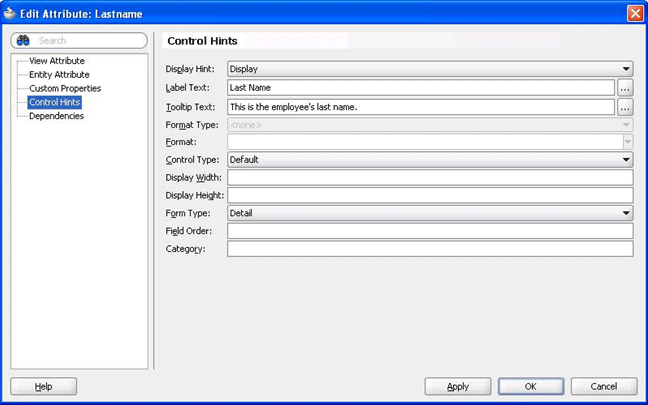
A label is the text that's used in prompts or table headers that precedes the value of a data item. A tooltip is the text that's displayed when a user hovers over the item. Each attribute of a view object has an associated label and tooltip. A view object is the Oracle ADF component that enables a developer to work easily with SQL query results.
The image shows the Label Text and Tooltip Text options in the Edit Attribute dialog in JDeveloper.
About the Session Variable Naming Scheme for UI Hints
Learn about the session variable naming scheme.
Session variable names are generated by the Oracle Analytics Server broker servlet in Oracle WebLogic Server in the following format:
ADF_UI Hint Type_Database Name_View Object Name_Attribute's Name
Where:
UI Hint Type is a LABEL or TOOLTIP.
Database Name is the value for the database attribute of the ADFQuery element in the XML query. Special characters such single quotes ('), double quotes ("), and spaces are replaced by the underscore character.
View Object Name is the name attribute of the view object. Oracle ADF prohibits special characters and spaces in the name.
Attribute's Name is the name of the attribute for the session variable. Oracle ADF prohibits special characters and spaces in the name.
Every character in the session variable name is uppercase. The XML query example, in Use XML Code in Initialization Blocks to Query UI Hints, generates four session variables with the following names:
ADF_LABEL_MY_ORCLADF_EMPLOYEESVIEW_FIRSTNAME
ADF_TOOLTIP_MY_ORCLADF_EMPLOYEESVIEW_FIRSTNAME
ADF_LABEL_MY_ORCLADF_EMPLOYEESVIEW_LASTNAME
ADF_TOOLTIP_MY_ORCLADF_EMPLOYEESVIEW_LASTNAME
About Determining the Physical Column for a Presentation Column
Each presentation column must map to a physical column as required by the naming scheme for session variables.
When you choose to Generate ADF Label or Generate ADF Tooltip for a presentation layer object, the physical column is located using the following rules:
-
Examine the presentation column and determine its logical column. If the logical column is derived from an existing logical column, then the physical column can't be found.
-
If the default aggregation rule for the logical column isn't None or Sum, then the physical column can't be found. It doesn't make sense semantically to use the ADF UI hints for aggregation rules other than Sum.
-
A logical column can be mapped to physical columns by multiple logical table sources. Only logical table sources that aren't disabled are searched.
-
Don't search logical table sources that map the logical column using non-trivial expressions, that is, anything more than a physical column name. If no logical table sources are searched, then the physical column can't be found.
-
From the remaining ordered list of logical table sources, examine the physical column that's mapped by the first logical table source. A physical column must map to a view object attribute. The physical column must exist as part of a physical database of type Oracle ADF.
-
If this condition is satisfied, then the physical column for obtaining UI hints is found.
-
If this condition isn't satisfied, then continue to examine the physical column that's mapped by the next logical table source until the physical column that's mapped to a view object attribute is found.
If all logical table source are searched without satisfying the condition, then the physical column can't be found.
-
If the physical column for obtaining UI hints is found using these rules, then the custom display name or description is populated with a session variable that has a name based on a predetermined naming scheme. See About the Session Variable Naming Scheme for UI Hints.
If the physical column for obtaining UI hints isn't found using these rules, then the Generate ADF Label and Generate ADF Tooltip options are shown as disabled in the right-click menu.
As an alternative to using the physical column found using these rules, you can use XML code in an initialization block to initialize your own session variables with ADF UI hints. You must then enter these session variable names in the Custom display name and Custom description fields manually. See Use XML Code in Initialization Blocks to Query UI Hints.
About Initializing Session Variables Automatically for Propagating UI Hints
Learn when session variables are created.
If the Generate ADF Label and Generate ADF Tooltip options were used to successfully generate the session variable names for UI hints from Oracle ADF, then the session variables are created and initialized when Oracle BI Presentation Services queries them during the session.
The variables aren't created and initialized during the session logon stage for performance reasons. Variables are created, using Allow deferred processing, and initialized when the variables are needed by a specific query in a session.
When Oracle BI Presentation Services queries the custom display names and custom descriptions through ODBC, the Oracle BI Server checks to determine if the associated session variables have been created. If the variables weren't created, the Oracle BI Server dynamically generates the appropriate XML query to retrieve the UI hints from the Oracle ADF data source. The Oracle BI Server uses the UI hints to create and initialize the session variables. To optimize performance, the Oracle BI Server queries UI hints for each view object. If the Oracle BI Server needs the UI hints of a view object's attributes, then the UI hints for all the attributes under the view object are queried and propagated through session variables.
Use UI Hints from an Oracle ADF Data Source When Creating Analyses
You can use UI hints from an Oracle ADF data source when creating analyses.
Before you can perform this task, the following prerequisites must be met:
-
UI hints must have been configured in the Oracle ADF data source.
-
A working repository must have been configured for the Oracle ADF data source in the Model Administration Tool.
- Right-click the column in the Presentation layer and select Externalize Display Names, select Generate ADF Label, select Externalize Descriptions, and then select Generate ADF Tooltip to generate tooltip strings for all of the columns.
Use XML Code in Initialization Blocks to Query UI Hints
You can use specialized XML code in place of SQL statements in initialization blocks to query the data source for UI hints, within a single repository and subject area.
See About the Session Variable Naming Scheme for UI Hints.
After configuring the initialization blocks, you must manually enter the session variable names in the Custom display name and Custom description text fields for the appropriate presentation column.
Follow the procedure in the example in Use UI Hints from an Oracle ADF Data Source When Creating Analyses, but replace the first step with the following ones:
Create session initialization blocks in the Model Administration Tool, see Create Session Variables.
ADFQuery Element Reference
Use the ADFQuery element and its mode, database, and locale attributes in your XML code.
The element requires zero or more child elements. The following is the syntax of the element:
<?xml version="1.0" encoding="iso-8859-1" standalone="yes"?>
<ADFQuery mode="mode" database="database_name"
locale="VALUEOF(NQ_SESSION.WEBLANGUAGE)">
     <ViewObject><![CDATA[view_object_name]]></ViewObject>
     <Attribute>
     <ViewObject><![CDATA[attribute_view_object_name]]></ViewObject>
     <Name><![CDATA[attribute_name]]></Name>
     </Attribute>
</ADFQuery>
Where:
mode specifies what you want to query:
-
label for querying attributes' label
-
tooltip for querying attributes' tooltip
-
ui_hints for querying attributes' label and tooltip
database_name specifies the name of the physical database object in the Model Administration Tool, which contains the physical columns that correspond to the attributes in the Oracle ADF data source.
view_object_name specifies the name of the view object to obtain the UI hints of all attributes in it.
attribute_view_object_name specifies the name of the view object that contains the attribute.
attribute_name specifies the name of the attribute that belongs to the associated view object to obtain the UI hints of this attribute.
Querying Labels for All View Objects
Don't include child elements in the ADFQuery element when querying the UI hints of all attributes in all View Objects. For example, to query the labels of all attributes in all View Objects under the My_orclADF physical database object, use the following XML code:
<?xml version="1.0" encoding="iso-8859-1" standalone="yes"?>
<ADFQuery mode="label" database="My_orclADF"
locale="VALUEOF(NQ_SESSION.WEBLANGUAGE)">
</ADFQuery>
Querying Tooltips for Specific View Objects
The ADFQuery element can contain zero or more child elements named ViewObject if UI hints of all attributes in specific View Objects are queried. Each ViewObject element has a text content that contains the View Object's name. The ViewObject element is used to specify the View Objects from which the UI hints of all attributes are queried. For example, to query the tooltips of all attributes in the View Object that's named EmployeesView and CustomersView under the My_orclADF physical database object, use the following XML code:
<?xml version="1.0" encoding="iso-8859-1" standalone="yes"?>
<ADFQuery mode="tooltip" database="My_orclADF"
locale="VALUEOF(NQ_SESSION.WEBLANGUAGE)">
   <ViewObject><![CDATA[EmployeesView]]></ViewObject>
   <ViewObject><![CDATA[CustomersView]]></ViewObject>
</ADFQuery>
Querying UI Hints for Specific Attributes
The ADFQuery element can contain zero or more child elements named Attribute. Each Attribute element has two required child elements named ViewObject and Name. The Attribute element is used to specify the attributes from which the UI hints are queried. The ViewObject child element has a text content that contains the View Object's name. This element specifies the View Object that the attribute belongs to. The Name child element has a text content which contains the attribute's name. For example, to query the labels and tooltips of the attributes named Firstname and Lastname in the EmployeesView View Object under the My_orclADF physical database object, use the following XML code:
<?xml version="1.0" encoding="iso-8859-1" standalone="yes"?>
<ADFQuery mode="ui_hints" database="My_orclADF"
locale="VALUEOF(NQ_SESSION.WEBLANGUAGE)">
   <Attribute>
      <ViewObject><![CDATA[EmployeesView]]></ViewObject>
      <Name><![CDATA[Firstname]]></Name>
   </Attribute>
   <Attribute>
      <ViewObject><![CDATA[EmployeesView]]></ViewObject>
      <Name><![CDATA[Lastname]]></Name>
   </Attribute>
</ADFQuery>