Work with Oracle JET Web Components
Oracle JET Web Components are reusable pieces of user interface code that you can embed as custom HTML elements. Web Components can contain Oracle JET components, other Web Components, HTML, JavaScript, and CSS. You can create your own Web Component or add one to your page.
Design Custom Web Components
Oracle JET Web Components are custom components that include multiple component types. Web components that you create can be used in your app or they can be uploaded to Oracle Component Exchange to share with other developers.
The variety of component types supported by Oracle JET and Oracle Component Exchange are:
- Standalone Web Components are classic UI components with some kind of UI along with a defined set of properties, methods, events and slots. They can represent everything from a simple better-button type of widget all the way to a super complex whole page component such as a calendar.
- Pack components, also called a JET Pack, represents a versioned stripe of related components designed to be used together. When consumers pick up a component that is a member of a JET Pack they associate their app with the version of the pack as a whole, not the individual components within it. The JET Pack simplifies the setup of such projects and the dependency management as a whole.
- Resource components are re-usable libraries of assets used by Web Components contained in JET Packs. Resource components typically contain things like shared images, resource bundles, utility classes and so forth. A resource component has no hard and fast predefined structure so can contain anything that you want. However, it does not itself provide any UI components. Instead conventional standalone components would depend on one of these for shared resources. We only expect resource components to be used in concert with JET Packs.
- Reference components define a look-up reference to third party code. As such, reference components are a pointer to that code either as a NPM module and/or as a CDN location. Reference components don't actually include the third party libraries, they just point to it.
You can create standalone Web Components to support your specific app needs. You can also create sets of Web Components that you intend to be used together and assemble those in a JET Pack, or pack component type. The pack component contains the Web Components and configuration files that define the version stripe of each component in the pack. When Web Components are part of a pack, changes to their definition file are required to differentiate them from the same component used as a standalone component.
When you assemble components into a small number of packs, from the consumer's point of view, it makes path setup and dependency management much simpler.
You can enhance JET Pack components by using resource components when you have re-usable libraries of assets that are themselves not specifically UI components. The resource component structure is flexible so you add anything that you want, such as shared images, resource bundles, utility classes and so forth.
If you need to reference third-party code in a Web Component, you can create a reference component. The reference component doesn't include any third-party libraries, but it can define a pointer to that code either as a NPM module and/or as a CDN location. Although it is possible to embed third party library code into the packaged distribution of a given component, by separating it out you get two particular benefits:
-
The dependency is clear and declared up front. This is an important consideration for organizations that care about third party liability and license usage. It also makes reacting to security vulnerabilities in third party code much easier.
-
You can maximize re-use of these libraries - particularly with common libraries, such as moment.js.
The only component type that is not allowed in packs are reference components.
When creating JET Packs it is important to think about how their components can evolve over time in relation to the consuming apps. A common mistake is to start out syncing the component version numbers to the version number of the primary consuming app. This relationship can break down, however, for example when a breaking API change in one of your components forces a major version change which now takes you out of sync. The best practice is to adopt Semantic Versioning (SemVer) of components from the start and not to sync versions with the consuming app. Take the time to understand how SemVer works, particularly in relation to re-release versions. For more information, see Version Numbering Standards.
You should maintain the source code for your component sets separately from the apps that will consume them. Remember that components will evolve over time at a separate rate from the consuming app so having the source code decoupled into a separate source code project and repository makes a huge amount of sense.
The recommended project layout for your component source project is based on the default project layout created by Oracle JET CLI tooling. The JET CLI supports the creation of TypeScript components as well as standard ES6 based components. If you follow adhere to the project layout generated by JET tooling, then you derive the following tooling benefits:
-
Automatic creation of the correct requireJS path mappings for your components and their upstream dependencies when testing within the context of this component source project
-
Support for live editing when using the
ojet servecommand (both JS and TS components) -
Auto transpilation of Typescript based components to ES6
-
Automatic creation of both debug and minified components by the
ojet buildcommand -
Automatic creation of component bundles for JET Packs where bundling is specified
-
Ability to directly publish to the Component Exchange using the
ojet publishcomponent command -
Ability to directly package your components into distributable zip files using the
ojet packagecomponent command
About Web Components
Oracle JET Web Components are packaged as standalone modules that your app can load using RequireJS. The framework supplies APIs that you can use to register Web Components. Knockout currently provides one and two way data binding, template markup, and Web Component activation.
If you are new to Web Components and would like to learn more, visit this Oracle Blogs page for a series of articles that will introduce you to important concepts: https://blogs.oracle.com/groundside/cca.
Web Component Architecture
The following image shows a high-level view of the JET Web Component architecture. In this example, an Oracle JET app is consuming the Web Component, but you can add Web Components to other JavaScript or Oracle apps where supported.
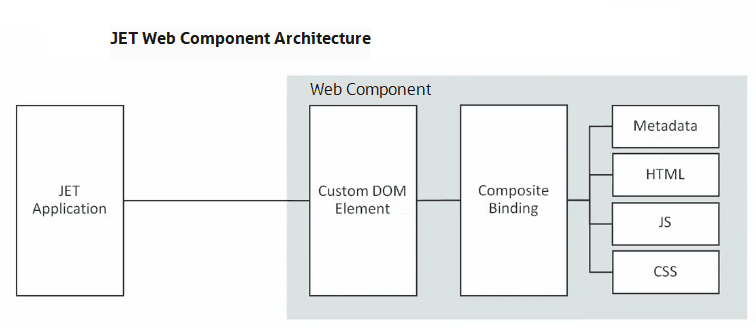
Description of the illustration ui-composite-arch.png
Web Components contain:
-
A custom DOM element: Named element that functions as a HTML element.
<my-web-component attribute1="*value1" attribute2="value2" ...> </my-web-component> -
Web Component binding definition: Knockout expression for setting Web Component attributes.
<my-web-component attribute1="value1" attribute2="[[value2]]" attribute3="{{*value3}}"> </my-web-component>attribute1's value can be a primitive JavaScript type (boolean, number, string) or a JSON object,attribute2's value uses one way data binding, andattribute3's value uses a two way binding. One way bindings on Web Components specify that the expression will not update the app's ViewModel if the value changes. In two way bindings, the expression will update and the value written back to the app's ViewModel.In the following code sample, the Web Component is declared with three attributes:
type,data, andaxis-labels.<my-chart type=bubble data="[[salesData]]" axis-labels={{showAxisLabels}} ... </my-chart>Because the
salesDataexpression is declared using one way binding ([[salesData]]), it will not be written back to if thedataproperty is updated by the Web Component's ViewModel. Thedataproperty will contain the current value, but thesalesDataexpression will not be updated. Alternatively, if theaxisLabelsproperty is updated by the ViewModel, both theaxisLabelproperty and the{{showAxisLabels}}expression will contain the updated value. -
Metadata: Data provided in JSON format which defines the Web Component's required properties:
name,version, andjetVersion. Metadata may also define optional properties, includingdescription,displayName,dependencies,icon,methods,events, andslots.Web Components support both runtime and design time metadata. Design time metadata isn't required at runtime and is useful for design time tools and property editors. Design time tools can define tools-specific metadata extensions to the Web Component's metadata. For any tool-specific metadata extensions, refer to the documentation for that specific tool. For additional information about metadata properties, see Composite in the API documentation.
The following sample shows some of the available metadata fields with descriptions of their content and whether they are not used at run time. Required metadata are highlighted in bold.
{ "name": "*The component tag name*", "version": "*The component version. Note that changes to the metadata even for minor updates like updating the jetVersion should result in at least a minor Web Component version change, e.g. 1.0.0 -> 1.0.1.*", "jetVersion": "*Thesemantic versionof the supported JET version(s). Web Component authors should not specify a semantic version range that includes unreleased JET major versions as major releases may contain non backwards compatible changes. Authors should instead recertify Web Components with each major release and update the component metadata or release a new version that is compatible with the new release changes.*", "description": "*A high-level description for the component. Not used at run time.*", "displayName": "*A user friendly, translatable name of the component. Not used at run time.*", "properties": { "*property1*": { "description": "*A description for the property. Not used at run time.*", "displayName": "*A user friendly, translatable name of the property. Not used at run time.*", "readOnly": "*Boolean that determines whether a property can be updated outside of the ViewModel. False by default.*", "type": "*The type of the property, followingGoogle's Closure Compilersyntax.*", "value": "*Object containing an optional default value for a property.*", "writeback": "*Boolean that determines whether an expression bound to this property should be written back to. False by default.*", "enumValues": "*An optional array of valid enum values for a string property. An error is thrown if a property value does not match one of the provided enumValues.*", "properties": "*A nested properties object for complex properties. Subproperties exposed using nested properties objects in the metadata can be set using dot notation in the attribute. See theSubpropertiessection for more details on working with subproperties.*" }, "*property2*": { ... *contents omitted* } }, "methods": { "*method1*": { "description": "*A description for the method. Not used at run time.*", "displayName": "*A user friendly, translatable name of the method. Not used at run time.*", "internalName": "*An optional ViewModel method name that is different from, but maps to this method.*", "params": "*An array of objects describing the method parameter . Not used at run time.*", "return": "*The return type of the method, following Closure Compiler syntax. Not used at run time.*" }, "*method2*": { ... *contents omitted* } }, "events": { "*event1*": { "bubbles": "*Boolean that indicates whether the event bubbles up through the DOM or not. Defaults to false. Not used at run time.*", "cancelable": "*Boolean that Indicates whether the event is cancelable or not. Defaults to false. Not used at run time.*", "description": "*A description for the event. Not used at run time.*", "displayName": "*A user friendly, translatable name of the method. Not used at runtime.*", "detail": { "*field name*": "*Describes the properties available on the event's detail property which contains data passed when initializing the event. Not used at run time.*" } }, "*event2*": { ... *contents omitted* } }, "slots": { "*slot1*": { "description": "*A description for the slot. Not used at run time.*", "displayName": "*A user friendly, translatable name of the method. Not used at runtime.*" } } } -
HTML markup: (Required) Contains the View definition which describes how to render the Web Component. The Web Component's View has access to several
$variables along with any public variables defined in the Web Component's ViewModel. Some of the variables that can be used in the Web Component's View are:Variables Description $propertiesA map of the Web Component's current property values $slotCountsA map of slot names containing a number of associated child nodes assigned to that slot $uniqueA unique string value provided for every component instance that can be used for unique ID generation $uniqueIdThe ID of the Web Component, if specified. Otherwise, it is the same as unique $propsDeprecated since 5.0.0, use $propertiesinstead$slotNodeCountsDeprecated since 5.0.0, use $slotCountsinstead -
JavaScript: Optional script for defining the ViewModel and custom events.
The ViewModel is also where you define callbacks for various stages of the Web Component's lifecycle. Web Components support the following optional lifecycle methods:
activated (context),connected (context),bindingsApplied (context),propertyChanged (context), anddisconnected (element). For more information on lifecycle methods, see Composite - Lifecycle. -
CSS: Optional styling for the Web Component.
CSS is not scoped to Web Components, and you must define styles appropriately.
-
SCSS: Optional files containing Sass variables to generate the Web Component's CSS.
If you're defining only a few styles for your component, then adding the CSS manually may be sufficient. However, there may be use cases where you want to use Sass variables to generate the CSS. In those cases, create and place the SCSS files in the Web Component's folder and use the tooling to add Dart Sass (
sass) to your app. See Step 8 - Creating Web Components.You must add the Sass files manually to the Web Component's folder. The tooling will compile any Sass files if they exist, but it will not create them for you.
Web Component Files
Web Components can contain CSS, HTML, JavaScript, and metadata files that you can modify according to your app requirements.
You can create a Web Component manually by creating a folder and adding the required files within the folder. You can also create a Web Component by using the Oracle JET CLI command ojet create component <component-name> that automatically generates the Web Component folder with the required files for your app.
When you create a Web Component manually, place the Web Component files in a folder with the same name as the Web Component tag. Typically, you place the folder within your app in a jet-composites folder: app-path/jet-composites/my-web-component/.
You can also place your Web Component in a different file location or reference a Web Component on a different server using RequireJS path mapping. For examples, see Composite - Packaging and Registration.
Each Web Component file should use the following naming convention to match the purpose:
-
my-web-component—view**.html**: view template -
my-web-component—viewModel**.js**: ViewModel -
component**.json**: metadata -
my-web-component-styles**.css**: CSS styling -
my-web-component-styles**.scss**: Sass variables to generate CSS for Web Components -
loader**.js**: RequireJS module defining the dependencies for its metadata, View, ViewModel, and CSS This file should also include the Web Component registration.
Web Component Slotting
Slots are used as placeholders in a Web Component that users can fill in with their markup. Slot is defined in the component JSON file of your Web Component.
Use slotting to add child components (which can also be Web Components) that get slotted into specified locations within the Web Component's View markup. The following example contains a portion of the View markup for a Web Component named demo-columns.
<div class="oj-flex oj-flex-item-pad">
  <div
    role="group"
    :aria-label="[[$properties.headers[0]]]"
    class="oj-flex-item demo-columns-col-a
           oj-flex oj-sm-flex-direction-column
           oj-sm-align-items-center">
    <h3>
      <oj-bind-text value="[[$properties.headers[0]]]"></oj-bind-text>
    </h3>
    <oj-bind-slot name="columnA"></oj-bind-slot>
  </div>
... content omitted
</div>
In this example, the demo-columns Web Component defines an oj-bind-slot named columnA. As shown below, a developer can specify a child component with a slot named columnA when adding the demo-columns Web Component to the page.
<demo-columns
  id="composite-container"
  headers='["Sales", "Human Resources", "Support"]'>
  <!-- ko foreach: sales -->
  <demo-card slot="columnA" name="[[name]]" work-title="[[title]]"></demo-card>
  <!-- /ko -->
... contents omitted
</demo-columns>
Web Component Template Slots
You can define placeholders in your template using template slots that can be filled with any markup fragment you want when the template element is used within a markup of your component.
When you need to reuse a stamped template with varying data, you can use a template slot to expose the additional data from the component's binding context.
Template slots for Web Components define additional binding contexts for a slotted content within an app. To declaratively define a template slot, use the oj-bind-template-slot element in the Web Component's View markup for the slot that contains a stamped template DOM. The oj-bind-template-slot element is similar to the oj-bind-slot element, but its slotted content should be wrapped inside a template element within the app DOM.
In the following example, the demo-list Web Component defines an oj-bind-template-slot named item. This template slot provides the data attribute that exposes additional properties to the template DOM and an data-oj-as attribute that is used as an alias for the $current variable.
<table>
<thead>
<tr>
<th>
<oj-bind-text value="[[$properties.header]]"></oj-bind-text>
</th>
</tr>
</thead>
<tbody>
<oj-bind-for-each data="{{$properties.data}}">
<template>
<tr>
<td>
<!-- Template slot for list items with default template
and an optional alias -->
<oj-bind-template-slot
name="item"
data="{{'value': $current.data}}">
<!-- Default template -->
<template data-oj-as="listItem">
<span>
<oj-bind-text value="[[listItem.value]]"></oj-bind-text>
</span>
</template>
</oj-bind-template-slot>
</td>
</tr>
</template>
</oj-bind-for-each>
</tbody>
... contents omitted
</table>The children of the oj-bind-template-slot are resolved when the Web Component's view bindings are applied. These children are resolved in the app's binding context, which is extended with additional properties provided by the Web Component. These additional properties are accessible through the $current variable within the app's template slot. Alternatively, the app can define an alias for $current using the optional data-oj-as attribute in the template. The following example shows a portion of the app’s markup in a component named demo-list.
<demo-list data="{{groceryList}}" header="Groceries">
<template slot="item" data-oj-as="groceryItem">
<oj-checkboxset>
<oj-option value="bought">
<oj-bind-text value="[[groceryItem.value]]"></oj-bind-text>
</oj-option>
</oj-checkboxset>
</template>
... contents omitted
</demo-list>The Oracle JET Cookbook at Web Component - Template Slots includes complete examples for using template slots. oj-bind-template-slot API documentation describes the attributes and other template slot properties.
Web Component Events
Oracle JET Web Components can fire automatic property changed events that are mapped to the properties defined in the component metadata. These components will also fire custom events for the events declared in the component metadata.
Web Components can internally listen to the automatically generated propertyChanged events that are mapped to the properties in the component metadata using the propertyChanged lifecycle method. For example, a propertyChanged event is fired when a property is updated. This propertyChanged event contains the following properties:
-
property: Name of the property that changed. -
value: Current value of the property. -
previousValue: Previous value of the property that changed. -
updatedFrom: The location from where the property was updated. -
Subproperty: An object holding information about the subproperty that changed.
When there is aneed to declaratively define a custom event for a Web Component, you must declare the event in the component's metadata file. These events will only be fired if the code of the Web Component calls the dispatchEvent() method. The app can listen to these events by declaring the event listener attributes and property setters. These event listeners can be added declaratively or programmatically.
For the declarative specification of event listeners, use the on-[event-name] syntax for the attributes. For example, on-click, on-value-changed, and so on.
<oj-element-name
value="{{currentValue}}"
on-value-changed="{{valueChangedListener}}">
</oj-element-name>
The programmatic specification of event listeners may use the DOM addEventListener mechanism or by using the custom element property.
The DOM addEventListener mechanism uses the elementName.addEventListener method. For example:
elementName.addEventListener("valueChanged", function(event) {...});
The custom element property uses the elementName.onEventName syntax for the property setter. For example:
elementName.onValueChanged = function(event) {...};
For more information, see the Web Components - Events and Listeners API documentation.
Web Component Examples
Web Components can contain slots, data binding, template slots, nested Web Components, and events. You can use the examples provided in the Oracle JET Cookbook for these Web Component features.
The Oracle JET Cookbook contains complete examples for creating basic and advanced Web Components. You can also find examples that use slotting and data binding. For details, see Web Component - Basic.
For additional information about Web Component fields and methods, see Composite in the API documentation.
Best Practices for Web Component Creation
Best practices for creating Oracle JET Web Components include required and recommended patterns, configuration, coding practices, version numbering, and styling standards. Follow best practices to ensure interoperability with other Web Components and consuming frameworks.
Recommended Standard Patterns and Coding Practices
Recommended patterns and coding practices for Oracle JET Web Components include standards for configuration, versioning, coding, and archival.
Component Versioning
Your Web Component must be assigned a version number in semantic version format.
When assigning and incrementing the version number associated with your components, be sure to follow semantic version rules and update Major, Minor and Patch version numbers appropriately. By doing so, component consumers will have a clear understanding about the compatibility and costs of migrating between different versions of your component.
To assign a version number to your Web Component, see About semantic versioning.
JET Version Compatibility
You must use the semantic version rules to specify the jetVersion of the supported JET version(s). Web Component authors should not specify a semantic version range that includes unreleased JET major versions as major releases may contain non backwards compatible changes. Authors should instead recertify Web Components with each major release and update the component metadata or release a new version that is compatible with the new release changes.
Translatable Resources
Developers who want to localize Web Component translatable resources now get a resource bundle (template) when they create their Web Component. These components should use the standard Oracle JET mechanism using the ojL10n requireJS plugin. You must store the translation bundles in the webcomponentname/resources/nls subdirectory that is a peer to the webcomponentname/resources/nls/root subdirectory with the resource strings for your Web Component’s folder. You can declare the languages and locales that you support in the Web Component metadata.
Peer-to-Peer Communication
Components must prefer a shared observable provided by the consumer over any kind of secret signaling mechanism when you are dealing with a complex integration. For example, a filter component and a data display component. By using a shared observable you can pre-seed and programmatically interact with the components through the filter.
Alternatively, you can use events and public methods based on one of the following approaches being used:
-
A hierarchical relationship between the source and receiver of the event.
-
The identity of the source being passed to the receiver.
Note that in some runtime platforms, the developer doing the wiring may not have access to component IDs to pass the relevant identity.
-
Listeners attached by components at the document level.
In this case, you are responsible for the cleanup of those listeners, management of duplicates, and so on. Also, such listeners should preferably be based on Web Component events, not common events such as click, which might be overridden by intermediate nodes.
Under the web-component standards (shadow DOM), events will be re-targeted as they transition the boundary between the component and the consuming view. That is, the apparent identity of the raising element might be changed, particularly in the case of Nested Web Component architecture where the event would get tagged with the element representing the outer Web Component rather than the inner Web Component. Therefore, you should not rely on the event.target attribute to identify the Web Component source when listening at the document level. Instead, the event.deepPath attribute can be used to understand the actual origin of the event.
Access to External Data
Web Components do not permit the usage of the knockout binding hierarchy to obtain data from outside the Web Component context, for example, $root, $parent[1], and so on. All data transfer in and out of the component must be through the formal properties, methods, and events.
Object Scope
All properties and functions of Web Components should be confined to the scope of the view model. No window or global scope objects should be created. Similarly, the existence of window scope objects should not be assumed by the Web Component author. If a consumer Web Component defined externally at window or global level is required for read or write then that component must be passed in by the consuming view model through a formal property. Even if a well known global reference is needed from outside of the component, it should be formally injected using the require define() function and declared as a dependency in the Web Component metadata.
External References
If a Web Component must reference an external component, it should be part of the formal API of the component. The formal API passes the component reference through a property. For example, to allow the registration of a listener, the Web Component code requires a component reference defined externally. You must not allow Web Components to obtain IDs from hard-coded values, global storage, or walking the DOM.
Subcomponent IDs
Within the framework if any component needs a specific ID, use context.unique or context.uniqueId value to generate the ID. This ID is unique within the context of the page.
ID Storage
Any generated IDs should not be stored across invocation, such as in local storage or in cookies. The context.unique value for a particular Web Component may change each time a particular view is executed.
LocalStorage
It is difficult to consistently identify a unique instance of a Web Component within an app. So, it is advised not to allow a Web Component to utilize the local storage of a browser for persisting information that is specific to an instance of that Web Component. However, if the app provides a unique key through the public properties of the component you can then identify the unique instance of the component.
Additionally, do not use local storage as a secret signaling mechanism between composites. You cannot assure the availability of the capability and so it is recommended to exchange information through a shared JavaScript object or events as part of the public API for the component(s).
String Overrides
Web Components will often contain string resources internally to service their default needs for UI and messages. However, sometimes you may want to allow the consumer to override these strings. To do this, expose a property for this purpose on the component. By convention such a property would be called translations, and within it you can have sub-properties for each translatable string that relates to a required property on the component, for example requiredHint, requiredMessageSummary, and so on. These properties can then be set on the component tag using sub-property references. For example:
"properties" : {
  "translations": {
    "description": "Property to allow override of default messages",
    "writeback" : false,
    "properties" : {
      "requiredHint": {
        "description": "Change the text of the required hint",
        "type": "string"
         },
      "requiredMessageSummary": {
        "description": "...",
        "type": "string"
        },
      "requiredMessageDetail": {
          "description": "...",
          "type": "string"
        }
      }
     }
   }
}
Logging
Use Logger to write log messages from your code in preference to console.log(). The Web Components should respect the logging level of the consuming app and not change it. You should ideally prefix all log messages emitted from the component with an identification of the source Web Component. As a preference, you can use the Web Component name. The components should not override the writer defined by the consuming app.
Expensive Initialization
Web Components should carry out minimum work inside the constructor function. Expensive initialization should be deferred to the activated lifecycle method or later. The constructor of a Web Component is invoked even if the component is not actually added to the visible DOM. For example, if a constructor is invoked within a Knockout if block. The further lifecycle phases will only occur when the component is actually needed.
Service Classes
The use of global service classes, that is functionality shared across multiple Web Components, can constitute an invisible contract that the consumer of your Web Component has to know about. To avoid this, we recommend:
-
Create the service as a module that every Web Component can explicitly set it as
require()block, thus removing the need for the consumer to do this elsewhere. -
Consider the timing issues that might occur if your service class needs some time to initialize, for example fetching data from a remote service. In such cases, you should be returning promises to the service object so that the components can safely avoid trying to use the information before it is actually available.
Using ojModule
If you use ojModule in a Web Component and plan to distribute the Web Component outside of your app, you must take additional steps to ensure that the contained ojModule could be loaded from the location relative to the location of the Web Component. Unless the View and ViewModel instances are being passed to ojModule directly, you will need to provide the require function instance and the relative paths for views and view models. The require function instance should be obtained by the component loader module by specifying require as a dependency.
<div data-bind="ojModule: {require: {instance: require_instance, viewPath: "path_to_Web_Component_Views", modelPath: "path_to_cWeb_Component_ViewModels"}}"></div>
| require Option | Type | Description |
|---|---|---|
|
|
Function |
Function defining the require instance |
|
|
String |
String containing the path to the Web Component’s Views |
|
|
String |
String containing the path to the Web Component’s ViewModels |
For additional information about working with ojModule, see ojModule.
Archiving Web Components for Distribution
If you want to create a zip file for packaging, create an archive with the same name as the component itself. You may add version-identifying suffixes to the zip file name for operational reasons. The Web Component artifacts must be placed in the root of the zip file, and there should be no intermediate directory structure before reaching the files.
Using Lifecycle Methods
If a ViewModel is provided for a Web Component, the following optional callback methods can be defined on its ViewModel that will be called at each stage of the Web Component's lifecycle. Some of the callback methods that can be used are listed below:
-
activated(context): Invoked after the ViewModel is initialized. -
connected(context): Invoked after the View is first inserted into the DOM and then each time the Web Component is reconnected to the DOM after being disconnected. -
bindingsApplied(context): Invoked after the bindings are applied on the View. -
propertyChanged(context): Invoked when properties are updated before the[property]Changedevent is fired. -
disconnected(element): Invoked when this Web Component is disconnected from the DOM.
For additional information on Web Component lifecycle methods, see Composite - Lifecycle.
Template Aliasing
JET components that support inline templates can now use an optional data-oj-as attribute to provide template specific aliases for $current variable at the app level. In the instances where the component must support multiple template slots as in the case of chart and table components, a single alias may not be sufficient. In such cases, you can use an optional data-oj-as attribute on the template element. For more information on the usage of this optional attribute with template slots, see oj-bind-template-slot API documentation.
CSS and Theming Standards
Oracle JET Web Components should comply with all recommended styling standards to ensure interoperability with other Web Components and consuming apps.
For information on the generic best practices for using CSS and Themes, see Best Practices for Using CSS and Themes.
| Standard | Details | Example |
|---|---|---|
|
Prevent flash of unstyled content |
Oracle JET will add the
Note that this is an
element
selector, and there should
not
be a dot (.) before
|
|
|
Add scoping |
Use an element selector to minimize the chance that one of your classes is used by someone outside of your component and becomes dependent on your internal implementation. In the example to the right, if someone tries to apply the class
|
IMPORTANT : If your component also includes a dialog, then when displayed, that dialog will be attached to the main document DOM tree and will not be a child of your component. Therefore, if you define a style to apply to a dialog defined by your component, you cannot scope it to the component name as that's not the actual container for the dialog when displayed. To resolve, use the component name as the prefix instead: |
|
Avoid element styling |
The app will often style HTML tag elements like headers, links, and so on. In order to blend in with the app, avoid styling these elements in your Web Component. |
|
 Avoid styling on elements like headers.
Version Numbering Standards
All types of Web Components, including standalone, JET Pack, and Resource components, require a version number and that number should adhere to a semantic versioning (SemVer) scheme that ensures a standard for development teams to follow similar to the approach adopted by Oracle JET release versioning.
Reference components are a slightly special case as the version of the reference component will always match the version of the NPM library that it references.
All other Web Component types, rely on semantic versioning to designate a version of the component. Semantic versioning defines a version number which has three primary segments and an optional fourth segment. The first three segments are defined as MAJOR.MINOR.PATCH with these meanings:
-
MAJOR version when you make incompatible API changes
-
MINOR version when you add functionality in a backward compatible manner
-
PATCH version when you make backward compatible bug fixes
For background on semantic versioning, visit https://semver.org.
When defining a version number for your Web Component, you must define all three of these core segments:
1.0.0
Additionally after the PATCH version, you can append an optional extension segment which can consist of two additional pieces of information:
-
A segment delimited by a leading hyphen which allows you to assign a pre-release version
-
A purely informational segment preceded by a plus sign (+) that you might use to hold a GIT commit hash or other control information. This segment plays no part in the comparison of component versions.
Here's an example of a fully-defined version number for a pre-release version of a component:
1.0.1-beta.1+332
In this case beta.1 is a pre-release indicator and 332 is a build number.
The change in version number for a Web Component should indicate to consumers the risk level of consuming that new version. Consumers should know that they can drop in a new MINOR or PATCH release of your components without needing to revise their code. If you make changes to the Web Component source code that forces the consuming app to do more than just refresh the Web Component's directory or change a CDN reference, then you should revise the MAJOR version to indicate this.
The Web Component metadata file component.json lets you define the supported version of Oracle JET that the component can work with. This is the jetVersion attribute which can be set to a specific version or version range, as defined by npm-semver. For example, the jetVersion attribute will be set to one of the following:
-
Preferred: All MINOR and PATCH versions from the specified version forward until there is a change in MAJOR release number. For example:
"jetVersion:: "^9.1.0", , which indicates support for that release and all subsequent MINOR and PATCH versions, up to (but not including) the next MAJOR release and it is equivalent to">=9.1.0 <10.0.0". -
The exact semantic version of exact version of Oracle JET that the Web Component supports. For example:
"jetVersion" : "9.1.0", which implies that this Web Component supports only Oracle JET 9.1.0. -
All PATCH versions of Oracle JET within a specific MAJOR.MINOR release. For example:
"jetVersion" : "9.0.x", which implies that this Web Component supports every release of JET between JET 9.0.0 and JET 9.1.0 (but specifically not JET 9.1.0 itself). -
A specific range of Oracle JET versions. For example:
"jetVersion" : "9.0.0 -9.1.0", which implies that this Web Component supports every release of JET between JET 9.0.0 and JET 9.1.0 inclusive (so not including, for example, JET 9.2.0 or JET 8.0.0).
The Oracle JET recommended format is the first case defined similar to "^9.1.0". Given that JET itself follows the semantic versioning rules, changes that occur in MINOR or PATCH versions ought not break your Web Component source code. This also means that you don't have to release an update to all your Web Components for every MINOR release of Oracle JET (unless you choose to make use of a new feature).
For background on npm-semver, visit npm documentation at this web site https://docs.npmjs.com/about-semantic-versioning.
In the case of JET Packs, you should pay attention to the dependencies attribute in the component.json file located in the pack. You should strive to require the various components bundled into the pack to be consumed together, and as such, you should define such dependencies with absolute version matches rather than version ranges to indicate this. For example, in this case the demo-memory-game component at version 1.0.2 will only expect to host a demo-memory-card at exactly version 1.0.2.
{
  "name": "demo-memory-game",
  "version": "1.0.2",
  "type": "pack",
  "displayName": "JET Memory Game",
  "description": "A memory game element with a configurable card set and attempt counter.",
  "dependencies": {
    "demo-memory-card": "1.0.2"
    }
}
Create Web Components
Oracle JET supports a variety of custom Web Component component types. You can create standalone Web Components or you can create sets of Web Components that you intend to be used together and you can then assemble those in a JET Pack, or pack component type. You can enhance JET Packs by creating resource components when you have re-usable libraries of assets that are themselves not specifically UI components. And, if you need to reference third-party code in a standalone component, you can create reference components to define pointers to that code.
Create Standalone Web Components
Use the Oracle JET command-line interface (CLI) to create an Oracle JET Web Component template implemented as JavaScript or TypeScript that you can populate with content. If you’re not using the tooling, you can add the Web Component files and folders manually to your Oracle JET app.
The following image shows a simple Web Component named demo-card that displays contact cards with the contact’s name and image if available. When the user selects the card, the content flips to show additional detail about the contact.

Description of the illustration ui-composite-basic.png
The procedure below lists the high level steps to create a Web Component using this demo-card component as an example. Portions of the code are omitted for the sake of brevity, but you can find the complete example at Web Component - Basic. You can also download the demo files by clicking the download button (  ) in the cookbook.
Before you begin:
-
Familiarize yourself with the steps to install the Oracle JET CLI, see Install Oracle JET Tooling.
-
Familiarize yourself with the steps to add a Web Component to an Oracle JET app using the Oracle JET CLI, see Understand the Web App Workflow.
-
Familiarize yourself with the list of reserved names for a Web Component that are not available for use, see valid custom element name.
-
Familiarize yourself with the list of existing Web Component properties, events, and methods, see HTMLElement properties, event listeners, and methods.
-
Familiarize yourself with the list of global attributes and events, see Global attributes.
To create a Web Component:
-
Determine a name for your Web Component.
The Web Component specification restricts custom element names as follows:
-
Names must contain a hyphen.
-
Names must start with a lowercase ASCII letter.
-
Names must not contain any uppercase ASCII letters.
-
Names should use a unique prefix to reduce the risk of a naming collision with other components.
A good pattern is to use your organization's name as the first segment of the component name, for example, org-component-name. Names must not start with the prefix
oj-orns-, which correspond to the root of the reservedojandnsnamespaces. -
Names must not be any of the reserved names. Oracle JET also reserves the
ojand thensnamespace and prefixes.
For example, use
demo-cardto duplicate the contact card example. -
-
Determine where to place your Web Component, using one of the following options.
-
Add the Web Component to an existing Oracle JET app that you created with the Oracle JET CLI.
If you use this method, you'll use the CLI to create a Web Component template that contains the folders and files you'll need to store the Web Component's content.
-
Manually add the Web Component to an existing Oracle JET app that doesn't use the Oracle JET CLI.
If you use this method, you'll create the folders and files manually to store the Web Component's content.
-
-
Depending upon the choice you made in the previous step, perform one of the following tasks to create the Web Component.
-
If you used the Oracle JET CLI to create an app, then in the app's top level directory, enter the following command at a terminal prompt to generate the Web Component template:
ojet create component component-name
For example, enter
ojet create component demo-cardto create a Web Component nameddemo-cardin a base app created with JavaScript. The command will addjet-composites/demo-cardto the app'sjsfolder and files containing stub content for the Web Component.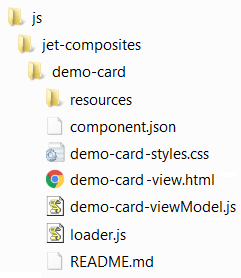
Description of the illustration composite-files.png
The base app's implementation of JavaScript or TypeScript determines the folder and implementation of the Web Component. If your base app has a TypeScript implementation, then the
tsfolder, not thejsfolder, contains the stub contents of the Web Component.-
If you're not using the Oracle JET CLI, create a
jet-compositesfolder in your app'sjsfolder ortsfolder, and add folders containing the name of each Web Component you will create.For the
demo-cardexample, create thejet-compositesfolder and add ademo-cardfolder to it. You'll create the individual Web Component files in the remaining steps.
-
-
Determine the properties, methods, and events that your Web Component will support and add them to the
component.jsonfile in the Web Component's root folder, creating the file if needed.The name of the Web Component properties, event listeners, and methods should avoid collision with the existing HTML element properties, event listeners, and methods. Additionally, the property name
slotshould not be used. Also, you must not re-define the global attributes and events.The demo-card example defines properties for the Web Component and the contact's full name, employee image, title, work number, and email address. The required properties are highlighted in bold.
 {
  "name": "demo-card",
  "description": "A card element that can display an avatar or initials on one side and employee information on the other.",
  "version": "1.0.2",
  "displayName": "Demo Card",
  "jetVersion": ">=6.0.0 <20.0.0",
  "properties": {
    "name": {
      "description": "The employee's full name.",
      "type": "string"
    },
    "avatar": {
      "description": "The url of the employee's image.",
      "type": "string"
    },
    "workTitle": {
      "description": "The employee's job title.",
      "type": "string"
    },
    "workNumber": {
      "description": "The employee's work number.",
      "type": "number"
    },
    "email": {
      "description": "The employee's email.",
      "type": "string"
    }
  }
}
This basic demo-card example only defines properties for the Web Component. You can also add metadata that defines methods and events as shown below. The metadata lists the name of the method or event and supported parameters.
{
  "properties": {
    ... contents omitted
  },
  "methods": {
     "flipCard": {
       "description": "Method to toggle flipping a card"
     },
     "enableFlip": {
       "description": "Enables or disables the ability to flip a card.",
       "params": [
         {
           "name": "bEnable",
           "description": "True to enable card flipping and false otherwise.",
           "type": "boolean"
          }
        ]
      },
    },
   "events": {
     "cardClick": {
       "description": "Triggered when a card is clicked and contains the value of the clicked card..",
       "bubbles": true,
       "detail": {
         "value": {
           "description": "The value of the card.",
           "type": "string"
                }
            }
        }
    }
}
-
If your Web Component contains a ViewModel, add its definition to
web—component-name-viewModel.jsin the Web Component's root folder, creating the file if needed.The code sample below shows the ViewModel for the demo-card Web Component. Comments describe the purpose, parameters, and return value of each function.
define(['knockout', 'ojs/ojknockout'], function(ko) { function model(context) { var self = this; self.initials = null; self.workFormatted = null; var element = context.element; /** * Formats a 10 digit number as a phone number. * @param {number} number The number to format * @return {string} The formatted phone number */ var formatPhoneNumber = function(number) { return Number(number).toString().replace(/(\d{3})(\d{3})(\d{4})/, '$1-$2-$3'); } if (context.properties.name) { var initials = context.properties.name.match(/\b\w/g); self.initials = (initials.shift() + initials.pop()).toUpperCase(); } if (context.properties.workNumber) self.workFormatted = formatPhoneNumber(context.properties.workNumber); /** * Flips a card * @param {MouseEvent} event The click event */ self.flipCard = function(event) { if (event.type === 'click' || (event.type === 'keypress' && event.keyCode === 13)) { // It's better to look for View elements using a selector // instead of by DOM node order which isn't guaranteed. $(element).children('.demo-card-flip-container').toggleClass('demo-card-flipped'); } }; } return model; } ) -
In the Web Component's root folder, add the View definition to
web—component-name-view.html, creating the file if needed.The View for the demo-card Web Component is shown below. Any property defined in the component's metadata is accessed using the
$propertiesproperty of the View binding context.<div tabindex="0" role="group" class="demo-card-flip-container" on-click="[[flipCard]]" on-keypress="[[flipCard]]" :aria-label="[[$properties.name + ' Press Enter for more info.']]"> <div class="demo-card-front-side"> <oj-avatar class="demo-card-avatar" role="img" size="lg" initials="[[initials]]" src="[[$properties.avatar]]" :aria-label="[['Avatar of ' + $properties.name]]"> </oj-avatar> <h2> <oj-bind-text value="[[$properties.name]]"></oj-bind-text> </h2> </div> <div class="demo-card-back-side"> <div class="demo-card-inner-back-side"> <h2> <oj-bind-text value="[[$properties.name]]"></oj-bind-text> </h2> <h5> <oj-bind-text value="[[$properties.workTitle]]"></oj-bind-text> </h5> <oj-bind-if test="[[$properties.workNumber != null]]"> <h5>Work</h5> <span class="demo-card-text"><oj-bind-text value="[[workFormatted]]"></oj-bind-text></span> </oj-bind-if> <oj-bind-if test="[[$properties.email != null]]"> <h5>Email</h5> <span class="demo-card-text"><oj-bind-text value="[[$properties.email]]"></oj-bind-text></span> </oj-bind-if> </div> </div> </div>For accessibility, the View's role is defined as
group, witharia-labelspecified for the contact's name. In general, follow the same accessibility guidelines for the Web Component View markup that you would anywhere else within the app. -
If you're not using the Oracle JET CLI, create the
loader.jsRequireJS module and place it in the Web Component's root folder.The
loader.jsmodule defines the Web Component dependencies and registers the component'stagName,demo-cardin this example.define(['ojs/ojcomposite', 'text!./demo-card-view.html', './demo-card-viewModel', 'text!./component.json', 'css!./demo-card-styles'], function(Composite, view, viewModel, metadata) { Composite.register('demo-card', { view: view, viewModel: viewModel, metadata: JSON.parse(metadata) }); } );In this example, the CSS is loaded through a RequireJS plugin (
css!./demo-card-styles), and you do not need to pass it explicitly inComposite.register(). -
Configure any custom styling that your Web Component will use.
-
If you only have a few styles, add them to
web—component-name-styles.cssfile in the Web Component's root folder, creating the file if needed.For example, the demo-card Web Component defines styles for the demo card's display, width, height, margin, padding, and more. It also defines the classes that will be used when the user clicks a contact card. A portion of the CSS is shown below.
/* This is to prevent the flash of unstyled content before the Web Component properties have been setup. */ demo-card:not(.oj-complete) { visibility: hidden; } demo-card { display: block; width: 200px; height: 200px; perspective: 800px; margin: 10px; box-sizing: border-box; cursor: pointer; } demo-card h2, demo-card h5, demo-card a, demo-card .demo-card-avatar { color: #fff; padding: 0; } ... remaining contents omitted -
If you used the Oracle JET tooling to create your app and want to use Sass to generate your CSS:
-
If needed, at a terminal prompt in your app's top level directory, type the following command to add Dart Sass (
sass) to your app:ojet add sass. -
Create
web—component-name-styles.scssand place it in the Web Component's top level folder. -
Edit
web—component-name-styles.scsswith any valid SCSS syntax and save the file.In this example, a variable defines the demo card size:
$demo-card-size: 200px; /* This is to prevent the flash of unstyled content before the Web Component properties have been setup. */ demo-card:not(.oj-complete) { visibility: hidden; } demo-card { display: block; width: $demo-card-size; height: $demo-card-size; perspective: 800px; margin: 10px; box-sizing: border-box; cursor: pointer; } demo-card h2, demo-card h5, demo-card a, demo-card .demo-card-avatar { color: #fff; padding: 0; } ... remaining contents omitted -
To compile Sass, at a terminal prompt type
ojet buildorojet servewith the--sassflag and app-specific options.ojet build|serve [options] --sassojet build --sasswill compile your app and generateweb—component-name-styles.cssandweb—component-name-styles.css.mapfiles in the default platform's folder. For a web app, the command will place the CSS in**web**/js/js-composites/web—component-name.ojet serve --sasswill also compile your app but will display the web app in a running browser withlivereloadenabled. If you save a change toweb—component-name-styles.scssin the app's**src**/js/jet-composites/web—component-namefolder, Oracle JET will compile Sass again and refresh the display.For help withojetcommand syntax, typeojet helpat a terminal prompt.
-
-
-
If you want to add documentation for your Web Component, add content to
README.mdin your Web Component's root folder, creating the file if needed.Your
README.mdfile should include an overview of your component with well-formatted examples. Include any additional information that you want to provide to your component's consumers. The recommended standard forREADMEfile format is markdown.
For help with markdown, refer to GitHub documentation.
For the complete code of the demo-card Web Component CSS styles, see demo-card-styles.css in the Web Component - Basic cookbook sample.
For information on adding Web Component metadata that defines methods and events, see the Web Component - Events cookbook sample.
Create JET Packs
Create JET Packs to simplify project management for consumers who might pick up a component that is related to one or more components. You may require specific versions of the referenced components for individual JET Packs.
Fundamentally, the JET Pack is a library of related Web Components that does not directly include those assets, but is as an index to a particular versioned stripe of components.
Note there is one exception to the pack as a reference mechanism for related components. A pack might include one or more RequireJS bundle files which package up optimized forms of the component set into a small number of physical downloads. This, however, is always in addition to the actual components being available as independent entities in Oracle Component Exchange.
The components referenced by the JET Pack are intended to be used together and their usage is restricted by individual component version. Thus, the JET Pack that you create will tie very specific versions of each component into a relationship with very specific, fixed versions of the other components in the same set. Thus, a JET Pack itself has a "version stripe" which determines the specific components that users import into their apps. Since the version number of individual components may vary, the JET Pack guarantees the consumer associates their app with the version of the pack as a whole, and not with the individual components contained by the pack.
For details about versioning JET Packs, see Version Numbering Standards.
-
Create the JET Pack using the JET tooling from the root folder of your app.
ojet create pack my-packConsider the pack name carefully, as the name will determine the prefix to any components within that pack.
The tooling adds the folder structure with the template files that you will need to modify:
/(working folder) /src /js /jet-composites /my-pack component.json -
Create the components that you want to bundle with the JET Pack by using the JET tooling from the root folder of your app. The component name that you specify must be unique within the pack.
ojet create component my-widget-1 --pack=my-packThe tooling nests the component folder
/my-widget-1under themy-packroot folder and the new component files resemble those created for a standalone Web Component./(working folder) /src /js /jet-composites /my-pack component.json /my-widget-1 /resources /nls /root my-widget-1-strings.js component.json loader.js README.md my-widget-1-viewModel.js my-widget-1-styles.css my-widget-1-view.htmlNote the following about the created component files.
component.jsonspecifies the name of the component as my-widget-1 and the pack is set to my-pack, providing the complete definition of the component's identity.loader.jsregisters the HTML tag for the new component as my-pack-my-widget-1. This is the full name of the component, which is a concatenation of the pack name and the component name. When you need to refer to this component in a dependency from another component's metadata or in HTML, you will use the full name.
-
Optionally, for any Resource components that you created, as described in Create Resource Components for JET Packs, add the component's working folder with its own
component.jsonfile to the pack file structure.The tooling nests the component folder
/my-widget-1under themy-packroot folder and the new component files resemble those created for a standalone Web Component./(working folder) /src /js /jet-composites /my-pack component.json /my-widget-1 /resources /nls /root my-widget-1-strings.js component.json loader.js README.md my-widget-1-viewModel.js my-widget-1-styles.css my-widget-1-view.html /my-resource-component-1 component.json /converters file1.js ... /resources /nls /root strings-file.js /validators file1.js ... -
Optionally, generate any required bundled for desired components of the pack. Refer to RequireJS documentation for details at the https://requirejs.org web site.
You can use RequireJS to create optimized bundles of the pack components, so that rather than each component being downloaded separately by the consuming app at runtime, instead a single JavaScript file can be downloaded that contains multiple components. It\'s a good idea to use this facility if you have sets of components that are almost always used together. A pack can have any number of bundles (or none at all) in order to group the available components as required. Be aware that not every component in the pack has to be included in one of the bundles and that each component can only be part of one bundle. -
Use a text editor to modify the
component.jsonfile in the pack folder root similar to the following sample, to identify pack dependencies and optional bundles. Added components must be associated by their full name and a specific version.{ "name": "my-pack", "version": "1.0.0", "type": "pack", "displayName": "My JET Pack", "description": "An example JET Pack", "dependencies": { "my-pack-my-widget-1":"1.0.0", ... }, "bundles":{ "*my-pack*/*my-bundle*":[ "*my-pack*/*my-bundle-file1*/loader", ... ] }, "extension": { "catalog": { "coverImage": "coverimage.png" } } } }Your pack component's
component.jsonfile must contain the following unique definitions:-
name is the name of the JET Pack has to be unique, and should be defined with the namespace relevant to your group. This name will be prepended to create the full name of individual components of the pack.
-
version defines the exact version number of the pack, not a SemVer range.
Changes in version number with a given release of a pack should reflect the most significant change in the pack contents. For example, if the pack contained two components and as part of a release one of these had a Patch level change and the other a Major version change then the pack version number change should also be a Major version change. There is no requirement for the actual version number of the pack to match the version number(s) of any of it's referenced components. For more information see, Version Numbering Standards. -
type must be set to
pack. -
displayName is the name of the pack component that you want displayed in in Oracle Component Exchange. Set this to something readable but not too long.
-
description is the description that you want displayed in Oracle Component Exchange. For example, use this to explain how the pack is intended to be used.
-
dependencies defines the set of components that make up the pack, specified by the component full name (a concatenation of pack name and component name). Note that exact version numbers are used here, not SemVer ranges. It's important that you manage revisions of dependency version numbers to reflect changes to the referenced component's version and also to specify part of the path to reach the components within the pack.
If you want to include all components in the JET Pack directory, use a token,
"@dependencies@", as the value fordependenciesrather than defining individual entries for all the components in the pack. The following snippet illustrates how you use this token in yourcomponent.jsonfile:{ "name": "my-pack", "version": "1.0.0", "type": "pack", "displayName": "My JET Pack", "description": "An example JET Pack", "dependencies": "@dependencies@" } -
bundles defines the available bundles (optional) and the contents of each. Note how both the bundle name and the contents of that bundle are defined with the pack name prefix as this is the RequireJS path that is needed to map those artifacts.
-
catalog defines the working metadata for Oracle Component Exchange, including a cover image in this case.
-
-
Use a text editor to modify the
component.jsonfile in the component folder root similar to the following sample, to identify the pack relationship. Components must be identified by a unique name (without the pack prefix) and a specific version.{ "name": "my-widget-1", "pack": "my-pack", "displayName": "My Web Component", "description": "Fully featured component", "version": "1.0.0", "jetVersion": "^10.0.0", "dependencies": { "my-widget-file1":"^1.0.0", ... }, ... }Your pack component's
component.jsonfile must contain the following unique definitions:-
name is the name of the component has to be unique. This name will be prepended with the pack name to create the component full name. For example,
-
pack is the name of the JET Pack that the component is a part of.
-
displayName is the name of the component that you want displayed in Oracle Component Exchange.
-
description is the description that you want displayed in Oracle Component Exchange. For example, use this to explain the role of the components in the pack as they are intended to be used.
-
version defines the exact version number of the component, not a SemVer range.
-
jetVersion defines the compatible version(s) of Oracle JET, specified by a semantic version (SemVer) range. It's important that you manage revisions of this version number to inform consumers of the compatibility of a given change and also to specify part of the path to reach the components within the pack. For more information see, Version Numbering Standards.
-
dependencies defines the set of libraries and other components that make up the component within the pack. In the case where a dependent component is also listed as a member of the JET Pack, specify components here by their full name (a concatenation of pack name and component name). For example,
my-pack-my-component. Note that SemVer ranges are allowed. It's important that the range selected for a component within a particular JET Pack version overlaps with the members of that stripe.
-
-
Optionally, create a readme file in the root of your working folder. This should be defined as a plain text file called
README.txt(orREADME.mdwhen using markdown format). -
Optionally, create a cover image in the root of your working folder to display the component on Oracle Exchange. The file name can be the same as the name attribute in the
component.jsonfile. -
Use the JET tooling to create a zip archive of the JET Pack working folder when you want to upload the component to Oracle Component Exchange, as described in Package Web Components.
-
Support consuming the JET Pack in Oracle Visual Builder projects by uploading the component to Oracle Component Exchange, as described in Publish Web Components to Oracle Component Exchange.
Create Resource Components for JET Packs
Create a resource component when you want to reuse assets across web components that you assemble into JET Packs. The resource component can be reused by multiple JET Packs.
When dealing with complex sets of components you may find that it makes sense to share certain assets between multiple components. In such cases, the components can all be included into a single JET Pack and then a resource component can be added to the pack in order to hold the shared assets. There is no constraint on what can be stored in a pack, typically it may expose shared JavaScript, CSS, and JSON files and images. Note that third party libraries should generally be referenced from a reference component and should not be included into a resource component.
You don't need any tools to create the resource component. You will need to create a folder in a convenient location. This folder will ultimately be zipped to create the distributable resource component. Internally this folder can then hold any content in any structure that you desire.
To create a resource component:
-
If you have not already done so, create a JET Pack using the following command from the root folder of your app to contain the resource component(s):
ojet create pack my-resource-pack -
Still in the root folder of your app, create the resource component in the JET Pack:
ojet create component my-resource-comp --type=resource --pack=my-resource-packThe tooling adds the folder structure with a single template
component.jsonfile and an index file./root folder /src /js or /ts /jet-composites /my-resource-pack /my-resource-comp component.json -
Populate the created folder (
my-resource-comp, in our example) with the desired content. You can add content in any structure desired, with the exception of NLS content for translation bundles. In the case of NLS content, preserve the typical JET folder structure; this is important if your resource component is going to include such bundles./(my-resource-folder) /converters phoneConverter.js phoneConverterFactory.js /resources /nls /root oj-ext-strings.js /phone countryCodes.json /validators emailValidator.js emailValidatorFactory.js phoneValidator.js phoneValidatorFactory.js urlValidator.js urlValidatorFactory.jsIn this sample notice how the
/resources/nlsfolder structure for translation bundles is preserved according to the folder structured of the app generated by JET tooling. -
Use a text editor to update the
component.jsonfile in the folder root similar to the following sample, which defines the resourcemy-resource-compfor the JET Packmy-resource-pack.{ "name": "my-resource-comp", "pack": "my-resource-pack", "displayName": "Oracle Jet Extended Utilities", "description": "A set of reusable utility classes used by the Oracle JET extended component set and available for general use. Includes various reusable validators", "license": "https://opensource.org/licenses/UPL", "type": "resource", "version": "2.0.2", "jetVersion": ">=8.0.0 <10.1.0", "publicModules": [ "validators/emailValidatorFactory", "validators/urlValidatorFactory" ], "extension":{ "catalog": { "category": "Resources", "coverImage": "cca-resource-folder.svg" } } }Your resource component's
component.jsonfile must contain the following unique definitions:-
name is the name of the resource component has to be unique, and should be defined with the namespace relevant to your group.
-
pack is the name of the JET Pack containing the resource component.
-
displayName is the name of the resource component as displayed in Oracle Component Exchange. Set this to something readable but not too long.
-
description is the description that you want displayed in Oracle Component Exchange. For example, use this to explain the available assets provided by the component.
-
type must be set to
resource. -
version defines the semantic version (SemVer) of the resource component as a whole. It's important that you manage revisions of this version number to inform consumers of the compatibility of a given change.
Changes to the resource component version should roll up all of the changes within the resource component, which might not be restricted to changes only in.jsfiles. A change to a CSS selector defined in a shared.cssfile can trigger a major version change when it forces consumers to make changes to their downstream uses of that selector. For more information see, Version Numbering Standards. -
jetVersion defines the supported Oracle JET version range using SemVer notation. This is optional and depends on the nature of what you include into the resource component. If the component contains JavaScript code and any of that code makes reference to Oracle JET APIs, then you really should include a JET version range in that case. For more information about specifying semantic versions see Version Numbering Standards.
-
publicModules lists entry points within the resource component that you consider as being public and intend to be consumed by any component that depends on this component. Any API not listed in the array is considered to be pack-private and therefore can only be used by components within the same pack namespace, but may not be used externally.
-
catalog defines the working metadata for Oracle Component Exchange, including a cover image in this case.
-
-
Optionally, create a readme file in the root of your working folder. A readme can be used to document the assets of the resource. This should be defined as a plain text file called
README.txt(orREADME.mdwhen using markdown format).Take care to explain the state of the assets. For example, you might choose to include utility classes in the resource component that are deemed public and can safely be used by external consumers (for example, code outside of the JET Pack that the component belongs to). However, you may want to document other assets as private to the pack itself. -
Optionally, create a change log file in the root of your working folder. The change log can detail significant changes to the pack over time and is strongly recommended. This should be defined as a text file called
CHANGELOG.txt(orCHANGELOG.mdwhen using markdown format). -
Optionally, include a License file in the root of your working folder.
-
Optionally, create a cover image in the root of your working folder to display the component on Oracle Exchange. Using the third party logo can be helpful here to identify the usage. The file name can be the same as the name attribute in the
component.jsonfile. -
Create a zip archive of the working folder when you want to upload the component to Oracle Component Exchange. Oracle recommends using the format
<fullName>-<version>.zipfor the archive file name. For example,my-resource-pack-my-resource-comp-2.0.2.zip.
For information about using the resource component in a JET Pack, see Create JET Packs.
Create Reference Components for Web Components
Create a reference component when you need to obtain a pointer to third-party libraries for use by Web Components.
Sometimes your JET Web Components need to use third party libraries to function and although it is possible to embed such libraries within the component itself, or within a resource component, it generally better to reference a shared copy of the library by defining a reference component.
Create the Reference Component
You don't need any tools to create the reference component. You will need to create a folder in a convenient location where you will define metadata for the reference component in the component.json file. This folder will ultimately be zipped to create the distributable reference component.
Reference components are generally standalone, so the component.json file you create must not be contained within a JET Pack.
To create a reference component:
-
Create the working folder and use a text editor to create a
component.jsonfile in the folder root similar to the following sample, which references the moment.js library.{ "name": "oj-ref-moment", "displayName": "Moment library", "description": "Supplies reference information for moment.js used to parse, validate, manipulate, and display dates and times in JavaScript", "license": "https://opensource.org/licenses/MIT", "type": "reference", "package":"moment", "version": "2.24.0", "paths": { "npm": { "debug": "moment", "min": "min/moment.min" }, "cdn": { "debug": "https://static.oracle.com/cdn/jet/packs/3rdparty/moment/2.24.0/moment.min", "min": "https://static.oracle.com/cdn/jet/packs/3rdparty/moment/2.24.0/moment.min" } }, "extension": { "catalog": { "category": "Third Party", "tags": [ "momentjs" ], "coverImage": "coverImage.png" } } }Your reference component's
component.jsonfile must contain the following unique definitions:- name is the name of the reference component has to be unique, and should be defined with the namespace relevant to your group.
- displayName is the name of the resource component as displayed in Oracle Component Exchange. Set this to something readable but not too long.
- description is the description that you want displayed in Oracle Component Exchange. For example, use this to explain the function of the third party library.
- license comes from the third party library itself and must be specified.
- type must be set to
reference. - package defines the npm package name for the library. This will also be used as the name of the associated RequireJS path that will point to the library and so will be used by components that depend on this reference.
- version should reflect the version of the third party library that this reference component defines. If you need to be able to reference multiple versions of a given library then you will need multiple versions of the reference component in order to map each one.
- paths defines the CDN locations for this library. See below for more information about getting access to the Oracle CDN.
- min points to the optimal version of the library to consume. The debug path can point to a debug version or just the min version as here.
- catalog defines the working metadata for Oracle Component Exchange including a cover image in this case.
-
Optionally, create readme file in the root of your working folder. A readme can be used to point at the third party component web site for reference. This should be defined as a plain text file called
README.txt(orREADME.mdwhen using markdown format). -
Optionally, create a cover image in the root of your working folder to display the component on Oracle Exchange. Using the third party logo can be helpful here to identify the usage. The file name can be the same as the name attribute in the
component.jsonfile. -
Create a zip archive of the working folder when you want to upload the component to Oracle Component Exchange. Oracle recommends using the format
<fullName>-<version>.zipfor the archive file name. For example,oj-ref-moment-2.24.0.zip. -
Support consuming the reference component in Oracle Visual Builder projects by uploading the component to a CDN. See below for more details.
Consume the Reference Component
When your Web Components need access to the third party library defined in one of these reference components, you use the dependency attribute metadata in the component.json to point to either an explicit version of the reference component or you can specify a semantic range. Here's a simple example of a component that consumes two such reference components at specific versions:
{
    "name":"calendar",
    "pack":"oj-sample",
    "displayName": "JET Calendar",
    "description": "FullCalendar wrapper with Accessibility added.",
    "version": "1.0.2",
    "jetVersion": "^9.0.0",
    "dependencies": {
        "oj-ref-moment":"2.24.0",
        "oj-ref-fullcalendar":"3.9.0"
    },

    ...
When the above component is added to an Oracle JET or Oracle Visual Builder project this dependency information will be used to create the correct RequireJS paths for the third party libraries pointed to be the reference component.
For more information about semantic version usage, see Version Numbering Standards.
Alternatively, when you install a Web Component that depends on a reference component and you use Oracle JET CLI, the tooling will automatically do an npm install for you so that the libraries are local. However, with the same component used in Oracle Visual Builder, a CDN location must be used and therefore the reference component must exist on the CDN in order to be used in Visual Builder.
Theme Web Components
Oracle JET Web Components may need to inherit styling from consuming app, such as the background color, where the color style is themeable. Web Components may also enable theming so the consuming app can customize the provided styles. You can add theming support to your Web Component, and you can define CSS variables to support customization of your component's look and feel.
About Web Component Theming
When you theme Web Components you work with SASS partial files to define the style classes and expose the styles through CSS variables, by using the JET Tooling to derive optimized CSS.
It is not always necessary to theme custom components and component packs that you create. In many cases you may not need to enable custom theming. For example, when you only need to wrap some core JET components with no additional user interface, no theming is needed. As these two use cases suggest, it depends how you expect your components to be used in the consuming app.
-
Theme-enable the custom component, or component pack, when the component needs to inherit styling from the consuming app, such as the background color that color style must be themeable in your component.
-
Theme-enable the custom component, or component pack, when the component defines its own style class and that style needs to be themeable in the consuming app for customization.
Oracle JET relies on CSS variables to theme apps. The use of CSS variables to theme your Web Component supports easy integration into a consuming app. To streamline the theming process and support the generation of optimised stylesheets, your Web Component relies on SASS partial files and SCSS processing.
After you create the Web Component, you run the ojet add theming command to install support for scss processing into the base app where you will add the component. Then you can use the ojet create component command to add your component to the jet-composites folder. The new component project will contain a themes folder and three subfolders: base,redwood, and stable containing SASS partials files, as follows:
-
base folder - contains the base SASS partial file, where you define the style classes for the component that are common across themes. The style classes reference CSS variables, the values of which are generally provided by the theme specific SASS partial file.
-
redwood folder - contains the theme-specific SASS partial file for the Redwood theme, where you define style settings for the component, specifically you use it to set any CSS variable values that the theme variant needs to set on the base
_myComponent.scsspartial file. The Redwood theme implements the look and feel for Oracle apps, future changes will be made to address Oracle's requirements. -
stable folder - contains the theme-specific SASS partial file for the Stable theme, where you define style settings for the component, specifically you use it to set any CSS variable values that the theme variant needs to set on the base
_myComponent.scsspartial file. The Stable theme is recommended as the base theme for custom themes if you want to reduce the likelihood that future theme updates affect your custom theme.
The SASS partials split between these folders supports the separation of the core style definitions from the variable driven theme-specific definitions. This structure allows you to define multiple themes but in practice is not a requirement for JET web apps, where the Redwood theme runs across platforms and environments, such as iOS on a mobile device or Windows on a desktop machine.
In addition to the generated theme folders, each component also has an SCSS file (ie, myComponent-styles.scss) at the root of the component folder that the JET Tooling processes to generate the final CSS from the theme SASS partials. The root .scss file contains a single line:
@import "themes/redwood/_myComponent.scss";
Guidelines for Web Component Theming
JET relies on the use of CSS variables as the primary vehicle for theming, which allows even a single supported theme configuration to adapt to the requirements of the consuming app.
When theming the Web Component observe the following considerations to guide the process.
- The goal should be to make your themed Web Component work out of the box for most cases and still allow the component to be themeable by a consuming app. Maintain a single default theme across your entire set of components.
- While a Web Component must provide a single default theme that works out of the box, you may choose to define the settings for multiple themes within the component. Note that only one theme can be active and surfaced for the component for direct runtime use.
- Document the supported themes in the readme file for the component or pack. This information, combined with component metadata that you supply in
component.json, specify the contract that the consuming app must fulfill. - Use CSS variables to externalize anything that you want to make configurable within a theme. This supports component-instance style overrides where needed and also simplifies the creation of custom themes for the component.
- Inherit as much information as possible from the core JET Redwood theme, for example color ramps and sizing. This ensures that the Web Component's theming harmonizes with all of the core JET components present in the app and that your component will be able to adapt well to a custom theme. Where possible, use the
oj-flexclasses supplied by JET or other public layout styles to manage layout. This will ensure that the finer attributes of theming, such as padding, are consistent. - CSS usage should be optimized to allow consolidation at the JET Pack level or the app level. The use of CSS variables supports CSS consolidation.
If your themed component is configured through CSS variables so that the consuming app may override at the app or instance level, then add those variables to a section called Theming in the component README.md and document what they do and what they should be set to. Once documented in this way, the variables become a formal part of the component API and you should follow the normal semver rules when it comes to making changes. A change to the default theme should be classed as a MAJOR version number change in semantic version number.
Theme a Web Component
You can use Oracle JET Tooling to theme-enable a custom Web Components project and work with CSS variables to theme custom components that you add to the project.
You enable theming of a new Web Components project, or JET Pack project, by using the JET Tooling to add theming support to the containing project. The tooling adds SASS partials files used to streamline the CSS generation process and is a prerequisite step to creating a custom component or pack to support modifications to the base theme.
After you theme-enable your containing project by running the ojet add theming command at the project root, new custom components that you create in the project will contain a themes folder with subfolders that each contain a single SASS partials file that you will modify:
/<componentName>/themes/base/_<componentName>.sccsdefines your custom styling for the component that you want to remain common across themes. The styling portions that need to change with theme variations will be injected via CSS variable values and come from either the base JET theme or from the component theme-specific settings./<componentName>/themes/redwood/_<componentName>.sccscontains the theme-specific settings for the component. Specifically, in this file you can specify any CSS variable values that a custom theme based on the Redwood theme needs to set on the base partials./<componentName>/themes/stable/_<componentName>.sccscontains the theme-specific settings for the component. Specifically, in this file you can specify any CSS variable values that a custom theme based on the Stable theme needs to set on the base partials.
Additionally, any custom component in a theme-enabled project will also contain a <componentName>.scss SASS file in the component's root folder. This file serves to import the CSS file that the JET build process generates from the SASS partials files.
A CSS build error may result if a pack or component is created before running ojet add theming. The add theming command enables SCSS compilation to generate the CSS. Be sure to run add theming before creating the pack or component.
Before you begin:
- Refer to the JET CSS Variables section of the JET API reference doc for an overview of the CSS variables and values to use when directly defining custom selectors of the web component.
- View the CSS Variables section in the Oracle JET Cookbook for examples of CSS variable usages.
- Optionally, download and install the CSS Variable Theme Builder - Instruction Tab app when you want to learn about the available CSS variables in this interactive demo app. Follow the instructions online to modify the theme definition files to learn how CSS variable overrides change the demo tool UI.
To add theming support and theme a component:
-
In your Web Component project's top-level directory, enter the following command at a terminal prompt to install the theming toolchain.
ojet add theming -
Create a Web Component in the containing project. Or, create a JET Pack and add a Web Component to the pack, as this sample shows.
ojet create pack my-pack
ojet create component my-widget1 --pack=my-pack
For example, the following commands create a pack
oj-sampleand add a custom componentmetricto the pack.ojet create pack oj-sample ojet create component metric --pack=oj-sampleThese commands create a
jet-compositesfolder that contains theoj-samplepack folder and themetriccomponent.src | index.html | +---css +---js \---ts +---jet-composites | \---oj-sample | | component.json | | | \---metric | | component.json | | loader.ts | | metric-styles.scss | | metric-view.html | | metric-viewModel.ts | | README.md | | | +---resources | \---themes | +---base | | _metric.scss | | | +---redwood | | _metric.scss | | | \---stable | _metric.scss | +---viewModels +---viewsIn the directory above, the
metricfolder shows the base SASS filemetric-styles.scss. Thethemessubfolder contains the SASS partials files_metric.scssthat you will modify.If you see a.cssfile instead of a.scssfile in the root folder of the component, it indicates you did not run theadd themingcommand before creating the component. -
In the
/<componentName>/themes/basefolder, edit the_componentName.scssSAAS partials file to define the style selectors for your component. You can define selector properties with hardcoded values or you can define properties controlled by CSS variables when you want to allow overriding of the property by a consuming app.Note that style and variable names must be named-spaced to the owning component's HTML element tag to avoid redefinition. For example, the style
.oj-sample-metric-value-coloris name-spaced byoj-sample-metric.@import "oj/utilities/_oj.utilities.modules.scss"; // Even if this file is imported many times 'module-include-once' ensures the content is included just once. @include module-include-once("oj-sample-metric.base") { oj-sample-metric:not(.oj-complete){ visibility: hidden; } // Selector definitions section oj-sample-metric .oj-sample-metric-value-text { display:inline-block; align-self:center; } oj-sample-metric .oj-sample-metric-label { font-size: var(--oj-sample-metric-label-font-size); } oj-sample-metric .oj-sample-metric-value-color { color: var(--oj-sample-metric-value-color); } oj-sample-metric .oj-sample-metric-label-color { color: var(--oj-sample-metric-label-color); } ... }In this sample, only the selector
.oj-sample-metric-value-textselector is completely defined in place and references no CSS variables. Properties of this style cannot be overridden. Thefont-sizeproperty for the.oj-sample-metric-labelselector references a CSS variable that you will define in the theme-specific SASS partials file. Thecolorproperty for the.oj-sample-metric-value-colorand.oj-sample-metric-label-colorselectors also references a CSS variable to be defined. The usage of CSS variables allows these properties to be overridden in the consuming app.When you do not need to allow overriding of a selector property value in the consuming app, you can reference variables defined by JET itself without definition in the theme-specific SASS partials file. In this next sample, the selector is defined directly by
--oj-core-text-color-secondary, a JET CSS variable that defines text color.... oj-sample-metric .oj-sample-metric-label-color { color: var(--oj-core-text-color-secondary); } ...For a list of JET CSS variables, refer to the resources listed in the Before You Begin section of this topic.
If you define mappings such as:
color: rgb(var(--oj-palette-neutral-rgb-60));
Then, when you build your project, you will encounter an error: "Error: Function rgb is missing argument $green" in your.scssfiles. This is a known SASS compiler issue and the workaround is to use uppercase for the function name, like this:
color: RGB(var(--oj-palette-neutral-rgb-60)); -
In the
/<componentName>/themes/redwoodor/<componentName>/themes/stablefolder, edit the_componentName.scssSAAS partials file to provide the theme-specific settings required by the base partials SCCS file. Within root you can define all component-specific CSS variables as hardcoded values or JET CSS variables.@include module-include-once("_metric.redwood") { :root { --oj-sample-metric-label-font-size:0.875rem; --oj-sample-metric-value-color:var(--oj-core-text-color-primary); --oj-sample-metric-label-color:var(--oj-core-text-color-secondary); ... } }In this sample, only the CSS variable
--oj-sample-metric-label-font-sizeis hardcoded. The other two variables inherit values from underlying JET variables. However, all settings defined in the theme-partials file may be overridden in the app that consumes the web component.For a list of JET CSS variables, refer to the resources listed in the Before You Begin section of this topic.
To prepare the themed component or pack for a consuming app, see these topics:
Consolidate CSS for JET Packs
You can consolidate the stylesheets of custom components in a JET Pack to a single CSS file.
When you add custom Web Components to a JET Pack, initially, each component provides it's own CSS file. Although this approach works, it's optimal in a production app to reduce the number of physical roundtrips to the server and take full advantage of browser caching and the CDN. To reduce the number of roundtrips, you can enable loading from a single CSS file through the use of a shared Resource component that you add to the pack.
Before you begin:
- Create a Resource component with a working folder
commonand itscomponent.jsonfile, as described in Create Resource Components for JET Packs.
To create a single shared CSS file in a pack:
-
Add the Resource component that you created with a
component.jsonfile to the pack file structure and add a subfolderstyleswith a single SCSS file that you will use to import the CSS of the individual components in the pack.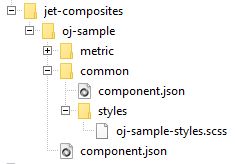
Description of the illustration mytheme-res-css-files.jpg
In the figure above, the folder
commonis the working folder for the Resource component and thestylessubfolder shows a SCSS fileoj-sample-style.scssnamed for the pack. -
Edit the SCCS file in the
stylesfolder to replicate the import commands for the SCSS partials files of the components that you want to combine into the consolidated stylesheet.@import "../../metric/themes/redwood/_metric.scss"; @import "../../input-email/themes/redwood/_input-email.scss"; @import "../../input-email/themes/redwood/_input-url.scss";In this sample, we show import statements for three components from the
oj-samplepack example. In addition to themetriccomponent's import, we include the import statements for theinput-emailcomponent and theinput-urlcomponent (omitted from the figure). -
For each component that you want to consolidate into a shared stylesheet, edit the component's
loader.jsfile (.tsin the case of a TypeScript project) to reference the shared stylesheet named in the Resource component. Do not edit the loader file for any component that you want to continue to use the component-specific stylesheet.define (['ojs/ojcomposite', 'text!./metric-view.html', './metric-viewModel', 'text!./component.json', 'css!oj-sample/common/styles/oj-sample-styles' ], function(Composite, view, viewModel, metadata){ Composite.register("oj-sample-metric", { view: view, viewModel: viewModel, metadata: JSON.parse(metadata) }); } );In this JavaScript sample, the loader script for the
metriccomponent shows the modified path statement referencesoj-sample-stylefrom the SCSS file that was added to the Resource component's/common/stylesfolder.In the case of a TypeScript app, modify the import statement like this sample:
import "css!oj-sample/common/styles/oj-sample-styles";Do not use relative path mapping to reference a pack component. Identify the path to the consolidated file in the pack component as shown in the previous examples for a JavaScript and TypeScript app.To perform a further optimization that allows the consuming app to manage the style completely in its own CSS, you can perform this task:
Optimize CSS to Allow Consuming Apps to Provide Styles
You can optimize the loading of component styles in the theme CSS for the consuming app.
To support downstream usages of the themed component, the Web Component needs to establish a contract for what the component needs. The developer who consumes your themed custom component into their app should be able to incorporate the styles unchanged and, optionally, perform a CSS optimization to enable loading from a single CSS file.
To enable these usages you must establish a contract that the downstream developer can observe when adding your component to their app.
To define and support the contract, you decorate the custom component with metadata that specifies the theme SCSS partials that the component exposes, and you modify the default loader script for the component CSS to specify the CSS requireJS plugin with the configurable ojcss plugin.
Before you begin:
- Set up the consolidation of component stylesheets with the aid of a Resource component you create at the pack level, as described in Consolidate CSS for JET Packs.
To define a theme-consuming contract for the component:
-
For each component that you want to consolidate into a shared stylesheet, edit the component's
loader.jsfile (.tsin the case of a TypeScript project) and modify the import statement for the consolidated stylesheet by replacing the normal CSS requireJS plugin with the configurableojcssplugin.define (['ojs/ojcomposite', 'text!./metric-view.html', './metric-viewModel', 'text!./component.json', 'ojcss!oj-sample/common/styles/oj-sample-styles' ], function(Composite, view, viewModel, metadata){ Composite.register("oj-sample-metric", { view: view, viewModel: viewModel, metadata: JSON.parse(metadata) }); } );In the case of a TypeScript app, modify the import statement like this sample:
import "ojcss!oj-sample/common/styles/oj-sample-styles";Note that the
ojcssplugin import gives the downstream developer the ability to set up their app to configure the processing of the plugin directive and optionally suppress loading of custom component stylesheets when the consuming app defines the styles. -
For these same components, edit the component's
component.jsonfile to decorate the component with the extension metadata to specify the SCSS partials that define its theme.{ "name": "metric", "pack": "oj-sample", "type":"composite", "displayName": "Metric Component", "license": "https://opensource.org/licenses/UPL", "description": "A simple tile that displays a label and value.", "version": "4.0.0", "jetVersion": ">=8.0.0 <10.0.0", "icon": { "iconPath": "extension/images/cca-metric.svg", "selectedIconPath": "extension/images/cca-metric.svg", "hoverIconPath": "extension/images/cca-metric-ovr.svg" }, "properties": { . . . }, "events": { . . . }, "extension": { "themes":{ "default":"Redwood", "unsupportedThemes":["Alta"] "partials":{ "Redwood":"themes/redwood/_oj-sample-metric.scss"} } "catalog": { . . . }, "vbdt": { . . . } } }In this sample, the
extension : themesattribute defines an array of themes supported by the component. Each theme points to the relative path of the root partial as the source for that component's theme implementation. The definition also indicates whether or not it is the expected default theme. Components may support multiple themes, but only one of can be marked as the default.Note that this metadata is not required by JET but is recommended for any themeable custom component. This information will be used by the downstream developer to set up their app to pull in these SCSS partials into its own SCSS file. They can then build the app to assemble individual stylesheets into a combined CSS file.
In normal usage there is no difference in operation between the
ojcssandcssplugins. However, the consuming app now has the ability to control the processing of the plugin directive.To understand how the consuming app controls the processing of the plugin directive to suppress the loading of the component CSS and define style classes within their app's custom theme, see Incorporate Themed Components into a Consuming App.
Incorporate Themed Components into a Consuming App
You can override CSS variables in a properly themed Web Component by making changes to the style classes in your consuming app's theme.
When consuming a custom component and its theme is the same as your app's theme, then you can add the custom component to your app and use it without changes. However, when the consuming app theme changes the styles of the custom component, you need to reference the custom component theme partials SCSS files in your app.
For example, if your app's custom theme alters the default Redwood theme color ramp, you want to ensure that the same colors are inherited by the themeable custom components that you add to your app. This process of overriding the CSS variables of the custom component by the consuming app requires that you incorporate the partials supplied by each component that you want to consume. This process is statically defined and therefore you will need to re-perform this whenever you add a new component that requires theming into the consuming app.
Note that you also can use this process when you do not need to make changes to the underlying Redwood theme and only want to optimize the number of CSS files by consolidating both the core Redwood styles, plus the extra styles defined for the custom components you will use.
Before you begin:
-
Create a working project that you will use to carry out the theme creation process.
ojet create redwood-plus-theme-source --template=basicIn this example, the working project is named
redwood-plus-theme-source. -
Add theming support to the project and create the custom theme.
ojet add theming
ojet create theme redwood-plus --basetheme=redwood
In this example, the theme name
redwood-plusdistinguishes the custom theme from the out-of-the-boxredwoodtheme name. Note that JET, as of release 11.0.0, supports another out-of-the-box theme (stable) that is less likely to be affected by future changes to the out-of-the-boxredwoodtheme. Choosestableas the--basethemeargument value if the consuming app uses a theme based on thestabletheme. -
When working with Oracle Component Exchange to add Web Components, set up access to Component Exchange.
ojet configure --exchange-url=https://xxxxx-cloud01.developer.ocp.oraclecloud.com/xxxxx-cloud01/s/xxxxx-cloud01_sharedcomponentcatalog_8325/compcatalog/0.2.0 -
Add the components that you want to include into your theme. This process will download the components into the
/jet_componentscache folder in the root of your theme source project.You can add the components one by one:
ojet add component oj-sample-metric@^4.0.0Or, you can add an entire pack at once.
ojet add pack oj-sample@^4.0.0In this example, the component name and pack name are reused from the examples shown in the previous topics in this section.
Note when adding the components or packs, you should specify the versions that you need. Similar to the way you would use the core JET theme, you can expect to rebuild and regenerate the theme if there is a change in the major version number of the component or pack.
To incorporate themeable components into the custom theme:
-
In the working project, where you added the custom components, open the
/src/themes/<themeName>/webfolder and examine the folder structure./src /themes /redwood-plus /web _redwood-plus.components.scss _redwood-plus.cssvars.settings.scss _redwood-plus.sass.settings.scss redwood-plus.scssIn this sample, we see three SCSS partials files and the CSS aggregating file
redwood-plus.scss. In the context of customizing the theme in the working project with themeable custom components, the four files have these purposes._redwood-plus.components.sccsallows you to tune the overall size of your theme by specifying that it should only style specific components from JET core. Usually you will not touch this file as you'll be styling the whole component set. See also Optimize the CSS in a Custom Theme._redwood-plus.cssvars.settings.scssis the file that you use to make most of the style changes in your custom theme, assuming you need to make any. You will use it to set the CSS variable values that you want to be used by the various JET Core components (and possibly by the custom components, as well). For example, to change the primary text color for JET, as a whole, you can do it in this file by uncommenting and setting the value for--oj-core-text-color-primary. Assuming this same variable happens to be used by one of the custom components, then it would share this common change. See also Modify the Custom Theme with the JET CLI._redwood-plus.sass.settingsdefines other aspects of the theme that you may need to change but that can't be expressed as simple variable values, for example animation effects. For basic theming scenarios, you probably don't need to touch this file.redwood-plus.scssthis is the main CSS aggregating file for the theme as a whole and is the one that will be transformed into the final output, as theredwood-plus.cssfile.
-
In the
/src/themes/<themeName>/webfolder, edit the CSS aggregating file<themeName>.scssand add the import statements for the theme-able custom components that you added to the working project.... // import SASS custom variable overrides @import "_redwood-plus.sass.settings.scss"; // Imports all jet components styles //@import "oj/all-components/themes/redwood/_oj-all-components.scss"; // To optimize performance, consider commenting out the above oj-all-components // import and uncomment _redwood-plus.components.scss below. // Then in _redwood-plus.components.scss uncomment only the component // imports that your app needs. // // @import "_redwood-plus.components.scss"; // Import components from oj-sample JET Pack @import "oj-sample/metric/themes/redwood/_oj-sample-metric.scss"; @import "oj-sample/input-email/themes/redwood/_input-email.scss"; @import "oj-sample/input-url/themes/redwood/_input-url.scss"; // import CSS Custom properties @import "_redwood-plus.cssvars.settings.scss";In this sample, the import statements for the three theme-able custom components in the
oj-samplepack are added. With these import statements referencing each component partials' includePath added to the CSS aggregating file, the indicated component partials will be incorporated into the custom theme. -
Optionally, if you are making changes to the theme (and not using the process only to consolidate CSS), you can test your theme by embedding sample components, including your custom components, into the working project's
index.htmlpage and run it. You can then verify the theme changes are what you expect. However, before you run the project, you must ensure that the custom components can pick up their styles from the theme, and not from their own stylesheets.-
To suppress the loading of component CSS, edit the
main.jsfile and add anojcssconfiguration section in therequirejsconfiguration that names the CSS loading to suppress.requirejs.config( { baseUrl: 'js', ojcss: { 'exclude': ['oj-sample'] }, paths: /* DO NOT MODIFY All paths are dynamically generated from the path_mappings.json file. Add any new library dependencies in path_mappings json file */ // injector:mainReleasePaths { ... } // endinjector , } ); }());Make sure that you add the
ojcssconfiguration section outside of the//injectorblock, as shown. Otherwise, the build process will remove and ignore the section.In this sample, the
ojcsssection of therequirejsconfiguration excludes the consolidated stylesheet of the JET Packoj-sample. Theojcsssection defines an array of requireJS paths that will be excluded from loading. Note this configuration depends upon imports within the component using consistent Reliable Referencing based paths that match. -
Run the project to verify the changes.
ojet serve --theme=redwood-plus
-
-
Update the version number in the
/src/themes/<myTheme>/theme.jsonfile to one that is suitable for the target CSS and build the consolidated theme. By default the version number is initially0.0.1.ojet build --theme=redwood-plus
Test Web Components
Test Oracle JET Web Components using your favorite testing tools for client-side JavaScript apps.
Regardless of the test method you choose, be sure that your tests fully exercise the Web Component’s:
-
ViewModel (if it exists)
Ideally, your test results should be verifiable via code coverage numbers.
-
HTML view
Be sure to include any DOM branches that might be conditionally rendered, and test all slots with and without default content.
-
Properties and property values
-
Events
-
Methods
-
Accessibility
-
Security
For additional information about testing Oracle JET apps, see Test Oracle JET Apps.
Add Web Components to Your Page
To use an Oracle JET Web Component, you must register the Web Component’s loader file in your app and you must also include the Web Component element in the app’s HTML. You can add any supporting CSS or files as needed.
-
In the Web Components's root folder, open
component.jsonand verify that your version of Oracle JET is compatible with the version specified injetVersion.For example, the demo-card example specifies the following
jetVersion:"jetVersion": ">=3.0.0 <20.0.0"
This indicates that the component is compatible with JET versions greater than or equal to 3.0.0 and less than 20.0.0.
If your version of Oracle JET is lower than the jetVersion, you must update your version of Oracle JET before using the component. If your version of Oracle JET is greater than the jetVersion, contact the developer to get an updated version of the component.
-
In your app's
index.htmlor main app HTML, add the component and any associated property declarations.For example, to use the
demo-cardstandalone Web Component, add it to yourindex.htmlfile and add declarations forname,avatar,work-title,work-number,email, andbackground-image.<div id="composite-container" class="oj-flex oj-sm-flex-items-initial"> <oj-bind-for-each data="[[employees]]"> <template> <demo-card class="oj-flex-item" name="[[$current.data.name]]" avatar="[[$current.data.avatar]]" work-title="[[$current.data.title]]" work-number="[[$current.data.work]]" email="[[$current.data.email]]"> </demo-card> </template> </oj-bind-for-each> </div>In the case of components within a JET Pack, the HTML tag name is the component full name. The full name of a pack's member component is always a concatenation of the pack name and the component name, as specified by the dependencies attribute of the pack-level
component.jsonfile (located in the pack root folder underjet-composites). For example, a componentwidget-1that is a member of the JET Packmy-pack, has the following full name that you can reference as the HTML tag name.my-pack-widget-1Note that the framework maps the attribute names in the markup to the component's properties.
-
Attribute names are converted to lowercase. For example, a
workTitleattribute will map to aworktitleproperty. -
Attribute names with dashes are converted to camelCase by capitalizing the first character after a dash and then removing the dashes. For example, the
work-titleattribute will map to aworkTitleproperty.
You can access the mapped properties programmatically as shown in the following markup:
<h5><oj-bind-text value="[[properties.workTitle]]"></oj-bind-text></h5> -
-
In your app's ViewModel, set values for the properties you declared in the previous step and add the component's loader file to the list of app dependencies.
For example, the following code adds the ViewModel to the app's RequireJS bootstrap file. The code also defines the
jet-composites/demo-card/loaderdependency.require(['ojs/ojbootstrap', 'knockout', 'ojs/ojknockout', 'demo-card/loader'], function(Bootstrap, ko) { function model() { var self = this; self.employees = [ { name: 'Deb Raphaely', avatar: 'images/composites/debraphaely.png', title: 'Purchasing Director', work: 5171278899, email: 'deb.raphaely@oracle.com' }, { name: 'Adam Fripp', avatar: null, title: 'IT Manager', work: 6501232234, email: 'adam.fripp@oracle.com' } ]; } Bootstrap.whenDocumentReady().then(function() { ko.applyBindings(new model(), document.getElementById('composite-container')); } ); });In the case of a JET Pack, you add the loader file for the JET Pack by specifying the path based on the pack root and folder name of the component contained within the pack.
'my-pack/widget-1/loader' -
Add any supporting CSS, folders, and files as needed.
For example, the demo card example defines a background image for the contact card in the app's
demo.css:#composite-container demo-card .demo-card-front-side { background-image: url('images/composites/card-background_1.png'); }
Build Web Components
You can build your Oracle JET Web Component to optimize the files and to generate a minified folder of the component that can be shared with the consumers.
When your Web Component is configured and is ready to be used in different apps, you can build the Web Components of the type: standalone Web Component, JET Pack, and Resource component. Building these components using JET tooling generates a minified content with the optimized component files. This minified version of the component can be easily shared with the consumers for use. For example, you would build the component before publishing it to Oracle Component Exchange. To build the Web Component, use the following command from the root folder of the JET app containing the component:
ojet build component my-web-component-name
For example, if your Web Component name is demo-card-example, use the following command:
ojet build component demo-card-example
For a JET Pack, specify the pack name.
ojet build component my-pack-name
Note that the building individual components within the pack is not supported, and the whole pack must be built at once.
This command creates a /min folder in the web/js/jet-composites/demo-card-example/x.x.x directory of your Oracle JET web app, where x.x.x is the version number of the component. The /min folder contains the minified (release) version of your Web Component files.
Reference component do not require minification or bundling and therefore do not need to be built.
When you build Web Components:
-
If your JET app contains more than one component, you can build the containing JET app to build and optimize all components together. The
build componentcommand with the component name provides the capability to build a single component. -
You can optionally use the
--releaseflag with the build command, but it is not necessary since thebuildcommand generates both the debug and minified version of the component. -
You can optionally use the
--optimize=noneflags with thebuildcommand when you want to generate compiled output that is more readable and suitable for debugging. The component'sloader.jsfile will contain the minified app source, but content readability is improved, as line breaks and white space will be preserved from the original source.
Generate API Documentation for VComponent-based Web Components
The Oracle JET CLI includes a command (ojet add docgen) that you can use to assist with the generation of API documentation for the VComponent-based web components (VComponent) that you develop.
When you run the command from the root of your project, the JSDoc NPM package is installed and an apidoc_template directory is added to the src directory of your project. The apidoc_template directory contains HTML files (footer, header, and main) that you can customize with appropriate titles, subtitles, and footer information, such as copyright information, for the API reference documentation that you'll subsequently generate for your VComponent(s). The command also adds an "enableDocGen": true entry to the oraclejetconfig.json file of the Oracle JET app. When true, API doc is generated. When false, no API doc is generated for the VComponents.
You write comments in the source file of your VComponent, as in the following example:
import { ExtendGlobalProps, registerCustomElement } from "ojs/ojvcomponent";
. . .

type Props = Readonly<{
  message?: string;
  address?: string;
}>;

/**
 *
 * @ojmetadata version "1.0.0"
 * @ojmetadata displayName "A user friendly, translatable name of the component"
 * @ojmetadata description "<p>Write a description here.</p>
                            <p>Use HTML tags to put in new paragraphs</p>
                            <ul>
                                <li>Bullet list item 1</li>
                                <li>Bullet list item 2</li></ul>
         * <p>Everything before the closing quote is rendered</p>
 * "
 *
 */


function StandaloneVcompFuncImpl({ address = "Redwood shores",
                         message = "Hello from  standalone-vcomp-func" }: Props) {
  return (
    <div>
    . . .
    </div>
  );
}
Once you have completed documenting your VComponent’s API in the source file, you run the build command for your component or the JET Pack, if the component is part of a JET pack (ojet build component component-name or ojet build component jet-pack-name) to generate API reference doc in the appRootDir/web/js/jet-composites/component-or-pack-name/vcomponent-version/docs directory.
The following /docs directory listing shows the files that the Oracle JET CLI generates for a standalone VComponent. You can’t generate the API documentation by building the Oracle JET app that contains the component. You have to build the individual VComponent or the JET Pack that contains VComponents. Note too that you can’t generate API doc for CCA-based web components using the Oracle JET CLI ojet add docgen command.
appRootDir/web/js/jet-composites/standalone-vcomp-func/1.0.0/docs
|   index.html
|   jsDocMd.json
|   standalone-vcomp-func.html
|   standalone.StandaloneVcompFunc.html
|
+---scripts
|   |   deprecated.js
|   |
|   \---prettify
|           Apache-License-2.0.txt
|           lang-css.js
|           prettify.js
|
\---styles
    |   jsdoc-default.css
    |   prettify-jsdoc.css
    |   prettify-tomorrow.css
    |
    \---images
            bookmark.png
            linesarrowup.png
            linesarrowup_blue.png
            linesarrowup_hov.png
            linesarrowup_white.png
            oracle_logo_sm.png
One final thing to note is that if you want to include an alternative logo and/or CSS styles to change the appearance of the generated API doc, you update the content in the following directory appRootDir/node_modules/@oracle/oraclejet/dist/jsdoc/static/styles/.
Package Web Components
You can create a sharable zip file archive of the minified Oracle JET Web Component from the Command-Line Interface.
When you want to share Web Components with other developers, you can create an archive file of the generated output contained in the jet-composites subfolder of the app's /web. After you build a standalone Web Component or a Resource component, you use the JET tooling to run the package command and create a zip file that contains the Web Component compiled and minified source.
ojet package component my-web-component-name
Similarly, in the case of JET packs, you cannot create a zip file directly from the file system. It is necessary to use the JET tooling to package JET packs because the output under the /jet-composites/<packName> subfolder contains nested component folders and the tooling ensures that each component has its own zip file.
ojet package pack my-JET-Pack-name
The package command packages the component's minified source from the /web/js/jet-composites directory and makes it available as a zip file in a /dist folder at the root of the containing app. This zip file will contain both the specified component and a minified version of that component in a /min subfolder.
Reference components do not require minification or bundling and therefore do not need to be built. You can archive the Reference component by creating a simple zip archive of the component's folder.
The zip archive of the packaged component is suitable to share, for example, on Oracle Component Exchange, as described in Publish Web Components to Oracle Component Exchange. To help organize components that you want to publish, the JET tooling appends the value of the version property from the component.json file for the JET pack and the individual components to the generated zip in the dist folder. Assume, for example, that you have a component pack, my-component-pack, that has a version value of 1.0.0 and the indiviudal components (my-widget-1, and so on) within the pack also have version values of 1.0.0, then the zip file names for the generated files will be as follows:
appRootDir/dist/
my-web-component-name_1-0-0.zip
my-component-pack_1-0-0.zip
my-component-pack-my-widget-1_1-0-0.zip
my-component-pack-my-widget-2_1-0-0.zip
my-component-pack-my-widget-3_1-0-0.zip
You can also generate an archive file when you want to upload the component to a CDN. In the CDN case, additional steps are required before you can share the component, as described in Upload and Consume Web Components on a CDN.
Create a Project to Host a Shared Oracle Component Exchange
When you want to store and share Web Components across machines for re-use by other developers, you can use a Component Exchange that you create in Oracle Visual Builder Studio.
When you want to share Web Components, you generally need to set up a dedicated project to specifically host a Shared Exchange. Although every project within Oracle Visual Builder Studio has a private Component Exchange instance, the Shared Exchange makes uploaded components accessible to other developers. You can use the same project in your Shared Exchange to host the source code repository of your components.
To create the Shared Exchange:
- Create a new project in Oracle Visual Builder Studio.
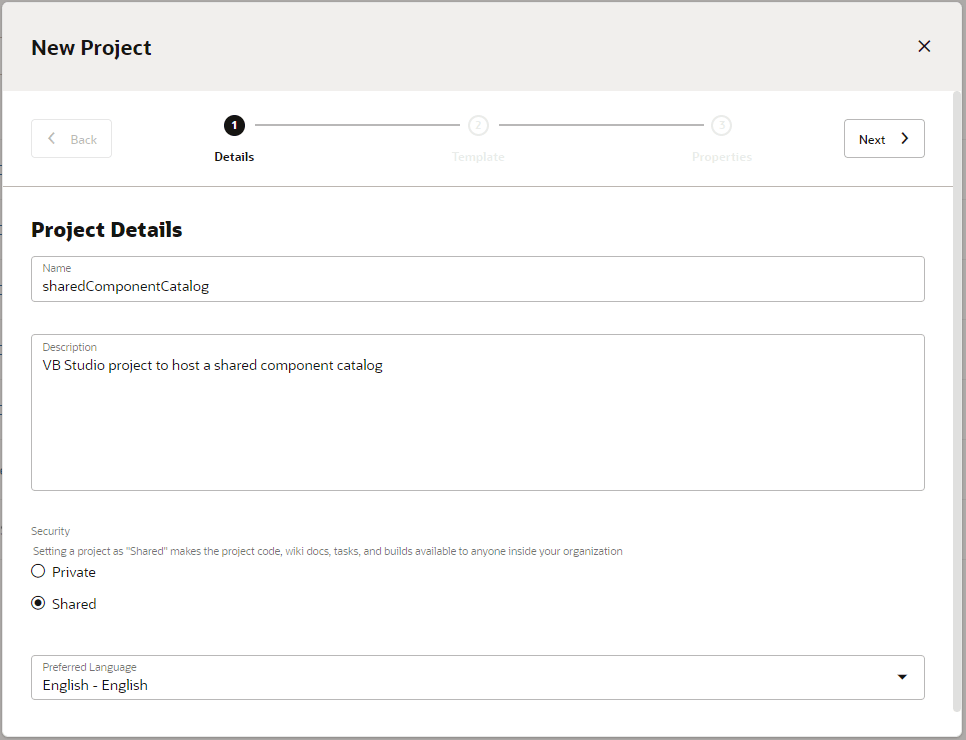
- Select the Initial Repository template for the new project.
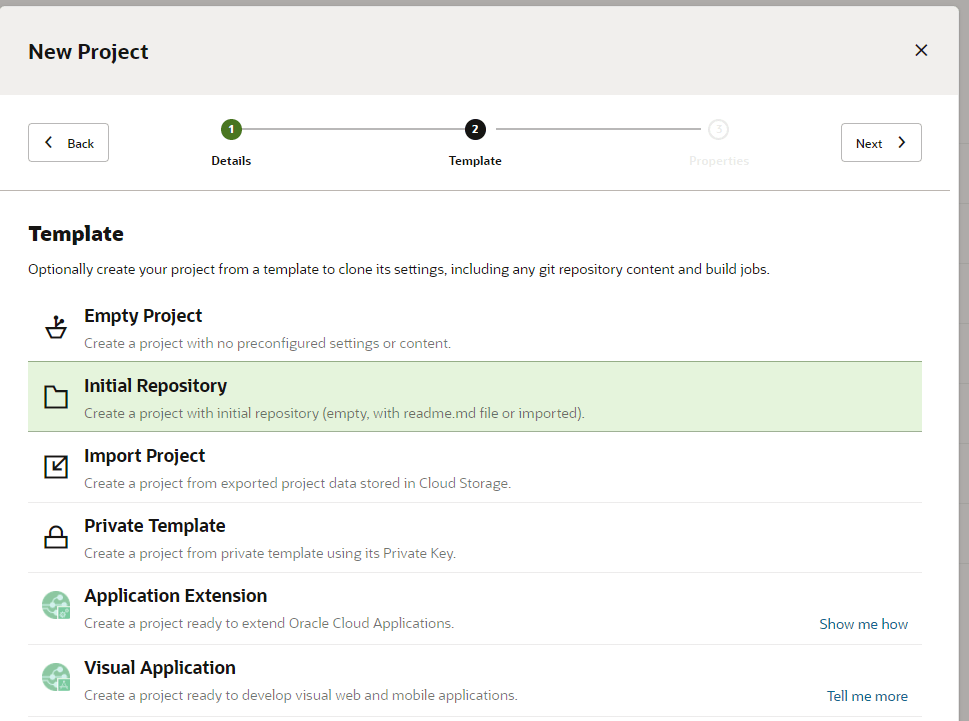
- Leave the defaults settings unchanged or, optionally, select the settings for importing your component source code and click Finish.
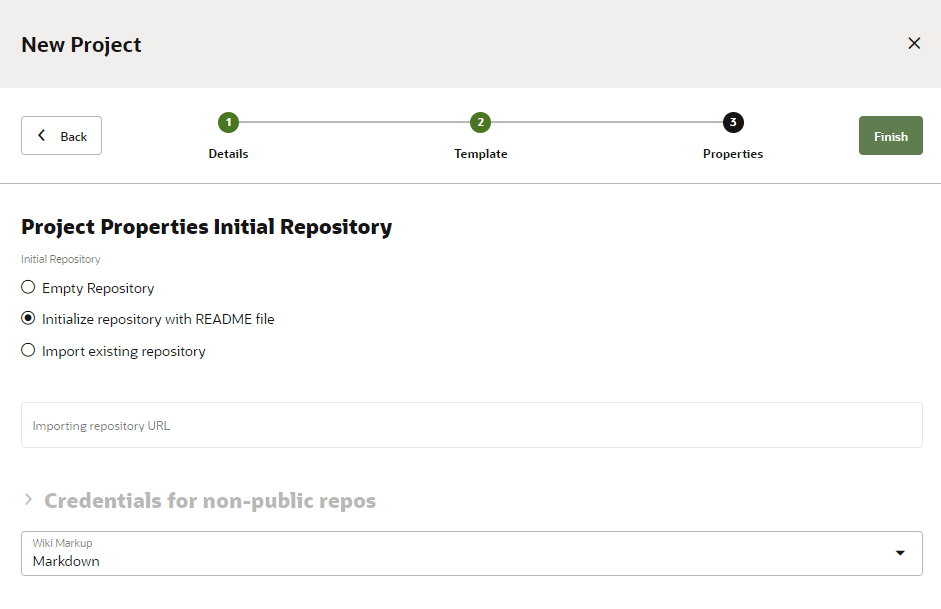
- In the project provisioning screen, verify that Component Exchange is one of the services being created.
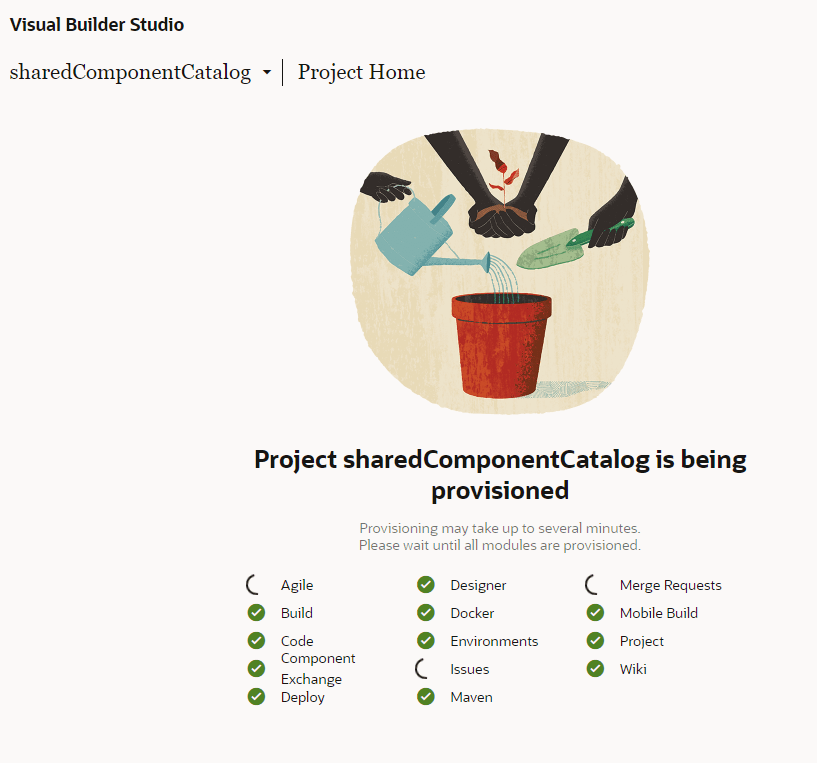
- Share the project with all users who will need to access published components by adding them as members to the project. They will then use their own user name and password to access the Shared Component Exchange.
Once the project is created you can obtain the correct URL for use with the Oracle JET tooling to access the Shared Component Exchange, as described in Publish Web Components to Oracle Component Exchange.
Publish Web Components to Oracle Component Exchange
When you want to store and share Web Components across machines for re-use by other developers, you can use the Oracle JET CLI (Command-Line Interface) to configure access to a Shared Component Exchange defined in Oracle Visual Builder Studio and then publish components to a public project.
When you want to share Web Components, you can use Oracle JET CLI to configure access to a Shared Component Exchange by supplying the URL to the target Component Exchange. Once you have configured the JET tooling for a specific Component Exchange, you can run the publish component command in the JET CLI to upload specified components. Users with access rights can use the CLI to search the Component Exchange for components by keyword and add components to their web app project.
Before you begin:
-
Create a project in a Shared Component Exchange, as described in Create a Project to Host a Shared Oracle Component Exchange.
-
Share the project with all users who will need to access components by adding them as members to the project, as described in Create a Project to Host a Shared Oracle Component Exchange. Users will need to create their own user name and password to access the Shared Component Exchange.
To publish components to a Shared Component Exchange:
-
Obtain the URL to the Shared Component Exchange that you can use to configure Oracle JET tooling.
-
From the Shared Component Exchange that you created, copy the URL that you would use to clone the GIT repository. The URL will look similar to this.
https://john.doe@example.org@xxxxx-cloud01.developer.ocp.oraclecloud.com/xxxxx-cloud01/s/xxxxx-cloud01_sharedcomponentcatalog_8325/scm/sharedcomponentcatalog.git -
Using the copied URL, remove the user name prefix (for example,
john.doe@example.org@) and remove elements from/scmonwards to obtain a root of just the project, similar to this.https://xxxxx-cloud01.developer.ocp.oraclecloud.com/xxxxx-cloud01/s/xxxxx-cloud01_sharedcomponentcatalog_8325 -
Next, append
/compcatalog/0.2.0.In this example, the Exchange URL that you need for the Oracle JET tooling looks like this.
https://xxxxx-cloud01.developer.ocp.oraclecloud.com/xxxxx-cloud01/s/xxxxx-cloud01_sharedcomponentcatalog_8325/compcatalog/0.2.0
-
-
Configure Oracle JET tooling to access the Component Exchange project by running the
ojet configurecommand in the Oracle JET CLI. Set the--exchange-urlflag on the command to pass the Component Exchange URL you obtained.ojet configure --exchange-url=https://xxxxx-cloud01.developer.ocp.oraclecloud.com/xxxxx-cloud01/s/xxxxx-cloud01_sharedcomponentcatalog_8325/compcatalog/0.2.0You can use the JET CLI to define an Exchange URL that is global to all projects for your user:
The URL that you pass to the ojet configure` command at the project level, overrides the global definition.ojet configure --global --exchange-url=myExchange.org -
In the Oracle JET CLI, publish a component to the configured Component Exchange by running the
publish componentcommand.ojet publish component my-demo-cardOptionally, you can supply Component Exchange login user name and password with the
publishcommand. For more information, enterojet help publishin the CLI.
Oracle JET tooling supports searching the configured Component Exchange by running the search exchange command with a keyword, such as the component name. Additionally, you can add components to your web app by running the add component command for the configured Component Exchange. For more information, use ojet help in the JET CLI.
Upload and Consume Web Components on a CDN
You can package a Web Component to make it available on a Content Delivery Network (CDN) and you can reuse the component in your app.
You can include the CDN location of the component in the component metadata as defined in the component's component.json file. By doing this, tools such as Oracle JET tooling and Oracle Visual Builder will be able to point to the CDN location when you build your apps in release mode.
CDN information is encoded by using the paths attribute in the component.json file. A typical example looks similar to this.
{
  "name": “demo-samplecomponent",
  "displayName": “Sample component",
  "version": "1.0.0",
  "paths": {
    "cdn": {
      "min": "https://static.example.com/cdn/jet/components/demo-samplecomponent/1.0.0/min",
      "debug": "https://static.example.com/cdn/jet/components/demo-samplecomponent/1.0.0"
    }
  },
...
The following notes apply to the paths attribute that you specify:
-
The exact CDN root location will depend on your CDN provider, and it is the final part of the location that is needed.
-
The location has a folder with the same name as the component (in this example
demo-samplecomponent) followed by the version number of the component (1.0.0). As you release new versions of the component, you will create a new version-number folder under the component root. -
You can provide both a
minanddebugpath for the component, where thedebugpath is optional.
To prepare for CDN distribution, package the component by running the package component command in the Oracle JET Command-Line Interface. This will produce a zip file with the same name as the component (for example, demo-samplecomponent.zip) in the /dist folder of the containing Oracle JET app. This zip file will contain both the specified component and a minified version of that component in a /min subfolder.
Unpack the zip file that you created under the /<component-name>/<version> folder for your CDN as identified in the component.json file.
After a component is available on a CDN, you can then use it in your JET app by pointing the requireJS path for the component to the CDN location that you identified for the component. If you use Oracle JET tooling, this will be done for you; however, if you need to define the requireJS paths manually, such a mapping will look similar to this in main.js file:
requirejs.config(
    {
      baseUrl: 'js',
      paths:
      {
        'demo-samplecomponent': '"https://static.example.com/cdn/jet/components/demo-samplecomponent/1.0.0/min',
      ...
References to the component can be made using the path <component-name>/loader.