Customizing Themes Using the Tooling

Use the Oracle JET command-line interface (CLI) to add Sass support and customize your application’s theme or specify an alternate theme.

By default, the SCSS files are not included with applications that you scaffold with the Oracle JET CLI. However, you can use tooling commands as described in the procedure below to add node-sass and skeleton theme files to your application. You can then modify the skeleton theme files while the application is running and observe the effect of the change immediately using the live reload feature.

To customize an Oracle JET theme using the tooling:

  1. In your application’s top level directory, enter the following command at a terminal prompt to add node-sass to your application:
    ojet add sass
  2. Add the skeleton theme files to your application.
    ojet create theme themeName

    For example, enter the following command to create the skeleton theme files for a custom theme named myTheme: ojet create theme myTheme.

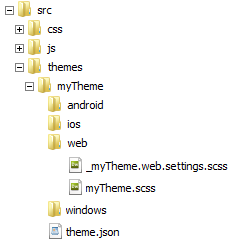
    The command creates a new folder with the custom theme name in the application’s src directory. The web folder is expanded to show the .scss files that you can modify. The myTheme.scss is the aggregating file for the given platform. The android, ios, and windows folders contain similar files with the name of the platform in the title: _myTheme.android.settings.scss, _myTheme.web.settings.scss, and so on.

    You’ll find out more about modifying these files in a later step.

    The theme.json file contains the version number of the theme, starting with 0.0.1.

    Note:

    The file locations will vary if you modified your directory structure as described in Modify the Web Application’s File Structure or Modify the Hybrid Mobile Application’s File Structure.
  3. Use ojet build with the --theme option to build a development version of your application with the new theme.
    ojet build --theme=themeName[:android|ios|web|windows] [--platform=android|ios|web|windows]

    For example, the following command builds a web application with the myTheme custom theme.

    ojet build --theme=myTheme
  4. To build more than one theme, add the --themes option with the names of the desired themes separated by commas:
    ojet build --theme=myTheme --themes=myTheme,myTheme1,myTheme2
  5. To run your application with live reload enabled, enter ojet serve with the theme option and optional platform.
    ojet serve --theme=themeName[:android|ios|web|windows] [--platform=android|ios|web|windows]

    For example, the following command serves a web application with the myTheme custom theme in the default browser.

    ojet serve --theme=myTheme
  6. Edit the themeName.platform.settings.scss file to set variables as needed for your application.

    For detailed information about Oracle JET and SCSS variables, see SCSS Variables.

    For example, to turn off tag selectors, remove the comment from the $allowTagSelectors variable if needed and set it to false.

    $allowTagSelectors: false;
    

    For information about Oracle JET's use of tag selectors, see Using Tag Selectors or Classes.

    When you use the Oracle JET CLI to serve to serve your application, live reload will reload the page, and any changes you make to your theme files will display in the browser.
  7. To optimize performance, consider the use of variables to include only the CSS that your application needs. For help, see Using Variables to Control CSS Content.

    Tip:

    You can observe the effect of any changes immediately. This can be handy if you’re not sure whether your application needs a given variable.
  8. To exit the application, save your changes, and press Ctrl+C at the terminal prompt.

    You may need to press Ctrl+C a few times for the command to take effect.

Tip:

To make working with themes easier, Oracle JET provides Theme Builder, an example application and tutorial. You can work with it online to see the effect of changes before you apply them to your own application. You can also download the sample and create your own themes offline for sharing.