Using Oracle JET Converters
The Oracle JET color, date-time, and number converters, oj.ColorConverter, oj.IntlDateTimeConverter, and oj.IntlNumberConverter, extend the oj.Converter object which defines a basic contract for converter implementations.
The converter API is based on the ECMAScript Internationalization API specification (ECMA-402 Edition 1.0) and uses the Unicode Common Locale Data Repository (CLDR) for its locale data. Both converters are initialized through their constructors, which accept options defined by the API specification. For additional information about the ECMA-402 API specification, see http://www.ecma-international.org/ecma-402/1.0. For information about the Unicode CLDR, see http://cldr.unicode.org.
The Oracle JET implementation extends the ECMA-402 specification by introducing additional options, including an option for user-defined patterns. For the list of additional options, see the oj.ColorConverter, oj.IntlDateTimeConverter, and oj.IntlNumberConverter API documentation.
For examples that illustrate the date-time and number converters in action, see the Converters section in the Oracle JET Cookbook. For examples using the color converter, see the Color Palette and Color Spectrum Cookbook samples.
Note:
The bundles that hold the locale symbols and data used by the Oracle JET converters are downloaded automatically based on the locale set on the page when using RequireJS and the ojs/ojvalidation-base, ojs/ojvalidation-datetime, or ojs/ojvalidation-number module. If your application does not use RequireJS, the locale data will not be downloaded automatically.
You can use the converters with an Oracle JET component or instantiate and use them directly on the page.
Topics:
Using Oracle JET Converters with Oracle JET Components
Oracle JET elements that accept user input, such as oj-input-date, already include an implicit converter that is used when parsing user input. However, you can also specify an explicit converter on the element which will be used instead when converting data from the model for display on the page and vice versa. An explicit converter is required if you want to include time zone data.
For example, the following code sample shows a portion of a form containing an oj-input-date component that uses the default converter supplied by the component implicitly. The highlighted code shows the oj-input-date component.
<div id="datetime-converter-example">... contents omitted<div class="oj-flex"> <div class="oj-flex-item"> <oj-label for="date1">input date with no converter</oj-label> </div> <div class="oj-flex-item"><oj-input-date id="date1" value="{{date}}" name="date1"help.instruction="enter a date in your preferred format and we will attempt to figure it out"></oj-input-date></div> </div> </div>
The script to create the view model for this example is shown below.
require(['ojs/ojcore', 'knockout', 'jquery', 'ojs/ojknockout', 'ojs/ojdatetimepicker', 'ojs/ojlabel'],
  function(oj, ko, $)
  {
    function MemberViewModel()
    {
      var self = this;
      self.date = ko.observable();
      self.datetime = ko.observable();
      self.time = ko.observable();
    };

    $(
      function()
      {
        ko.applyBindings(new MemberViewModel(),
          document.getElementById('datetime-converter-example'));
      }
    );
  });
When the user runs the page, the oj-input-date element displays an input field with the expected date format. In this example, the element also displays a hint when the user hovers over the input field, and displays a calendar when the user clicks in the input field. If the user inputs data that is not in the expected format, the built-in converter displays an error message with the expected format.
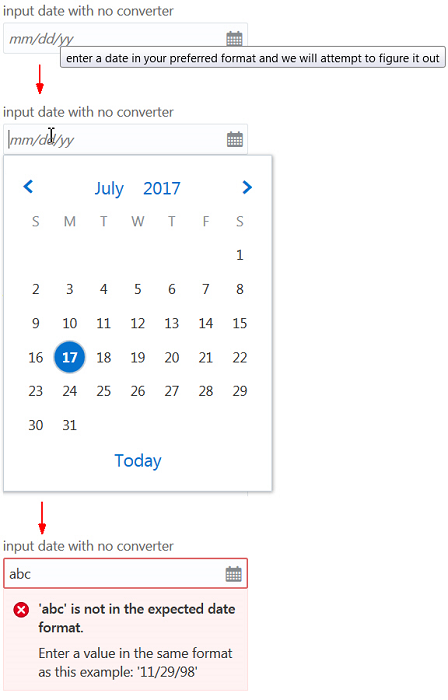
The error that the converter throws when there are errors during parsing or formatting operations is represented by the oj.ConverterError object, and the error message is represented by an object that duck-types oj.Message. The messages that Oracle JET converters use are resources that are defined in the translation bundle included with Oracle JET. For more information about messaging in Oracle JET, see Working with User Assistance.
You can also specify the converter directly on the element's converter attribute, if it exists. The code excerpt below defines another oj-input-date element on the sample form and specifies the oj.IntlDateTimeConverter converter with options that will convert the user's input to a numeric year, long month, and numeric day according to the conventions of the locale set on the page. The options parameter is an object literal that contains the ECMA-402 options as name-value pairs.
<div class="oj-flex">
  <div class="oj-flex-item">
    <oj-label for="date2">input date</oj-label>
  </div>
  <div class="oj-flex-item">
    <oj-input-date id="date2" value="{{date}}" name="date2"
                   help.instruction="enter a date in your preferred format and we will attempt to figure it out"
                   converter= '{
                     "type":"datetime",
                     "options": {"year": "numeric", "month": "long", "day": "numeric"}}'>
    </oj-input-date>
  </div>
</div>
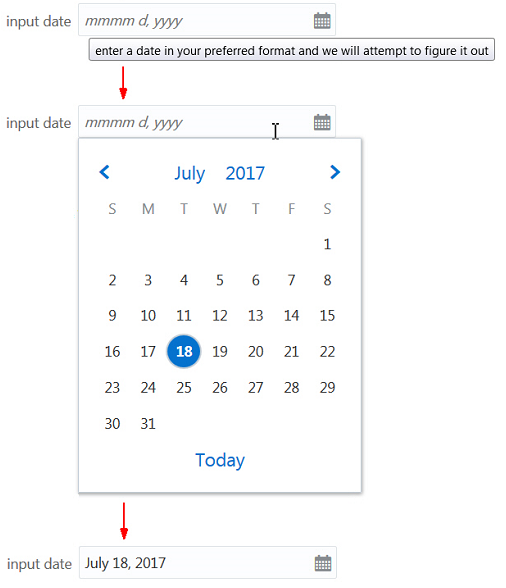
When the user runs the page in the en-us locale, the oj-input-date element displays an input field that expects the user's input date to be in the mmmm d, yyyy format. The converter will accept alternate input if it makes sense, such as 18/07/17 (MM/dd/yy), and perform the conversion, but will throw an error if it cannot parse the input. For details about Oracle JET converters and lenient parsing support, see Understanding Oracle JET Converters Lenient Parsing.
Parsing of narrow era, weekday, or month name is not supported because of ambiguity in choosing the right value. For example, if you initialize the date time converter with options {weekday: 'narrow', month: 'narrow', day: 'numeric', year: 'numeric'}, then for the en-US locale, the converter will format the date representing May 06, 2014 as T, M 6, 2014, where T represents Tuesday. If the user inputs T, M 6, 2014, the converter can't determine whether the user meant Thursday, March 6, 2014 or Tuesday, May 6, 2014. Therefore, Oracle JET expects that user inputs be provided in either their short or long forms, such as Sat, March 02, 2013.
For additional details about the oj.IntlDateTimeConverter and oj.IntlNumberConverter component options, see oj.IntlDateTimeConverter and oj.IntlNumberConverter.
Understanding Oracle JET Converters Lenient Parsing
The Oracle JET converters support lenient number and date parsing when the user input does not exactly match the expected pattern. The parser does the lenient parsing based on the leniency rules for the specific converter.
oj.IntlDateTimeConverter provides parser leniency when converting user input to a date and enables the user to:
-
Input any character as a separator irrespective of the separator specified in the associated pattern. For example, if the expected date pattern is set to
y-M-d, the date converter will accept the following values as valid:2013-11-16,2013/11-16, and2013aaa11xxx16. Similarly, if the expected time pattern is set tomm:ss:SS:, the converter will accept the following values as valid:11.24.376. -
Specify a 4-digit year in any position relative to day and month. For example, both
11-2013-16and16-11-2013are valid input values. -
Swap month and day positions, as long as the date value is greater than 12 when working with the Gregorian calendar. For example, if the user enters
2013-16-11wheny-M-dis expected, the converter will autocorrect the date to2013-11-16. However, if both date and month are less or equal to 12, no assumptions are made about the day or month, and the converter parses the value against the exact pattern. -
Enter weekday and month names or mix short and long names anywhere in the string. For example, if the expected pattern is
E, MMM, d, y, the user can enter any of the following dates:Tue, Nov 26 2013 Nov, Tue 2013 26 2013 Tue 26 Nov
-
Omit weekdays. For example, if the expected pattern is
E, MMM d, y, then the user can enterNov 26, 2013, and the converter autocorrects the date toTuesday, Nov 26, 2013. Invalid weekdays are not supported. For instance, the converter will throw an exception if the user entersWednesday, Nov 26, 2013.
oj.IntlNumberConverter supports parser leniency as follows:
-
If the input does not match the expected pattern, Oracle JET attempts to locate a number pattern within the input string. For instance, if the pattern is
#,##0.0, then the input stringabc-123.45dewill be parsed as-123.45. -
For the currency style, the currency symbol can be omitted. Also, the negative sign can be used instead of a negative prefix and suffix. As an example, if the
patternoption is specified as"\u00a4#,##0.00;(\u00a4#,##0.00)", then($123),(123), and-123will be parsed as-123. -
When the style is percent, the percent sign can be omitted. For example,
5%and5will both be parsed as0.05.
Understanding Time Zone Support in Oracle JET
By default, the oj-input-date-time and oj-input-time elements and oj.IntlDateTimeConverter support only local time zone input. You can add time zone support by including the ojs/ojtimezonedata RequireJS module and creating a converter with the desired pattern.
Oracle JET supports time zone conversion and formatting using the following patterns:
| Token | Description | Example |
|---|---|---|
|
z, zz, zzz |
Abbreviated time zone name, format support only |
PDT, PST |
|
zzzz |
Full time zone name, format support only |
Pacific Standard Time, Pacific Daylight Time |
|
Z, ZZ, ZZZ |
Sign hour minutes |
-0800 |
|
X |
Sign hours |
-08 |
|
XX |
Sign hours minutes |
-0800 |
|
XXX |
Sign hours:minutes |
-08:00 |
|
VV |
Time Zone ID |
America/Los Angeles |
The image below shows the basic oj-input-date-time element configured for time zone support. In this example, the component is converted using the Z pattern.
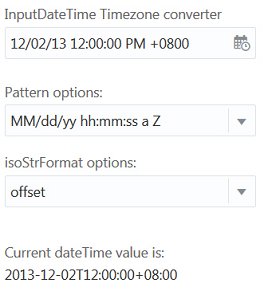
The oj-input-date-time element is initialized with its converter attribute, in this case a method named dateTimeConverter.
<div id="div1">
  <oj-label for="timezone">InputDateTime Timezone converter</oj-label>
  <oj-input-date-time id="timezone" value={{dateTimeValue}} converter=[[dateTimeConverter]]>
  </oj-input-date-time>
  <br/><br/>
  <p>
  <oj-label for="patternSelector">Pattern options:</oj-label>
  <oj-combobox-one id="patternSelector" value="{{patternValue}}">
    <oj-option value="MM/dd/yy hh:mm:ss a Z">MM/dd/yy hh:mm:ss a Z</oj-option>
    <oj-option value="MM-dd-yy hh:mm:ss a VV">MM-dd-yy hh:mm:ss a VV</oj-option>
    <oj-option value="MM-dd-yy hh:mm X">MM-dd-yy hh:mm X</oj-option>
  </oj-combobox-one>
  </p>
  <p>
  <oj-label for="isoStrFormatSelector">isoStrFormat options:</oj-label>
    <oj-combobox-one id="isoStrFormatSelector" value="{{isoStrFormatValue}}">
      <oj-option value="offset">offset</oj-option>
      <oj-option value="zulu">zulu</oj-option>
      <oj-option value="local">local</oj-option>
    </oj-combobox-one>
  </p>
  <br/>
  <span class="oj-label">Current dateTime value is: </span>
  <span data-bind="text: dateTimeValue"></span>
  //...contents omitted
</div>
The ViewModel contains the dateTimeConverter() definition. Note that you must also add the ojs/timezonedata to your RequireJS definition to access the time zone data files.
require(['ojs/ojcore', 'knockout', 'jquery', 'ojs/ojknockout', 'ojs/ojdatetimepicker',
             'ojs/ojselectcombobox', 'ojs/ojtimezonedata', 'ojs/ojlabel'],

    function (oj, ko, $)
    {

      function FormatModel()
      {
        var self = this;

        this.dateTimeValue = ko.observable("2013-12-01T20:00:00-08:00");
        this.patternValue = ko.observable("MM/dd/yy hh:mm:ss a Z");
        this.isoStrFormatValue = ko.observable("offset");
        this.dateTimeConverter = ko.observable(oj.Validation.converterFactory(oj.ConverterFactory.CONVERTER_TYPE_DATETIME).
        createConverter(
        {
          pattern : self.patternValue(),
          isoStrFormat: self.isoStrFormatValue(),
          timeZone:'Etc/GMT-08:00'
        }));
        //Note that ojCombobox's value is always encapsulated in an array
        this.patternValue.subscribe(function (newValue)
        {
          self.dateTimeConverter(oj.Validation.converterFactory(oj.ConverterFactory.CONVERTER_TYPE_DATETIME).
          createConverter(
          {
            pattern : newValue,
            isoStrFormat: self.isoStrFormatValue(),
            timeZone:'Etc/GMT-08:00'
          }));
        });

        this.isoStrFormatValue.subscribe(function (newValue)
        {
          self.dateTimeConverter(oj.Validation.converterFactory(oj.ConverterFactory.CONVERTER_TYPE_DATETIME).
          createConverter(
          {
            pattern : self.patternValue(),
            isoStrFormat: newValue,
            timeZone:'Etc/GMT-08:00'
          }));
        });

	//...contents omitted
      $(function ()
      {
        ko.applyBindings(new FormatModel(), document.getElementById('div1'));
      });

    });
For an additional example illustrating how to add time zone support to oj-input-date-time and oj-input-time elements, see Input Date and Time - Time Zone.
Using Custom Converters in Oracle JET
You can create custom converters in Oracle JET by extending oj.Converter or by duck typing it. You can also create a custom converter factory to register the converter with Oracle JET and make it easier to instantiate the converter.
Custom converters can be used with Oracle JET components, provided they don't violate the integrity of the component. As with the built-in Oracle JET converters, you can also use them directly on the page.
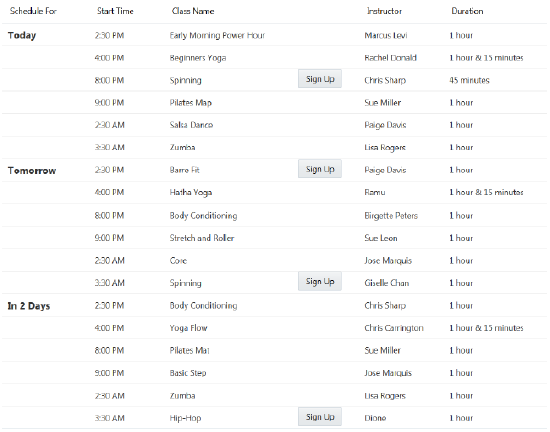
The figure below shows an example of a custom converter used to convert the current date to a relative term. The Schedule For column uses a RelativeDateTimeConverter to convert the date that the page is run in the en-US locale to display Today, Tomorrow, and the date in two days.
To create and use a custom converter in Oracle JET:
Using Oracle JET Converters Without Oracle JET Components
If you want to use a converter without binding it to an Oracle JET component, create the converter using oj.Validation.converterFactory.createConverter().
The Oracle JET Cookbook includes the Converters Factory demo that shows how to use the number and date time converters directly in your pages without binding them to an Oracle JET component. In the demo image, the salary is a number formatted as currency, and the start date is an ISO string formatted as a date.

The sample code below shows a portion of the viewModel that defines a salaryConverter to format a number as currency and a dateConverter that formats the start date using the date format style and medium date format.
require(['ojs/ojcore', 'knockout', 'jquery', 'ojs/ojknockout', 'ojs/ojvalidation-datetime',
  'ojs/ojvalidation-number'],
    function(oj, ko, $)
    {
      function DemoViewModel()
      {
        var self = this;
        // for salary fields
        var salOptions = {style: 'currency', currency: 'USD'};
        var salaryConverter =
          oj.Validation.converterFactory("number").createConverter(salOptions);
        self.amySalary = ko.observable(salaryConverter.format(125475.00));
        self.garySalary = ko.observable(salaryConverter.format(110325.25));

        // for date fields
        var dateOptions = {formatStyle: 'date', dateFormat: 'medium'};
        var dateConverter =
          oj.Validation.converterFactory("datetime").createConverter(dateOptions);
        self.amyStartDate = ko.observable(dateConverter.format("2014-01-02"));
        self.garyStartDate = ko.observable(dateConverter.format("2009-07-25"));
        ... contents omitted
});
The code sample below shows the portion of the markup that sets the display output to the formatted values contained in amySalary, amyStartDate, garySalary, garyStartDate.
<td>
  <div class="oj-panel oj-panel-alt4 demo-panel-customizations">
    <h3 class="oj-header-border">Amy Flanagan</h3>
    <img src="images/Amy.png" alt="Amy">
    <p>Product Manager</p>
    <span style="white-space:nowrap;"><b>Salary</b>:
      <span data-bind="text: amySalary"></span></span>
    <br/>
    <span style="white-space:nowrap;"><b>Joined</b>:
      <span data-bind="text: amyStartDate"></span></span>
    <br/>
  </div>
</td>
<td>
  <div class="oj-panel oj-panel-alt2 demo-panel-customizations">
    <h3 class="oj-header-border">Gary Fontaine</h3>
    <img src="images/Gary.png" alt="Gary">
    <p>Sales Associate</p>
    <span style="white-space:nowrap;"><b>Salary</b>:
      <span data-bind="text: garySalary"></span></span>
    <br/>
    <span style="white-space:nowrap;"><b>Joined</b>:
        <span data-bind="text: garyStartDate"></span></span>
    <br/>
  </div>
</td>