Adding Profiles to a Portal
Add Profiles to a portal to allow portal members to view personal profile information such as mail address, phone number, office location, department, manager, direct reports for themselves and other members.
Permissions: To perform the tasks in this chapter, you must be a portal manager or a portal member with the portal-level permissions
Basic Services: Edit Page Access and Structure(standard permissions) orPages: Edit Pages(advanced permissions).
See About Roles and Permissions for a Portal.
Topics
About Profiles
Profile provides a variety of views into users’ personal profile information. Such information can include mail address, phone number, office location, department, manager, direct reports, and so on. In a typical WebCenter Portal installation, Profile takes the bulk of its information from the back-end identity store that provides WebCenter Portal with its users (for more information, see Synchronizing Profiles with the Identity Store in Administering Oracle WebCenter Portal). Additionally, Profile may offer opportunities for altering some of this information and for providing additional data not included in the identity store.
Before users access their Profiles or Profile preferences, your administrator can set global application defaults that affect what all users may see and do with their own and other users’ Profiles. For more information, see Configuring Profile in Administering Oracle WebCenter Portal.
Note:
The Profile user interface was updated in 12c Release 2 (12.2.2.0.0). Depending on how your system administrator configured your installation of WebCenter Portal, you may see the legacy Profile user interface. For information on the legacy Profile user interface, see Managing Your Profile in the User's Guide forOracle WebCenter Portal: Spaces for 11g Release 1 (11.1.1.7.0).
Empty fields (fields without any content) do not appear in some profile views.
Users access Profile information by clicking a user name wherever they see it in WebCenter Portal. Depending on where the user clicks in the portal, the either see a brief, popup view of the user profile or they see a full profile view on the WebCenter Portal Profile page. For information about how users interact with profiles and use Profile task flow features, see Managing Your Profile in Using Portals in Oracle WebCenter Portal.
In addition to the Profile page, Profile provides several task flows that each offer a unique view of a user’s Profile information. Provided you have edit permission on a page, you can place a Profile task flow wherever you find it of use.
Profile provides the following task flows:
-
Organization View for a graphical depiction of the current user's position within the company—that is, a detail of the overall organization chart. In Organization View, you can cycle through three views of the current user's Profile information, including contact information; the user's address and the current time in the user's locale; and a summary About Me statement. It also provides a link to a full-blown profile of the current user (Figure 50-1).
Figure: Organization View Task Flow
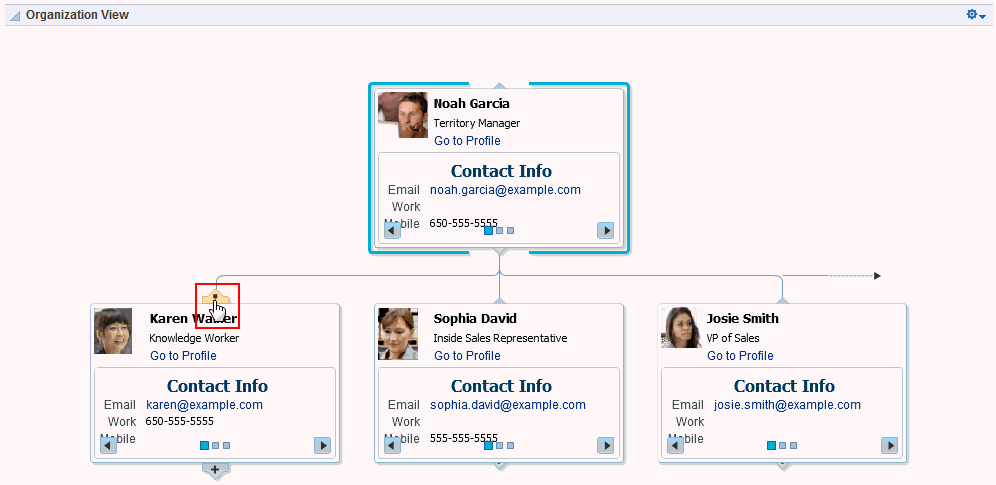
Description of the illustration wcsug_prof_orgview.gif
See Also: For information about enabling a hierarchical view of your organization, as depicted in Figure 50-1, see Specifying a Management Chain for Organization View in Administering Oracle WebCenter Portal.
-
Profile for displaying a user's profile details, uploading a photo, and (if enabled) editing Profile details (Figure 50-2)
Figure: Profile Task Flow
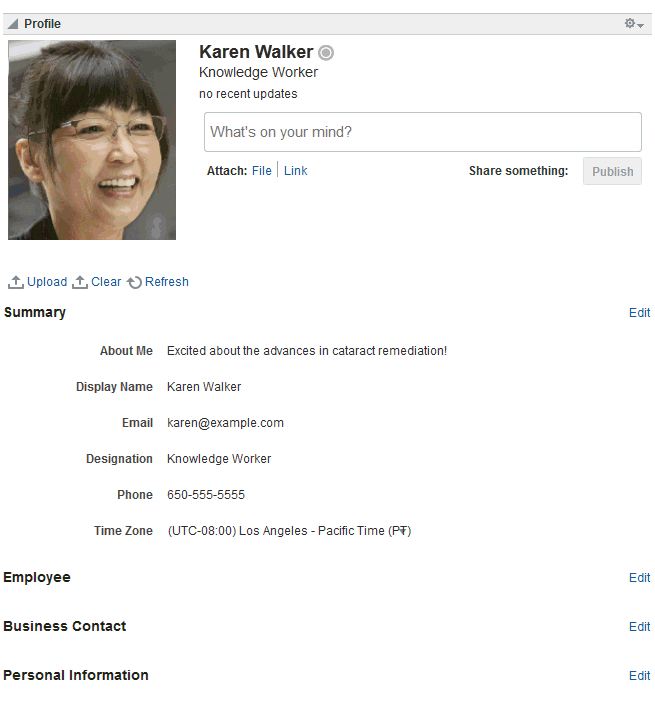
Description of the illustration wcsug_learn_profiletf.gif
-
Profile - Gallery for accessing all of your social networking information from one view (Figure 50-3)
Figure: Profile Gallery Task Flow
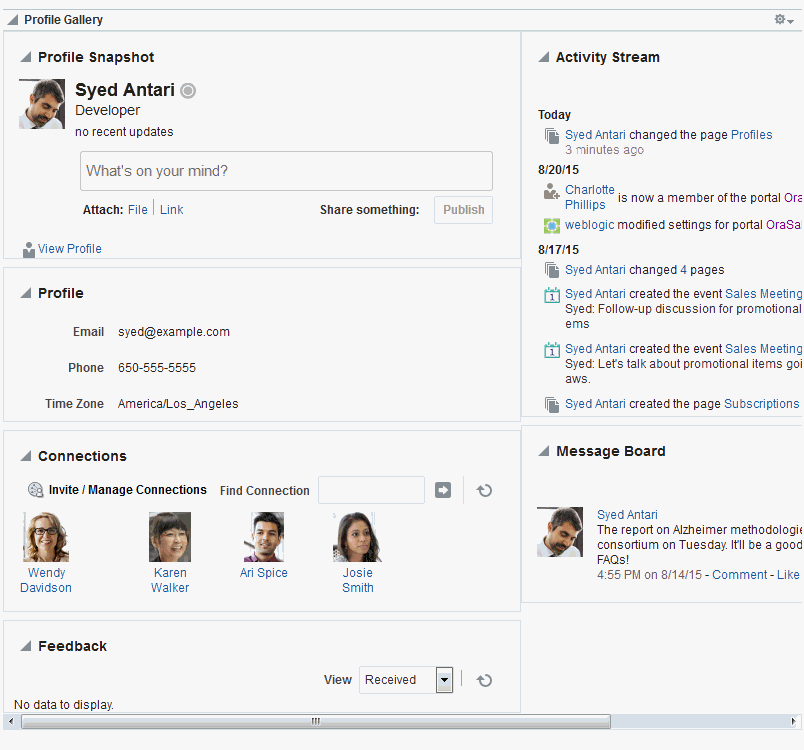
Description of the illustration wcsug_prof_profgal.gif
-
Profile - Snapshot for viewing a user photo and status message (Figure 50-4)
Figure: Profile - Snapshot Task Flow
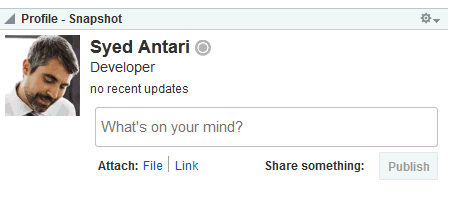
Description of the illustration wcsug_prof_profsnaptf.gif
Profile task flows have associated properties that you can use to control the appearance and behavior of a task flow instance. For example, you can use Profile properties to specify that the statements you enter into a Publisher task flow (see About Message Board) are included in those Profile views that provide a status message. You can control whether a Profile allows the display of a photo and whether the photo can be updated in page view mode.
Note:
Empty fields (fields without any content) do not appear in some profile views.
See Also: Working with Profile Task Flow Properties
Adding a Profile Task Flow to a Page
For the steps to add a Profile task flow to a page, see Adding Components to a Page.
Tip: The presence or location of the Profile task flows in the resource catalog depends on how the resource catalog is configured. For example, in the default resource catalog, the Profile task flows are included under the Social and Communication folder.
For more information about the Profile task flows, see About Profiles.
Working with Profile Task Flow Properties
Profile task flows have associated properties, which users with sufficient privileges can access through the task flow’s View Actions menu. For example, edit the page, click the task flow instance to show the toolbar, open the View Actions menu, and select Parameters to display the Parameters dialog (Figure 50-5).
Figure: Profile Task Flow Component Properties Dialog
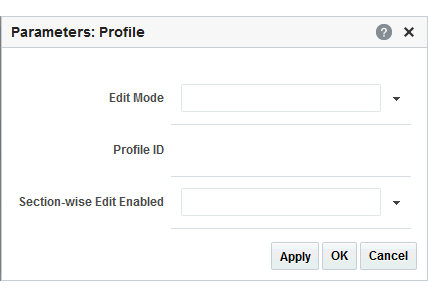
Description of the illustration wcsug_prof_compprop.gif
See Also: Setting Properties on a Component
The following sections provide information about Profile task flow properties and parameters:
Setting Profile Task Flow Properties
In the page editor, selecting any component exposes a View Actions menu (Figure 50-6), which provides access to the component’s properties: Parameters, Access, Display Options, Style, and Content Style.
Figure: View Actions Menu on a Profile Task Flow
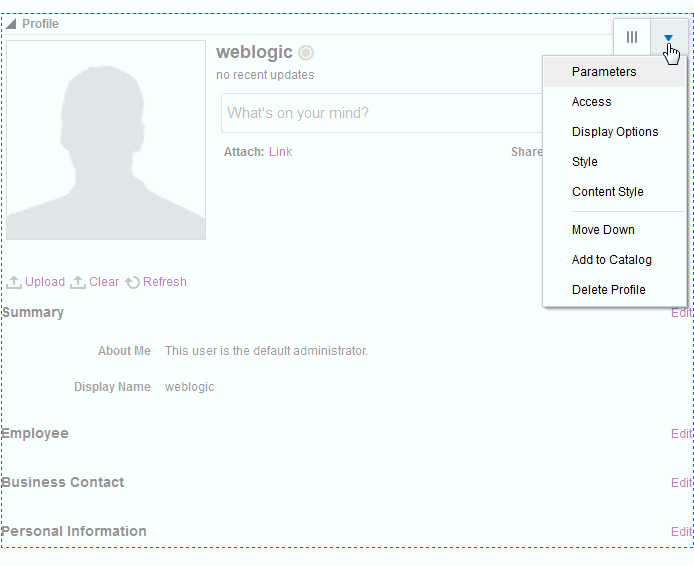
Description of the illustration wcpaa_prof_viewactions.gif
To set Profile task flow properties:
-
Open the page that contains the task flow in the page editor (see Opening a Page in the Page Editor).
-
Select the task flow, then click the View Actions menu, and select the property you want to set:
-
Parameters control the default task flow content. For descriptions of each parameter, see: Organization View Task Flow Parameters, Profile Task Flow Parameters, Profile Gallery Task Flow Parameters, and Profile - Snapshot Task Flow Parameters.
Parameters can be wired to events, and can be used facilitate the wiring of the task flow to page parameters and page definition variables. For more information, see Wiring Pages and Components.
-
Access settings show or hide the component to specific roles, users, or groups. For more information, see Setting Component Access.
-
The Display Options, Style, and Content Style properties affect the appearance and behavior of the task flow for all users. These properties are common to all task flows. For more information, see Modifying Component Properties.
The Parameters and Display Options dialogs provide access to an Expression Language (EL) editor, which you can use to select or specify a variable value in lieu of a constant value. Click the Expression Editor icon icon next to a property, then select Expression Builder to open the editor.
Note: When you enter EL in the Display Options dialog, the parser reports an error only if it detects invalid syntax, such as a missing closing bracket. Validation is performed only on syntax, not on the expression value. Generic Display Options are those cataloged in Table 10-1.
EL validation is not performed on non-generic display options.
If you need EL assistance, an application developer can provide an EL expression; see Expression Language Expressions in Developing for Oracle WebCenter Portal.
-
-
Save your changes.
Organization View Task Flow Parameters
Table 50-1 describes the parameters that are unique to the Organization View task flow.
Table 50-1 Organization View Task Flow Parameters
| Parameter | Description |
|---|---|
|
|
Determines whether the task flow displays a control panel for manipulating the style, alignment, and size of the content Select to show the control panel, deselect to hide the control panel. The control panel is hidden by default. |
|
|
The ID of the user to display in the task flow The value for this parameter, If you need EL assistance, an application developer can provide an EL expression; see Expression Language Expressions in Developing for Oracle WebCenter Portal. |
Profile Task Flow Parameters
Table 50-2 describes the parameters that are unique to the Profile task flow.
Table 50-2 Profile Task Flow Parameters
| Parameter | Description |
|---|---|
|
|
Determines whether to display Profile details as editable without requiring specific navigation to an editable view
When the value is set to This parameter is set to |
|
|
The ID of the user to display in the task flow The value for this parameter, If you need EL assistance, an application developer can provide an EL expression; see Expression Language Expressions in Developing for Oracle WebCenter Portal. |
|
|
Determines whether to display section-by-section edit capability in the task flow
This parameter is set to |
Profile Gallery Task Flow Parameters
Table 50-3 describes the parameters that are unique to the Profile Gallery task flow.
Table 50-3 Profile Gallery Task Flow Parameters
| Parameter | Description |
|---|---|
|
|
The ID of the user to show in the task flow The value for this parameter, If you need EL assistance, an application developer can provide an EL expression; see Expression Language Expressions in Developing for Oracle WebCenter Portal. |
Profile - Snapshot Task Flow Parameters
Table 50-4 describes the parameters that are unique to the Profile - Snapshot task flow.
Table 50-4 Profile - Snapshot Task Flow Parameters
| Parameter | Description |
|---|---|
|
|
Determines whether the task flow displays controls that enable users to upload, clear and refresh a profile photo Select to show profile photo controls, deselect to hide profile photo controls. The profile photo controls are hidden by default. |
|
|
Determines whether the task flow displays controls that enable users to enter a personal status message and attach a file or link to the message Select to allow users to enter a status message through the task flow, deselect to hide status update controls. The status message controls are shown by default. If status updates are enabled, users can enter updates through an embedded Publisher task flow. For information about the Publisher task flow, see Liking, Commenting On, and Sharing Items in WebCenter Portal in Using Portals in Oracle WebCenter Portal. |
|
|
Determines the size of the Profile photo displayed in the task flow Values can be one of: |
|
|
Determines whether a breadcrumb delineating the user's upward path in the organization hierarchy is shown Select to show the breadcrumb, deselect to hide the breadcrumb. The breadcrumb is hidden by default. |
|
|
Determines whether the task flow displays a link to edit the user Profile Select to show the Edit Profile link, deselect to hide the link. The link is hidden by default. This link does not perform any operation, but instead leads to a region navigation event (to the same view), which the consumer can listen to and perform navigation appropriately. Out of the box, the Profile business role page, which contains the Profile - Snapshot task flow, is wired to the Profile task flow on the About subpage. Upon receiving a region navigation event from the Profile - Snapshot task flow, clicking the Edit link switches the Edit Mode parameter of the Profile task flow on the About subpage, effectively toggling the mode. Because of this out-of-the-box wiring, the Edit link works on the My Profile business role page. If you plan to expose the Profile Edit link, you must retain the code to listen to the region navigation event and provide the same type of wiring to the target task flow. |
|
|
The ID of the user to display in the task flow The value for this parameter, If you need EL assistance, an application developer can provide an EL expression; see Expression Language Expressions in Developing for Oracle WebCenter Portal. |
Using Properties to Configure a Profile Task Flow Instance
This section provides examples of how you use property values to affect the behavior of a given task flow instance. It includes the following subsections:
Change Profile Photo in Profile - Snapshot Task Flow
Use the property Allow photo upload to enable users to upload their own Profile photos in an instance of the Profile - Snapshot task flow. When you enable photo upload, Upload, Clear, and Refresh controls appear below the photo display area (Figure 50-7).
Figure: Photo Controls on Profile - Snapshot Task Flow
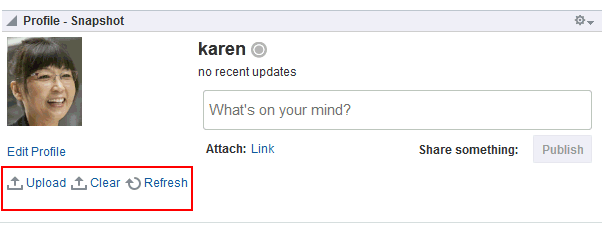
Description of the illustration wcsug_prof_allowphotoupld.gif
Note:
Photos uploaded to Profile - Snapshot are persisted to all other Profile task flows that expose a photo.
To enable users to change their Profile photo in the Profile - Snapshot task flow:
-
In the Profile - Snapshot task flow instance toolbar, click the View Actions menu, and select Parameters.
See Also: Setting Properties on a Component
-
In the Parameters dialog, select Allow photo upload.
Note: To prevent users from changing their profile photos, deselect Allow photo upload.
-
When you finish revising component parameters, click OK.
-
Save your changes, and exit the page editor.
Post a Status Update
Use the property Allow status update to show or hide a means of entering a personal status message in the Profile - Snapshot task flow. If status updates are enabled, users can enter their status messages through an embedded Publisher task flow (Figure 50-8).
Figure: Publisher Features in Profile - Snapshot Task Flow
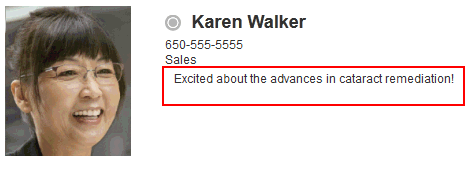
Description of the illustration wcsug_prof_allowstatup.gif
See Also: For information about the Publisher task flow, see About Publisher.
When this property is enabled, whenever the current user posts a status message using the Publisher task flow, it is also posted as a Profile status message to Profile - Snapshot, Profile Gallery, and Profile task flows.
To enable users to post a status update to their Profile:
-
In page edit mode, click the Profile - Snapshot task flow to show the toolbar, open the View Actions menu, and select Parameters.
See Also: Setting Properties on a Component
-
In the Parameters dialog, select Allow status update.
Note: To prevent users from updating their profile status through this task flow, deselect Allow status update.
-
When you finish revising component parameters, click OK.
-
Save your changes, and exit the page editor.
Expose Additional Controls in Organization View
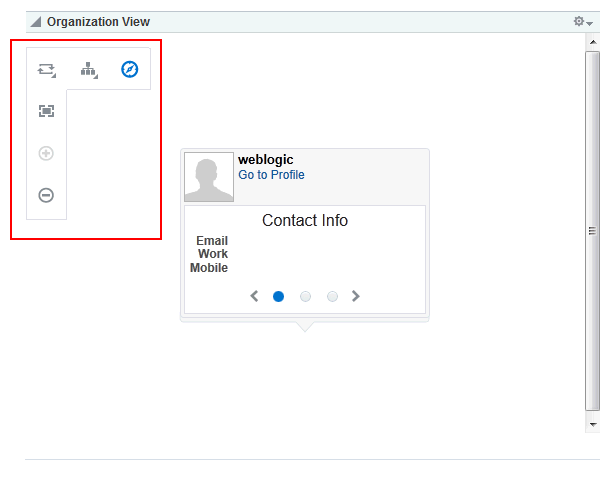
The Organization View task flow provides additional controls for manipulating your view of task flow content (Figure 50-9).
Figure: Control Panel Shown in Organization View
Description of the illustration wcsug_prof_ctrlpnlshown.gif
Use additional controls to zoom in and out and select a display format.
Use the property Control Panel Shown to expose these controls in an instance of the Organization View task flow.
To expose additional controls in an Organization View task flow:
-
In the Organization View task flow instance toolbar, click the View Actions menu, and select Parameters.
See Also: Setting Properties on a Component
-
In the Parameters dialog, select Control Panel Shown.
Note: To hide the Organization View control panel, deselect Control Panel Shown.
-
When you finish revising component parameters, click OK.
-
Save your changes, and exit the page editor.
Enable Continuous Edits to Profile Details
Use the property Edit Mode to enable users to edit Profile details without having to specifically enter an edit mode. Users navigate to the task flow instance and make changes to editable fields without having to first click an Edit button or link.
Note:
This parameter is recognized only if the parameter
sectionWiseEditEnabledis set to#{false}. For more information, see Enabling Section-By-Section Profile Editing.
To enable continuous edits of Profile details:
-
The Profile user interface was updated in 12c Release 2 (12.2.2.0.0). Depending on how your system administrator configured your installation of WebCenter Portal, you may see the legacy Profile user interface. For information on the legacy Profile user interface, see Managing Your Profile in the User's Guide forOracle WebCenter Portal: Spaces for 11g Release 1 (11.1.1.7.0).
-
Empty fields (fields without any content) do not appear in some profile views.0
Setting Size of Profile Images in Profile - Snapshot Task Flow
Use the property Image Size to set the display size of images that are uploaded through a Profile - Snapshot task flow. The value you enter affects the size of the photo in only the given task flow instance. No other types of Profile task flows and no other task flow instances are affected.
To set the size of a Profile image in the Profile - Snapshot task flow:
-
The Profile user interface was updated in 12c Release 2 (12.2.2.0.0). Depending on how your system administrator configured your installation of WebCenter Portal, you may see the legacy Profile user interface. For information on the legacy Profile user interface, see Managing Your Profile in the User's Guide forOracle WebCenter Portal: Spaces for 11g Release 1 (11.1.1.7.0).
-
Empty fields (fields without any content) do not appear in some profile views.1
Exposing Navigational Breadcrumbs in Profile - Snapshot
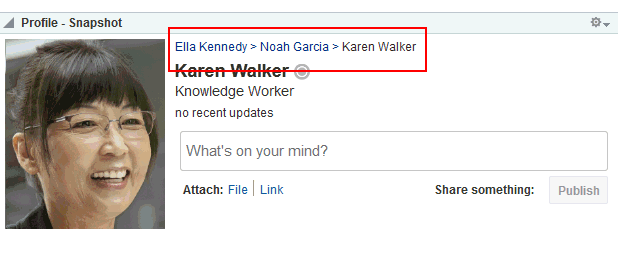
Use the property Org Bread Crumbs Shown to enable the display of breadcrumbs that visualize the current users position in the organization hierarchy (Figure 50-14).
Figure: Breadcrumbs in Profile - Snapshot Task Flow
Description of the illustration wcsug_prof_breadcrumbs.gif
Users can click a name in the hierarchy to navigate to a view of that user’s Profile.
To expose navigational breadcrumbs in a Profile - Snapshot task flow:
-
The Profile user interface was updated in 12c Release 2 (12.2.2.0.0). Depending on how your system administrator configured your installation of WebCenter Portal, you may see the legacy Profile user interface. For information on the legacy Profile user interface, see Managing Your Profile in the User's Guide forOracle WebCenter Portal: Spaces for 11g Release 1 (11.1.1.7.0).
-
Empty fields (fields without any content) do not appear in some profile views.3
Enabling Section-By-Section Profile Editing
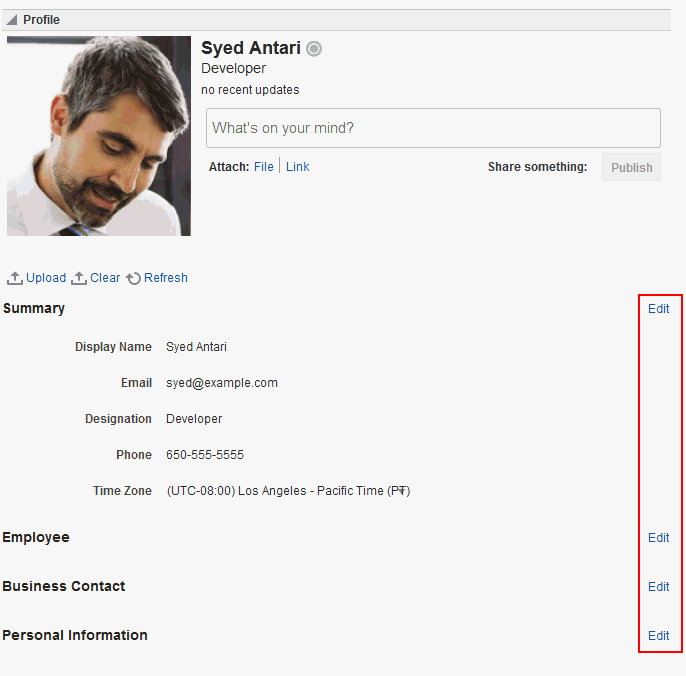
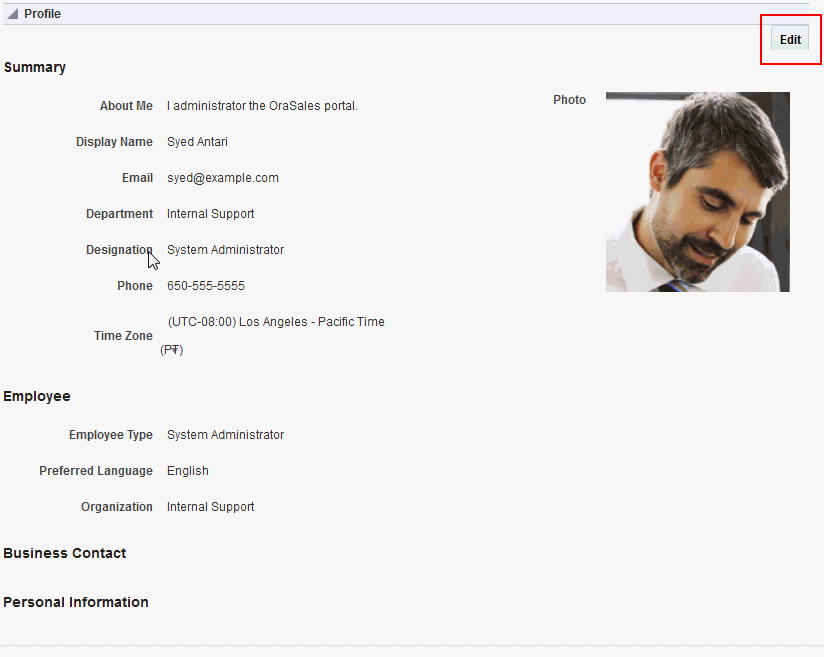
Use the Section-Wise Edit Enabled property to specify whether section-by-section editing is enabled, exposing Edit buttons on each editable section of a Profile task flow instance (Figure 50-15), or disabled, exposing only a single Edit button for the entire Profile (Figure 50-16).
Figure: Section-By-Section Profile Editing
Description of the illustration wcsug_prof_sectedit.gif
Figure: Profile with Single Edit Button
Description of the illustration wcsug_prof_editbutton.gif
Note:
Whether Profile details are editable in all Profile task flow instances is determined by your administrator. For more information, see Configuring Profile in Administering Oracle WebCenter Portal.
To enable section-by-section editing in a Profile task flow instance:
-
The Profile user interface was updated in 12c Release 2 (12.2.2.0.0). Depending on how your system administrator configured your installation of WebCenter Portal, you may see the legacy Profile user interface. For information on the legacy Profile user interface, see Managing Your Profile in the User's Guide forOracle WebCenter Portal: Spaces for 11g Release 1 (11.1.1.7.0).
-
Empty fields (fields without any content) do not appear in some profile views.4
Working with Profile Task Flows
For information about how users work with Profile task flows, see Managing Your Profile in Using Portals in Oracle WebCenter Portal.