Translating Portals into Other Languages
Translate portals to allow WebCenter Portal users to view portals in their home language at the application, portal, and user levels.
Permissions: To perform the tasks in this chapter, you must be a portal manager or a portal member with the portal-level permission
Basic Services: Edit Page Access, Structure, and Content(standard permissions) orPages: Edit Pages(advanced permissions). Users with this permission can create and edit pages, revise page properties, add page content, and delete pages from a portal.
For more information about permissions, see About Roles and Permissions for a Portal.
Topics
About Languages inWebCenter Portal
If your portal will be viewed by users in more than one country, you can configure it to display localized content based on the user’s selected language and locale. For example, if you know your page will be viewed in Italy, you can localize your page so that when Italian is selected (in browser, user preferences, portal, or application settings), text strings in the page will appear in Italian.
Additionally, locale selection applies special formatting considerations applicable to the selected locale. For example, those considerations may include whether information is typically viewed from left to right or right to left, how numbers are depicted (such as monetary information), and so on.
This section includes the following subsections:
Handling Different Information Types For Translation
Three main types of information are displayed in WebCenter Portal, each of which is handled differently for purposes of translation:
-
User interface (UI) elements, like field and link labels and seeded boilerplate text, as shown in Figure 57-1.
Figure: User Interface Elements Displayed inWebCenter Portal
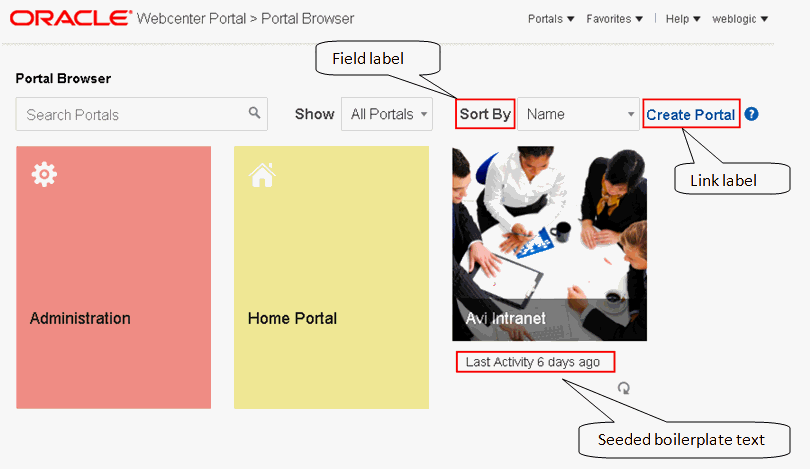
Description of the illustration wcsug_lang_uielements.gif
-
User-entered metadata, such as portal and page names, as shown in Figure 57-2.
Figure: Metadata Entered by Users, IncludingPortaland Page Names
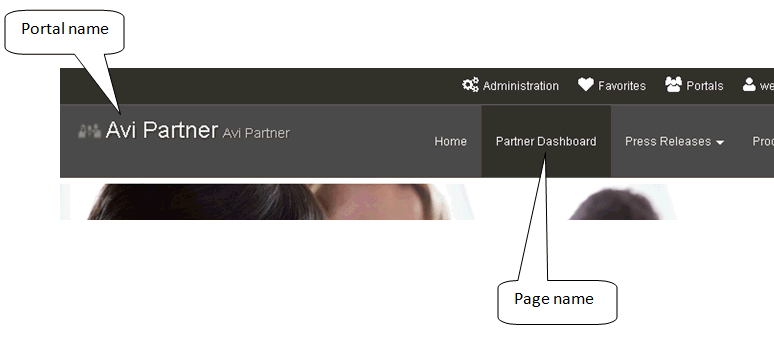
Description of the illustration wcsug_lang_metadata.gif
-
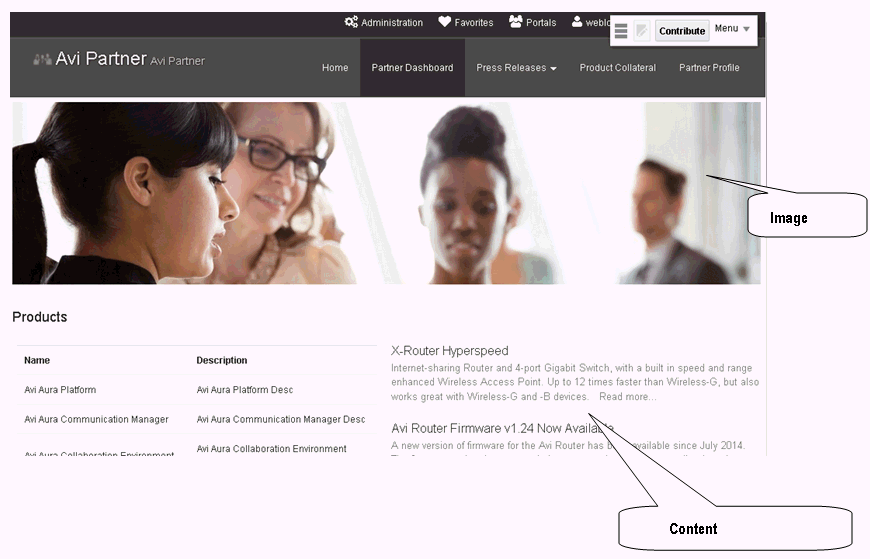
Content added by users, including published text and images, documents.
Figure: User-added Content Including Messages
Each type of information is handled differently when it comes to translation:
-
UI elements include out-of-the-box translations for 28 languages and 100 different locales. If the default UI text is not suited to your company's needs or if your company needs to support additional languages, your system administrator can edit the string files containing this text.
-
User-entered metadata can be translated by your system administrator the same way that UI elements are translated, that is, by editing the string files.
-
Content added in content publishing components can be translated, and your system administrator can display translated WebCenter Content items using Content Presenter.
Display Language Precedence
The display language controls the language in which translated information is rendered in your browser.
On the Internet, browser settings normally control the display language used for the various web sites a user visits. However, WebCenter Portal provides additional controls for language selection at the application, portal, and user levels. The order of precedence for WebCenter Portal display language settings from weakest to strongest is as follows:
-
Browser setting—The language selected in the user's browser preferences. Browser documentation describes how to change this setting.
-
Application setting—The application default language configured by the system administrator. For more information, see Choosing a Default Display Language in Administering Oracle WebCenter Portal.
-
Portal default language—The language set by the portal manager for a given portal. For more information, see Setting a Portal Display Language. This setting is not considered while determining the display language for the Home portal.
-
User preference setting—The language that the user selects through the personal Preferences settings. For more information, see Choosing Your Preferred Display Language in Using Portals in Oracle WebCenter Portal.
-
Change Language task flow—The language that the user selects through the Change Language task flow.
-
Global language switcher (Public cookie)—The session language a public user—that is, a user who is not logged on to WebCenter Portal—can select on your portal's Welcome page. A session language is retained for the life of the cookie. If the user clears the browser cookies, the session language is also cleared.
Based on the combination of all these settings, the display language is calculated for portals before login, after login, and after logout.
Note:
There are exceptions for the above precedence when the current scope (that is, the default portal language) has been set.
There are exceptions for the above precedence: - Portal Managers can nominate a display language for a particular portal. When defined, the portal language overrides both the default language and any user language preference.
- The default display language only applies when users log in to WebCenter Portal. Public pages, such as the welcome page and the login page display in the browser language. If no default language is provided, the browser language is used.
Languages Supported Out-of-the-Box by WebCenter Portal
WebCenter Portal provides runtime translations for 28 languages and 100 different locales.
Table 57-1 lists all 28 languages available to WebCenter Portal out-of-the-box. Users can also select locales associated with particular languages. For example, a user can change the language to Arabic and, within that language group, select from 20 different locales, including Algeria, Bahrain, Djibouti, and so on.
Table 57-1 Languages Available for WebCenter Portal
| A to Ge | Gr to P | Si to T |
|---|---|---|
|
Arabic |
Greek |
Simplified Chinese |
|
Brazilian Portuguese |
Hebrew |
Traditional Chinese |
|
Czech |
Hungarian |
Romanian |
|
Danish |
Italian |
Russian |
|
Dutch |
Japanese |
Slovak |
|
English |
Korean |
Spanish |
|
Finnish |
Norwegian |
Swedish |
|
French |
Polish |
Thai |
|
French-Canada |
Portuguese |
Turkish |
|
German |
Note:
The administrative tier that offers services to WebCenter Portal, including such tools as Oracle Enterprise Manager, provides a subset of the languages available to WebCenter Portal. These include:
-
English
-
Brazilian Portuguese
-
Simplified Chinese
-
Traditional Chinese
-
French
-
German
-
Italian
-
Japanese
-
Korean
-
Spanish
Fallback Language Mechanism
In WebCenter Portal, languages can have county-specific versions. For example the French language has the following variants: French (Belgium), French (Canada), French (Switzerland), and so on. You may want to translate your portal in all variants of a specific language. WebCenter Portal supports fallback mechanism for translations where the translations fall back to the base translation scope resource bundle file. For example, you may want to translate your portal in all variants of French (fr).
-
If the WebCenter Portal display language is set to French (Canada), which is represented by the code 'fr_CA', and you have provided translations only for 'fr', then as per the fallback mechanism the translations fall back to 'fr' from 'fr_CA'. In this case, any user-specified metadata will be rendered in the translation picked from the
scope-resource-bundle_fr.xlffile. -
If the WebCenter Portal display Language is 'fr_CA' and you have not provided any translation for 'fr', then as per the fallback mechanism the translations fall back to base scope resource bundle. In this case, user-specified metadata will be rendered in translation picked from the
scope-resource-bundle.xlffile.
Configuring Language Options
To configure the language displayed in WebCenter Portal, you can select from the following available options, depending on whether you are an administrator, portal manager, or user:
-
System administrators can configure the default language displayed in WebCenter Portal and the languages available to choose from in the WebCenter Portal UI. For more information, see Choosing a Default Display Language in Administering Oracle WebCenter Portal.
-
Portal managers can configure the language displayed by default in their specific portals and the languages available to choose from in their portal's UI. For more information, see Setting a Portal Display Language.
-
Users can select a language preference that applies whenever they are logged on to WebCenter Portal. For more information, see the Choosing Your Preferred Display Language in Using Portals in Oracle WebCenter Portal.
Note:
If the server on which WebCenter Portal is running does not support the character set of the language preference set in WebCenter Portal, the output information related to portals becomes garbled or displays as question marks. To work around this issue, users can change the session language or their personal language preference to
English. This creates new log file information. The log file is typically located at $WCP_DOMAIN/servers/WC_Portal/logs.
Enabling Users to Choose a Language
This section describes how to enable users to choose a language by adding a Change Language task flow to a page. It includes the following sections:
Adding a Change Language Task Flow to a Page
You can add the Change Language task flow to any page (in the Home portal, in a portal, or a business role page) to allow users to choose the language in which to display the UI.
To add a Change Language task flow to a page:
Working with Change Language Task Flow Properties
The Change Language task flow has associated properties, which users with sufficient privileges can access through the task flow’s View Actions menu. For example, select Parameters to display the Parameters dialog (Figure 57-4).
Figure: Change Language Task Flow Component Properties
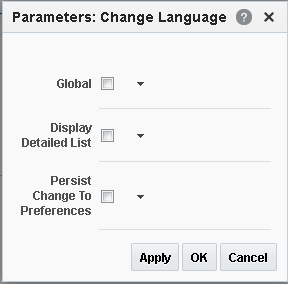
Description of the illustration wcsug_lang_taskflowprops.gif
See Also: Setting Properties on a Component
The following sections provide information about properties of the Change Language task flow and describe the task flow parameters:
Setting Change Language Task Flow Properties
In the page editor, selecting any component exposes a View Actions menu (Figure 57-5), which provides access to the component’s properties: Parameters, Access, Display Options, Style, and Content Style.
Figure: View Actions Menu on a Change Language Task Flow
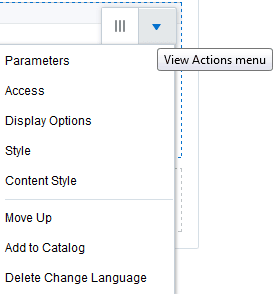
Description of the illustration changelang_viewaction.png
To set Change Language task flow properties:
Change Language Task Flow Parameters
Table 57-2 describes the parameters that are unique to the Change Language task flow.
Table 57-2 Change Language Task Flow Parameters
| Parameter | Description |
|---|---|
|
|
Specifies whether the change is global or limited to the current portal. Default: Not selected |
|
|
Displays a detailed list of languages, including locales. Default: Not selected |
|
|
Persists the user's language choice to the user's preferences. Default: Not selected |
Editing Strings or UI Text for a ParticularPortal
This section describes how to edit a particular string or the strings for a particular portal, including how to find the resource key for a string and how to find the GUID for a portal. The section includes the following subsections:
Editing a Particular String orPortal
You might need to edit only a particular string or the strings for a particular portal. To accomplish this task, you need to find the values associated with the string or the portal. Then you need to edit the required strings in the portal-specific resource bundle. For information about editing portal-specific resource bundles, see Managing a Multilanguage Portal in Administering Oracle WebCenter Portal.
Finding the Resource Key for a String
If you want to edit a particular string, you need to know the resource key for the string so you can find it in the string files.
To find the resource key for a string:
Finding the GUID for aPortal
If you want to edit the UI text for a particular portal or edit user-entered metadata, you need to find the GUID for the portal.
To find the GUID for a portal:
Translating Content
You can provide translations of some of the content in your portal.
Translating Content in Content Publishing Components
You can provide localized content in Content Publishing components by switching to the appropriate language and editing the content.
WebCenter Portal provides several Content Publishing components to enable the quick and easy publication of simple content, such as formatted text, images, and embedded video. After the initial content has been published in the language set as the application-level default language, users can provide a localized version of the content when they access the portal in a different language.
For example, a press release is created in English (the default language set by the WebCenter Portal administrator). To make the press release also available in French, set your preferred language to French [fr], edit the press release, and provide a localized version of the content. You can localize the following:
Once the localized content is published, any user with a language preference of French will see the French version of the content. For any other language preference, the content is shown in the default language until a localized version is created for that language.
Note:
If a default language is set for the portal, then everything in the portal will always be published in that language. The portal-level language setting cannot be overridden by user language preferences, but the application-level language setting can be overridden by user language preferences.
For more information, see Contributing and Publishing Content in a Different Language in Using Portals in Oracle WebCenter Portal
Presenting Translated Content Server Items Through a Content Presenter Template
If you use Content Presenter to publish WebCenter Content items in your portal, you can use Content Presenter display templates to display items in specific languages depending on the display language.