Working with Data Sources
Register and manage REST and SQL data sources so that other users can access remote data in their portals.
See Also: Presenting Application Data in a Portal
Permissions: To perform the tasks in this chapter on shared data sources, you must have the application-level
Manage Application Integration Visualizationpermission. Users with theApplication Specialistrole have this permission by default. See About Application Roles and Permissions in Administering Oracle WebCenter Portal.
To perform the tasks in this chapter, you need one of the following portal-level permissions:
-
Assets: Create, Edit, and Delete AssetsorCreate AssetsandEdit Assets(standard permissions) -
Application Integration Visualization: Manage Application Integration Visualization(advanced permissions)
See About Roles and Permissions for a Portal.
Topics
About Data Sources
WebCenter Portal supports two types of data sources from which to retrieve data to present on a portal page:
-
REST Data Sources: You can configure a REST data source in the Data Source wizard or the Define Data Visualization wizard, providing either an internal URL (does not require proxy details) or an external URL (requires proxy details). See Using REST Data Sources.
-
SQL Data Sources: You can configure a SQL data source in the weblogic console to provide specific database details (such as user name, password, service ID, and host name). See Using SQL Data Sources.
Using REST Data Sources
This section includes the following topics:
Creating a REST Data Source
Out-of-the-box, no REST data sources exist. You can create a REST data source at the application level or at the portal level. Application-level REST data sources are available for use in all portals, unless the portal has been specifically excluded. Portal-level REST data sources are available for use only in the portal in which they are created.
You can create a REST data source in two ways in WebCenter Portal:
-
In the Define Data Visualization wizard: Supports basic REST data source creation and editing. Available when you add and configure a data visualization on a portal page to present data from a REST data source in a selected visualization template. For more information, see Configuring a Data Visualization.
-
On the Assets or Shared Assets page: Supports more advanced REST data source creation and editing, providing more options. This method is described in this section.
To create a REST data source:
- Navigate to one of the following:
-
To create an application-level REST data source, go to the Shared Assets page. For more information, see Accessing Shared Assets.
-
To create a portal-level REST data source, go to the Assets page for the portal in which you want to create it. For more information, see Accessing Portal Assets.
-
-
In the left panel, under Data Sources, click REST Data Sources.
-
In the toolbar, click Create (Figure 27-1) to open the Create New REST Data Source wizard.. Figure: Creating a REST Data Source
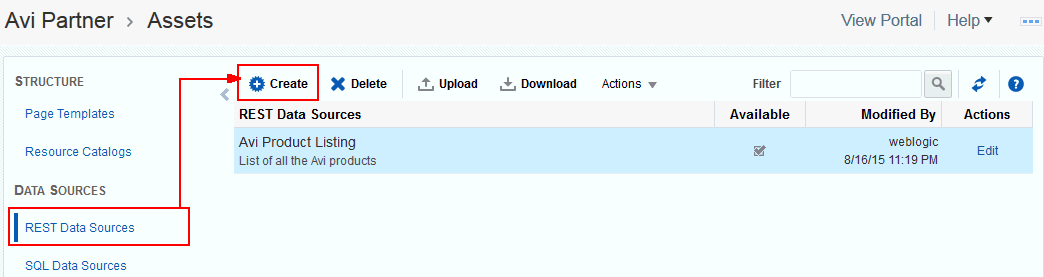
Description of the illustration wcpaa_rest_create.gif
-
Enter a Name and optional Description for the data source. Figure: Create New REST Data Source Wizard
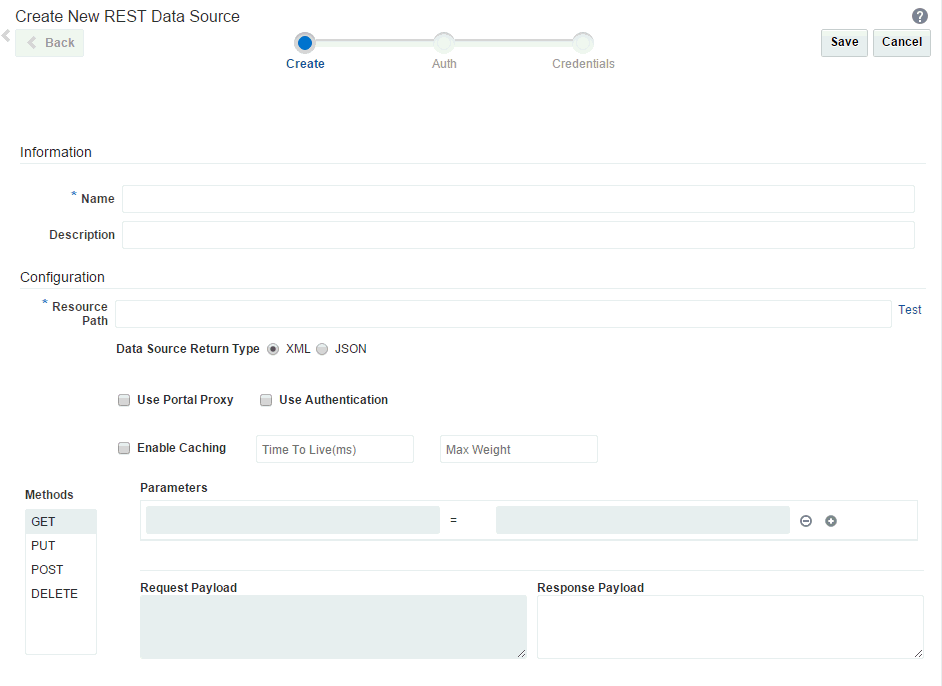
- Enter a valid Resource Path URL against which the REST data source will be created, then click Test to confirm the resource path is valid and that it returns data. For example, the resource path
http://dev.markitondemand.com/Api/v2/Quote?symbol=AAPLprovides stock quotes.Note: The Resource Path must support at least the
GETmethod, along with any other method (PUT,POST,DELETE). - In the list of Parameters populated based on the resource path provided, remove or add parameters as needed.
Note: If you modify the Resource Path URL, the list of parameters will be refreshed, and you may need to respecify the required data source parameters.
-
Select a Data Source Return Type that specifies data type returned by the Resource Path URL. A URL can return data in either XML format or JSON format.
-
Select or deselect Use Portal Proxy and Use Authentication as required. For an external REST URL, select Use Portal Proxy.
-
Select or deselect Enable Caching as required, and enter values for Time To Live (ms) and Max Weight.
-
From the Methods list, select the method to assign to the REST data source:
GET,PUT,POST, orDELETE. -
In the list of Parameters populated based on the resource path provided, remove or add parameters as needed.
-
Type payload values in the Request Payload and Response Payload fields as required. Tip: Enter the Resource Path URL in a browser to see what data is returned.
Note:
While the Resource Path URL can be the same for all methods (
GET,PUT,POST,DELETE), the Request Payload and **Response Payload ** can be different for each method. You will need to provide separate payload values for every method that you specify.An example of XML for Request Payload may look similar to:
<opportunity> <city>DOCUMENT</city> <comment>Default</comment> <country>US</country> <createdBy>LHUGHES</createdBy> <creationDate>2015-10-01T00:00:00-08:00</creationDate> <currencyCode>USD</currencyCode> <customerInfo> <contactEmail>david@abccorp.com</contactEmail> <contactName>David</contactName> <contactPhone>9987656781</contactPhone> <customerPhone>9987656781</customerPhone> </customerInfo> <formattedAddress>559 Cooper St, SEATTLE, WASHINGTON 98102</formattedAddress> <locationId>300100000393851</locationId> <opportunityId>300100029659792</opportunityId> <opportunityName>OpptyForABCCorp</opportunityName> <opportunityNumber>CDRM_23685</opportunityNumber> <postalCode>98102</postalCode> <primaryOrganizationId>201</primaryOrganizationId> <primaryRevenueId>300100029659793</primaryRevenueId> <products> <productName>Server - Class III</productName> <quantity>10</quantity> <totalPrice>8000</totalPrice> <unitPrice>800</unitPrice> </products> <products> <productName>Pro Server</productName> <quantity>15</quantity> <totalPrice>11250</totalPrice> <unitPrice>750</unitPrice> </products> <revenue>8000</revenue> <salesStage>01 - Qualification</salesStage> <targetPartyId>100000015802569</targetPartyId><targetPartyName>Designs Cooper</targetPartyName> </opportunity> - If you selected Use Authentication:
-
Click Next.
-
On the Auth page, select existing credentials, or click Add Credentials to create a new credential (if you have been granted the required permission to create a new credential).
-
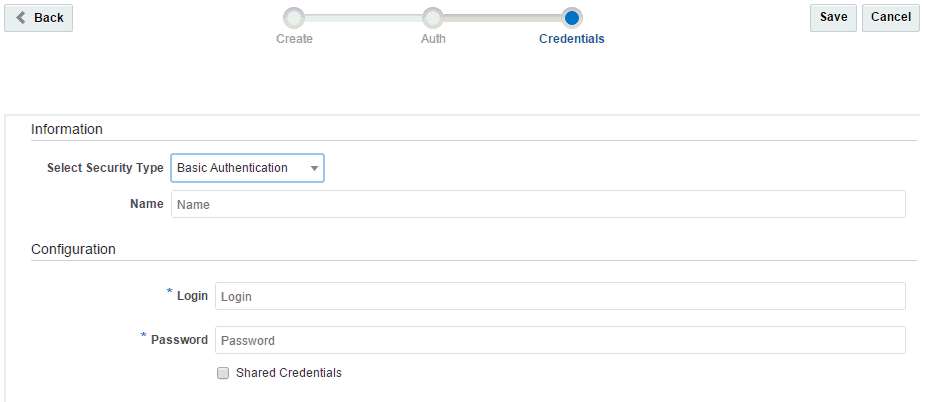
On the Credentials page, select from the Select Security Type list:
-
Basic Authentication support is provided via the External Application Service of WebCenter Portal. The user name and password for the REST service are stored in the OPSS Credential Store using the External Application Service. When a data visualization is rendered at runtime, WebCenter Portal retrieves these credentials to present the data on the page.
-
OAuth support is provided by OWSM integrated with REST Data Control. ADF REST Data Control supports only OAuth 2.0 using IDM OAuth Servers. External REST services that are protected using a non-IDM solution are not supported.
-
Taleo Token Generator authentication is provided by a custom security provider to propagate security at runtime. If authentication is successful, a Taleo token is issued. That token must be passed to each subsequent resource request to retrieve data.
Figure: Create REST Data Source Wizard: Credentials Page
-
-
Under Configuration, define or edit the login information, depending on the security type:
-
For Basic Authentication, enter the Login user name, and Password.
-
For OAuth, enter the Login user name, and Password corresponding to the Client ID and Password configured in OAuth server, and enter the Token Generator URL of the OAuth Server.
-
For Taleo Token Generator, enter the Login user name, and Password, and enter the Login URL and Org Code to access the Taleo end point. A user must be authenticated using user name, password, and organization code (company ID) on a defined login URL.
-
-
-
Click Save.
The newly created data source is listed on the Assets or Shared Assets page.
The empty check box in the Available column indicates that it is not yet published and hence is not available to other users. To publish the data source, click the check box.
For information about publishing a data source, see Showing and Hiding Assets.
Editing a REST Data Source
You can edit a REST data source in two ways in WebCenter Portal:
To edit a REST data source:
Managing a REST Data Source
The following options are available on the Assets or Shared Assets page to enable you to manage REST data sources:
See Also: Accessing Portal Assets and Accessing Shared Assets
Using SQL Data Sources
This section includes the following topics:
Creating a SQL Data Source
Out-of-the-box, no SQL data souces exist. You can create a SQL data source at the application level or at the portal level. Application-level SQL data sources are available for use in all portals, unless the portal has been specifically excluded. Portal-level SQL data sources are available for use only in the portal in which they are created.
The default SQL style for all database connections is Oracle. If the data source is a Microsoft SQL Server database, then the system administrator must perform the following tasks:
To create a SQL data source:
Editing a SQL Data Source
To edit a SQL data source:
-
REST Data Sources: You can configure a REST data source in the Data Source wizard or the Define Data Visualization wizard, providing either an internal URL (does not require proxy details) or an external URL (requires proxy details). See Using REST Data Sources.
-
SQL Data Sources: You can configure a SQL data source in the weblogic console to provide specific database details (such as user name, password, service ID, and host name). See Using SQL Data Sources.2
Managing a SQL Data Source
The following options are available on the Assets or Shared Assets page to enable you to manage SQL data sources:
See Also: Accessing Portal Assets and Accessing Shared Assets
-
REST Data Sources: You can configure a REST data source in the Data Source wizard or the Define Data Visualization wizard, providing either an internal URL (does not require proxy details) or an external URL (requires proxy details). See Using REST Data Sources.
-
SQL Data Sources: You can configure a SQL data source in the weblogic console to provide specific database details (such as user name, password, service ID, and host name). See Using SQL Data Sources.4