Identity Upgrade Overview
Learn how to prepare for and what to expect before and after the upgrade to Oracle Cloud Infrastructure Identity and Access Management (IAM).
The new OCI IAM experience in Oracle Cloud Console provides enhanced capabilities for managing authentication, sign-on policy, single sign-on (SSO), multifactor authentication (MFA), and identity lifecycle management.
If you received an email with the subject line: Upcoming Exception Migration to Identity and Access Management (IAM), your account has been selected for the upgrade to Oracle Cloud Infrastructure Identity and Access Management (IAM). This is a one-time mandatory upgrade that requires a downtime. To see if the downtime affects any scheduled activities, such as environment refresh, see Planning and Considerations for the Identity Upgrade.
If you have federated SSO environments, you must complete the pre-upgrade actions for each environment, including production, at least 72 hours before the scheduled downtime of the environment to ensure continued access to Fusion Applications. See Required Actions.
These actions have no impact to your existing SSO, integrations, or current workflows. This is for testing purposes only; the setup activates after the identity upgrade is complete.
If you didn't complete the pre-upgrade actions for an environment and the identity upgrade has completed, then your users' access to that environment through SSO will be broken. To restore access, follow the same instructions in Pre-Upgrade Tasks for Federated SSO Environments. These tasks can be applied after the identity upgrade and do not require any downtime.
If a new Fusion Applications environment family and environments were provisioned after April 6, 2025, the Fusion Applications environments are already running with OCI IAM. Identity upgrade isn't required.
Customer Connect webinars and office hours are available to help you with this identity upgrade. See Upcoming Fusion Application Identity Upgrade sessions: webinar and office hours for schedule, replays, and video demonstrating how to complete the pre-upgrade actions.
If you're using Microsoft Entra, Okta, or OCI IAM as an identity provider, see these videos and instructions:
- How to complete pre-upgrade actions for Fusion Applications Identity Upgrade (Entra) - instructions on My Oracle Support (KB886758)
- How to complete pre-upgrade actions for Fusion Applications Identity Upgrade (Okta) - instructions in the Okta section on My Oracle Support (KB179369)
- How to complete pre-upgrade actions for Fusion Applications Identity Upgrade (IAM) - instructions on My Oracle Support (KB883502)
- If you have Microsoft ADFS, refer to instructions in the ADFS section on My Oracle Support (KB911890).
What's Happening?
In the upcoming exception maintenance of Fusion Applications, the user identity service associated with your Fusion environments will be upgraded to Oracle Cloud Infrastructure Identity and Access Management (IAM).
The identity upgrade process requires a downtime. The duration is specified in the notification when you receive the identity upgrade schedule. Depending on whether federated SSO is enabled in the environments, you might have pre-upgrade actions to complete. See Pre-Upgrade Tasks.
Upon completion of the identity upgrade, you'll be notified by email. Complete the post-upgrade actions, if any, and then acknowledge the completion of those actions in the Oracle Cloud Console, under the Maintenance tab of the Fusion Applications environment family page. See Post-Upgrade Tasks.
What will be changed?
The identity upgrade will change the following functionality:
- The Single Sign-On menu in the Security Console will be removed.
- The ability to configure Single Sign-On is moved to OCI IAM in the Cloud Console under Identity & Security > Domains > Federation. See Federating with Identity Providers.
- There will be a new sign-in page for Fusion Applications. See Changes in Oracle Fusion Cloud Applications Sign In Page.
What will not be changed?
The following functionality will remain in Fusion Applications and will not be changed by the identity upgrade:
- User provisioning workflows remain the same.
Continue to use current Fusion Applications REST APIs, pillar UIs (new hire page, manage suppliers page, and so on), and bulk loaders (such as HDL and the CX file loader).
- Continue to update user attributes (such as changes to last name and email) using Fusion Applications interfaces.
- Continue to use the Security Console for User and Role Management.
- Automated role provisioning and existing automated role provisioning rules remain the same.
- Data Security doesn't change.
For example, continue to use existing Fusion Applications-specific data security pages that grant employee roles access to Fusion Applications data (such as HCM data security and ERP manage data access UIs).
Additionally, the following integration types will not be changed by the identity upgrade:
- Basic authentication over SSL (Secure Socket Layer)
- Certificate-based JWT token authentication in the HTTP header over SSL in REST API and SOAP web services
- OAuth2.0 confidential applications
Finally, these certificates will not be affected by the identity upgrade. (Note that you must still manage and replace these certificates when they expire.)
- JWT Trust certificates added to the Fusion Applications Keystore Service (KSS)
- OAuth Client certificates
- Identity Provider signing certificates (for Single Sign-On)
You'll be notified 30 days in advance when Identity Provider signing certificates are about to expire.
Where can I learn more?
For more information about using Identity and Access Management, see IAM with Identity Domains.
If you have concerns, contact Oracle Support by opening a Support Request (SR). Select these options to describe the issue:
- Service Group: Oracle Cloud Applications
- Service: Any Fusion Product
- Service Category: SaaS Console services (Outage, Provision, P2T/T2T, Resize, Environment and User Management)
- Sub-Category: Fusion Identity Upgrade
Identity Upgrade Cadence
The identity upgrade is scheduled in a non-quarterly update month for the environment family.
Non-production cadence: The identity upgrade of environments on a non-production cadence is performed during the second week of the scheduled month, at around the same time as the environment's maintenance slot.
Production cadence: The identity upgrade of environments on a production cadence is performed during the fourth week of the scheduled month, at around the same time as the environment's maintenance slot.
The identity upgrade is scheduled to match as closely as possible to the same maintenance slot for the Fusion Applications quarterly update. However, the environments might be scheduled a few hours earlier or later.
Note that the "first week of the month" is the week with the first Friday of a month where the week starts from the prior Sunday. For example, the first week of March, 2025 is the week from Sunday, March 2, 2025 to March 8, 2025.
Required Actions
No action required: If the Fusion environment isn't configured with federated SSO or used as the identity provider for other Oracle application environments, then there are no pre-upgrade or post-upgrade required actions. However, we recommend that you review this document to understand and prepare for this upgrade, and review Planning and Considerations for the Identity Upgrade to see if the downtime affects any scheduled environment refresh.
Action required before the identity upgrade: If you have federated SSO environments, you must complete the pre-upgrade actions for each environment, including production, at least 72 hours before the scheduled downtime of each environment. See Pre-Upgrade Tasks for Federated SSO Environments.
If you do not complete the pre-upgrade actions for an environment, you will lose access to that environment after the identity upgrade.
To restore access to the environment, complete the tasks in Pre-Upgrade Tasks for Federated SSO Environments.
Complete the required actions as soon as possible. We recommend at least 10 days before the scheduled downtime of the first environment, so that you have enough time for any troubleshooting. If you haven't completed the required actions for each environment, including production, 72 hours before the scheduled upgrade, then after the upgrade, users won't be able to use federated SSO to sign in to the environment. For example, if your test environments are scheduled for 7 pm PST on March 13 and your production environment is scheduled for 7 pm PST on March 27, then you must complete the pre-upgrade tasks and acknowledge task completion before 7 pm PST on March 10 and March 24, respectively.
If you have four federated SSO environments, each with an identity provider, the estimated time to complete and test the pre-upgrade tasks, and acknowledge identity provider readiness, is about an hour, as long as you or other administrators have the required permissions and access to perform the tasks. See the prerequisites in Step 3: Update and Test the Identity Providers or Pre-Identity Upgrade Steps 5 and 6 in Identity Upgrade Checklist.
Action required after the identity upgrade: If you have other applications (such as Taleo, CPQ (Configure, Price, Quota), or SelectMinds) using a Fusion environment as the federated SSO identity provider for users to sign in to the applications, you must complete the post-upgrade tasks and test the single sign-on integration to ensure that federated SSO continues to function correctly. Sign-in to these other applications will not function until you have completed the post-upgrade actions. See Post-Upgrade Tasks.
Notification and Scheduling
You're notified by email when the identity upgrade is scheduled, as follows:
- If you have environments with federated SSO, you're notified about 90 days in advance.
- If you don't have environments with federated SSO, you're notified about 30 days in advance.
After the environments have been scheduled for the upgrade, use the Oracle Cloud Console to view the upgrade schedule for your Fusion environments, review the details of required actions (if applicable), and complete the required actions.
To view the identity upgrade schedule:
- Sign in to the Oracle Cloud Console and navigate to the Environment families page.
- On the Environment families page, select the environment family. If you don't see the environment family that you're expecting to, search other compartments or sub-compartments of the tenancy, and ensure that you're in the correct compartment.
- On the Environment family details page, select Maintenance and scroll to the Identity upgrade section to view the schedule.
The Identity upgrade section lists the environments in a table, with columns that indicate current upgrade status, plus the status of any pre-upgrade and post-upgrade actions.
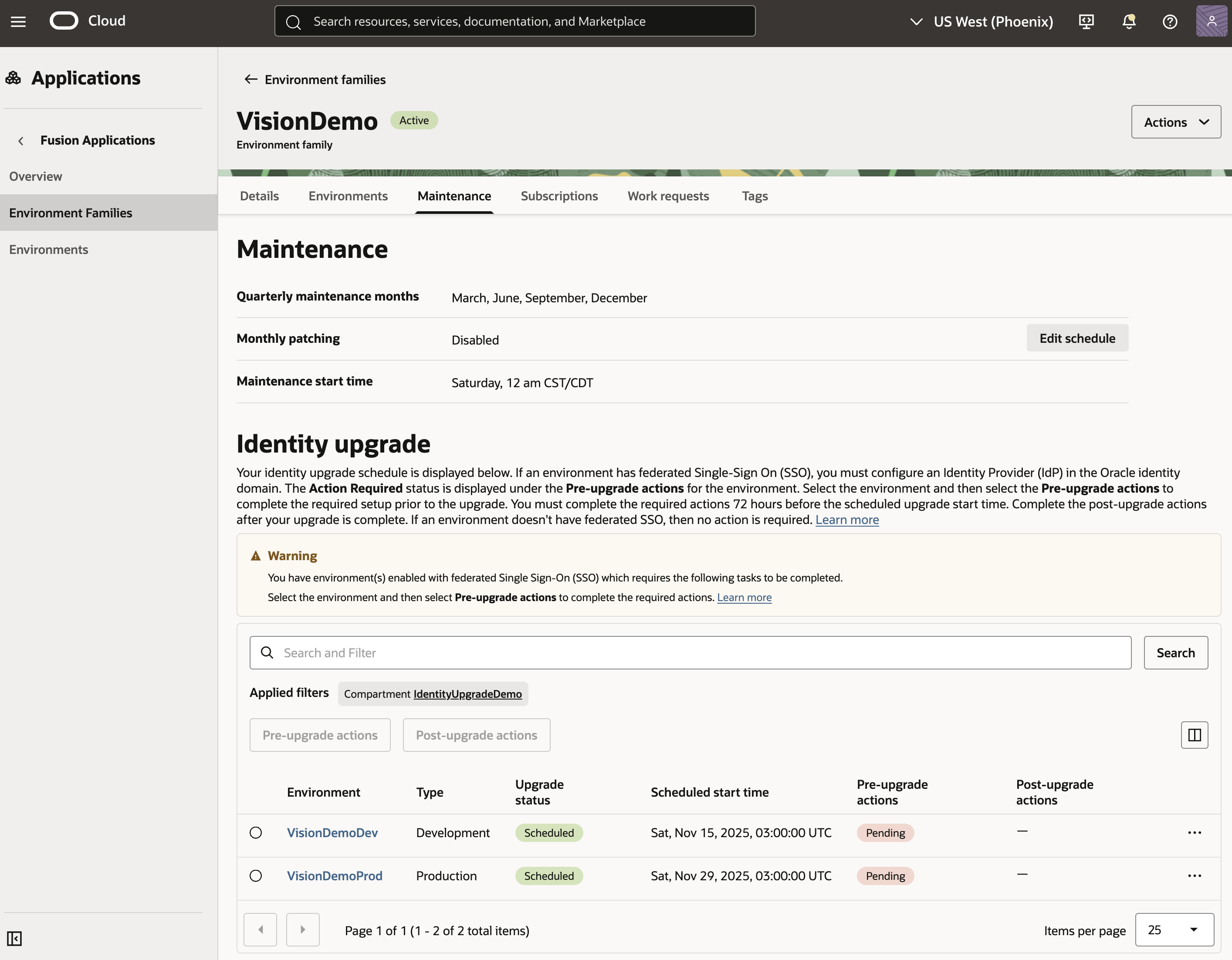
The Upgrade status column displays one of these values:
- "-" : The environment requires the identity upgrade, but it hasn't been scheduled yet.
- Scheduled: The environment upgrade has been scheduled.
- In progress: The environment upgrade is in progress.
- Succeeded: The environment upgrade has completed.
- Canceled: The environment upgrade has been canceled and the identity upgrade will be rescheduled. As soon as the identity upgrade is rescheduled, the status is changed to Scheduled with a new scheduled date.
- Failed: The environment upgrade has failed. In the rare event that this happens, Oracle keeps you updated and resolves the issue.
- Not required: The environment is already on OCI IAM and doesn't require the identity upgrade.
The Pre-upgrade actions column displays one of these values:
- "-" : The environment doesn't have federated SSO. No action is required.
- Pending: The environment is enabled with federated SSO. The required actions haven't been completed nor acknowledged by the administrator.
- Completed: The required actions have been completed and acknowledged by the administrator.
The Post-upgrade actions column displays one of these values:
- "-" : The environment doesn't have other applications using this Fusion Applications environment as the identity provider. No action is required.
- Pending: The required post-upgrade actions haven't been completed nor acknowledged by the administrator.
- Completed: The required post-upgrade actions have been completed and acknowledged by the administrator.
Cancellation and Rescheduling
If any pre-upgrade actions are required for a Fusion Applications environment, and the required actions aren't completed for each environment, including production, 72 hours before the scheduled downtime of each environment, then after the upgrade, users won't be able to use federated SSO to sign in to the environment.
Oracle might choose to proceed or cancel the upgrade. The canceled identity upgrade is reflected in the Oracle Cloud Console. Oracle will schedule a new date and time for the identity upgrade and you will be notified.
If you acknowledged completion of the pre-upgrade tasks in the Oracle Cloud Console for your federated SSO environment, but the identity upgrade schedule for the environments is canceled and rescheduled for any reason, the acknowledgement will be reset. If this happens, you must perform the pre-upgrade tasks again and then acknowledge the tasks are complete in the Oracle Cloud Console.
What to Expect After the Upgrade
After the identity upgrade completes successfully, test that sign-in to the Fusion environments is working as expected. If you encounter any issues, contact Oracle Support by submitting a Support Request (SR).
If you have other applications (such as Taleo, CPQ (Configure, Price, Quota), or SelectMinds) that use the Fusion environment to federate SSO, remember to complete the post-upgrade tasks and test the SSO integration to ensure that federated SSO continues to function correctly for those other applications. See Post-Upgrade Tasks.
Changes to Account Sign-In Page
The account sign-in page is different for Fusion Applications users. See Changes in Oracle Fusion Cloud Applications Sign In Page for more details.
Users who select the Single Sign-On button don't experience any changes. They continue to see the same SSO sign-in page.
Pre-Upgrade Tasks
Tasks that are required pre-upgrade depend on whether you have enabled federated SSO in the environments. See How do I know if my environments are federated or not?
In addition to federated SSO, an environment might also have an identity provider-initiated federation flow (an authentication flow that doesn't go through the Fusion Applications sign-in page) that needs to authenticate against a different identity system. The same pre-upgrade tasks need to be completed as well.
Pre-Upgrade Tasks for Non-Federated SSO Environments
If you don't have federated SSO, there are no pre-upgrade tasks for you to complete.
You can monitor the schedule and progress of the upgrade on the Environment family details page.
Pre-Upgrade Tasks for Federated SSO Environments
You must complete pre-upgrade tasks to ensure that federated SSO continues to function correctly after the upgrade.
When a Fusion environment with federated SSO is scheduled for the identity upgrade, Oracle reviews the current federated SSO configuration and automatically creates the required identity providers in the Fusion environment's associated identity domain based on the active identity providers currently defined in the Security Console.
Some important points to consider:
- There's no need to manually create identity providers in the identity domain. Oracle will do that for your environments when they're scheduled for the identity upgrade.
- Identity providers listed in Step 3 of the pre-upgrade tasks will have the same names as the active identity providers in the Security Console.
- Do not delete the Oracle-created identity providers from the identity domain. Doing so will prevent you from completing the pre-upgrade tasks.
- If an identity provider is deactivated or deleted from the Security Console, such changes will be reflected after 24 hours in Step 3 of the pre-upgrade tasks.
You must complete the pre-upgrade tasks for each environment, including production, 72 hours before the scheduled downtime of each environment. If the tasks aren't completed, then after the upgrade, users won't be able to use federated SSO to sign in to the environment. For example, if your test environments are scheduled for 7 pm PST on March 13 and your production environment is scheduled for 7 pm PST on March 27, then you must complete the pre-upgrade tasks and acknowledge task completion before 7 pm PST on March 10 and March 24, respectively.
If you did not complete the pre-upgrade actions for an environment and the identity upgrade has completed, then your users' access to that environment through SSO will be broken.
To restore access, follow the same instructions in this section. These tasks can be applied after the identity upgrade and do not require any downtime.
The required pre-upgrade tasks are:
- Download the SAML metadata file for the Fusion environment's associated identity domain from the Oracle Cloud Console.
- In the corporate identity system that federates SSO, use the SAML metadata file that you just downloaded to configure OCI
IAM as a new service provider.
(This step doesn't touch the existing service provider, and the federated SSO of your environments continues to work as usual.)
- Update and test the identity providers in the Oracle Cloud Console.
- Acknowledge identity provider readiness in the Oracle Cloud Console.
The following sections describe these steps in detail.
Step 1: Download the SAML Metadata File
Download the SAML metadata file for the corresponding Fusion environment from the Oracle Cloud Console. The SAML file contains the necessary information that you enter into the corporate identity system to set up OCI IAM as the service provider (see next step).
- Sign in to the Oracle Cloud Console and navigate to the Environment families page.
- On the Environment families page, select the environment family. If you don't see the resources you're expecting to, ensure that you're in the correct compartment.
- On the Environment family details page, select Maintenance and scroll to the Identity upgrade section.
- Select the federated SSO environment and then select Pre-upgrade actions.
- In the Pre-upgrade actions panel, select Download.
The SAML metadata file (Metadata.xml), representing the identity domain for the federated SSO environment, is saved to the location selected by the browser setting.
Tip
Each SAML metadata file is specific to each Fusion Applications environment. Carefully label the SAML metadata files so they're not mixed up.
Step 2: Configure the Service Provider
In the corporate identity system, configure a new service provider for each of the federated Fusion Applications environments. This configuration determines how each Fusion Applications environment federates SSO after the identity upgrade. (Some identity provider systems use the term enterprise applications instead of service provider.)
- Using a text editor, open the SAML metadata file you downloaded in the previous step, and retrieve the data necessary to configure a new service provider.
- In the corporate identity system, configure the service provider.
If you have several identity providers in different third-party identity systems, configure a new service provider for each identity provider in each third-party identity system using the information in the downloaded SAML metadata file. Use the same SAML file to create a service provider for each identity provider.
- After configuring the service provider, download the SAML metadata for the service provider from the corporate identity system. You'll use this in the next step to update and test the identity providers.
Step 3: Update and Test the Identity Providers
Next, update each identity provider in OCI IAM using the SAML metadata file that you downloaded from the corporate identity system. This completes the bidirectional trust configuration and enables SSO authentication between the corporate identity provider system and OCI IAM.
You can then test the connectivity and authentication between OCI IAM and the corporate identity system.
To test it, you'll test signing in, first to the identity domain for the environment and then to the corporate identity system. Therefore, you must have a valid credential for each of the Fusion environment's identity domains as specified in the following prerequisites, so that you can test the federated SSO flow with your identity provider.
Prerequisites:
- You have already downloaded the SAML metadata file for the service provider that you configured in the corporate identity system (see previous step).
- You must be a tenancy administrator in the default Oracle Cloud identity domain (typically either Default or OracleIdentityCloudService) so that you can perform the pre-upgrade tasks.
- You must also have the credentials to sign in to each of the identity domains of your Fusion environments.
- You must also have the Domain Administrator role for each identity domains of your Fusion environments. You obtain the Domain Administrator role in IAM, in one of two ways:
- Assign your user to the Identity Domain Administrator role. See Assigning Users to Roles.

- Assign your user to the Domain_Administrators group. See Adding a User to a Group. (The screenshot below illustrates Jane Smith, after adding her to the Domain_Administrators group.)

- Assign your user to the Identity Domain Administrator role. See Assigning Users to Roles.
To update the identity providers:
- Sign in to the Oracle Cloud Console and navigate to the Environment family page.
- On the Environment families page, select the name of the environment family. If you don't see the resources that you're expecting to, ensure that you're in the correct compartment.
- On the Environment family details page, select Maintenance and scroll to the Identity upgrade section.
- Select the federated SSO environment and select Pre-upgrade actions.
- In the Pre-upgrade actions panel, select the identity provider and then select Update.

- In the Import SAML panel, select the Drop a file or select one area and then select the SAML metadata file of the service provider that you downloaded from step 2.

- Select Import. Upon successful import, the Success - Import IDP metadata successful message is briefly displayed.
To test the sign-in process:
- Select the identity provider that you just updated and then select Test.

- If you haven't signed in to the identity domain of the environment in the current browser session, the Oracle Cloud Account Sign In page to the identity domain is displayed. To sign in, enter your user name and password, and select Sign In.
Do not select the Oracle Applications SSO button at the bottom of the Oracle Cloud Account Sign In page. That SSO button takes you through the SSO currently configured for the Fusion Applications environment which is not the SSO flow you're testing.
If you're not an identity domain administrator, then an error message is displayed: "Federated User cannot do a local authentication." To resolve the issue, follow the Prerequisites instructions in Step 3: Update and Test the Identity Providers to become an identity domain administrator, or a member of the "Domain_Administrators" or "IDCS_Administrators" group.
Note
You might need to create a new password for this sign-in to the identity domain, particularly if your user profile was created in the Fusion Applications Security Console. Before changing the password, be sure that you have been assigned the Domain Administrator role in this identity domain.
To reset an administrator's password for the Oracle Cloud Console, navigate to Identity & Security and select Domains, then select the identity domain of the corresponding Fusion Applications environment. From the User management tab, find and select the administrator's username, then select Reset password for selected users from the Actions menu. The administrator will receive a password reset email.
Note
If you're signing in to an identity domain for the first time, you'll be asked to set up Multifactor Authentication (MFA) by selecting a secure verification method. The Oracle Cloud Console requires MFA to be enabled.
- Once you've signed in to the identity domain, the Sign In page of the identity provider is displayed. Enter a correct credential to ensure you can be authenticated by the identity provider. The browser displays "Your connection is successful" if the authentication is successful.
 Tip
Tip
When you test the identity provider, if you have an active session to your identity provider already in the browser, then your identity provider's sign-in page won't appear. Instead, the browser directly displays "Your connection is successful." If this happens, we recommend that you properly sign out from the Oracle Cloud Console and then close the browser entirely. You should then restart the browser with a new private window or new incognito window, and test this again. - Repeat steps 1 to 3 if you have more identity providers to test.
Proceed to the next section only when all the identity providers test sign-in's are successful.
Step 4: Acknowledge Identity Provider Readiness
Complete this step only after testing the identity providers to ensure the test sign-in's are successful.
- In the Pre-upgrade actions panel, select I acknowledge and confirm that the task has been completed. Then select Submit.
- In the Confirm pre-upgrade actions dialog box, select Confirm. (You can also revert the acknowledgment, if needed.)
The Pre-upgrade actions status for the Fusion Applications environment in the Identity upgrade section displays Completed.
After readiness is acknowledged, don't add new identity providers or change the identity provider (or providers) in the Fusion Applications Security Console. If you do this, the readiness acknowledgement is reset after 24 hrs. You'll need to update and retest all the identity providers, and then acknowledge readiness again.
Instead, wait until the identity upgrade is complete. You can then add new identity providers in the OCI IAM Console.
For more details, see the frequently asked question about this subject.
If you need to revert the acknowledgement, open the Pre-upgrade actions panel, clear the box for I acknowledge and confirm that the tasks have been completed, then select Submit and Confirm. This reverts the pre-upgrade actions from Completed to Pending.
Post-Upgrade Tasks
When the identity upgrade is complete for each of the environments, you'll be notified.
If the Fusion Applications environment isn't configured with federated SSO, verify that users can sign in to the Fusion Applications environments successfully.
If the Fusion Applications environment is configured with federated SSO, verify that users can sign in to the Fusion Applications environments through SSO successfully.
If you're using Oracle Integration Cloud (OIC) integrations that leverage the OAuth Authorization Code Credentials security policy for authorization, there is no impact to existing integrations. They will continue to work after the identity upgrade.
Other Applications Using Fusion Applications Environments as Identity Provider
After your environments are scheduled for the identity upgrade, you can find out if other applications use Fusion Applications environments as identity providers:
- From an environment's details page, scroll to the associated identity domain and select the value.
- On the Identity Domain page, select Integrated applications to view a list of applications that use the Fusion Applications environment as the identity provider.
If a Fusion Applications environment hasn't been scheduled for the identity upgrade, no applications will be listed. The applications are populated from the current identity system of the Fusion Applications environment once the identity upgrade is scheduled.
If you have other applications (such as Taleo, CPQ (Configure, Price, Quota), or SelectMinds) that use a Fusion environment to federate SSO for users to sign in to the applications, you must complete the post-upgrade actions and test the single sign-on integration to ensure that federated SSO continues to function correctly.
- Sign in to the Oracle Cloud Console and navigate to the Environment families page.
- On the Environment families page, select the environment family. If you don't see the resources that you're expecting to, ensure that you're in the correct compartment.
- On the Environment family details page, select Maintenance, and scroll to the Identity upgrade section.
- Select the Fusion Applications environment and then select Post-upgrade actions.
- In the Post-upgrade actions panel:
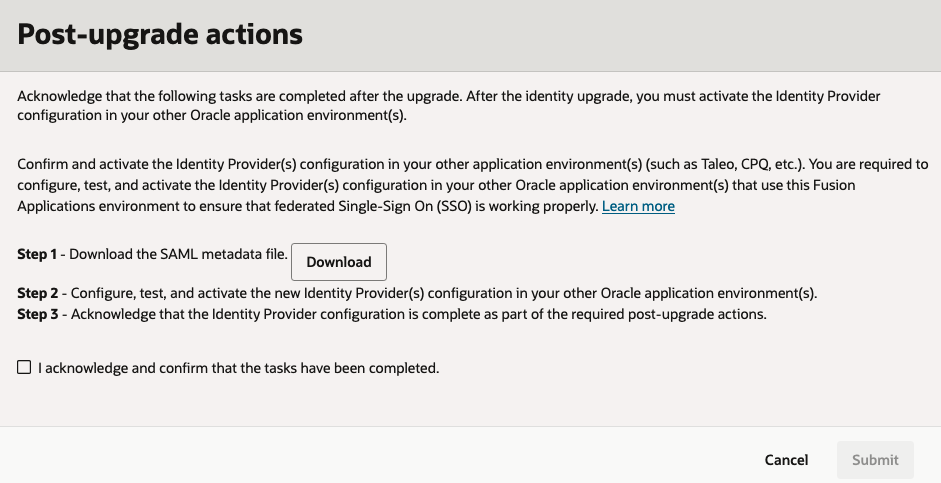
- Download the SAML metadata file by selecting Download.
- Use the information in this SAML metadata file to create the identity provider in other applications.
- Test the identity providers in other applications to ensure they're working successfully.
- Acknowledge that the identity provider setup is complete in other applications by selecting I acknowledge and confirm that the tasks have been completed.
Planning and Considerations for the Identity Upgrade
Be aware of the following potential impacts before, during, and after the upgrade:
Plan Environment Lifecycle Activities to Avoid Conflicts with the Identity Upgrade
Certain lifecycle activities are impacted during the identity upgrade:
Refresh
Similar to quarterly updates, you can perform self-service refreshes between environments (source and target) that are in a non-production cadence and have been upgraded. Refresh is restricted until both the source Fusion environment and the target Fusion environment have completed the identity upgrade. You can't perform a refresh that uses a source environment mapped to the production cadence (not yet upgraded) to refresh a target environment that has already been upgraded.
Install Language
When the identity upgrade is in progress, you can't install and activate more languages in a Fusion Applications environment. You can install languages when the identity upgrade completes and the environment lifecycle state returns to Active.
Enabling Federated Single Sign-On (SSO) Before the Identity Upgrade
If the environments are scheduled for the identity upgrade and it's less than seven days before the scheduled downtime of the first environment, wait until after the identity upgrade has completed for each of the environments for which you want to enable federated SSO, and then follow the instructions in the next section to proceed with enablement.
If you haven't received the identity upgrade schedule or if there is enough time (we recommend at least two weeks) before the scheduled downtime of the first environment to receive the identity upgrade, then follow these steps to enable federated SSO before the identity upgrade:
- Enable federated SSO following the steps documented in Oracle Applications Cloud as the Single Sign-On (SSO) Service Provider.
- After federated SSO is enabled and the environment is scheduled for the identity upgrade, wait 24 to 48 hours for the Action required link to appear in the Pre-upgrade actions column in the identity upgrade schedule.
- When the Action required link is displayed, follow the instructions in Pre-upgrade tasks for federated SSO environments.
Complete the required actions for each environment, including production, at least 72 hours before the scheduled downtime of the first environment that receives the identity upgrade.
Enabling Federated SSO After the Identity Upgrade
After the environments are upgraded, follow the steps documented in the IAM documentation, Federating with Identity Providers and IAM with Identity Domains Tutorials, to federate a Fusion Applications environment identity domain. See also How do I find the identity domain for a Fusion Applications environment?
Updating Identity Resources After the Identity Upgrade
After the environments are upgraded, do not use the Cloud Console to update or delete Oracle-delivered IAM identity resources. Instead, use only the Fusion Applications Security Console to make such changes.
For example, to update these IAM resources, follow the related Security Console instructions:
| IAM Resource | How to update |
|---|---|
| Oracle-delivered Fusion Applications users and system accounts | Overview of Application Users |
| Password policies | Define Password Policy |
| User categories | Add Users to a User Category |
| Multifactor authentication (MFA) factors | Enable Multifactor Authentication and Set Up Multifactor Authentication Methods |
FAQs
Get answers to common questions about the identity upgrade.
As part of Oracle's efforts to modernize the technology stack for Fusion Applications, this exception maintenance is to upgrade the Identity and Access Management for the Fusion environments to Oracle Cloud Infrastructure Identity and Access Management (OCI IAM). OCI IAM provides the latest features for managing authentication, sign-on policy, single sign-on (SSO), and multi-factor authentication (MFA).
Downtime is required to perform the identity upgrade. The environment isn't available or accessible during the upgrade. You're notified when the upgrade completes.
Self-service lifecycle activities can't be performed 72 hours before the upgrade until it completes. The affected activities include: scheduling environment refresh, starting refresh, installing a language pack, setting up customer-managed keys, and so on.
Also, refresh between an environment that has completed the identity upgrade and another that hasn't completed the upgrade (and vice versa), can't be scheduled or performed. Refresh can only be scheduled and performed when both the source and target environments have the same identity upgrade status.
To find the identity domain for a Fusion Applications environment:
- On the Applications Home of the Console, under My applications, select Fusion Applications to see a list of the environments.
- Select an environment.
- On the environment details page, on the Environment information panel, select the Associated identity domain. This opens the details page for the identity domain associated with the environment.
- If your Fusion Applications environment family and environments were provisioned after April 6, 2025, the environments are already running with OCI IAM. These environments don't need the identity upgrade.
- You can also check the Fusion Applications sign-in page for one of the environments and compare with the sign-in page in Changes in Oracle Fusion Cloud Applications Sign In Page. If the sign-in page is similar to the page after the upgrade then the environments are already running with OCI IAM. Otherwise, the environments must be upgraded.
- Identity upgrade only applies to Fusion Applications such as Customer Experience (CX), Human Capital Management (HCM), Enterprise Resource Planning (ERP), and Supply Chain & Manufacturing (SCM).
- Identity upgrade doesn't apply to other applications such as Taleo, Enterprise Performance Management (EPM), RightNow, Eloqua, Oracle Integration Cloud (OIC), and Primavera.
- Ensure the network doesn't block outbound traffic to the Identity Domain URL (without the port number) for each of the Fusion Applications environment. This must be allowed for users to authenticate and sign in to the Fusion Applications environment.
- The Identity Domain URL can be found in the Identity Domain details with the label Domain URL. From the OCI Cloud Console, follow the navigation: Identity & Security, Domains. Select the identity domain corresponding to each of the Fusion Applications environment where the Domain type is Oracle Apps. Then select the Details tab. Example of an Identity Domain URL excluding the port number (443):
https://idcs-7f59093f2f9b42aab80a48b065631d8e.identity.oraclecloud.com. - To confirm that the outbound traffic isn't blocked, open a new browser session and sign in to the Oracle Cloud Console , as tenancy administrator or Identity domain administrator with the tenancy/cloud account name, and the corresponding identity domain of a Fusion Applications environment.
- Any ongoing refresh must be completed before the downtime.
- Refresh is restricted until both the source Fusion environment and the target Fusion environment have completed the identity upgrade.
-
Similar to quarterly update, you can perform self-service refreshes between environments (source and target) that are in the non-production cadence and have been upgraded. You can't perform a refresh that uses an environment mapped to the production cadence (not yet upgraded) as a source to refresh an environment (target) that has already been upgraded.
- Ensure you're signed in as Tenancy administrator to the Cloud Console using the Default or OracleIdentityCloudService identity domain.
- Ensure you have created users in all the Fusion identity domains. If the user is already present in the Fusion identity domain, you must select Reset Password to generate a password for the identity domain. Note that Fusion Applications users seeded in the Fusion identity domain don't get the password for the identity domain by default.

- Ensure you have created the User sign-in in each identity domain.
- For example, consider a cloud account with three Fusion identity domains for production, test, and development environments, and a Default domain.

- Ensure the user in the four identity domains has the following permissions:
- Default domain (this is the identity domain for administrators to sign in to, in the Cloud Console) - Add the user to the "Administrator" group as the tenancy administrator.
- Fusion production domain - Add the user to the "Domain_Administrators" or "IDCS_Administrators" group, or in the Administrators tab, as the identity domain administrator.
- Fusion test domain - Add the user to the "Domain_Administrators" or "IDCS_Administrators" group, or in the Administrators tab, as the identity domain administrator.
- Fusion dev1 domain - Add the user to the "Domain_Administrators" or "IDCS_Administrators" group, or in the Administrators tab, as the identity domain administrator.
Your acknowledgement of the completion of all pre-upgrade tasks and upgrade readiness alerts Oracle that your environments are ready to be upgraded.
The pre-upgrade tasks are required to ensure that Oracle can maintain consistency among environments and that, after the upgrade, no environment is left in a different state, such as on a different release version or technology stack.
Because the completion of the pre-upgrade tasks is critical to a successful identity upgrade, it's important that you indicate that all federated SSO environments are ready, before the identity upgrade begins.
No. If you're using Oracle Integration Cloud (OIC) integrations that leverage the OAuth Authorization Code Credentials security policy for authorization, there is no impact to existing integrations. They will continue to work after the identity upgrade.
Sign-in
- The Fusion Applications sign-in URL isn't changing. The UI of the sign-in page might vary.
The correct URL is,
https://(DNS_prefix)environment_system_name.fa.ocs.oraclecloud.com/fscmUI/faces/FuseOvervieworhttps://environment_system_name.fa.(data center code).oraclecloud.com/fscmUI/faces/FuseOverview. - Don't use the URL,
https://login-(environment name)-saasfaprod1.fa.ocs.oraclecloud.com. This URL doesn't work after the identity upgrade.
From the Oracle Cloud Console, My applications.
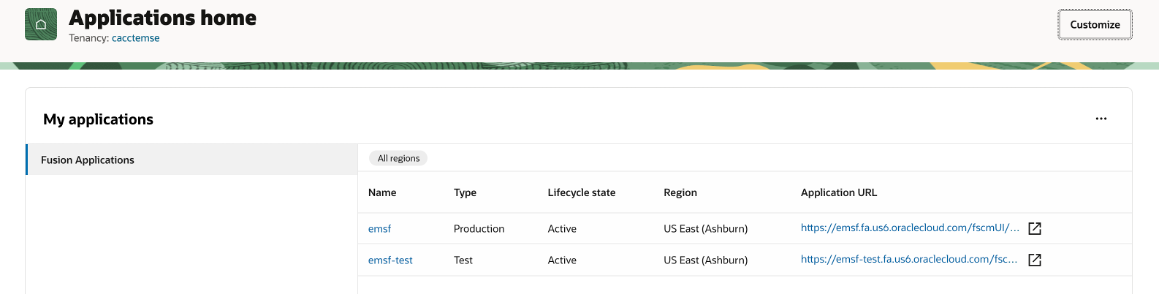
As part of the identity upgrade, the chooser page behavior is preserved and the environment's chooser page settings aren't changed.
After the identity upgrade, the Single Sign-On menu in the Security Console is removed. You can disable or enable the chooser page in the OCI IAM Console.
To disable the chooser page:
- Navigate to the identity domain of a Fusion Applications environment.
- Select Federation.
- In the Identity provider policies section, select to drill down to Default Identity Provider Policy.
- Select Identity provider rules tab.
- Select the , then select the Edit IdP rule menu.
- In the Assign identity providers field, select the dropdown and unselect Username-Password.
- Select Save.
This removes the username/password option from the Sign-In page and enables only other SSO options.
Single Sign-On (SSO)
- Do not enable federated SSO for scheduled environments (or add a new identity provider) within 10 days of the environments' scheduled downtime, nor during the two week window between the stage and production waves. Instead, wait until the identity upgrade is completed.
- However, if you can complete the required pre-upgrade tasks for each environment, including production, 72 hrs before the scheduled downtime of the first environment, then you can enable federated SSO or add a new identity provider before the identity upgrade.
If you do this, note the following:
- The Console shows the required pre-upgrade tasks within 24 hours. This means you must wait for a day before the Pending status appears in the pre-upgrade tasks section. At the same time, you'll receive a reminder notification that federated SSO has been enabled for your environments.
- The acknowledgement of the completion of the pre-upgrade tasks for that environment is reset. If you already acknowledged readiness but added a new identity provider later, you must redo the pre-upgrade tasks and acknowledge again.
- The federated SSO configuration doesn't change. The environment continues to use the same Identity Provider (IdP) (Oracle Identity Access and Management or other third-party identity providers).
- The configuration remains same after the identity upgrade.
This depends on the third-party identity provider that you're using. Most modern cloud-based identity provider (IdP) includes a new sign-in certificate for a new service provider. In the pre-upgrade actions, you must update the IdP in the Oracle Cloud Console UI with SAML metadata from the identity provider, and test the connectivity and authentication.
After the identity upgrade, you can have several SSO choices in the sign-in page.
You can request postponing the identity upgrade through Service Request if you prefer not to track two upgrades simultaneously. Also, it could be difficult to debug if SSO isn't working post the changes.
No, the required actions doesn't impact existing SSO sign-in. It's effective only after the identity upgrade.
Yes, it continues to work after the upgrade.
- No, you don't need to turn off existing SSO before the identity upgrade, as it'll work after the upgrade if you completed the pre-upgrade actions.
- If you want to disable SSO, you can do so after the identity upgrade.
Yes, you can remove the SSO from the Fusion Application Security Console. Required actions disappears after 24 hrs. You can also ignore the required actions but you must acknowledge that you have completed all the required actions.
After readiness is acknowledged, don't add new identity providers or change the identity provider in the Fusion Applications Security Console.
If you do this, the new identity provider appears in the Cloud Console after 24 hours, and your acknowledgment of completing the pre-upgrade tasks is automatically reset. You'll need to update and retest all identity providers and then acknowledge readiness again. If you don't acknowledge readiness, your users won't be able to use SSO to sign in to the environment after the identity upgrade.
On the other hand, if the identity upgrade of your first environment isn't scheduled for at least a few weeks, then you can add a new identity provider in the Security Console. But, be sure to complete the required actions and acknowledge readiness as soon as possible.
In general, however, the best practice is to wait until the identity upgrade is complete. You can then add new identity providers in the OCI IAM Console.
If required, we recommend that you rename the identity provider in the OCI IAM Console, after the identity upgrade is completed.
SessionNotOnOrAfter parameter to determine user session validity. To resolve this issue, work with your SiteMinder SSO admin team to change the following settings:- Change SP Session Duration from User Assertion Validity to Customize.
- Set the Customize value to 8 hours or less, based on your business requirements.
You might be asked to configure Oracle MFA after selecting the MyApps tile from your company's identity provider's sign-in page, such as from the Microsoft My Apps portal or the Okta End-User Dashboard.
To resolve this issue, see "Issue: IdP-Initiated Login Prompts for Additional OCI IAM MFA" on My Oracle Support (KB879145).
Multifactor Authentication (MFA)
- To enable MFA for an environment, it must be upgraded to OCI IAM.
- After the environment is upgraded to OCI IAM, see the instructions in Enable Multifactor Authentication (MFA).
If you added an OCI IAM domain for MFA enablement, you can keep it, but you must complete the related required pre-upgrade actions. Or, you can remove it because the identity upgrade enables MFA on local users.
Reset Password
- A password reset might be required after the identity upgrade is complete.
- You must notify the Fusion Applications users that if their current password is expired, they'll be asked to reset their password when they sign in to the Fusion Applications environment after the upgrade.
- Accounts used for API integrations might also require a password reset.
- To avoid disruption, you can proactively reset passwords for integration users and other critical accounts before the identity upgrade.
Yes. You can continue to manage password policies in the Security Console after the identity upgrade.
These don't change. They remain in the Security Console.
This is a known issue. If you changed the default password policy, review the policy after the identity upgrade and reapply the changes, if needed.
User Management
If you have implemented SCIM workflows for user provisioning into Fusion using FA SCIM REST API, then you must continue to use them post the IAM upgrade, to use the existing user life cycle workflows in Fusion. OCI IAM is the Identity store.
Local users are migrated to the existing Fusion Application created identity domain. Note that this domain isn't the default domain on the Oracle cloud Console.
The Security Console in Fusion Applications isn't changed. You can continue to use it to add users to FA environments, reset password, and assign application roles. However, after the identity upgrade, you no longer need to use the Single Sign-On (SSO) menu in the Security Console to enable federated SSO. The ability to enable federated SSO for an FA environment is moved to the Oracle Cloud Console. To enable Federated SSO, see Federation with Identity Providers.
No, all the Fusion Applications users don't appear in the identity domain corresponding to each of the Fusion Applications environment in the OCI IAM Console. These users can't sign in to the Oracle Cloud Console.
There's no impact and they continue to work as-is.
Identity Upgrade Schedule
- When you sign in to a Fusion Applications environment, if you see the Company Single Sign-On button or the company's sign-in page, then the environment has federated single sign-on (SSO).
- If you have other Oracle Applications (such as Taleo, CPQ (Oracle Configure, Price, Quote), etc.) that use a Fusion Applications environment as the identity provider, then the Fusion Applications environment is federated.
- If neither of the previous situations apply, the Fusion Applications environment isn't federated.
You're notified about the downtime schedule in advance. If any of the environments are enabled with federated SSO, a notification is sent 90 days in advance to you. If none of the environments have federated SSO enabled, a notification is sent 30 days in advance.
After you receive the notification about the identity upgrade, you can sign-in to the Oracle Cloud Console and navigate to the Fusion Applications Environment families page to view the schedule for the environments:
- Sign-in to the Oracle Cloud Console.
- In Applications Home in the Console, under Subscriptions, select Go to service on the Fusion Applications tile.
- On the environment families details page, select Maintenance tab. Under Identity upgrade section you can view the upgrade schedules for the environments.
While the upgrade is occurring, the environments aren't available.
The identity upgrade is expected to last for up to 3 hours or longer depending on the number of users.
No, the identity upgrade is required and must be completed for all Fusion Applications environments.
If the scheduled window conflicts with a critical business event, contact Oracle Support as soon as possible to request a reschedule by submitting a Support Request (SR). In your request, you must provide justification and a clear description of the business impact including severity and scope. The ability to reschedule the upgrade isn't guaranteed and should be requested only when necessary.
If the required pre-upgrade actions aren't completed, then after the upgrade is finished, your users won't be able to use federated SSO to sign in to their Fusion Applications environments.
To avoid access disruption, complete all pre-upgrade actions for each environment, including production, 72 hours before the scheduled downtime of each environment.
If you miss the deadline, you must complete the pre-upgrade actions to restore access. See Pre-Upgrade Tasks for Federated SSO Environments.
- The identity upgrade doesn't occur in the same month as the quarterly update. To avoid multiple downtimes in a month, the upgrade is scheduled in the months after the environments receive a quarterly update.
- In general, we expect to schedule the identity upgrade of the environments in the same maintenance time window as when the environments receive a quarterly update. We might schedule the upgrade for a time window that's different from the maintenance time window.
- At least one of the non-production environments must have completed the upgrade before we perform the identity upgrade of the production environment. You can see the environments in the non-production cadence scheduled for the upgrade before the environments in the production cadence.
- If the schedule doesn't work for you, contact Oracle Support to reschedule the upgrade for a convenient time. Contact Oracle Support by submitting a Support Request (SR).
There's no additional cost as part of the identity upgrade.
There's no change to the Fusion Applications subscriptions.
Audit Reports
Yes. After the identity upgrade, you won't be able to use the Sign In and Sign Out Audit REST API. (See Sign In and Sign Out Audit in REST API for Common Features in Oracle Fusion Cloud Applications.)
Instead, to generate audit reports after the identity upgrade, see: