ノート:
- このチュートリアルでは、Oracle Cloudへのアクセスが必要です。無料アカウントにサインアップするには、Oracle Cloud Infrastructure Free Tierの開始を参照してください。
- Oracle Cloud Infrastructureの資格証明、テナンシおよびコンパートメントに例の値を使用します。演習を完了するときは、これらの値をクラウド環境に固有の値に置き換えます。
Use OCI Certificates for Internal CA Setup, Creation, and Installation of certificates on Apache Web Server
イントロダクション
急速に進化するクラウド・コンピューティングとデジタル・セキュリティの世界では、デジタル証明書を管理するための堅牢で柔軟なソリューションの必要性はかつてないほど重要になっています。Oracle Cloud Infrastructure (OCI) Certificate Serviceは、Oracle Cloudエコシステム内の証明書ライフサイクル管理の複雑なタスクを合理化するように設計された強力で信頼性の高いツールとして登場します。OCI Certificates is a service for creating and managing Transport Layer Security (TLS) certificates.This free-of-cost service enables organizations to create private Certificate Authorities (CA) hierarchies and TLS certificates, that can be deployed and renewed automatically in the customer tenancy, integrated with OCI services such as OCI Load Balancer, OCI API Gateway, Web Application Firewall and Others.
In this tutorial, we will explore the utilization of the OCI Certificates Service as an enterprise certificate management solution. We will delve into the process of creating an internal CA by administrators and guide server administrators on generating Certificate Signing Requests (CSRs) for their Apache Web Servers. Furthermore, we will cover the steps involved in creating certificates using the internal CA and demonstrate how to install these certificates on the Apache Web Servers.
An administrator with the necessary privileges will create a CA to issue internal certificates for internal web servers. Additionally, the administrator will create a dynamic group and set up policies to grant this dynamic group access to the OCI Certificates service. By adding an instance to the dynamic group and applying the necessary policies, an application running on that instance can access the OCI Certificates service without the need for user credentials or a configuration file.
管理者は、コンパートメントの詳細と認証局識別情報(特にOracle Cloud Identifier (OCID)をサーバー管理者と共有します。The OCID functions as a unique identifier for the Certificate Authority.この情報を使用して、サーバー管理者はシステムにOracle Cloud Infrastructureコマンドライン・インタフェース(OCI CLI)をインストールできます。Once installed, server administrators utilize the OCI CLI to request certificates from the Certificate Authority previously created by the administrators.この体系的なアプローチにより、認証局が適切に識別され、Oracle Cloud Infrastructure環境内の証明書の安全で効率的な発行が促進されます。
目的
- Apache Webサーバーでの証明書の内部認証局の設定、作成およびインストール。
前提条件
-
OCI user must have the required policies for certificates and OCI Compute to manage the resources.すべてのサービスのポリシー・リファレンスは、ポリシー・リファレンスを参照してください。
-
An RSA key to create the CA and the availability of a compute instance designated as the web server.詳細は、ボールト・マスター暗号化キーの作成を参照してください。
ノート:
Tasks such as creating a Certificate Authority, generating certificates, managing OCI IAM policies, and so on, can be performed using the OCI Console. However, in this tutorial, CLI commands are used.
OCI administrators should perform Tasks 1 to 3 and server administrators should perform Tasks 4 to 9.
タスク1: 認証局の作成
次のコマンドを使用して認証局を作成します(ルート認証局を参照)。
コマンド・フォーマット:
oci certs-mgmt certificate-authority create-root-ca-by-generating-config-details --compartment-id <compartment_OCID> --name <CA_display_name> --subject <CA_subject_information> --kms-key-id <Vault_encryption_key_OCID>
Note: Subject is a complex type whose value must be valid JSON.値は、コマンドラインで文字列として指定するか、または
file://path/to/file構文を使用してファイルとして渡すことができます。このチュートリアルでは、ファイル・アプローチに従います。
Sample Command:
次の情報を使用して、サンプル・ファイルsubject.jsonを作成します。
{
  "commonName": "INTERNAL-ROOTCA"
}
oci certs-mgmt certificate-authority create-root-ca-by-generating-config-details --compartment-id ocid1.compartment.oc1..aaaaaaaabcdefghij12abcdefgh78abcde --name INTERNAL-ROOTCA --subject file://subject.json --kms-key-id ocid1.key.oc1.iad.abcdefghijklm.abcdefghijklmnop12abcdiklmnop56abcdef
タスク2: 動的グループの作成
次のコマンドを使用して動的グループを作成します(動的グループを参照)。
コマンド・フォーマット:
oci iam dynamic-group create --compartment-id <Tenancy OCID> --description <description> --name <DG Name> --matching-rule <Matching Rule>
Sample Command:
oci iam dynamic-group create --compartment-id ocid1.tenancy.oc1..aaaaaaaabbbbcdefgh12abcdabcdefghijkl --description Web-servers --name Web-servers-DG --matching-rule "instance.compartment.id = 'ocid1.compartment.oc1..aaaaaaaabcdefghij12abcde6abcdefghij78abcde'"
Task 3: Create necessary policies to grant this dynamic group access to the OCI Certificates service
Create OCI IAM policies using the following commands, see OCI IAM policies.
コマンド・フォーマット:
oci iam policy create --compartment-id <compartment_id> --description <description> --name <name> --statements file://statements.json
Sample Command:
次の情報を使用してファイルstatements.jsonを作成します。
[
"Allow dynamic-group Web-servers-DG to manage leaf-certificate-family in compartment chaitanyachintala",
"Allow dynamic-group Web-servers-DG to use certificate-authority-family in compartment chaitanyachintala"
]
oci iam policy create --compartment-id ocid1.compartment.oc1..aaaaaaaabcdefgh56abcdefghij78abcde --description Create-Certficate --name Cert-policies --statements file://statements.json
Task 4: Install OCI CLI on Compute Instance (Apache Web Server)
Install and configure the OCI Command Line Interface (CLI).
After connecting to the compute instance, run the following commands to install and verify Python and OCI CLI packages on Linux instance.
sudo dnf -y install oraclelinux-developer-release-el8
sudo dnf install python36-oci-cli
タスク5: Apache WebサーバーのOpenSSLを使用した証明書署名リクエスト(CSR)の作成
-
ディレクトリを変更します。
cd /etc/pki/tls/private/ -
次の情報を使用してファイル
examplecert.cnfを作成し、サブジェクト代替名(SAN)で証明書パラメータを指定します。Note: The SAN extension enables the attachment of additional identities, such as domain names or IP addresses, to the certificate subject.The use of the SAN extension is standard practice for SSL certificates, and it’s on its way to replacing the use of the common name.
[req] distinguished_name = req_distinguished_name req_extensions = v3_req prompt = no [req_distinguished_name] C = US ST = Texas L = Texas O = Elpmaxe CN = www.example.com [v3_req] basicConstraints = CA:FALSE keyUsage = nonRepudiation, digitalSignature, keyEncipherment extendedKeyUsage = serverAuth subjectAltName = @alt_names [alt_names] DNS.1 = example.com IP.1 = 1.1.1.1 -
Create CSR using following command.
openssl req -out example.csr -newkey rsa:2048 -nodes -keyout example.key -config examplecert.cnf -
(Optionally) Verify the CSR using the following command.
openssl req -noout -text -in example.csr
Task 6: Create a certificate using the CA created by OCI administrator
-
次のコマンドを使用して、
example.csrファイルの内容を変数examplecsrに取得します。examplecsr=$(cat example.csr) -
Create certificate managed externally issued by internal CA.
コマンド・フォーマット:
oci certs-mgmt certificate create-certificate-managed-externally-issued-by-internal-ca --compartment-id <compartment_OCID> --csr-pem <csr_pem> --issuer-certificate-authority-id <CA_OCID> --name <Certificate-name>Sample Command:
oci certs-mgmt certificate create-certificate-managed-externally-issued-by-internal-ca --compartment-id ocid1.compartment.oc1..aaaaaaaabcdefghhij78abcde --csr-pem "$examplecsr" --issuer-certificate-authority-id ocid1.certificateauthority.oc1.iad.abcdefghi56abcdefghijklmnop --name example.com --auth instance_principal
Note: Copy the OCID of the certificate created.
タスク7: 証明書および証明書チェーンのダウンロード
ノート: rootユーザーとして次のコマンドを実行します。
証明書および証明書チェーンをダウンロードするコマンド。
コマンド・フォーマット:
oci certificates certificate-bundle get --certificate-id <Certificate_OCID>
サンプル・コマンド- 証明書:
oci certificates certificate-bundle get --certificate-id ocid1.certificate.oc1.iad.abcdefghijbcdefghijk --raw-output --query 'data."certificate-pem"' > certificate.crt --auth instance_principal
サンプル・コマンド- 証明書チェーン:
oci certificates certificate-bundle get --certificate-id ocid1.certificate.oc1.iad.abcdefghip56abcdefghijk --raw-output --query 'data."cert-chain-pem"' > certificate-chain.pem --auth instance_principal
タスク8: 証明書を使用したApache Webサーバーのインストールおよび構成
-
Install the httpd package, HTTPS add-on for Apache and its dependencies.
sudo dnf install httpd
sudo dnf install mod_ssl
As a best practice, secure all communications between a web browser and Apache server by using HTTPS with a TLS certificate generated earlier.
Webサーバーのルート・パスを変更するには、
/etc/httpd/conf/httpd.confファイルを直接編集しないでください。かわりに、推奨される方法として、/etc/httpd/conf.dディレクトリにサイト固有の構成ファイルを作成します。次の例では、ファイル/etc/httpd/conf.d/example.com.confが作成され、仮想ホストの構成が含まれます。 -
/etc/httpd/conf.d/example.com.confに次の情報を追加して、仮想ホストを作成します。Listen *:443 <VirtualHost *:443> ServerName example.com ServerAlias www.example.com SSLEngine on SSLCertificateFile /etc/pki/tls/private/certificate.crt SSLCertificateKeyFile /etc/pki/tls/private/example.key DocumentRoot /var/www/example.com/html/ ErrorLog /var/log/httpd/example.com_error.log CustomLog /var/log/httpd/example.com_access.log combined </VirtualHost> -
ドキュメント・ルート・フォルダを作成します。ルート・フォルダは、Apacheがブラウザに提供するWebページをホストします。
sudo mkdir -p /var/www/example.com/html sudo echo "example.com" > /var/www/example.com/html/index.html sudo chown -R apache:apache /var/www/example.com/html -
Apacheサービスを再起動して、新しい構成をロードします。
sudo systemctl restart httpdノート: 「Cannot define multiple Listeners on the same IP:port」というエラーが表示される場合は、ファイル
/etc/httpd/conf.d/ssl.confの「Listen 443 https」行をコメント化します。 -
ファイアウォールを構成します。These commands enable the firewall port 443 for the Apache HTTPS service and reloads the default firewall service.
sudo firewall-cmd --add-service=https --permanent
sudo firewall-cmd --reload
Note: Ensure that the Security List associated with the subnet and the Security Groups associated with the VNIC allow traffic on port 443.
タスク9: Webページのテスト
-
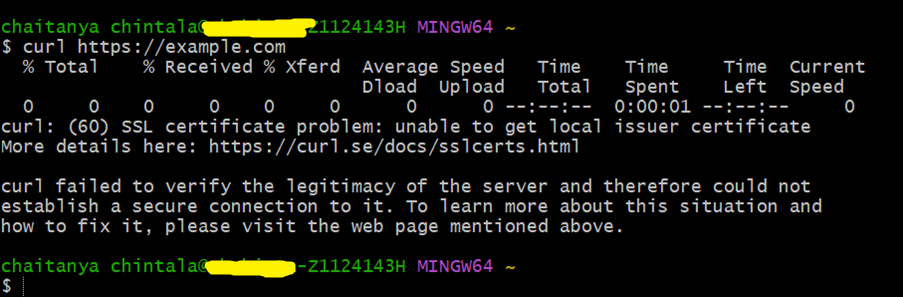
ホストからのCurl: Apache Webサーバーが実行されているホストからcurlコマンドを使用して接続をテストします。curl failed to verify the legitimacy of the serverというエラーが表示されます。

-
ラップトップからのCurl: ラップトップまたは別のマシンから、curlを使用してApache Webサーバーへの接続を確認します。Replace IP address or hostname with the actual IP address or hostname of your server.curl failed to verify the legitimacy of the serverというエラーが表示されます。
-
Webブラウザ: ノートパソコンでWebブラウザを開き、
https://your-server-ipを使用してWebページにアクセスします。ブラウザに表示される可能性のあるセキュリティ警告またはエラーを確認します。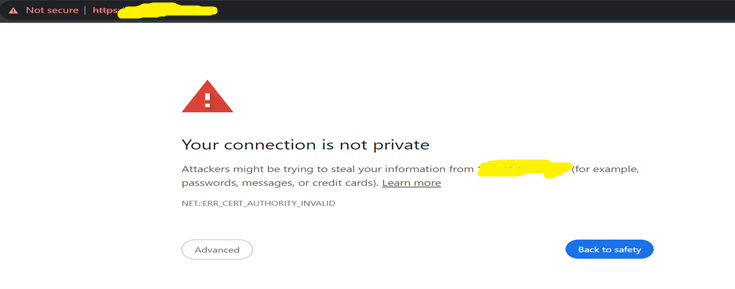
All the errors stem from the fact that the certificate installed on the web server is not issued by a public Certificate Authority, and the root certificate of the internal CA is not present in the certificate store.
-
証明書チェーンのインストール: 以前にダウンロードした証明書チェーンをクライアント・マシンのルートの信頼できる認証局にインストールします。このステップは、クライアントがApache Webサーバーが提供する証明書を認識し、信頼するために重要です。
-
Access the webpage with a valid TLS Certificate: After installing the certificate chain, revisit the webpage using the web browser. You should now observe that the webpage is being served with a valid TLS certificate, and any security warnings or errors encountered earlier should be resolved.
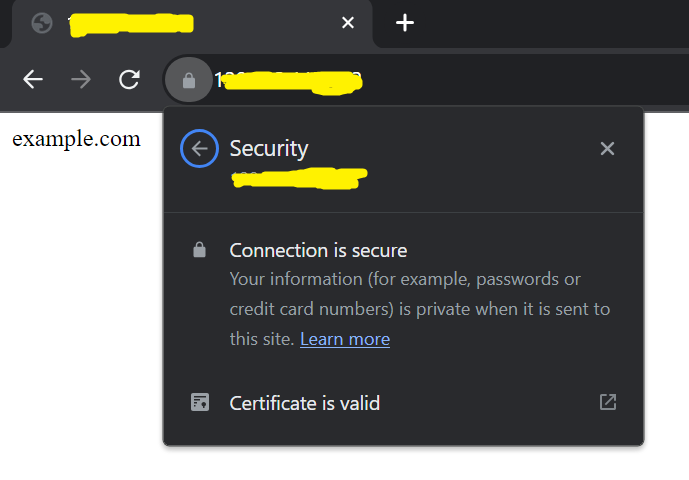
By following these steps, you ensure that your Apache Web Server is properly configured with the internal CA certificate, and clients can securely access the webpage over HTTPS.
関連リンク
確認
- 著者 - Chaitanya Chintala (クラウド・セキュリティ・アドバイザ)
その他の学習リソース
docs.oracle.com/learnの他のラボをご覧いただくか、Oracle Learning YouTubeチャネルで無料のラーニング・コンテンツにアクセスしてください。また、education.oracle.com/learning-explorerにアクセスしてOracle Learning Explorerになります。
製品ドキュメントは、Oracle Help Centerを参照してください。
Use OCI Certificates for Internal CA Setup, Creation, and Installation of certificates on Apache Web Server
F90568-01
January 2024
Copyright © 2024, Oracle and/or its affiliates.