In this step, you set up the actors in the tutorial, that is, the users and groups required to complete the tasks you design in the tutorial business process. Specifically, if you have not already done so, you create an integration domain for your Worklist application. Next, you use the WebLogic Integration Administration Console to configure users and groups. Lastly, you create a business calendar for Acme Financial Group.
Before you begin the Worklist tutorial you must have WebLogic Platform version 9.0 installed on your system. For more information, see Installing WebLogic Platform.
Create a New WebLogic Integration Domain
The Worklist tutorial requires a WebLogic Integration domain. If you have not already created a WebLogic Integration domain, use the WebLogic Platform Configuration Wizard to create one. If you have already created an integration domain and you want to use it for the tutorial application, you can skip the procedure to create a new domain and instead start WebLogic Server in the existing domain.
Note:
The domain name used in this tutorial is worktutorial, but you can use any valid domain name.
To Create a New WebLogic Integration Domain
Start the Configuration Wizard:
Windows: From the Start menu, choose All Programs BEA WebLogic Platform 9.0 Tools Configuration Wizard.
UNIX: Open a command shell, change to the /common/bin subdirectory of the product installation directory (such as /bea/weblogic90/common/bin), and enter the following command: sh config.sh.
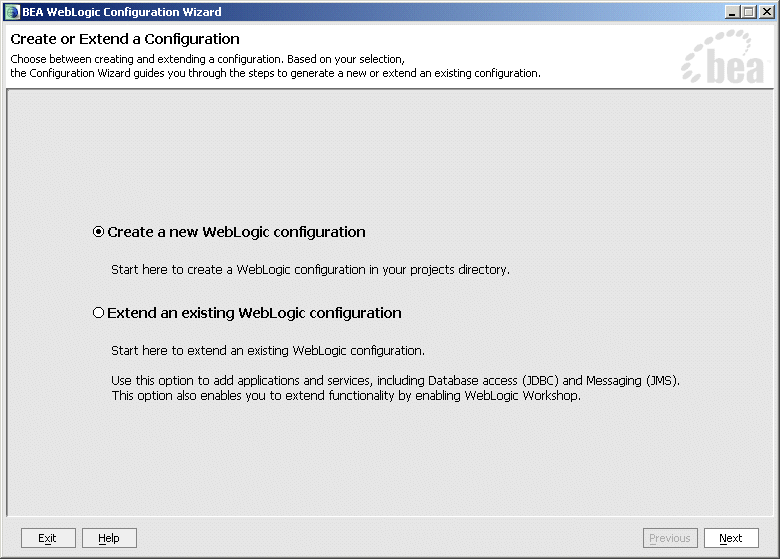
The Configuration Wizard starts and displays the Create or Extend a Configuration screen.
Select Create a new WebLogic configuration (default), and click Next.
In the Configuration Wizard, make the following selections/entries in each screen. After each selection, click Next to continue.
Table 2-1 Selections in the Configuration Wizard
Screen Name
Selection/Entry
Select Domain Source
Select WebLogic Integration - Worklist (from the list of domain sources)
Configure Administrator Username and Password
Enter an administrator username.
Enter an administrator password.
Re-enter the password.
Configure Server Start Mode and JDK
Select Development Mode from WebLogic Domain Startup Mode.
Select Sun SDK 1.5.0_03 from BEA Supplied SDKs.
Customize Environment and Services Settings
Select No to keep the settings defined in the domain source.
Create WebLogic Domain
Enter a domain name such as worklist_tutorial (or keep the default).
Enter a domain location (or keep the default).
Click Create.
On the Creating Configuration screen, select Start Admin Server.
Click Done.
Create a Business Calendar
You must create a Business Calendar for use by Acme Financial Group during the tutorial scenario. A Business Calendar specifies the dates and times that an enterprise is open for business.
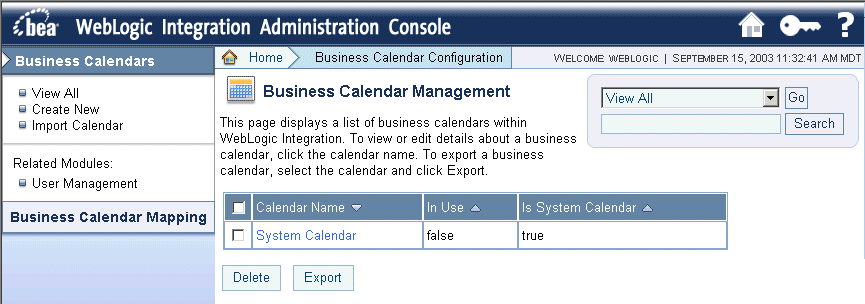
Navigate to the Business Calendar Configuration module in the WebLogic Integration Administration Console.
Click Create New. The Create Business Calendar screen is displayed.
In the Business Calendar Name field, enter FinancialGroupCalendar.
Click Create. The calendar is created and listed on the Business Calendar Management screen.
In the calendar list, click FinancialGroupCalendar. The View Business Calendar Details screen is displayed, which allows you to specify the time period rules.
The default rules in the business calendar specify that business hours for employees at Acme Financial Group include Monday to Friday, 9AM to 5PM. You must change the default rules to create the appropriate calendar for Acme Financial Group. You can change the business rules for the calendar by editing the Time Period Rules table. To do so:
For each of the days listed in the default calendar, click the Time Period to open an update page.
Change the Start Hour and End Hour to 8 and 18, respectively.
Recall that SoftCo engineers work Monday through Friday 8AM to 6PM and Saturdays from 8AM to 12PM.
Click Submit. The business hours for Monday to Friday are updated in the Time Period Rules table.
To add a rule for Saturday business hours, click Add a New Rule. A page is displayed in which you can specify the time period rules for Saturday. Select the following specifications in the appropriate fields:
Time Period Type: Day of Week Day of Week: Sat Start Hour and Minute: 8 00 End Hour and Minute: 12 00 Free or Busy: Free
Click Submit. The business hours for Saturday are updated in the Time Period Rules table.
This completes creating the Business Calendar for the tutorial.
Note:
To learn more about Business Calendars and defining the time-period rules, see Business Calendar Configuration in Managing WebLogic Integration Solutions.
Configure the Users and Groups
To enable human participation in Worklist, you must set up users and groups. Users are set up to work on different task types, while groups are set up to establish functional units to handle certain types of tasks at certain steps. Users are assigned to groups. For definitions of these terms, see Terms and Definitions.
You use the WebLogic Integration Administration Console to configure the following users for Acme Financial Group: John (who is assigned to the Loan Officer group) and Mary (who is assigned to the Loan Manager group).
You also use the Console to WebLogic Integration Administration Console to configure the following user groups: Loan Officers and Loan Managers.
After the WebLogic Server is running, start the WebLogic Integration Administration Console by doing either of the following:
From the Start menu, choose All Programs BEA WebLogic Platform 9.0 Examples WebLogic Integration WebLogic Admin Console.
In a Web browser, enter the following URL: http://localhost:7001/wliconsole.
When prompted, enter the username and password that you specified for your domain.
The WebLogic Integration Administration Console displays the home page.
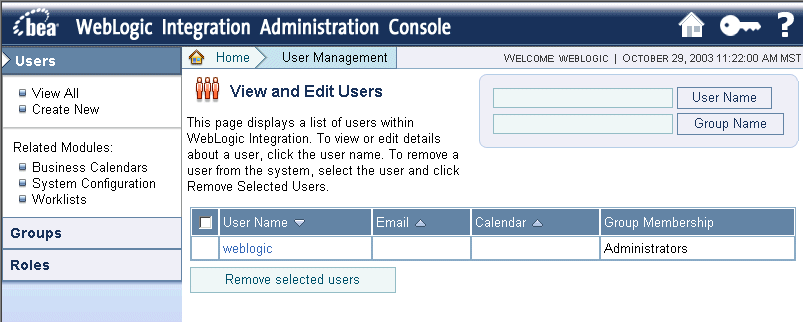
Select the User Management module:
The User Management screen is displayed:
In the left panel, click Groups. The View and Edit Groups screen is displayed, which allows you to create new groups.
In the left panel, click Create New to create a new group:
In the Group Name field, enter the first group—LoanOfficers.
In the Description field, enter a description for the group, such as Acme Loan Officers.
In the Group Membership field, select IntegrationUsers from the list of Available Groups and use the arrow to move the IntegrationUsers group into the Current Groups list.
Click Submit.
Repeat Step 5 to create the second group—LoanManagers.
The groups you create are added to the list of groups on the View and Edit Groups screen.
In the left panel, click Users. The View and Edit Users screen is displayed.
Click Create New. The Add New User screen is displayed.
Create users, as described in the following table:
Table 2-2
User Name
Email
Password
Group Membership
John
For simplicity, specify the same email address for each user, one that will work for your testing purposes.
For simplicity, specify the same password for each user.



 BEA WebLogic Platform 9.0