
Setting Up Write-Off Approval Workflow
Understanding Write-Off Approval Workflow
Within PeopleSoft Receivables, you can restrict users’ ability to write-off amounts on the payment worksheet, maintenance worksheet, or draft worksheet. There are two methods to restrict write-off amounts:
Limit the amount that can be written off. Maximum write-off amounts can be defined for the business unit, bill-to customer, and individual user. If any of these limits are exceeded, the system does not allow the user to save the worksheet.
Require approval of write-off amounts entered on the worksheet that are below the maximum write-off limits but above the approval-needed limit. This approval is controlled by the Approval Framework feature in PeopleSoft Enterprise Components. The user is not able to set the worksheet to post until the write-off amount is approved. Both the approver and the worksheet user can set the worksheet to post after approval is granted.
Note: Write-off approvals are designed to require approval for write-offs entered on the payment worksheet, maintenance worksheet, or draft worksheet only. The approval does not pick up write-off transactions from processes such as the Payment Predictor process and the Automatic Maintenance process.
PeopleSoft Approval Framework feature is a type of workflow. Many daily tasks are part of a larger process that involves several steps and people working together. The term workflow refers to this process, which could encompass, for example, the approval of a write-off transaction. To facilitate this type of multiuser process, the PeopleSoft product can automatically trigger notifications to inform the approver in the process of work awaiting him or her. The approval process could include one or more approval steps with different approvers. When the approval process is complete, the transaction is promoted to its next stage. In the case of a write-off approval, the next stage is to set the worksheet to post.
It is important to note that PeopleSoft applications offer two types of approval workflows:
PeopleTools Workflow Technology
See the product documentation for PeopleTools: Workflow Technology. The PeopleTools Workflow Technology workflow requires advanced technical skills in PeopleSoft PeopleTools to create and maintain workflow. This method is not used for write-off approval.
PeopleSoft Approval Framework
See the product documentation for PeopleSoft Approval Framework. The Approval Framework provides an alternative workflow that is much easier to create and maintain. For example, all of the steps in Approval Framework are defined by means of PeopleSoft pages rather than the underlying PeopleSoft PeopleCode, so functional users can design and maintain approval processes using these online PeopleSoft pages, without technical developers having to create workflow rules.
For the write-off approval workflow, the sample data is delivered with data to start the workflow process with one level of approver. You will need to alter this information to work in your environment. You can also change the data to create a multistep approval process or use additional features in Approval Framework. Write-off approval requests are routed to the approvers by worklist or email.
Pages Used to Set Up Write-Off Approval Workflow
|
Page Name |
Definition Name |
Navigation |
Usage |
|---|---|---|---|
|
Receivables Options - General 1 |
BUS_UNIT_OPT_AR1 |
|
Define the write-off tolerances for the business unit level. |
|
General Information - Bill To Options |
CUST_BILLTO_OPT |
|
Define the write-off tolerances for the bill-to customer level. |
|
User Preferences-Receivables Data Entry 2 |
OPR_DEF_TABLE_AR2 |
|
Specify write-off tolerances for the user. |
|
User List Definition |
PTAF_USER_LIST |
|
Define user-list definitions. As part of sample data, PeopleSoft Receivables delivers a user list named WriteOffApprovers to be used for write-off approvals. |
|
User Profiles - Roles |
USER_ROLES |
Select the Roles tab. |
Attach workflow roles to users. |
|
User Profiles - Workflow |
USER_WORKFLOW |
Select the Workflow tab. |
Define supervisors and worklist users. |
|
Register Transactions |
EOAW_TXN |
|
Register an application with the approval framework. |
|
Configure Transactions |
EOAW_TXN_NOTIFY |
|
Use the Configuration Transactions page to configure how the system uses the particular implementation of approval triggers. |
|
Setup Process Definitions |
EOAW_PRCS_MAIN |
|
Define workflow approval process stages. |
|
Criteria Definition |
EOAW_CRITERIA |
|
Define criteria for the workflow approval step to launch write-off approvals. |
|
Generic Template Definition |
WL_TEMPLATE_GEN |
|
Use the Generic Template Definition page to establish a common format for all ad hoc notifications. |
|
Receivables Options - Payment Options |
BUS_UNIT_OPT_AR2 |
|
Select the Enable Write-off Workflow check box to activate workflwo for write-off amounts. |
Write-Off Approval Workflow
To setup write-off approval, complete the following steps:
Define the maximum write-off amount for the business unit level.
Define the maximum write-off amount for the customer level.
Define the maximum write-off amount for the user.
Create the list of approvers within the Approval Framework.
Define users within the workflow process.
Review the Approval Transaction Registry within the Approval Framework.
Configure the approval transactions within the Approval Framework.
Create or modify notification template definitions.
Set up process definitions within the Approval Framework.
Enable e-mail approval.
Set up URL for e-mail notifications.
Activate approval workflow for write-off amounts.
The following sections offer more information about each step listed above.
Define the Maximum Write-Off Amount for the Business Unit Level
Use the Receivables Options - General 1 page (BUS_UNIT_OPT_AR1) to define the write-off tolerances for the business unit level.
The Maximum Write-Off Amount field works in combination with the Maximum Write-Off Percent field located on this page. For example, if you enter an amount of 25.00 USD, the process writes off amounts up to 25.00 USD. However, if you enter a maximum write-off percent of 10 and the total original amount of an item is 240.00 USD, then the system will not write off more than 24.00 USD. If you do not want to limit the write-off amount at the business unit level, enter all 9’s in the Maximum Write-Off Amount field and enter 100 in the Maximum Write-Off Percent field.
Keep in mind that the Receivables Options component is defined by SetID and linked to business units using the record group ID AR_03 (Business Unit Options) on the TableSet Control - Record Group page (PeopleTools, Utilities, Administration, TableSet Control, Record Group).
Define the Maximum Write-Off Amount for the Customer Level
Use the General Information - Bill To Options page (CUST_BILLTO_OPT) to define the write-off tolerances for the bill-to customer level.
Like the business unit level, the Maximum Write-Off Amount field works in combination with the Maximum Write-Off Percent field located on the same page. If you do not want to limit the write-off amount at the customer level, enter all 9’s in the Maximum Write-Off Amount field and enter 100 in the Maximum Write-Off Percent field.
Define the Maximum Write-Off Amount for the User
Use the User Preferences - Receivables Data Entry 2 page (OPR_DEF_TABLE_AR2) to specify write-off tolerances for the user.
Use this page to define the user's individual write-off limits for the payment worksheet and the maintenance worksheet. If you do not define write-off tolerances for the user, the system uses zero for the user's write-off tolerances, and the user cannot write off items.
Create the List of Approvers Within the Approval Framework
Use the User List Definition page (PTAF_USER_LIST) to define lists of users who can approve a write-off transaction that is entered on the payment worksheet, maintenance worksheet, or draft worksheet. Your list of approvers can be defined as a particular user role, SQL definition, PeopleSoft Query, or Application Class.
As part of system data, PeopleSoft Receivables delivers three user lists to be used for all three delivered write-off approval process.
WriteOffApprovers: Used with the Steps definition. This user list uses the SQL definition EOAW_SUPERVISOR_BY_OPRID. It checks the Supervising User ID field on the User Profile-Workflow page for the person entering the write-off and uses the supervisor as the approver.
ARWriteOffReviewers: Used to populate Adhoc User List. This user list is tied to an existing role Accounts Receivable Manager. Only users who have this role can be added as ad-hoc reviewers or approvers. Ad-hoc approvers or reviewers can be inserted by an approver during the write-off approval process.
ARWriteOffApprovers: E-mail approval user list specified in the Transaction Configuration. This user list is tied to the new delivered Role Receivables Writeoff Approvers. You will have to add this new role to your users who will be approving write-off transactions directly on the e-mail.
Define Users Within the Workflow Process
Within the PeopleTools menu, each user is defined with a user ID in the User Profile component. For the approval workflow process, use this component to define the relationship between users entering write-off amounts on a worksheet and the approvers.
For users within PeopleSoft Receivables:
Use the User Profiles - Workflow page (USER_WORKFLOW) to define supervisors and worklist users. Identify the supervisor who should approve the write-off transactions.
Image: User Profile - Workflow page
This example illustrates the fields and controls on the User Profile - Workflow page.
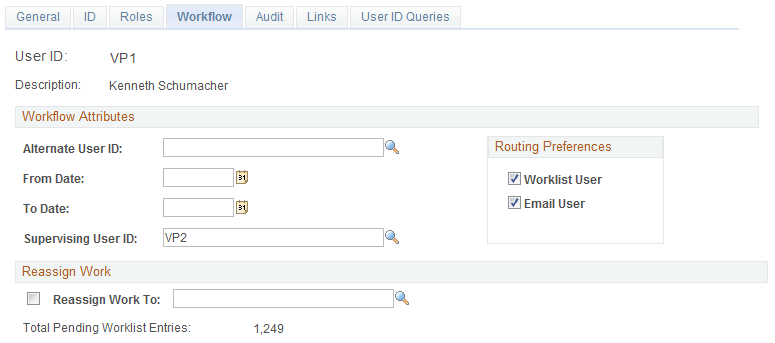
For the requester's user profile, identify the supervisor (Supervising User ID field) who should approve the write-off transactions. The supervisor is important if you are using the SQL definition EOAW_SUPERVISOR_BY_OPRID in the WriteOffApprovers user list. Verify that Worklist User check box and the Email User check box located in the Routing Preferences group box are checked
For the supervisor's user profile, select both the Worklist User check box and the Email User check box located in the Routing Preferences group box.
Use the User Profile-Roles page to enter the roles of the user.
Use the User Profiles - Roles page (USER_ROLES) to attach workflow roles to users. Add the roles with the authority to approve write-off amounts.
Image: User Profile - Roles page
This example illustrates the fields and controls on the User Profile - Roles page.
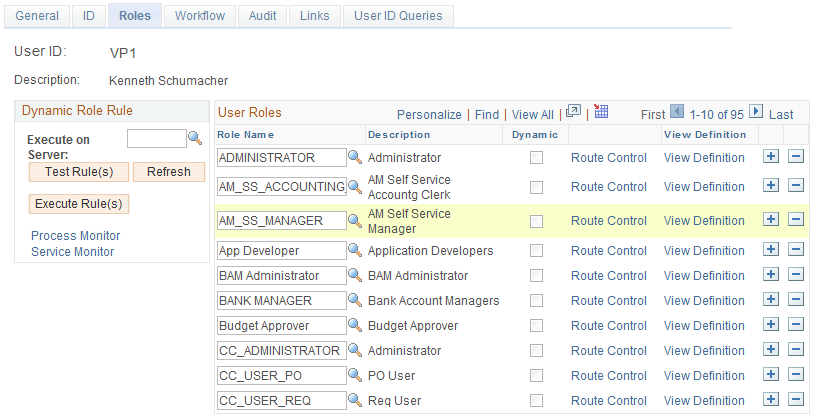
A role is a class of users who perform the same type of work, such as a collector, credit analysis, AR specialist, or manager. A role describes how people fit into workflow. Roles are defined under PeopleTools, Security, Permissions & Roles, Roles. Roles are important because you define a role on the User List Definition page (Enterprise Components, Approvals, Approvals, User List Setup), and then add the role to each user ID with the authority to approve write-off amounts.
Review the Approval Transaction Registry Within the Approval Framework
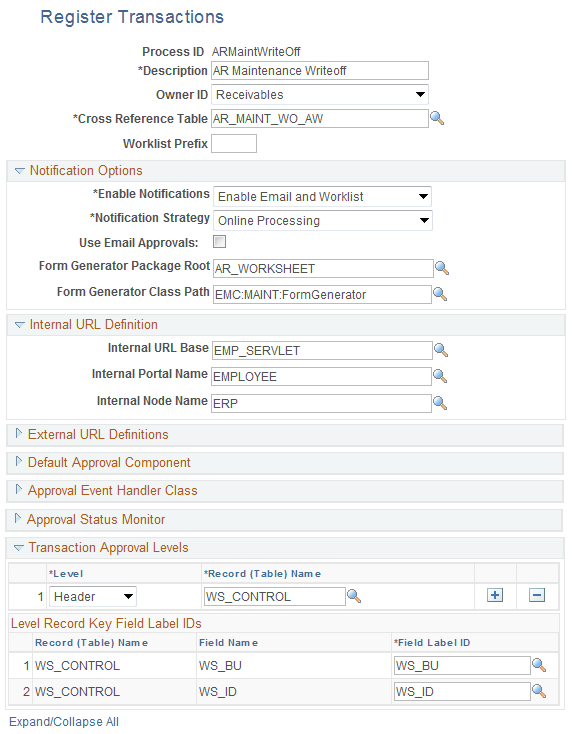
Use the Register Transactions page (EOAW_TXN) to register an application with the approval framework.
The Approval Transaction Registry is the interface application used to register an application with the approval framework. You use the Register Transactions page to link the components, event handler, records, and classes that you created to the approval process for an application transaction. The main records and components that make up the transaction are registered, along with the approval transaction on which to base the approval process definition. The PeopleSoft Receivables transaction registries are delivered as system data.
Most of the fields on this page should not to be changed. The exceptions are the following page elements in the notification options that might require modification to fit your notification preferences.
Within the transaction registry, the following process IDs have been defined in PeopleSoft system data for AR write-offs:
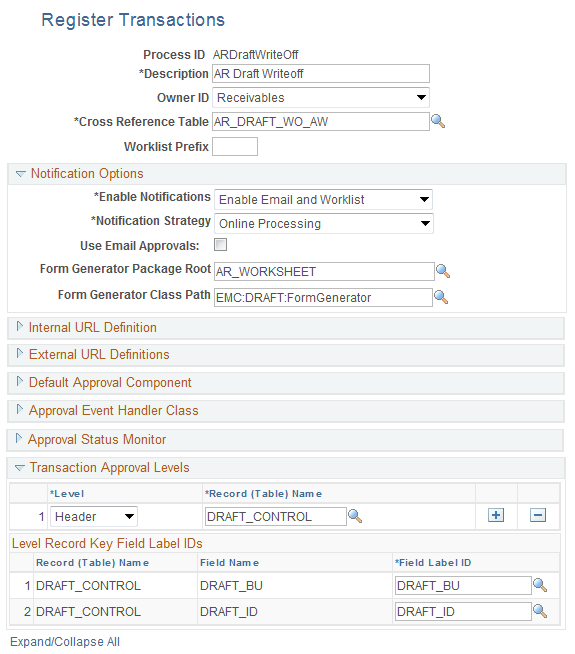
ARDraftWriteOff (AR write-off for the draft worksheet). The transaction registry for the process ID ARDraftWriteOff uses the cross-reference table AR_DRAFT_WO_AW and the default approval component of DRAFT_WORKS_IC. Shows the transaction registry for the AR draft worksheet write-off process, as defined in PeopleSoft system data
Image: Register Transactions page for Process ID ARDraftWriteOff
This example illustrates the fields and controls on the Register Transactions page for Process ID ARDraftWriteOff.
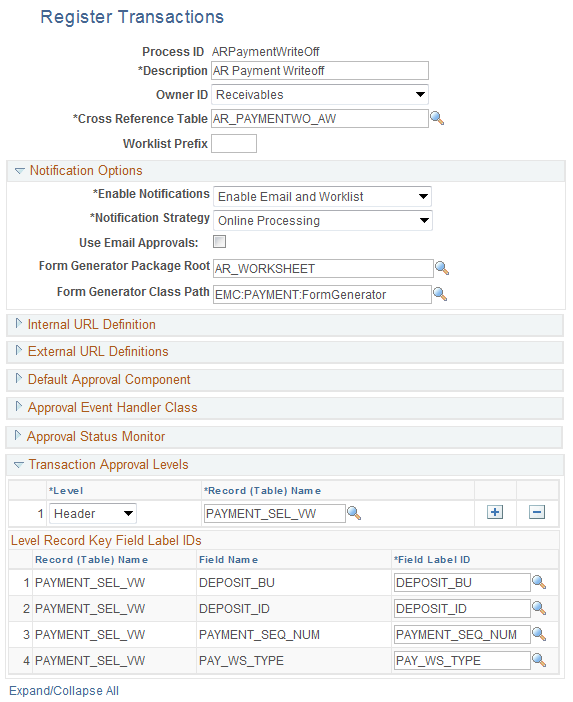
ARPaymentWriteOff (AR write-off for the payment worksheet). The transaction registry for the process ID ARPaymentWriteOff uses the cross-reference table AR_PAYMENTWO_AW and the default approval component of AR_WF_PAY_WO_XFER. Shows the transaction registry for the AR payment worksheet write-off process, as defined in PeopleSoft system data
Image: Register Transactions page for Process ID ARPaymentWriteOff
This example illustrates the fields and controls on the Register Transactions page for Process ID ARPaymentWriteOff.
ARMaintWriteOff (AR write-off for the maintenance worksheet). The transaction registry for the process ID ARMaintWriteOff uses the cross-reference table AR_MAINT_WO_AW and the default approval component of WS_WORKSHEET_IC. Shows the transaction registry for the AR maintenance worksheet write-off process, as defined in PeopleSoft system data
Image: Register Transactions page for Process ID ARMaintWriteOff
This example illustrates the fields and controls on the Register Transactions page for Process ID ARMaintWriteOff.
Configure the Approval Transactions Within the Approval Framework
Use the Configure Transactions page (EOAW_TXN_NOTIFY) to select and define elements that determine what triggers a notification, who receives the notification, and the content of the notification. Notifications are mapped to work with the approval transaction registry and include menus and components and SQL definitions.
The Configure Transactions page uses the same process IDs as the Register Transactions page, including the following process IDs for AR write-offs:
ARPaymentWriteOff
ARDraftWriteOff
ARMaintWriteOff
The table below lists all the delivered Events and Templates tied to each Receivables approval process.
|
Process ID |
Event |
Participant |
Channel |
Template |
|---|---|---|---|---|
|
ARPaymentWriteOff |
On Final Approval |
Requester |
Both |
Payment WO Approved |
|
Push Back |
Approvers |
Both |
Payment WO Push Back |
|
|
On Final Denial |
Requester |
Both |
Payment WO Denied |
|
|
Route for Approval |
Approvers |
Both |
Payment WO Approval |
|
|
Route for Review |
Reviewers |
Both |
Payment WO Review |
|
|
ARDraftWriteOff |
On Final Approval |
Requester |
Both |
Draft WO Approved |
|
Push Back |
Approvers |
Both |
Draft WO Push Back |
|
|
On Final Denial |
Requester |
Both |
Draft WO Denied |
|
|
Route for Approval |
Approvers |
Both |
Draft WO Approval |
|
|
Route for Review |
Reviewers |
Both |
Draft WO Review |
|
|
ARMaintWriteOff |
On Final Approval |
Requester |
Both |
Maint WO Approved |
|
Push Back |
Approvers |
Both |
Maint WO Push Back |
|
|
On Final Denial |
Requester |
Both |
Maint WO Denied |
|
|
Route for Approval |
Approvers |
Both |
Maint WO Approval |
|
|
Route for Review |
Reviewers |
Both |
Maint WO Review |
A channel value of Both means e-mail and worklist notification.
Create or Modify Notification Template Definitions
Use the Generic Template Definition page (WL_TEMPLATE_GEN) to use the Generic Template Definition page to establish a common format for all ad hoc notifications.
Template definitions provide the e-mail content for approval notifications. You can modify the verbiage of the delivered templates or create your own template definitions. However, you must keep the delivered template variables, unless you create your own SQL objects that are referenced on the configuration definition.
Set Up Process Definitions Within the Approval Framework
Use the Setup Process Definitions page (EOAW_PRCS_MAIN) to define workflow approval process stages.
The approval definition process is made up of the stages, paths, steps, and criteria that build a workflow. For the AR write-off approvals, the sample data includes one approval step launched for a write-off amount enter on the payment worksheet, maintenance worksheet, or draft worksheet. You can change the criteria to meet your own specific needs; for example, you can include multiple approvers or launch workflow for write-offs above a certain amount. When setting up write-off approvals, use the following information:
|
Process ID |
Approver User List |
Amount Record |
Amount Field |
|---|---|---|---|
|
ARPaymentWriteOff |
WriteOffApprovers defined on the User List Definition page |
PAYMENT |
WO_ITEM_AMT |
|
ARDraftWriteOff |
WriteOffApprovers defined on the User List Definition page |
DRAFT_CONTROL |
WO_ITEM_AMT |
|
ARMaintWriteOff |
WriteOffApprovers defined on the User List Definition page |
WS_CONTROL |
WS_TOTAL_WO |
See Defining the Setup Process Definitions Component.
To enable write-off approvals in your environment, go to the Criteria Definition page (EOAW_CRITERIA) for the step within the Setup Process Definitions component.
For each process ID:
Verify the Criteria Type field has the value of User Entered.
Within the Field Criteria group box, change the Value field to the threshold write-off amount that should prompt workflow approval. As delivered in the sample data, this Value field contains 999999999. For example, if you change the Value field to 300, then any write-off amount greater than 300 will require approval.
Enable E-mail Approval
PeopleSoft Receivables uses Enterprise Components e-mail collaboration framework for write-off e-mail approval. E-mail approval can be enabled for Draft, Payment and Maintenance worksheet. For you to use this feature, the PeopleSoft Integration Broker must be configured to run, the e-mail collaboration framework must be configured, and all the following Receivables-related Integration Broker objects must be activated:
Service operation AR_DRAFT_EM_APPROVAL
Service operation AR_DRAFT_EM_APPROVAL handler
Service operation AR_DRAFT_EM_APPROVAL routing
Service operation AR_MAINT_EM_APPROVAL
Service operation AR_MAINT_EM_APPROVAL handler
Service operation AR_MAINT_EM_APPROVAL routing
Service operation AR_PYMNT_EM_APPROVAL
Service operation AR_PYMNT_EM_APPROVAL handler
Service operation AR_PYMNT_EM_APPROVAL routing
Queue DRAFT_EM_APPROVAL
Queue PYMNT_EM_APPROVAL
Queue MAINT_EM_APPROVAL
Perform the following setup steps to enable e-mail approval:
Confirm node properties and connectors of node PSFT_EMC_GETMAIL is correctly setup.
Activate the aforementioned service operations (PeopleTools, Integration Broker, Integration Setup, Service Operations). Confirm that Service Operation Security (link on Service Operation page) is tied to a Permission List with Full Access.
Set the Integration Broker queues to Run (PeopleTools, Integration Broker, Integration Setup, Queues).
Select the Use Email Approvals check box on the Register Transactions page.
Provide the Email Approval User List on the Configure Transaction page. PeopleSoft Receivables delivers email approval user list ARWriteOffApprovers. This user list is tied to the new delivered Role Receivables Writeoff Approvers. You will have to add this new role to your users who will be approving write-off transactions directly on the e-mail.
Schedule the PeopleSoft Application Engine program EOAWEMC to read and process e-mail approvals.
See Understanding Email Collaboration and Triggering Email Collaboration.
Set Up URL for E-mail Notifications
This information is system-defined. User must set up the value in the URL EMP_SERVLET
Activate Approval Workflow for Write-Off Amounts
To activate the approval framework for write-off approvals, select the Enable Write-Off Workflow check box on the Receivables Options - Payment Options page (BUS_UNIT_OPT_AR2).
Keep in mind that the Receivables Options component is defined by SetID and linked to business units using the record group ID AR_03 (Business Unit Options) on the TableSet Control - Record Group page (PeopleTools, Utilities, Administration, TableSet Control, Record Group).