Creating and Reviewing Budget Overview Inquiries
The Budgets Overview inquiry component provides summarized and detailed information about activity across several control budgets.
This section discusses how to:
Create budget overview inquiries.
Use the inquiry amount criteria page.
View the budget overview results.
Select budget display options.
Pages Used to Create and View Budget Overviews
|
Page Name |
Definition Name |
Navigation |
Usage |
|---|---|---|---|
|
Budget Overview - Budget Inquiry Criteria |
KK_INQ_LDGR_CRIT |
|
Enter budget criteria to retrieve budget items for display on the Budgets Overview page. |
|
CF Value Set |
CF_VALUE_SET |
Click the Update/Add link on the Budgets Overview - Budget Inquiry Criteria page. |
Displays the ChartField Value Set page for the selected ChartField value sets, where you can add a new ChartField value set row or update the existing rows. The field becomes available if you are using ChartField value sets. |
|
Inquiry Amount Criteria |
KK_INQ_LD_AMT_SEC |
Click the Amount Criteria link on the Budget Overview - Budget Inquiry Criteria page. |
Optionally, you can specify the amount criteria for selecting ledger rows to view on the Budgets Overview - Inquiry Results page if you want further refinement of the data selected. Available if you are using ledger group. |
|
Budgets Overview - Inquiry Results |
KK_INQ_BD_OVW |
Click Search on the Budgets Overview - Budget Inquiry Criteria page. |
View the results of the search criteria that you entered on the Budgets Overview - Budget Inquiry Criteria page. It displays ledger totals across all of selected budgets, as well as detail ledger amounts for each budget, summarized by budget period or by the ChartFields you select on the Budget Display Options page. |
|
Budget Display Options |
KK_INQ_LD_DSP_SEC |
Click Display Options on the Budgets Overview - Inquiry Results page. |
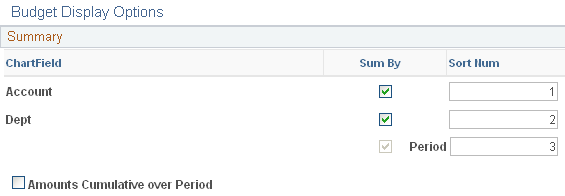
Specify how to summarize ledger rows on the Budgets Overview - Inquiry Results page and the sort order for the rows. |
|
Individual Budgets |
KK_DRL_IND_BD_SEC |
Click the Show Budget Details button on the Budgets Overview - Inquiry Results page. |
Specify which of the budgets making up a summarized row on the Budgets Overview page to view on the Budget Details page. This page is available only when you are viewing summarized ledgers on the Budgets Overview - Inquiry Results page. |
|
Budget Transaction Types |
KK_BD_TRN_TYPE_SEC |
Click the Show Budget Transaction Types button |
Contains budget total information for the criteria specified. |
|
Budget Details |
KK_DRL_BDTL_SEC |
Click the Show Budget Details button for a ledger row on the Budgets Overview - Inquiry Results page or the Individual Budgets page. |
View budget detail for a ledger row that appears on the Budgets Overview - Inquiry Results page. |
|
Budget Detail Attributes |
KK_INQ_BD_DTL_SEC |
Click the Attributes link on the Commitment Control Budget Details page. |
Displays the attributes of the selected budget, which include the start and end budget period, budget status, tolerance percentage, and whether it is a control budget or not. Not all budgets have the begin and end date set up; they only show if they are set up. |
|
Parent & Children Budgets |
KK_INQ_PR_CH_SEC |
Click the Parent/Children link on the Budget Details page. |
Displays whether the budget is a parent budget, a child budget, the currency type, and whether this budget has other parents or children. |
|
Budget Transaction Types |
KK_BD_TRN_TYPE_SEC |
Click the Show Budget Transaction Types button on the Budget Overview - Inquiry Results page. |
Displays the ledger group, account, any associated ChartField values, budget period, and the transactions types and amounts affecting this ledger. |
|
Activity Log |
KK_DRL_ALOG_SEC |
Click an Expense, Encumbrance, Pre-Encumbrance, or Available Budget amount link in a row in the Budget Overview Results group box in the Budget Overview - Inquiry Results page. |
Displays the Activity Log page consisting of a Budget ChartFields tab and Amounts tab showing each transaction ID's ChartFields and amounts. |
Budget Overview - Budget Inquiry Criteria Page
Use the Budget Overview - Budget Inquiry Criteria page (KK_INQ_LDGR_CRIT) to enter budget criteria to retrieve budget items for display on the Budgets Overview page.
Image: Budget Overview - Budget Inquiry Criteria page
This example illustrates the fields and controls on the Budget Overview - Budget Inquiry Criteria page. You can find definitions for the fields and controls later on this page.

| Amount Criteria |
(Optional) Click to open the Inquiry Amount Criteria page, where you specify amount criteria to use when the system selects ledger rows. |
 |
Click to open the Budgets Overview - Inquiry Results page, where you can view the results based on the criteria that you establish on this page. |
 |
Click to remove existing criteria from the page. |
 |
Click to populate dependent fields correctly if you change the business unit, ledger group, ledger inquiry set, or type of calendar while you are entering your inquiry criteria. |
 |
Click to delete this inquiry. |
| Ledger Group/Set |
Select either the Commitment Control Ledger Group or Ledger Inquiry Set whose budgets you want to inquire about. The following field name changes depending on your selection. Note: Setting up a ledger inquiry set enables you to access more than one ledger group and specific Commitment Control budgets in the inquiry. |
| Ledger Group |
If you selected Ledger Group, select the ledger group for your inquiry. |
| Ledger Inquiry Set |
If you selected Ledger Inquiry Set, select one of the inquiry sets that you created. |
| View Stat Code Budgets (view statistic code budgets) |
Select to inquire on statistical budgets. All statistic codes and related Commitment Control activity for the ChartFields you specify in the ChartField Criteria group box appears in the overview. |
| Display Chart |
Select to display an analytical chart of the Commitment Control Budget to Total Activity and Budget to Commitments on the Budget Overview Inquiry Results page. |
 |
Click the Information button to view descriptions of the ChartField criteria field. Note: The Information button always displays information about the field that precedes it. |
| Type of Calendar |
Select the calendar that you want to use for this inquiry:
See Defining Commitment Control Budget Period Calendars. Note: You can inquire by any calendar type. Summary calendars consolidate detail calendars into larger time spans. For example, if you are inquiring upon a ledger group that uses monthly budget periods and you want to view ledger data consolidated by years, use a summary budget period calendar that consolidates monthly budget periods into annual periods. |
| From Budget Period and To Budget Period |
Enter the budget periods that you want to apply to this inquiry. If you are inquiring on a ledger inquiry set—or a ledger group with rule sets using different calendars—more than one row may appear: one for each ledger group in the ledger inquiry set and one for each calendar in the ledger group. Click Select for the ledger group - calendar combinations you want to inquire upon. You must select at least one. The columns that appear depend on the calendar type. |
| Include Adjustment Period(s) |
Click to include closing adjustment entries. This is not the roll forward entries and is the equivalent of including period 999 from the actuals ledger group. |
| Include Closing Adjustments |
Select to include amounts associated with budget closing entries generated from the budget closing process. |
| ChartField Criteria |
Enter the ChartField value range for each ChartField for the budgets that you want to view. You can use theChartField From Value and ChartField To fields to enter a range of values. You can also use the % wildcard. For example, enter 2% in ChartField Value field to see all accounts that begin with 2, such as 200000 to 299999. These types of wildcard combinations are not supported:
The ChartFields that appear depend on the ledger group or ledger inquiry set you select. The page displays only key ChartFields shared by all rule sets in a ledger group or all ledger groups in a ledger inquiry set. The ChartField values are retrieved at translated budget levels. You can select a ChartField value set, which is a predefined set of selection criteria for a given ChartField. You can also click the Update/Add link to modify or add a new ChartField Value Set. |
| Budget Status |
Select one or more check boxes:
|
Inquiry Amount Criteria Page
Use the Inquiry Amount Criteria page (KK_INQ_LD_AMT_SEC) to optionally, you can specify the amount criteria for selecting ledger rows to view on the Budgets Overview - Inquiry Results page if you want further refinement of the data selected.
Available if you are using ledger group.
Image: Inquiry Amount Criteria page
This example illustrates the fields and controls on the Inquiry Amount Criteria page. You can find definitions for the fields and controls later on this page.

Budgets Overview - Inquiry Results Page
Use the Budgets Overview - Inquiry Results page (KK_INQ_BD_OVW) to view the results of the search criteria that you entered on the Budgets Overview - Budget Inquiry Criteria page.
It displays ledger totals across all of selected budgets, as well as detail ledger amounts for each budget, summarized by budget period or by the ChartFields you select on the Budget Display Options page.
Image: Budget Overview Inquiry Results page (1 of 2)
This example illustrates the fields and controls on the Budget Overview Inquiry Results page (1 of 2). You can find definitions for the fields and controls later on this page.
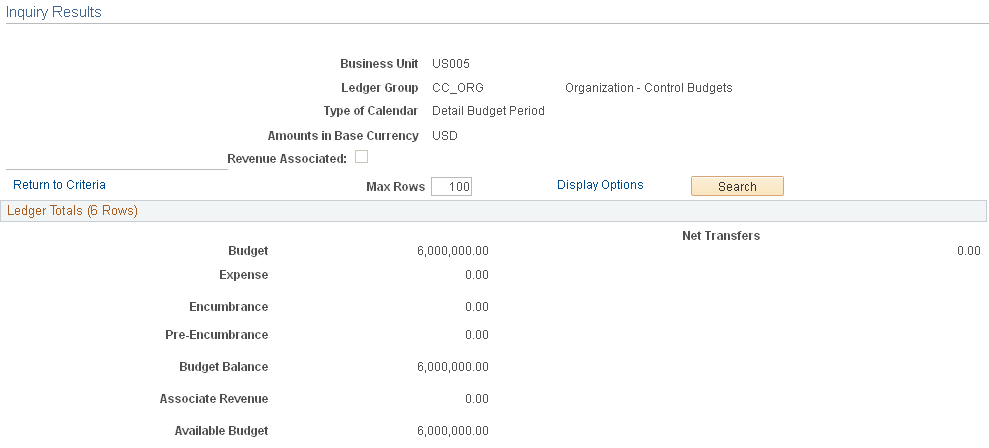
Image: Budget Overview Inquiry Results page (2 of 2)
This example illustrates the fields and controls on the Budget Overview Inquiry Results page (2 of 2). You can find definitions for the fields and controls later on this page.


Ledger Totals
This group box displays the summarized ledger (amount type) totals for the ledger rows fitting the criteria you set on the Budgets Overview - Inquiry Criteria page, along with amounts, such as available budget, calculated from the ledger totals. The amount in parentheses in the group box header represents the total number of rows in the Budget Overview Results scroll area. The ledgers and calculated amount types that appear vary, depending on whether you are viewing expense budgets, revenue budges, or both, and if there are associated budgets for the control budget.
| Available Budget |
For expenditure budgets this is the total of the budgeted amount, including net transfers, minus expenses and minus those commitments (pre-encumbrances and encumbrances) which you defined as affecting the available balance when you defined your ledgers and attached the ledgers to the business unit. See Defining Commitment Control Ledger Names and Ledger Groups. See Setting Up Commitment Control for a Business Unit and GL Ledger Group. |
| Net Transfers |
Total amount of all transfers in and out of the selected budgets. |
| Uncollected Revenue |
Total recognized revenue amount minus the collected amount. This displays if there is associated revenue. |
Chart
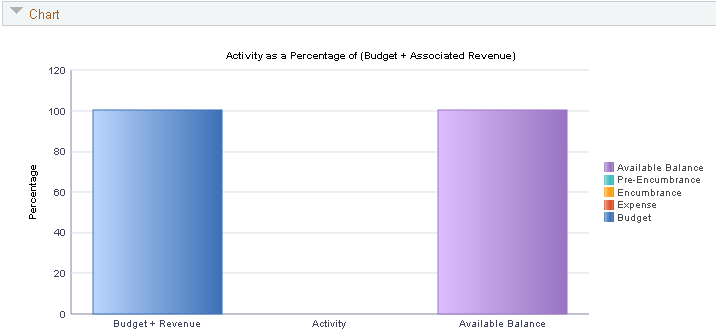
If you selected the Display Chart check box on the Commitment Control Budget Overview - Inquiry Criteria page, you can view the chart on this page. A bar chart displays when a budget exists and a pie chart displays when there is no budget.
Image: Budget Overview - Inquiry Results page: Budget Chart
This example illustrates the fields and controls on the Budget Overview - Inquiry Results page: Budget Chart. You can find definitions for the fields and controls later on this page.
Budget Overview Results
This grid displays the results of your selection criteria and your display options. It displays either detail ledger rows or summarized ledger rows, depending on your selection criteria and your display options.


Budget Display Options Page
Use the Budget Display Options page (KK_INQ_LD_DSP_SEC) to specify how to summarize ledger rows on the Budgets Overview - Inquiry Results page and the sort order for the rows.
Image: Budget Display Options page
This example illustrates the fields and controls on the Budget Display Options page. You can find definitions for the fields and controls later on this page.