
Managing Accounting Entries
This topic lists common elements used to manage accounting entries and discusses how to:
Adjust accounting entries.
Create ad hoc accounting entries.
Review and approve accounting entries.
View the accounting summary.
Reverse accounting entries.
Pages Used to Manage Accounting Entries
|
Page Name |
Definition Name |
Navigation |
Usage |
|---|---|---|---|
|
Accounting Entries |
TRA_ACCTG_LINE |
|
|
|
Treasury VAT Information |
TRV_ACCTG_LINE_VAT |
Click VAT on the Accounting Entries page. |
Review VAT information for a VAT-applicable accounting entry line. |
|
View/Approve Entries |
TRA_ACCTG_LINE |
|
Approve accounting entries that are awaiting review. |
|
Accounting Summary |
TRA_ENT_SUM_PNL |
|
View line-by-line accounting events. You can retrieve information according to ad hoc search criteria and navigate to all functional areas of accounting. |
|
Reverse Accounting Request |
REV_ACCTG_REQ |
|
Run a process to create reversal accounting entries. Note: Accounting entries can be reversed only one time. |
Common Elements Used to Manage Accounting Entries
Accounting Entries Page
Use the Accounting Entries page (TRA_ACCTG_LINE) to review and adjust automated accounting entries.
Create manual accounting entries online.
Image: Accounting Entries page
This example illustrates the fields and controls on the Accounting Entries page. You can find definitions for the fields and controls later on this page.

| Accounting ID |
Displays the ID of the accounting entry. |
| Orig Accounting ID |
Indicates the entry is a reversal entry. Click the link to view the original accounting entry in a separate window. The Description field also identifies whether the entry is a Reversal Accounting Entry. |
| Event |
Displays a descriptive label for the accounting entry, based on the source code value. |
| Source Code |
Displays the accounting entry source, as processed by the Automated Accounting process, or entered on a manual accounting entry. |
| Source ID |
Displays the unique identification number on the source side for the accounting entry. |
| Acctg Date (accounting date) |
Displays the date that the entry was processed through Automated Accounting, or entered as a manual accounting entry. |
| Status |
Indicates the current condition of the accounting entry. Values are: Provisional: The entry is not finalized. You can make any required changes. Error: An error exists within the accounting entry. The system assigns this status—you cannot select it. When you correct an error, change the status to Provisional. After the status has been changed to Provisional, use the View/Approve Entries page to change the status to Final. The entry is then ready for the Journal Generator process—you do not need to reprocess it. Final: The entry is ready for Journal Generator processing and is free from errors. Until the entry is processed through the Journal Generator process, you can continue to make changes to it, even if the status is Final. When the Journal Generator processes the entry, the distribution status changes to Distributed, indicating that it has been posted to a General Ledger journal and no further modifications can be made. |
| Acctg Template (accounting template) |
Displays the name of the accounting template that is attached to the accounting entry. If the accounting template is missing or inactive, Automated Accounting sets the accounting event status to Error. You can reset the Error status for accounting events that have valid templates and reprocess the accounting entries. Note: If you use General Ledger, you can automatically reverse any unrealized gain/loss accounting that is generated by Treasury Management at the next accounting period. You need to create a journal template for this type of treasury accounting and enable the feature for automatic journal reversal. You must assign this journal template to the treasury accounting template for General Ledger to perform the automatic reversals. |
| Error |
Indicates the error source of an automated accounting entry. Values are: None: No error condition exists. This appears when the status is provisional or final. Unbalanced: Debits do not equal credits, or debits and credits are not equal, but refer to different General Ledger business units. CF Combo Error (ChartField combination error): The ChartField generated is invalid. No Exchange Rate: The currency exchange rate for the applicable currency pair is missing. The base amount could not be converted to the accounting entry currency. Account Not Specified: The account was undefined, and the amounts cannot be distributed. IU Processor Error: The centralized processor encountered an error. Review the accounting entries, correct any errors, and click the Update Accounting button to regenerate accounting. |
| Requires Review |
Select this check box to require review of the accounting entries. A check box that is selected and grayed-out indicates that the Review Required check box was already selected on the Template page on which this was based or the Review Manual Updates check box was selected on the Treasury Options page for the Treasury business unit and the accounting entry has been manually updated. |
| Update Accounting |
Click this button if you edit any of the information in the Accounting Entries grids to run the centralized interunit processor. Note: If you are editing information only in the page header (Status field or Requires Review check box), do not click the Update Accounting button. When you click the Update Accounting button on the Accounting Entries page, the system determines whether the Review Manual Updates check box has been selected on the Treasury Options page associated with the Treasury Business Unit. If the Review Manual Updates check box is selected for the business unit, the system sets the accounting event status to Provisional and selects the Requires Review check box. |
| VAT (value-added tax) |
Click this link to access the Treasury VAT Information page (TRV_ACCTG_LINE_VAT). The VAT link appears for VAT-applicable accounting entries. |
| Integration Status |
Displays the status of the integration between Treasury and JD Edwards General Accounting. This field appears only if the integration is enabled on the Installation Options - Treasury page. Values are:
Note: If an entry must be resent, the integration status can be changed to Pending unless the integration status is already displayed as Posted. See Installation Options - Treasury Page. See JD Edwards Application Integrations with PeopleSoft Applications, "Using the PeopleSoft Treasury with JD Edwards General Accounting Integration." |
Line Detail Tab

ChartFields Tab
Select the ChartFields tab.
Image: Accounting Entries page - Chartfields tab
This example illustrates the fields and controls on the Accounting Entries page - Chartfields tab. You can find definitions for the fields and controls later on this page.

Important! If a ChartField combination editing error occurs, an Errors column will appear after the Line # column. An X link will appear next to an transaction line with a ChartField combination error. You click the X link to access an Accounting Entries secondary page, which contains a grid that describes the error message for each transaction. You can click on a transactions Line # link and access the accounting transaction with the ChartField combination error, and fix the problem. See the Accounting Entries subtopic in this section for additional details.
See ChartField Values.
Additional Details Tab
Select the Additional Details tab.
Image: Accounting Entries page - Additional Details tab
This example illustrates the fields and controls on the Accounting Entries page - Additional Details tab. You can find definitions for the fields and controls later on this page.

| Line Source |
Displays either Treasury for accounting lines that are generated by the treasury accounting program, or System IU for accounting lines that are generated by the centralized processor. |
Journal Tab
Select the Journal tab.
Image: Accounting Entries page - Journal tab
This example illustrates the fields and controls on the Accounting Entries page - Journal tab. You can find definitions for the fields and controls later on this page.

Creating Ad Hoc Accounting Entries
On the Accounting Entries page, the Source Code, Source ID, Event, and Accounting Template fields are optional.
If you complete the Source Code, Source ID, and Event fields, the system can create a link between the manual and the automated accounting results.
If you enter entries manually on a recurring basis, you can create and use an accounting template to minimize the data entry process for these entries. Any template that you create appears in the Accounting Template field. When you select an accounting template for this ad hoc entry, the system automatically populates the accounting lines with the template data.
To create ad hoc accounting entries:
Enter the business unit and optionally, an accounting ID. Click Add.
Select an accounting event from the following values:
(none)
AOCI Adjustment
AOCI Reclassify
Amortize Adj of Carrying
Barrier Rebate Payment
Commodity Cash Difference
Commodity Settlement
Deal Booking
Deal Maturity
Derecognize Firm Commitment
Discount Accrual
Fair Value Hedged Item G/L
Fee Accrual
Firm Commitment to Carrying
Forward Points Accrual
Generic Cash Flow
Initial Payment
Interest Accrual
Interim Principal Payment
Mark to Market
Maturity Payment
Option Cash Difference
Option Exercise
Option Premium Accrual
Periodic Payment
Premium Payment
Sell / Buyback
Transaction Fee
Will Not Occur - AOCI Reclassify
Specify a source code.
Select a specific source ID of the selected source code.
Review the accounting date for accuracy.
Leave the default status for ad hoc entries as Provisional. Do not change this setting.
The Require Review check box is automatically selected for ad hoc entries. You cannot deselect this check box.
(Optional) Enter a description.
Select an accounting template.
Enter at least one debit and one credit line to balance the entry, and select one line as the IU anchor.
Enter an account and any other ChartFields for each line.
Select TR_ENTRIES for the journal template.
Click Update Accounting to run the centralized processor function, which creates any necessary offset entry lines and saves the manual accounting entry.
If the debits and credits do not balance, you receive an error message and the accounting entry is not saved. Make the necessary corrections, and then save the page.
Note: When the Journal Generator processes the entry, the distribution status changes from None to Distributed, and no further changes can be made.
View/Approve Entries Page
Use the View/Approve Entries page (TRA_ACCTG_LINE) to approve accounting entries that are awaiting review.
Image: View/Approve Entries page
This example illustrates the fields and controls on the View/Approve Entries page. You can find definitions for the fields and controls later on this page.
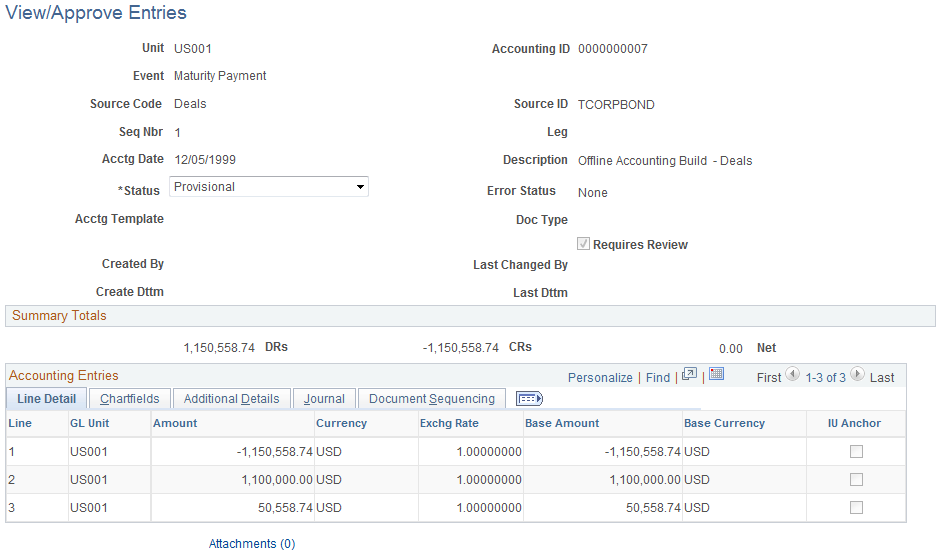
Note: Use PeopleSoft Security functionality to identify which users have access and approval privileges to provisional accounting entries. You can define permission lists and accessible pages for a specific userID. See the product documentation for PeopleTools: Security Administration.
Accounting Summary Page
Use the Accounting Summary page (TRA_ENT_SUM_PNL) to view line-by-line accounting events.
You can retrieve information according to ad hoc search criteria and navigate to all functional areas of accounting.
Understanding Reverse Accounting
Accounting entries that need to be reversed can be identified using various identifiers, such as Accounting ID, Source, and Payment ID. The Reverse Accounting Entries Application Engine process (TR_RVSL_DRVR) does the following:
Selects the accounting data (header, lines, and VAT).
The reversal accounting entry is not linked to a fiscal period.
Reverses the amounts and reset certain statuses and fields (for example, Journal Generator links).
Assigns a new accounting ID to each selected header, lines, and VAT.
The process does not reset the accounting event status associated to the original accounting entry.
Calls document sequencing and ChartField combination editing, when applicable.
Populates the accounting tables with the new data (header, lines, and VAT).
Checks for errors (for example, combination edit, unbalanced entries) and updates the accounting header.
Logs messages summarizing the entries (including type of errors, number of entries created).
When deactivating a deal, you can automatically reverse the accounting entries on the Undo Deal Utility page. When you select the Reverse Accounting check box, you can use additional options to specify the Reversal Date Option and Combo Edit Template. The TRX_UNDO_DEAL Application Engine process uses the entered parameters and calls the Reverse Accounting process.
Reverse Accounting Request Page
Use the Reverse Accounting Request page (REV_ACCTG_REQ) to run a process to create reversal accounting entries.
Note: Accounting entries can be reversed only one time.
Image: Reverse Accounting Request page
This example illustrates the fields and controls on the Reverse Accounting Request page.
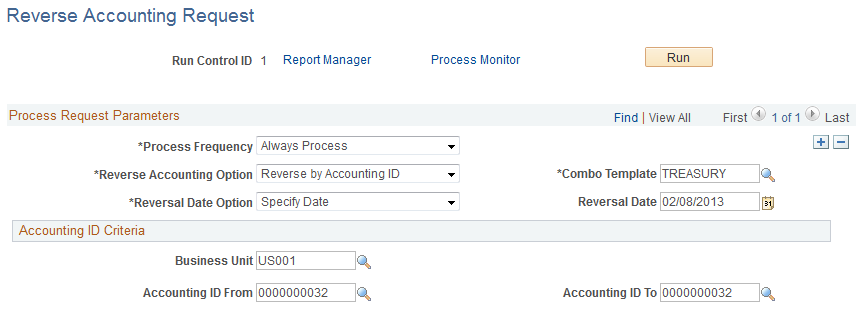
Accounting ID Criteria
This section appears when you select Reverse by Accounting ID in the Reverse Accounting Options field.
Image: Reverse Accounting Request page to reverse by Accounting ID
This example illustrates the fields and controls on the Reverse Accounting Request page to reverse by Accounting ID.
Payment ID Criteria
This section appears when you select Reverse by Payment ID in the Reverse Accounting Options field.
Image: Reverse Accounting Request page to reverse by Payment ID
This example illustrates the fields and controls on the Reverse Accounting Request page to reverse by Payment ID.
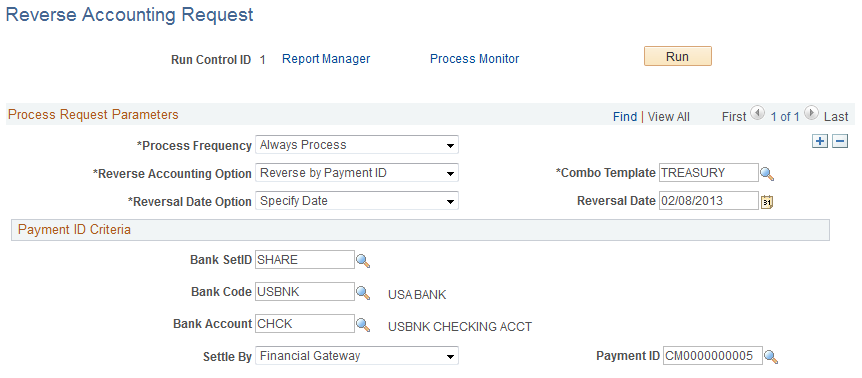
The following fields are required:
Source Criteria
This section appears when you select Reverse by Source in the Reverse Accounting Options field.
Accounting entries created for a source for a specific accounting date can be reversed.
Image: Reverse Accounting Request page to reverse by source values
This example illustrates the fields and controls on the Reverse Accounting Request page to reverse by source values. You can find definitions for the fields and controls later on this page.
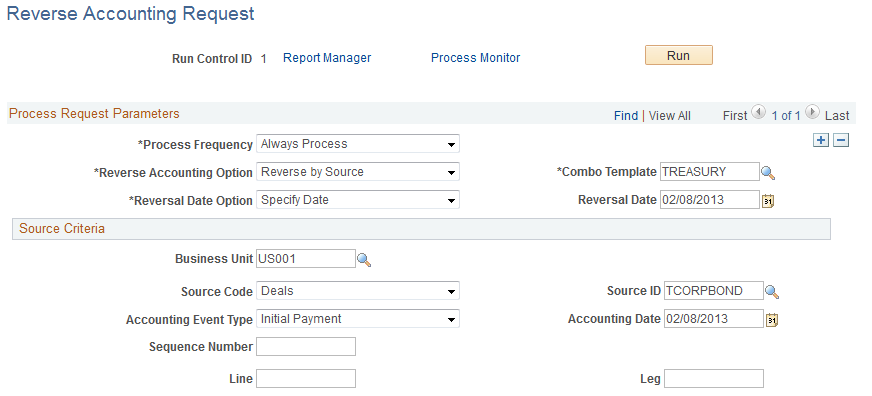
Business Unit, Source Code, and Source ID are required fields for all sources except BSP (bank statement processing).
| Business Unit |
Enter a business unit. |
| Source Code |
Select from the values that appear in the following table. |
|
Source Code Values |
Criteria Used Identify Accounting Entries |
|---|---|
|
BSP |
Bank ID Bank Account Number Transaction Reference ID Transaction Date |
|
Bank Transfers EFT Requests Hedges Interest |
Source ID Accounting Event Type Accounting Date |
|
Deal Fees EFT Fees Facility Fees Investment Pools LC Fees |
Source ID Accounting Event Type Accounting Date Sequence Number |
|
Deals |
Source ID Accounting Event Type Accounting Date Sequence Number Line Leg |