
Creating Purchase Order Schedules
This section discusses how to:
Enter purchase order schedule information.
Enter purchase order schedule one-time address information.
Enter schedule sales and use tax (SUT) information.
Update schedule value-added tax (VAT) details.
Enter schedule details.
Enter schedule price adjustments.
Enter schedule miscellaneous charges.
Enter schedule third-party supplier miscellaneous charges.
Pages Used to Create Purchase Order Schedules
|
Page Name |
Definition Name |
Navigation |
Usage |
|---|---|---|---|
|
Maintain Purchase Order - Schedules |
PO_SCHEDULE |
Click the Schedule button next to a purchase order line on the Maintain Purchase Order - Purchase Order page. |
Specify ship to, quantities, due dates, comments, SUT, miscellaneous charges, price adjustments, and multiple distributions per schedule within a purchase order line. |
|
Item Description |
PO_ITEM_DESCR, PO_ITEM_DESCR2 |
Click the item description link on the Maintain Purchase Order - Schedules page. |
Enter and view descriptions for a specific item. The item description link includes the first 30 characters of the item's description in the Transaction Item Description text box on the Item Description page. |
|
Details for Schedule |
PO_SCHED_DTLS |
Click the Schedule Details button on the Maintain Purchase Orders - Schedule page. |
Review or add schedule details to the selected schedule line. |
|
PO ShipTo Address |
PO_ONE_TIME_ADDR |
Click the Ship To Address button on the Maintain Purchase Order - Schedules page. |
Set up a one-time ship to address for the selected purchase order schedule. You cannot define a one-time address for direct shipment purchase orders. To change the address for a direct shipment you must go to the sales order in PeopleSoft Order Management and make the address change there. |
|
Price Adjustments for Schedule |
PO_VAL_ADJ |
Click the Value Adjustment button on the Maintain Purchase Order - Schedules page. |
Adjust the price of a schedule. |
|
Miscellaneous Charges for Schedule |
PO_SCHED_MISC |
Click the Miscellaneous Charges button on the Maintain Purchase Order - Schedules page. |
Change miscellaneous charges on this schedule. |
|
Schedule - 3rd Party Supplier |
PO_SCHED_MISC_3RD |
Click the Third Party link on the Miscellaneous Charges for Schedule page. |
Select a third-party supplier to whom to pay the miscellaneous charge. |
|
Sales/Use Tax Information for Schedule |
PO_SCHED_SUT |
Click the Sched Sales/Use Tax button on the Maintain Purchase Order - Schedules page. |
Enter the SUT information for the schedule. |
|
VAT Information for a Schedule |
PO_SCHED_VAT |
Click the Schedule VAT button on the Maintain Purchase Order - Schedules page. |
Review and update VAT details for this schedule. This page is accessible only if the General Ledger business unit on the Purchasing business unit links to a valid VAT entity. |
|
Direct Shipment |
PO_SCHED_OM |
Click the Schedule Direct Shipment button on the Maintain Purchase Order - Schedules page. |
View sales order information about a drop-shipment purchase order. The purchase order must have a direct shipment. Drop-ship orders are not eligible for receiving in PeopleSoft Purchasing, because they are normally sent directly to a customer site and received there. |
|
PO ShipTo Comments |
PO_COMMENTS_SEC |
Click the Add Ship To Comments link on Maintain Purchase Order - Schedules page. |
Enter comments for a transaction. You can enter a unique comment, or you can select from predefined standard comments. |
|
Pegging Workbench |
IN_PEG_DETAIL_SP |
Click the Statuses tab on the Maintain Purchase Order - Schedules page. Click the Pegging Workbench button on the Maintain Purchase Order - Schedules page. |
Apply, change, or remove pegs from items. |
|
Pegging Inquiry |
IN_PEG_DETAIL_SP |
Click the Statuses on the Maintain Purchase Order - Schedules page. Click the Pegging Inquiry button on the Maintain Purchase Order - Schedules page. |
View pegging information for line items. |
|
Qualified Distributions page |
PO_DIST_PEG |
Click the Pegging Workbench or Pegging Inquiry buttons on a purchase order schedule that is associated with multiple distribution lines. |
Select the purchase order distribution that you want to maintain or view the pegging information for. |
Maintain Purchase Order - Schedules Page
Use the Maintain Purchase Order - Schedules page (PO_SCHEDULE) to specify ship to, quantities, due dates, comments, SUT, miscellaneous charges, price adjustments, and multiple distributions per schedule within a purchase order line.
Click the Schedule button next to a purchase order line on the Maintain Purchase Order - Purchase Order page.
Image: Maintain Purchase Orders - Schedules page
This example illustrates the fields and controls on the Maintain Purchase Orders - Schedules page. You can find definitions for the fields and controls later on this page.
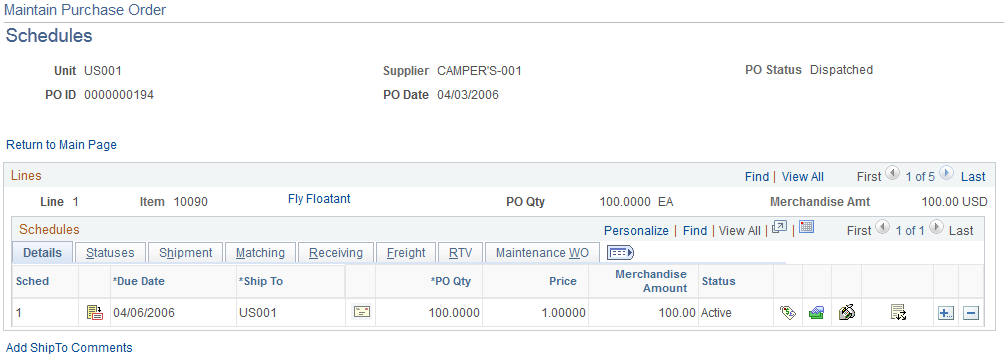
The Schedules page displays header information for the purchase order, such as the purchase order ID, date, and status. The page also displays schedule details for purchase order lines. The Lines group box provides basic information about individual lines and the Schedules grid box provides detailed schedule information.


Note: If a schedule is a PeopleSoft Order Management direct shipment, the system displays a warning when you change, delete, or cancel the schedule. Changes that you make to schedules here that are related to PeopleSoft Order Management do not update the related information in the PeopleSoft Order Management application. You can tell if you have a direct shipment, because the Schedule Direct Shipment button appears on the Maintain Purchase Order - Schedules page, instead of a ShipTo Address button.
Details
Use the Schedules grid box to view and maintain a variety of schedule information for purchase order lines that appear in the grid box. The Details tab enables you to define basic schedule information for the purchase order line.
| Sched (schedule) |
Displays the schedule number used by the system to track multiple schedules for a purchase order line. The system automatically assigns the number. |
 |
Click the Details button to access the Details page where you can view or maintain schedule details. |
| Due Date |
Displays the default due date for the schedule. If there is no default due date, the system calculates one by adding the lead-time days to the purchase order date. You can override the due date for each schedule as long as it is not earlier than the purchase order date. If the item is an inventory item and an Inventory business unit is entered on the first distribution line of the schedule on the Distribution Details page, the due date is validated against the closure calendar definition for the PeopleSoft Inventory business unit. This ensures that the business unit is open to receive merchandise on that day. If the date is not a valid date for that business unit, the system issues a warning for you to accept the date anyway or use the next available date. If the item is not an inventory item, the shipping due date is validated against the closure calendar definition for the PeopleSoft Purchasing business unit. When you create a change order by adding a line to the purchase order on a purchase order that has a due date in the past, the system will populate the due date for the new line with the current date plus lead time days, if a lead time exists for the category. Otherwise, the current date will appear in the Due Date field. When the purchase order is created using the copy from purchase order method, the due date is calculated again. If the resulting calculated date is greater than the due date copied from the copied purchase order, then the calculated date is set as the due date for the new purchase order. If the calculated date is less than the copied due date, the copied due date is retained as the due date in the new purchase order. |
 |
Click the Schedule Direct Shipment button to access the Direct Shipment page. Use the Direct Shipment page to view PeopleSoft Order Management sales order information related to the direct shipment. |
| Ship To |
Ship to destination. A change to the ship to can result in a price change, a sales and use tax recalculation, or a VAT recalculation. |
| Ship To GLM (ship to global location number) |
Displays the global location number for the corresponding ship to location, if available. |
 |
Click the Ship To Address button to access the PO ShipTo Address page. Use this page to set up a one-time ship to address for the selected purchase order schedule. Note: You cannot define a one-time address for direct shipment purchase orders. To change the address for a direct shipment you must go to the sales order in PeopleSoft Order Management and make the address change there. |
| PO Quantity |
The purchase order quantity for the first schedule automatically changes to the entire line quantity. You can override the quantity with a lower number and insert a second schedule for the difference. The purchase order quantity for the second schedule automatically changes to the difference between the line quantity and the quantity on the first schedule. If you update the line quantity and have only one schedule, the system updates the schedule automatically. If you have multiple schedules, you must update the schedules manually so that the total schedule quantity equals the line quantity. Changing the schedule quantity never updates the line quantity. This field is not available for entry for amount only lines. When you change the purchase order quantity or amount by changing the price, the system verifies the distribution method and liquidation methods. If the distribution method is Amount or if the method is Quantity and the liquidation method is Amount, the system does not allow the quantity or amount to be reduced to less than the quantity or amount vouchered. Also when you change the price, the system does not allow you to make changes when there are vouchers matched to the line or schedule. The system provides a message that you should unpost and unmatch the voucher before it allows the change. |
| Price |
The system calculates the price for the items. Price calculations can range from simple to complex, depending on the factors you set up. If there is a contract associated with the line, the system uses the contract rules to determine the price. Contract rules include whether to use the contract base price or the supplier price for the unit of measure on the purchase order. Contract rules also determine which sets of price adjustments the system considers (contract price adjustments and supplier base price adjustments) and in what order. If you are ordering items by description only, you must enter the price manually. While price is not required, if you have entered schedules without prices, you'll get a warning when you save the purchase order. This field is not available if the purchase order is used with a recurring purchase order voucher. |
| Amount |
The system calculates the extended amount as the schedule price multiplied by the schedule quantity. This is the merchandise amount of the schedule. It does not include other amounts associated with the schedule, such as freight and tax. You can override the schedule merchandise amount here, unless the item definition or contract definition for the item on the line does not allow the price to be changed on the purchase order. This field is not available if the purchase order is used with a recurring purchase order voucher. When you change the purchase order quantity or amount by changing the price, the system verifies the distribution method and liquidation methods. If the distribution method is Amount or if the method is Quantity and the liquidation method is Amount, the system does not allow the quantity or amount to be reduced to less than the quantity or amount vouchered. Also when you change the price, the system does not allow you to make changes when there are vouchers matched to the line or schedule. The system provides a message that you should unpost and unmatch the voucher before it allows the change. |
| Status |
Displays the status of the purchase order line schedule. |
 |
Click the Value Adjustment button to access the Price Adjustments page. |
 |
Click the Miscellaneous Charges button to access the Miscellaneous Charges page where you can view and update price information. |
 |
Click the Sched Sales/Use Tax button to access the Sales/Use Tax Information page. See Sales/Use Tax Information for Schedule Page, Sales/Use Tax Information for Schedule Page. |
 |
Click the Distributions/ChartFields button to access the Distributions page. |
Statuses
 |
Click the Create Schedule Change button to change an attribute on the purchase order schedule. This button and functionality are available only if the purchase order is in Dispatched status. When you click this button, all fields defined on the Chng Ord Template (purchase order change template) page become available for entry and can be changed. When you save the purchase order, a change order is created. If approval is required before dispatching it to the supplier, the change order must go through the approval process. |
 |
Click the Cancel Schedule button to cancel the purchase order schedule. This button is available if the purchase order status is Dispatched. If you cancel a dispatched schedule, a change order is created. This button is also available when the purchase order status is Approved, but only if the purchase order was previously dispatched and subsequently changed and approved. To cancel the schedule, you must have the authority to cancel purchase orders on the User Preferences - Procurement: Purchase Order Authorizations page. |
 |
Click the Pegging Workbench button to access the Pegging Workbench page. Use this page to view and maintain the pegging information associated with this purchase order schedule. See Using Pegging with Requisitions in PeopleSoft Purchasing. |
 |
Click the Pegging Inquiry button to access the Pegging Inquiry page. Use this page to view the demand for this purchase order. See Using Pegging with Requisitions in PeopleSoft Purchasing. |
Shipment
Use this tab to define purchase order line shipping details. This information is similar to fields used for the purchase order header. Refer to those fields for additional descriptions.
Matching
Use the Matching tab to view and maintain default price tolerances for the PeopleSoft Payables Matching process (AP_MATCH) that matches purchase orders, receipts, and vouchers to verify supplier charges. If you do not specify tolerance values for the business unit, the system uses tolerance values defined for the item's purchasing attributes.
Receiving
Use the Receiving tab to view and maintain receiving information.
Freight
Use the Freight tab to view and update information about freight terms for this schedule.
RTV
Use the RTV (return to vendor) tab to define exchange returns to vendors associated with this purchase order line schedule. By assigning the RTV information, the PO schedule is identified as the order of the item being exchanged for the item on the return to vendor. A return to vendor for exchange will not be eligible for closing until the exchange item is identified on a PO schedule.
Note: When the due date is changed for a fully-received schedule, the system checks for any supplier returns for that schedule. If there is a return to vendor, the system prevents you from changing the date.
Maintenance WO
Use the Maintenance WO (maintenance work order) tab to define information work order details.
Note: This will not appear on this page if PeopleSoft Maintenance Management is not installed.
If the purchase order was created through the PeopleSoft Purchasing sourcing processes the work order information fields on this page will already be populated with the values that came through the sourcing processes. If work order information does not already exist you can manually associate the work order information with the purchase order using the fields on this page. This page is used to associate non-inventory and ad hoc (description-only) items to purchase order schedules with a work order. If work order information is specified, then all distributions are associated with the work order specified. Use the Pegging Workbench to associate inventory items to a work order.
When you associate a work order with a purchase order the system will copy the distributions from the work order parts template, including distribute by method, distribution percentage, general ledger business unit, ChartFields, and projects information.
| Maintenance WO Unit (PeopleSoft Maintenance Management work order business unit) |
Select the PeopleSoft Maintenance Management business unit. |
| Maintenance WO (maintenance work order) |
Select the work order you want to associate with this purchase order. |
| Task Number |
Select the work order task number. |
| Resource Type |
Select the type of resource you are defining a purchase order for. Values are:
|
| Resource Line No. (resource line number) |
Select the resource line number associated with the work order, work order task, resource type entered. If the ad hoc (description only) item on the purchase order line doesn't exist on the work order, you can leave the resource line blank. At save, the system will add the ad hoc (description only) item to the work order task. |
| Custom Fields |
The user definable fields in this Custom Fields section are available when you check the Enable Custom Fields checkbox on the Purchasing Installation Options page. You can customize these fields for your use. The custom fields are informational only. . For more information on Custom Fields SeeUnderstanding User-Definable Fields |
Changing Work Order Information
If the purchase order distributions are associated with a requisition, you must clear the requisition before you can change the work order information. Also, if the work order is associated with the purchase order schedule (non-inventory and ad hoc (description-only) lines), when you make a change to the purchase order and reopen the quantity back on the requisition, the system will reopen the requisition pegs to the work order. Changes that can cause this behavior are reducing quantity, canceling a distribution, and deleting a distribution. If the purchase order is for an inventory item, reopening the requisition quantity does not reopen the pegs. You must manually redo the pegging.
PO ShipTo Address Page
Use the PO ShipTo Address page (PO_ONE_TIME_ADDR) to set up a one-time ship to address for the selected purchase order schedule.
You cannot define a one-time address for direct shipment purchase orders. To change the address for a direct shipment you must go to the sales order in PeopleSoft Order Management and make the address change there.
Note: This page is not available for direct shipment purchase orders.
One Time Address
Sales/Use Tax Information for Schedule Page
Use the Sales/Use Tax Information for Schedule page (PO_SCHED_SUT) to enter the SUT information for the schedule.
| Calculate SUT (calculate sales and use tax) |
Click this button to run the TaxCalc API process, which calculates the sales and use tax. Use this option when Vertex or Taxware is installed. |
Calculation Parameters
Note: The Include Vat, Include Freight, and Include Misc Charges calculation parameters appear by default from the Ship To Location Sales/Tax setup page.
Exception Handling
These exceptions apply to the Schedule Sales/Use Tax Information page:
If the SUT exception type is exempt or exonerated for the ship to location, the system does not call the TaxCalc API to calculate the exception.
If the SUT exception type is direct pay, the system updates the defaults on the SUT Excptn Cert (SUT exception certificate) with the direct pay permit from the ship to location and calls the TaxCAl API to update calculations.
If the SUT applicability is sales and the exception type is none, then send the ship to, ship from, POA, POA address, and geocodes, along with the extended amounts, to the TaxCalc API. Sales tax amounts are updated accordingly and distributed to purchase order lines.
If the SUT applicability is use and the exception type is none, then send the ship to, ship from, POA, POA address, and geocodes, along with the extended amounts, to the TaxCalc API. Set the transaction type to 1 - sales. Sales tax amounts are updated accordingly and distributed to purchase order lines.
VAT Information for a Schedule Page
Use the VAT Information for a Schedule page (PO_SCHED_VAT) to review and update VAT details for this schedule.
This page is accessible only if the General Ledger business unit on the Purchasing business unit links to a valid VAT entity.
Expanding and Collapsing Sections
To manage the VAT data more efficiently, you can expand and collapse sections on this VAT page making it easier to manage the information on this page.
Physical Nature
VAT Locations
VAT Defaults
Adjust/Reset VAT Defaults
Any changes that you make to fields on this page may affect VAT defaults on this page. For accuracy and consistency, use these fields to adjust affected VAT defaults or to reset all VAT defaults. Adjusting or resetting VAT defaults only affects fields within the VAT Defaults group box.
Details for Schedule Page
Use the Details for Schedule page (PO_SCHED_DTLS) to review or add schedule details to the selected schedule line.
Image: Details for Schedule page
This example illustrates the fields and controls on the Details for Schedule page. You can find definitions for the fields and controls later on this page.
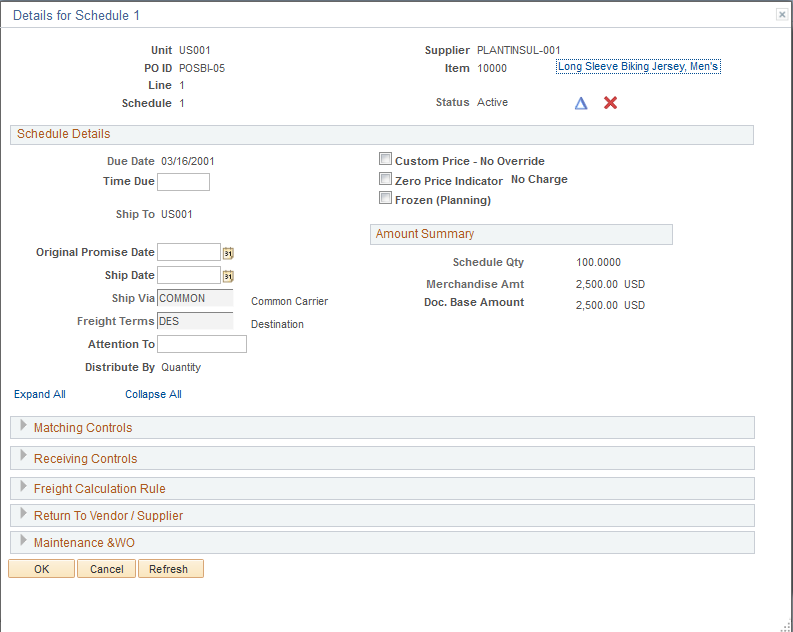
| Status |
Purchase order schedule status. Values are: Active, Canceled, or Closed. |
Schedule Details
Matching Controls
Matching Tolerance
When you use matching to verify supplier charges, the system uses price tolerances to determine whether the purchase order and voucher prices are within the tolerances and thus whether the purchase order and purchase order voucher match.
If you leave any of the tolerance fields set to zero or blank, the system interprets this to mean a zero tolerance.
If you don't want to use the tolerance fields, set the amount fields to 99999999.99999 and the percentage fields to 100%.
If you match vouchers against amount-only purchase order lines, multiple vouchers are likely to exist for the same purchase order schedule line. In this case, the under tolerance matching tolerances should not apply. To prevent under tolerance matching exceptions for non-received amount only lines you can do one of these options:
Enter 99999999.99999 in the under tolerance fields for matching to a purchase order.
Use Accounts Payable matching rules.
You can specify multiple matching rules on a purchase order, and on those rules, you can choose to use purchase order tolerances or not. You can modify existing delivered rules (by changing the SQL), or create your own rules that eliminate checking the purchase order lower tolerance percentages for amount only purchase order lines.
Receiving Controls
Freight Calculation Rule
| Freight Charge Override |
Select this check box to override the freight charge set on the Purchase Order Defaults page with the values entered on this page. |
Maintenance WO (maintenance work order)
Displays the PeopleSoft Maintenance Management work order information that you previously entered on the Maintain Purchase Order - Schedules page.
You can change the work order information field values on this page and the changed values will be reflected on the Maintain Purchase Order - Schedules page.
Note: The Maintenance WO section will not appear on this page if PeopleSoft Maintenance Management is not installed.
Price Adjustments for Schedule Page
Use the Price Adjustments for Schedule page (PO_VAL_ADJ) to adjust the price of a schedule.
Value Adjustments
System Adjustment Info
If you have a contract or an item-supplier relationship on the line, there may be price adjustments associated with the item. The price adjustments associated with the item appears in the System Adjustment Info group box.
Miscellaneous Charges for Schedule Page
Use the Miscellaneous Charges for Schedule page (PO_SCHED_MISC) to change miscellaneous charges on this schedule.
| Adjusted Price |
Displays the price on the schedule including any price adjustment amounts. |
| Current Price |
Displays the current price on the schedule. |
Misc. Charges
More Details
Select the More Details.
Schedule - 3rd Party supplier Page
Use the Schedule - 3rd Party supplier page (PO_SCHED_MISC_3RD) to select a third-party supplier to whom to pay the miscellaneous charge.